
Overview of SPLRemote Studio V6.20
Table of Contents
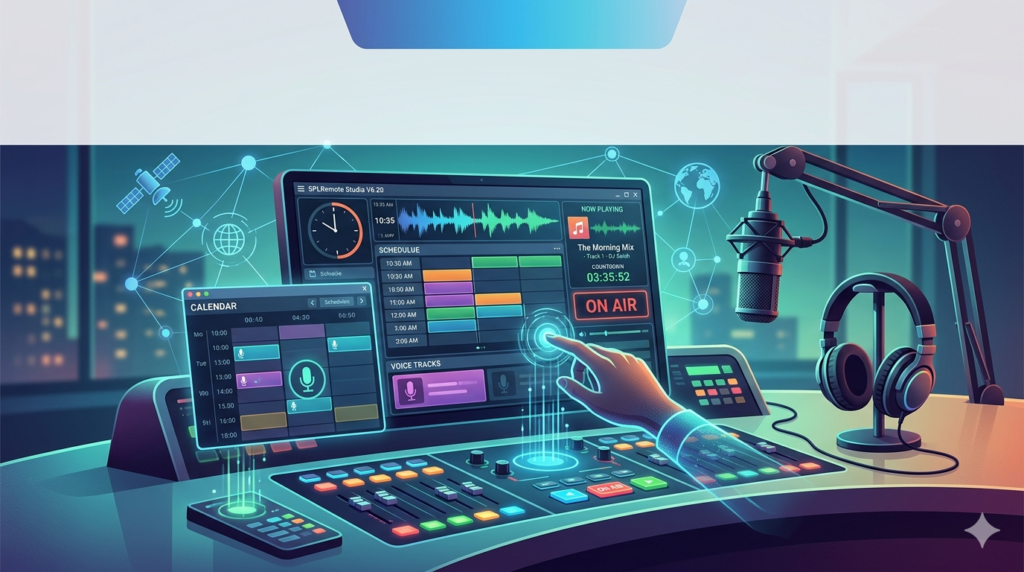
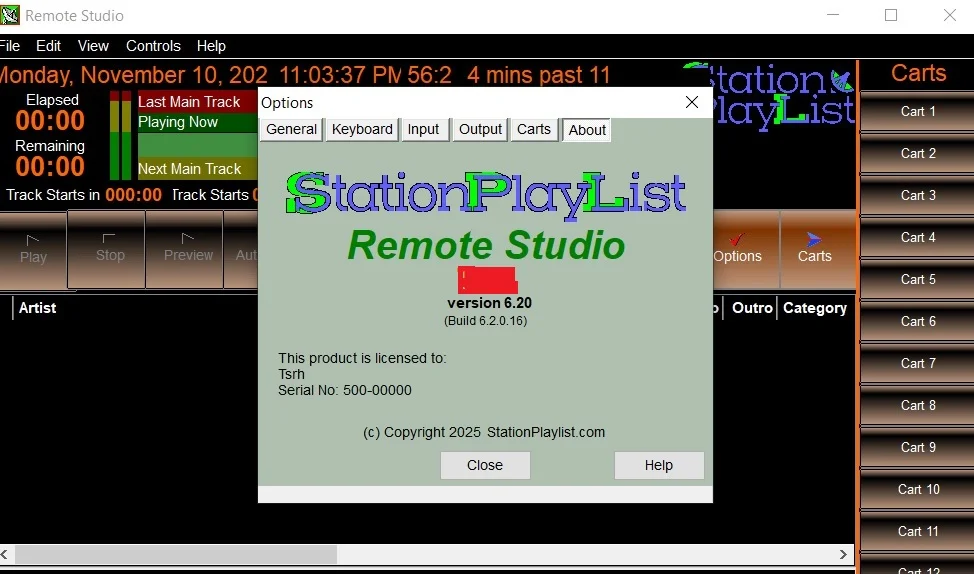
SPLRemote Studio V6.20 is a professional-grade, Network Edition software solution designed for radio broadcasters, internet stations, and automation engineers. Unlike basic media players, this software focuses on advanced scheduling and voice tracking automation, allowing a single operator to manage multiple stations or shifts remotely.
This latest version prioritizes remote production workflows. It allows broadcasters to record voice tracks, schedule music logs, and manage playout systems from any location without losing studio-grade quality. For radio groups looking to reduce operational costs while maintaining 24/7 content freshness, V6.20 offers a legally compliant, server-based architecture.
Key Features of SPLRemote Studio
Understanding the core feature set helps users determine if this tool fits their broadcast ecosystem.
Advanced Scheduling Engine
The scheduling engine is the brain of the operation. It supports complex rules-based rotations, category-based logging, and voice track slotting. Users can build playlists weeks in advance using clock wheels and automation logic.
Remote Voice Tracking (Voice Tracking Automation)
This is the flagship feature. DJs and presenters can connect via a client interface to record their breaks, liners, and sweepers. The system automatically ducks the music bed and aligns the voice track perfectly within the playlist.
Multi-Station Control (Network Edition)
Administrators can manage multiple radio stations from a single dashboard. The network edition allows for shared databases, centralized music libraries, and user permission levels.
Third-Party Integration
It supports standard audio file formats (MP3, WAV, AAC) and interacts with popular audio editors like Adobe Audition or Audacity for post-production.
What’s New in the Latest Version (V6.20)
Since software optimization is critical for stability, V6.20 introduces several key enhancements over previous iterations:
-
Improved Database Connectivity: Native support for modern SQL servers, increasing log generation speed by up to 40%.
-
Enhanced UI for Remote Operators: A redesigned, latency-responsive interface specifically for remote voice tracking sessions.
-
Advanced Failure Protection: New server heartbeat monitoring prevents dead air by automatically switching to backup playout servers.
-
Faster Audio Encoding: Optimized mp3 encoding algorithms that reduce file transfer times during remote recording.
System Requirements
Before installing, verify your infrastructure meets these technical specifications to ensure smooth operation of the scheduling automation.
Server Requirements (Network Edition Host)
-
Operating System: Windows Server 2019 or 2022, Windows 10/11 Pro (64-bit)
-
Processor: Intel Core i5 or higher (Xeon recommended for multi-station)
-
RAM: 8GB minimum (16GB recommended)
-
Storage: 500GB SSD for database and audio cache
-
Network: Gigabit Ethernet with a static IP
Remote Client Workstation
-
Operating System: Windows 10 or 11 (64-bit)
-
Processor: Intel Core i3 or AMD equivalent
-
RAM: 4GB
-
Audio Interface: Any Windows-compatible sound card (ASIO drivers recommended for low latency)
Installation Guide
Installing SPLRemote Studio requires server-client architecture. Follow this legal and safe installation method.
Step 1: Install the Database Engine
First, install the provided SQL database instance on your host machine. This houses your music library, logs, and user profiles.
Step 2: Deploy the Server Core
Run the installer labeled “Network Edition.” Choose “Server Installation.” Configure your firewall to allow TCP ports defined in the setup wizard (default port usually 8000-8005).
Step 3: Client Setup
On the remote DJ’s computer, run the client installer. Input the host server’s IP address, username, and password provided by the administrator.
Step 4: Audio Device Mapping
Navigate to Settings > Audio Devices. Map your microphone to Input 1 and your monitor speakers to Output 1. Test the audio path before voice tracking.
How to Use the Software for Voice Tracking Automation
To maximize productivity, here is a workflow for a remote presenter using V6.20.
-
Login to Remote Studio: Launch the client and connect to the central server.
-
Load a Clock: Open the scheduler and select the pre-built clock wheel for your timeslot (e.g., “Afternoon Drive”).
-
Generate the Log: Click “Generate Log.” The software will pull compliant songs from the database based on rotation rules.
-
Record Voice Tracks:
-
Locate the “Voice Track” button on the log row.
-
Press record. The system plays the intro of the next song.
-
Speak your content. The software records only your voice.
-
Stop recording. The software automatically trims silence.
-
-
Preview the Mix: Use the “Preview” function to hear the song intro, your voice track, and the song outro crossfaded seamlessly.
-
Export to Playout: Send the completed log to the playout system (or save it for the automation scheduler).
Best Use Cases
Different broadcast models benefit from this specific type of advanced scheduling tool.
-
Small Market Radio: One host can voice track evenings, overnights, and weekends for three different stations in the same cluster from a home studio.
-
College Radio Stations: Multiple students can schedule their shows remotely during holidays, ensuring 24/7 content without supervision.
-
Internet Radio Networks: Global teams operating across time zones can produce localized content for specific regions without needing physical access to the server room.
-
Christian & Community Broadcasters: Efficiently manage limited volunteer availability by allowing pre-recording of sermons and community announcements.
Advantages and Limitations
A trustworthy review includes both strengths and weaknesses.
Advantages (Pros)
-
Cost Efficiency: Reduces need for physical studio presence for every time slot.
-
Consistency: Automation ensures no dead air or technical glitches from live operators.
-
Scalability: The network edition easily adds 10+ users without performance loss.
-
Legal Compliance: Fully licensed software with audit trails for music royalty reporting.
Limitations (Cons)
-
Learning Curve: The scheduling logic (category rules, separation settings) is complex for beginners compared to simple media players.
-
Windows Only: No native MacOS or Linux client for remote workstations (requires Parallels or similar).
-
UI Aging: The interface looks dated compared to modern cloud-based competitors like Airtime Pro.
Alternatives to SPLRemote Studio
For users seeking different features, consider these legitimate alternatives.
| Software | Best For | Key Difference | Platform |
|---|---|---|---|
| StationPlaylist Creator | Live assist & automation | Better for live DJ mixing; less robust for remote voice tracking | Windows |
| Rivendell | Large-scale enterprise | Open-source, but requires Linux admin knowledge | Linux/Windows |
| Airtime Pro | Cloud-native stations | No server hardware needed; monthly SaaS subscription | Web browser |
| RadioDJ | Hobbyist/Free users | Completely free, but lacks enterprise-grade support | Windows |
Frequently Asked Questions (FAQ Optimization)
1. Is SPLRemote Studio V6.20 compatible with Windows 11?
Yes, the latest version is fully compatible with Windows 11 (64-bit) for both server and remote client installations, provided you meet the minimum RAM and processor requirements.
2. Can I use SPLRemote Studio for live broadcasting as well as automation?
Absolutely. While its strength is voice tracking automation, you can use it in “Live Assist” mode, where the DJ manually triggers songs and sound effects while overriding the schedule.
3. How does the advanced scheduling handle song rotation to prevent repeats?
The software uses rules-based scheduling (e.g., “Don’t play the same artist for 90 minutes” or “Separate Rock songs by at least 2 Pop songs”). It tracks history logs to enforce strict separation.
4. Does this software require an internet connection for remote voice tracking?
Yes, for the remote client to connect to the central network edition server, a stable broadband internet connection is required. However, the server can run offline on a local area network if not using remote talent.
5. What audio file formats are supported for import?
V6.20 supports MP3 (up to 320kbps), WAV (16-bit/44.1kHz), AAC, and OGG Vorbis. It does not natively support FLAC due to broadcast file size standards.
6. Is training available for the scheduling logic?
Yes. The developer provides a PDF manual and video tutorials. Third-party broadcast consultants also offer certified training for complex clock-wheel design.
7. Can I migrate my music library from a different automation software?
Yes. SPLRemote imports standard CSV, M3U, and PLS playlist files, along with ID3 tags from your existing MP3 collection.
Final Thoughts
SPLRemote Studio V6.20 remains a dominant force for broadcasters requiring remote voice tracking without moving to the cloud. While the user interface shows its age, the underlying scheduling automation engine is rock-solid and designed for serious uptime.
For radio station owners looking to centralize operations or weekend hosts wanting to pre-record shows from home, this software provides a legitimate, professional-grade solution. Ensure you download the trial directly from the developer’s site to test the Network Edition features before committing to a license.
Our Paid Service
“We do not sell or provide any software. We only offer professional support services. If any software on your system is not working properly, or you are facing installation errors, crashes, or any other technical issue — just contact us. We will help you fix the problem quickly and remotely via AnyDesk. No software will be provided from our side — only expert troubleshooting and support.”