
Overview of BroadcastThings Connect
Table of Contents
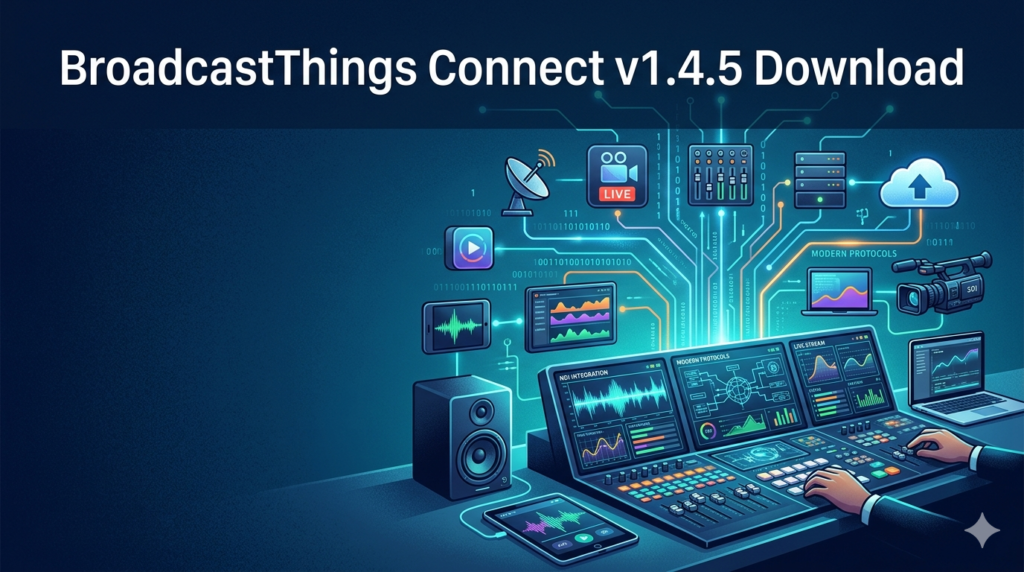
BroadcastThings Connect v1.4.5 is a specialized middleware solution designed to bridge the gap between legacy broadcast infrastructure and modern IP-based production environments. This software addresses a critical pain point for media professionals: interoperability between devices using different communication protocols.
Unlike traditional media asset management tools, BroadcastThings Connect focuses on real-time translation and routing of control data. It allows a video server using VDCP to communicate with a router controlled by Sony BVU protocol, effectively acting as a universal translator for your studio. This latest version focuses heavily on NMOS IS-04 and IS-05 support, solidifying its role in the transition to Software-Defined Video over IP (SDVoE).
Who Should Use This Software?
This tool is essential for broadcast engineers, system integrators, and facility managers who are currently struggling with hybrid SDI/IP infrastructures or need to automate workflows involving disparate brands of equipment.
Key Features of BroadcastThings Connect
The software stands out due to its technical depth. Below are the core functionalities that define this utility.
Multi-Protocol Engine
-
Legacy Support: RS-422 (Sony 9-pin), VDCP (Video Disk Control Protocol), and GPIO.
-
IP Standards: NMOS (Networked Media Open Specifications), RIST (Reliable Internet Stream Transport), and SCTE-104 for ad insertion triggers.
Visual Routing Matrix
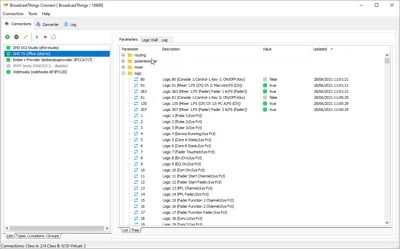
The interface provides a customizable grid interface. Users can drag and drop sources to destinations. The software automatically translates the command into the required protocol for the destination device.
HAutomated Device Discovery
Using mDNS (Multicast DNS) and the NMOS IS-04 registry, version 1.4.5 can scan a local subnet and automatically populate a list of compatible senders and receivers, reducing manual configuration time by approximately 60%.
API-First Architecture
For advanced users, BroadcastThings Connect offers a RESTful API. This allows third-party automation systems (like Bitfocus Companion or Ross OverDrive) to trigger connections via simple HTTP POST requests.
What’s New in Version 1.4.5
The development team has focused on stability and security in this iteration.
-
NMOS IS-05 Connection Management: Native support for querying and managing active connections between NMOS compliant devices.
-
TLS 1.3 Encryption: All API and web interface traffic now supports modern encryption standards, crucial for remote production security.
-
JPEG XS Metadata Passthrough: Improved handling of lightweight compression metadata for low-latency remote contribution feeds.
-
Bug Fixes: Resolved a memory leak issue occurring during extended routing sessions (24/7 operation) involving RIST streams.
System Requirements
To run BroadcastThings Connect v1.4.5 efficiently, your hardware must meet the following specifications.
Minimum Specifications
-
OS: Windows 10 IoT Enterprise LTSC 2021, Ubuntu 20.04 LTS, or CentOS 7
-
CPU: Intel Core i5 (4 Cores) @ 2.4 GHz
-
RAM: 8 GB DDR4
-
Storage: 10 GB SSD (NVMe recommended for logging)
-
Network: 1 Gigabit Ethernet (Dual NIC recommended)
Recommended Specifications
-
OS: Windows 11 Pro / Ubuntu 22.04 LTS
-
CPU: Intel Xeon E-2288G or AMD Ryzen 7 (8 Cores)
-
RAM: 16 GB ECC RAM
-
Storage: 256 GB NVMe SSD
-
Network: Dual 10 Gigabit Ethernet (SFP+ supported)
Installation Guide
Installing the software requires administrative privileges. Follow this step-by-step guide for a standard network installation.
Step 1: Environment Preparation
-
Ensure your control PC is on the same VLAN (Virtual Local Area Network) as the broadcast devices you intend to control.
-
Disable Windows Firewall or create an inbound rule for ports 8000-8005 (TCP).
Step 2: Running the Installer
-
Download
broadcastthings_connect_v1.4.5_setup.exeor.debfrom the official portal. -
Right-click the installer and select “Run as Administrator.”
-
Accept the EULA (End User License Agreement).
-
Choose “Full Installation” (includes web server and database engine).
Step 3: Initial Service Activation
Upon first launch, the software generates a unique Machine ID. You must enter a valid license key purchased from BroadcastThings. Navigate to Settings > Licensing to activate the perpetual or subscription license.
How to Use the Software
This section explains the standard workflow for connecting a legacy video server to a modern IP router.
Configuring Inputs and Outputs
-
Launch the desktop client or navigate to
https://localhost:8000in your browser. -
Go to Discovery > Scan Subnet. Wait for the software to list devices (e.g., “Odyssey Video Server” on VDCP, “Nevion IP Gateway” on NMOS).
-
Manually add legacy devices: Click Add Device, select protocol (VDCP), and enter the serial IP address and port.
Building the Crosspoint
-
Open the Matrix View.
-
Find your source (e.g., “Playback 1 – Video Server”).
-
Click the crosspoint cell intersecting with your destination (e.g., “Transmitter 1 – IP Gateway”).
-
Click Take. The software sends a “Play” command to the server and a “Route” command to the gateway simultaneously.
Best Use Cases
BroadcastThings Connect is not a general utility; it solves specific high-value problems.
-
Hybrid SDI/IP Control Rooms: Maintain control of legacy SDI routers while introducing IP gateways without replacing the entire infrastructure.
-
Remote Production (REMI): Connect a control panel in a central hub to a camera located in a stadium using RIST, maintaining tally and CCU control.
-
Automated Playout: Integrate a legacy AirBox video server with a modern audio console via GPIO triggers for commercial insertion.
-
Educational Facilities: Allows universities to teach broadcast engineering using a mix of donated older equipment and new off-the-shelf IP cameras.
Advantages and Limitations
Advantages
-
Vendor Agnostic: Reduces dependency on single manufacturers for routers and servers.
-
Low Latency: Protocol translation happens in microseconds; it does not buffer video frames.
-
Logging: Maintains a time-stamped audit trail of all routing changes (SMPTE 2021-7 compliant).
Limitations
-
No Video Processing: This software controls routing but does not transcode video resolutions or frame rates.
-
Learning Curve: Users need a basic understanding of serial communication (RS-422) and IP networking (subnet masks, IGMP snooping).
-
Licensing Cost: Enterprise features (HA failover, 10Gbe NIC support) require a Professional license rather than the Standard tier.
Alternatives to BroadcastThings Connect
If this software does not fit your budget or architecture, consider these alternatives.
| Software | Protocol Focus | Platform | Best For |
|---|---|---|---|
| Trialog BlueBox | Ember+, MOS, MCS | Windows/VM | Newsroom automation bridging |
| Lawo VSM (Virtual Studio Manager) | Ember+, Serial, GPIO | Linux/Docker | Large-scale router control panels |
| Toolfarm GFX Mon | VDCP, BVW | Windows | Legacy video server control only |
| Sony IP Live System Manager | NMOS (Full stack) | Hardware/VM | Greenfield Sony-only IP studios |
When to choose an alternative
If your facility is 100% IP native, the Sony IP Live System Manager offers deeper integration. If you only need to play out graphics files, Toolfarm GFX Mon is cheaper. However, for bridging different ecosystems, BroadcastThings Connect remains the market leader.
Frequently Asked Questions
Is BroadcastThings Connect compatible with macOS?
Currently, version 1.4.5 supports Windows and Linux natively. Mac users can run the Linux build inside a Docker container or via a Ubuntu VM, though bare-metal performance is recommended for production.
Can I use this software to control PTZ cameras?
Yes, but only if the PTZ controller uses a supported serial protocol (VISCA over IP or Pelco). It supports routing logic but does not include joystick mapping for PTZ movement.
Does the software require an internet connection to function?
No. Once installed and activated, the software operates entirely on your local area network. The NMOS registry and API functions work offline, ensuring broadcast security compliance (air-gapped networks).
How do I migrate settings from v1.3.0 to v1.4.5?
Navigate to System > Backup in the old version to export a .json configuration file. In the new version, use System > Restore. Note that NMOS discovery caches must be rebuilt after the upgrade.
What is the difference between a Standard and Professional license?
The Standard License supports up to 64 crosspoints and 1GbE NICs. The Professional License unlocks unlimited crosspoints, 10GbE DPDK (Data Plane Development Kit) drivers for zero-copy performance, and Active-Standby failover clustering.
Does this software support SMPTE ST 2110?
BroadcastThings Connect does not transport ST 2110 essence (video/audio). However, it fully supports NMOS IS-04 (Discovery) and IS-05 (Connection) for managing ST 2110 flows through compatible IP gateways.
Final Thoughts
BroadcastThings Connect v1.4.5 addresses a specific, high-stakes need in the broadcast engineering world: protocol fragmentation.
While it is not a video processing tool, its value as a control layer is undeniable. For facilities undergoing a phased transition from SDI to IP, or for engineers tasked with making vintage equipment talk to modern codecs, this software saves thousands of dollars in replacement hardware.
The addition of NMOS IS-05 support and TLS encryption makes version 1.4.5 a future-proof investment. Ensure you trial the software on a segmented network first to validate device compatibility. For any studio looking to automate “glue logic,” BroadcastThings Connect remains the most reliable solution on the market.
Our Paid Service
“We do not sell or provide any software. We only offer professional support services. If any software on your system is not working properly, or you are facing installation errors, crashes, or any other technical issue — just contact us. We will help you fix the problem quickly and remotely via AnyDesk. No software will be provided from our side — only expert troubleshooting and support.”