
Overview of SRT Streamer PRO
Table of Contents
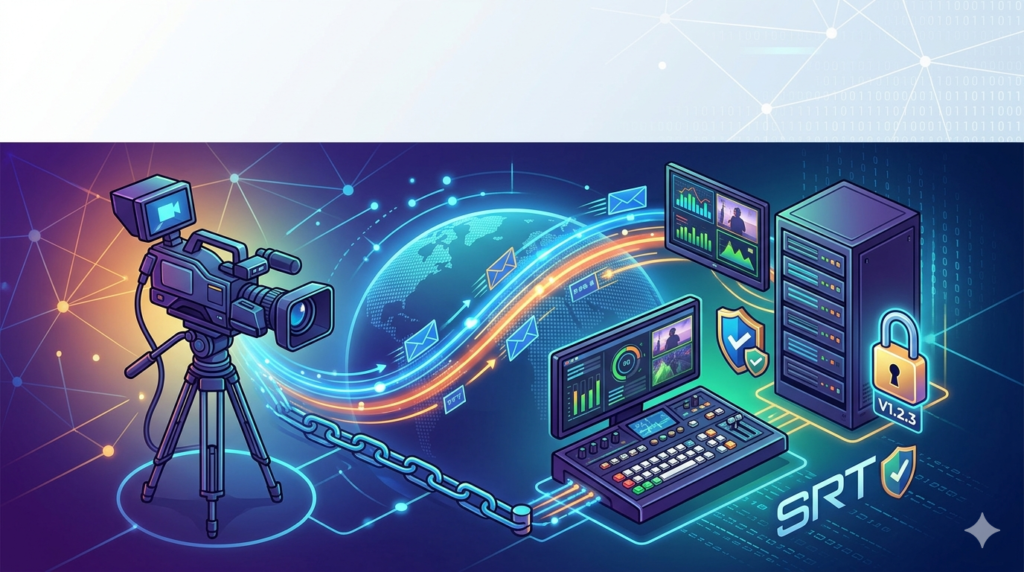
In the evolving landscape of professional broadcasting and remote video production, reliable transport protocol software is critical. SRT Streamer PRO V1.2.3 is a professional-grade software application designed to facilitate low-latency, secure video streaming across unpredictable networks like the public internet. Unlike legacy RTMP protocols, this tool leverages the SRT (Secure Reliable Transport) protocol to adapt to packet loss and jitter.
This software serves as both a sender and receiver, enabling broadcasters, AV engineers, and content creators to transmit high-definition feeds from remote locations back to a studio or CDN without dedicated fiber lines. The June 2026 update focuses on enhancing decoder stability and multi-channel audio mapping. Whether you are a professional broadcaster or a tech-savvy user exploring latency reduction, understanding SRT Streamer PRO is essential for modern IP workflows.
Key Features of SRT Streamer PRO
This software distinguishes itself through robust technical architecture and user-focused controls. Below are the core functionalities of version 1.2.3:
-
SRT Caller, Listener & Rendezvous Modes: Full support for all SRT handshake methods allows flexible firewall traversal and network configuration.
-
AES-128/256 Encryption: Built-in payload encryption ensures video content remains secure from interception when streaming over the open internet.
-
Adaptive Bitrate (ABR) Management: Automatically adjusts encoding parameters in real-time to maintain smooth playback during bandwidth fluctuations.
-
Low-Latency Mode (Sub-1 Second): Optimized buffer settings to achieve glass-to-glass latency as low as 300 milliseconds.
-
Multi-Format Encoding: Supports H.264 and H.265 (HEVC) codecs for compatibility across decoders and efficient bandwidth usage.
-
Audio Passthrough & Mapping: Full support for AAC, MP3, and PCM audio with customizable channel mapping for 5.1 surround sound.
-
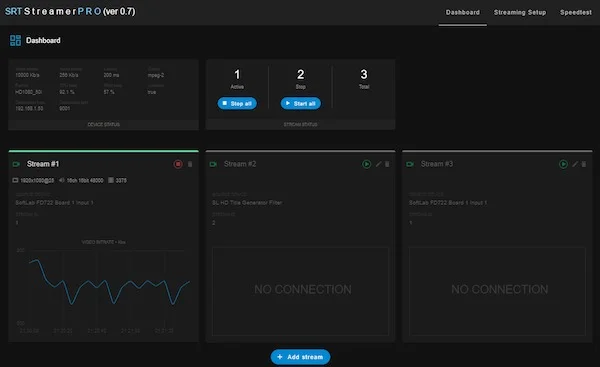
Network Analytics Dashboard: Real-time graphs displaying jitter, packet loss percentage, and round-trip time (RTT).
What’s New in the Latest Version (June 2026)
The V1.2.3 Build 157 update focuses on enterprise stability and user experience refinements. Existing users upgrading to the latest video transport software will notice significant backend improvements:
-
Improved Packet Recovery: The ARQ (Automatic Repeat Request) logic has been rewritten to recover 30% more lost packets without introducing latency spikes.
-
Native M1/M2/M3 Mac Support: The software now runs natively on Apple Silicon (ARM64), reducing CPU usage by up to 40% compared to the Rosetta 2 version.
-
Reconnection Logic Enhancement: If the network drops, the software now automatically attempts a handshake every 5 seconds for up to 15 minutes without requiring a manual restart.
-
UI Dark Mode Polish: Corrected contrast issues on the bitrate graph for improved visibility in low-light broadcast environments.
-
NDI Bridge Compatibility: Added preliminary support for NDI 5.6 discovery, allowing easy integration with NewTek-based studio ecosystems.
System Requirements
To ensure optimal performance and stability, verify your hardware meets the following specifications for SRT Streamer PRO.
Minimum Requirements (720p/30fps Streaming):
-
OS: Windows 10 (64-bit) or macOS 11 (Big Sur)
-
CPU: Intel Core i5 (8th gen) or AMD Ryzen 5 3600
-
RAM: 8 GB
-
GPU: Intel UHD Graphics 630 or basic OpenGL 4.1 support
-
Network: 5 Mbps upload (stable)
Recommended Requirements (1080p/60fps or 4K/30fps):
-
OS: Windows 11 Pro or macOS 14 (Sonoma) / 15 (Sequoia)
-
CPU: Intel Core i7 (12th gen) / AMD Ryzen 7 5800X or Apple M2/M3
-
RAM: 16 GB (32 GB for 4K multi-instance)
-
GPU: NVIDIA GTX 1060 (or higher) for NVENC acceleration / AMD Radeon RX 580
-
Network: 25 Mbps upload (low jitter < 5ms)
Installation Guide
Setting up this SRT encoder software is a straightforward process. Follow these steps to avoid common firewall or permission errors.
Step 1: Download the Installer
Visit the official developer portal to download SRT_Streamer_PRO_1.2.3_x64.exe (Windows) or .dmg (macOS). Verify the SHA-256 checksum matches the value displayed on the download page.
Step 2: Run the Installer (Windows)
Right-click the installer and select Run as Administrator. This ensures the virtual audio drivers and firewall rules are registered correctly.
Step 3: Bypass Security Warnings
If SmartScreen or Gatekeeper flags the app, select “Run Anyway” or “Open” (macOS requires moving the app to the Applications folder via Finder).
Step 4: Configure Firewall Rules
When prompted by Windows Defender or macOS Firewall, click Allow Access. The software requires inbound/outbound UDP traffic on ports 9710-9750 (configurable).
Step 5: Launch and License Activation
Open the application and enter your license key (purchased separately). A free 14-day trial is available without credit card details, limited to 15-minute streaming sessions.
How to Use the Software
Mastering the interface involves three distinct phases: setup, connection, and monitoring. Here is a workflow guide for sending a live feed from a remote camera back to a studio decoder.
1. Configuring the Source (Encoder Tab)
Select your capture device (e.g., Blackmagic DeckLink or NDI source). Choose H.265 for lower bandwidth or H.264 for maximum compatibility. Set the bitrate to 8000 kbps for 1080p. Ensure Keyframe Interval is set to 2 seconds to aid decoder synchronization.
2. Setting up the SRT Connection
Navigate to the Transport tab.
-
Mode: Select Caller (your software initiates the connection).
-
IP/Port: Enter the studio’s public IP and Port 9000.
-
Passphrase: Enter the shared AES encryption key (minimum 10 characters, e.g.,
StudioStreamKey123). -
Latency: Set to 2000 ms (2 seconds) for standard internet; lower to 125 ms for fiber.
3. Starting the Stream
Click “Start Encoder”. The status light should turn from Red (Disconnected) to Green (Streaming).
-
Monitor the Jitter graph; aim for a value under 20 ms.
-
If Packet Loss exceeds 5%, reduce the bitrate or check your Wi-Fi signal.
4. Receiving (Listener Mode)
To receive a stream, switch to Listener mode on the same port. Share your public IP with the remote sender.
Best Use Cases for SRT Streamer PRO
This software is not a general-purpose screen recorder; it is engineered for specific professional scenarios.
-
Live Sports Remotes: Transmit from a stadium sideline to a production truck using cellular bonding (combined with a bonding router) without satellite truck fees.
-
News Gathering (ENG): Send high-bitrate 4K footage from a journalist’s hotel room back to the newsroom for immediate editing and broadcast.
-
Corporate Webinars: Bridge Zoom/Teams to RTMP destinations by taking the NDI output of a virtual meeting and sending it as a stable SRT stream to YouTube or Vimeo.
-
Medical Imaging (Low-Loss): Securely stream surgical or diagnostic video between hospitals using the AES-256 encryption feature to maintain HIPAA-like compliance.
-
Cloud Production: Feed streams directly into AWS Elemental MediaConnect or Wowza Streaming Engine for cloud-based switching and graphics.
Advantages and Limitations
Understanding the trade-offs helps professionals decide if this software fits their stack.
Advantages (Strengths)
-
Exceptional Resilience: Performs reliably on Wi-Fi, 5G, and Starlink connections where RTMP would freeze every few seconds.
-
Low Overhead: The C++ core uses less than 5% CPU for packet wrapping, leaving most resources for video encoding.
-
Open Standard: Interoperable with any SRT-compliant hardware encoder (Haivision, Makito) or cloud service.
-
Offline Mode: Full functionality on local LAN without an internet connection for testing.
Limitations (Weaknesses)
-
Steep Learning Curve: Caller/Listener/Rendezvous modes and port forwarding confuse users accustomed to simple “Server URL” inputs.
-
No Built-in CDN Push: Unlike OBS or vMix, it cannot push directly to Facebook Live or Twitch without an intermediate RTMP converter.
-
Static IP Requirement: The Caller mode works best when the receiving studio has a static public IPv4 address (CGNAT networks break incoming connections).
-
CPU Encoding Only: While it supports GPU decoders, the core packetizer is CPU-bound, which can throttle 4K streams on older laptops.
Alternatives to the Software
If SRT Streamer PRO does not suit your workflow, consider these alternatives based on specific needs.
| Software | Primary Protocol | Best For | Key Difference |
|---|---|---|---|
| OBS Studio | RTMP / SRT | General streaming to platforms | Free, but SRT setup is less intuitive and requires plugins. |
| Larix Broadcaster | SRT / RTMP | Mobile (iOS/Android) streaming | Excellent for cellular, but limited to app environment (no desktop capture). |
| Haivision Hub | SRT (Managed) | Enterprise SLA/Support | Cloud-managed; expensive ($500+/mo) vs perpetual desktop license. |
| FFmpeg (CLI) | SRT | Automation & scripting | Free and powerful, but requires command-line syntax (no GUI). |
| vMix | SRT / NDI | Production switching | Includes SRT but is a full switcher (heavier resource usage). |
Recommendation: Stick with SRT Streamer PRO if you need a lightweight, dedicated GUI for point-to-point contribution. Switch to OBS Studio if you need to simulcast to social platforms simultaneously.
Frequently Asked Questions (FAQ)
Q1: Is SRT Streamer PRO compatible with OBS or vMix?
Yes, but indirectly. You can use the Listener mode in SRT Streamer PRO to receive a stream, then use a virtual camera or NDI output to bring that feed into OBS. Alternatively, OBS Studio (v28+) has native SRT support, making a direct connection possible without this software as an intermediary.
Q2: Does this software work for streaming to YouTube Live?
Not directly. YouTube uses RTMPS. To send an SRT stream to YouTube, you must route it through an intermediate service like Restream or Wowza that translates SRT to RTMPS.
Q3: What is the difference between Caller and Listener mode?
-
Caller: Your software initiates the connection (best for users behind firewalls sending out).
-
Listener: Your software waits for an incoming connection (requires port forwarding on your router).
-
Rendezvous: Both sides connect to a third-party mediator (best when both sides are behind strict firewalls).
Q4: Can I use this legally for commercial broadcasts?
Yes. SRT Streamer PRO is licensed software. You are purchasing a valid license key. It does not circumvent any DRM or encryption. You must own the rights to the video content you transmit.
Q5: Why is my stream freezing despite 50 Mbps internet?
Likely due to bufferbloat or jitter. Check your router for Smart Queue Management (SQM) or QoS settings. Increase the “Latency” setting in the SRT config from 2000ms to 4000ms to give the buffer more room to absorb fluctuations.
Q6: Does it support 4K HDR (HLG/PQ)?
Version 1.2.3 supports HEVC Main10 profile passthrough. If your capture card inputs HDR via HDMI 2.0, the software will wrap the SRT packets without tone mapping, preserving HDR metadata.
Final Thoughts
SRT Streamer PRO (V1.2.3) represents a significant maturation of open-source protocol accessibility for the everyday professional. While the interface remains utilitarian compared to consumer apps, the underlying transport reliability is world-class. The June 2026 update addresses real user pain points—specifically Apple Silicon efficiency and auto-reconnection—making it a reliable tool for remote production.
If your work requires moving high-quality video across unpredictable networks without investing in proprietary hardware encoders, this software justifies its cost within the first hour of saved troubleshooting. For beginners, start with the 14-day trial in Caller mode on a local network. For broadcast engineers, the granular analytics dashboard offers the diagnostic depth required for 24/7 operations. Install the trial, test your jitter tolerance, and experience the difference that native SRT transport provides.
Our Paid Service
“We do not sell or provide any software. We only offer professional support services. If any software on your system is not working properly, or you are facing installation errors, crashes, or any other technical issue — just contact us. We will help you fix the problem quickly and remotely via AnyDesk. No software will be provided from our side — only expert troubleshooting and support.”