
Download the Metus NDI Multiview 1.0.3.4 (Complete Guide & Professional Review) from this link…

Overview of Metus NDI Multiview
Table of Contents
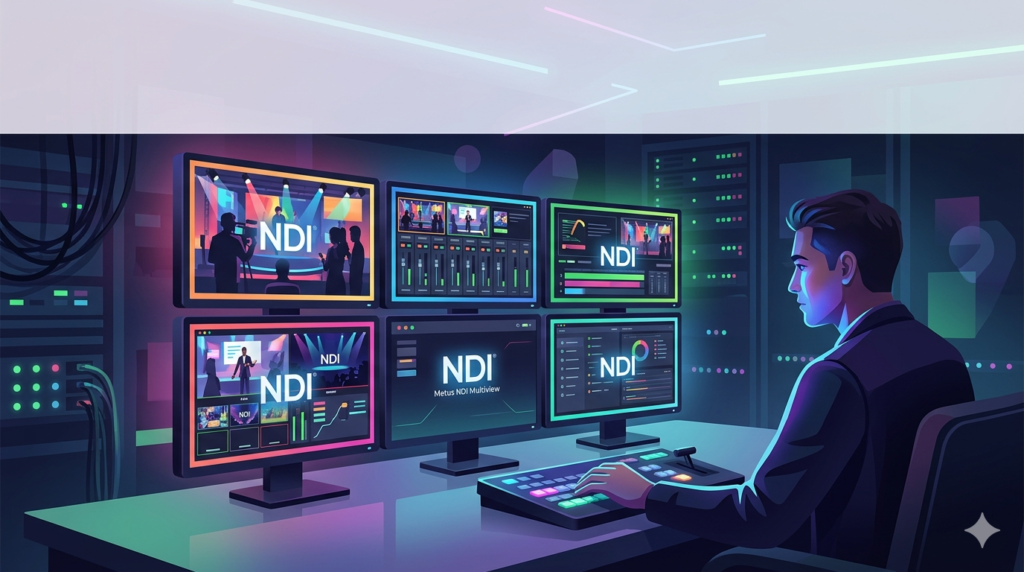
In modern video production, Network Device Interface (NDI) technology has become a standard for transporting low-latency video and audio over Ethernet. Metus NDI Multiview leverages this standard to provide a centralized monitoring solution. Unlike traditional hardware multiviewers, this software allows users to view, arrange, and record multiple NDI sources on standard computer screens or external displays.
The software is particularly valuable for live event producers, broadcast engineers, and AV professionals who need to monitor cameras, screens, and graphics feeds simultaneously without expensive dedicated hardware.
Key Features
Metus NDI Multiview 1.0.3.4 includes a robust set of features designed for efficiency and precision:
-
Multi-Source Monitoring: Receive and display multiple full-bandwidth NDI streams, including NDI HX, HD, and 4K sources.
-
Custom Layouts: Arrange video feeds using split screens, grids, or free-form layouts to match production needs.
-
Real-Time Switching: Select any NDI source to expand to a larger preview or main output display.
-
Recording with SpeedHQ Codec: Capture individual streams or the multiview output using the efficient SpeedHQ codec.
-
NDI Output Streaming: Re-stream the multiview composition as a new NDI source for distribution to other systems.
-
Audio Monitoring: Select audio from any NDI source for live monitoring with integrated VU meters.
-
Web UI for Remote Control: Access and control the software from any device on the same network via a browser-based interface.
-
Auto-Discovery of NDI Sources: Automatically detects all NDI sources on the local network, eliminating manual IP configuration.
-
Proxy Support: Low-bandwidth NDI mode ensures smooth monitoring on constrained networks.
-
Performance Monitoring: Real-time graphs for CPU, RAM, disk, and network usage.
-
Visual Alerts: On-screen notifications for frame skips, network congestion, or source loss.
What’s New in Version 1.0.3.4
The latest release focuses on stability and usability improvements:
-
Improved auto-discovery for large-scale networks (50+ NDI sources).
-
Enhanced Web UI responsiveness for mobile devices.
-
Reduced latency when using NDI HX sources.
-
Fixed audio drift issues during long-duration monitoring sessions.
-
Added support for custom VU meter color schemes.
System Requirements
Before installing Metus NDI Multiview 1.0.3.4, ensure your system meets these specifications:
| Component | Minimum Requirement | Recommended Requirement |
|---|---|---|
| OS | Windows 10 (64-bit) | Windows 11 (64-bit) |
| Processor | Intel Core i5 (6th gen) | Intel Core i7 (10th gen) or AMD Ryzen 7 |
| RAM | 8 GB | 16 GB or more |
| GPU | Integrated Intel UHD | NVIDIA GeForce GTX 1060+ or RTX series |
| Network | Gigabit Ethernet | 10 Gigabit Ethernet |
| Storage | 100 MB for installation | SSD with 500 GB for recordings |
| NDI Runtime | NDI 5 Tools or later | NDI 5 Tools or later |
Installation Guide
Follow these steps to install Metus NDI Multiview legally and safely:
-
Download the official installer from the Metus website or authorized software distributor.
-
Close other video applications (OBS, vMix, Zoom) to avoid conflicts with NDI runtime libraries.
-
Run the installer as administrator and accept the license agreement.
-
Select installation directory (default:
C:\Program Files\Metus\NDI Multiview). -
Complete installation and restart your computer if prompted.
-
Launch the software and verify that NDI sources appear in the source list.
How to Use the Software
Initial Setup
-
Open Metus NDI Multiview. The auto-discovery panel will list all active NDI sources on your network.
-
Drag sources from the left panel into the grid area.
-
Select a layout preset (2×2, 3×3, 4×4, or custom).
Monitoring and Switching
-
To view a single source full-screen: Double-click any cell.
-
To switch program output: Right-click a source → “Output as NDI.”
-
To monitor audio: Click the speaker icon under any source. VU meters show levels in real time.
Recording
-
Click the Record button in the toolbar.
-
Choose recording format (SpeedHQ AVI or MP4).
-
Select whether to record individual sources or the full multiview grid.
-
Press Stop to save the file.
Using the Web UI
-
Note the IP address displayed in the software’s status bar.
-
On another device (tablet, laptop, or phone), open a browser.
-
Enter
http://[software-ip-address]:8080. -
Control layouts, switch sources, and monitor performance remotely.
Best Use Cases
| Scenario | How Metus NDI Multiview Helps |
|---|---|
| Live Sports Production | Monitor 8+ camera angles simultaneously; switch replays instantly. |
| Corporate Webinars | Combine presenter slides, speaker camera, and screen share in one view. |
| House of Worship | Control camera feeds and lyric projection from a single laptop. |
| E-learning Content | Record instructor video, slide deck, and annotations as separate NDI sources. |
| Broadcast News | Preview remote contributors, graphics, and b-roll before switching to air. |
Advantages and Limitations
Advantages
-
Cost-effective: Replaces expensive hardware multiviewers.
-
Flexible layouts: Unlimited customization compared to fixed hardware grids.
-
Remote management: Web UI allows operation from anywhere on the network.
-
Low latency: Full NDI bandwidth support ensures sub-frame delays.
-
No ongoing fees: One-time license purchase.
Limitations
-
Windows-only: No native macOS or Linux version.
-
Network dependent: Performance degrades on Wi-Fi or congested 1GbE networks.
-
Learning curve: Advanced features (proxy streams, SpeedHQ settings) require technical knowledge.
-
No cloud version: Must run on local hardware.
Alternatives to Metus NDI Multiview
If you are evaluating options, consider these alternatives:
| Software | Key Difference | Best For |
|---|---|---|
| NDI Studio Monitor (free) | Single-viewer only, no multiview grids. | Basic source checking. |
| vMix | Full production switcher with multiview. | Live switching + recording. |
| OBS Studio + NDI plugin | Open source, highly customizable. | Budget-conscious streamers. |
| BirdDog Multiview | Hardware/software hybrid. | Large-scale broadcast. |
Metus NDI Multiview sits between free tools (limited features) and full switchers (higher cost). It is ideal when monitoring is the primary need, not switching.
Frequently Asked Questions
1. Is Metus NDI Multiview compatible with NDI HX3 cameras?
Yes. Version 1.0.3.4 fully supports NDI HX2 and HX3 sources, including auto-discovery.
2. Can I use this software on a laptop with Wi-Fi?
Technically yes, but for stable 4K streams, a wired Gigabit Ethernet connection is strongly recommended.
3. Does Metus NDI Multiview record audio from all sources simultaneously?
No. It records the selected audio source or the mixed audio of the active cell. For multi-track recording, use dedicated NDI recording software.
4. How many NDI streams can I monitor at once?
This depends on your CPU and network bandwidth. With an Intel i7 and 1GbE, 8–12 HD streams are typical. With 10GbE and a high-end GPU, 20+ streams are possible.
5. Is there a free trial available?
Yes. Metus offers a fully functional 15-day trial with a watermark. No credit card is required.
6. Can I output the multiview grid to Zoom or Teams?
Yes. Use virtual camera or NDI output, then select Metus as the camera source in your conferencing app.
7. Does the software require an internet connection?
No. It operates entirely on your local network. Internet is only needed for license activation and updates.
8. What is the difference between full bandwidth NDI and NDI HX?
Full NDI uses less compression (higher quality, more bandwidth). NDI HX uses H.264 compression (lower bandwidth, slightly higher latency). Metus supports both.
Final Thoughts
Metus NDI Multiview 1.0.3.4 is a reliable, professional solution for video producers who need to monitor multiple NDI sources without investing in hardware multiviewers. Its combination of customizable layouts, real-time performance monitoring, remote web control, and recording capabilities makes it a strong choice for live events, broadcast, and corporate AV.
While it requires a Windows environment and a healthy network infrastructure, the cost savings and flexibility compared to hardware alternatives are substantial. For teams already using NDI workflows, adding Metus NDI Multiview is a logical step toward more efficient production monitoring.
If your primary goal is affordable, software-based multiviewing with professional-grade reliability, this tool deserves a place in your production toolkit.
Premium Software Support Service
If you need professional help with software installation, setup, or technical configuration, our team is available to assist you.
Contact & Support
For quick assistance and latest updates, connect with us using the links below:
🔹 Direct Telegram Support
https://t.me/PlayoutKing
🔹 Official Telegram Updates Group
https://t.me/yourgroup
Service Policy
- Remote testing available through AnyDesk before confirmation.
• Verify the setup and performance before completing the order.
• Support available for single or multiple systems.
• Step-by-step guidance to ensure smooth installation and working environment.
Our goal is to provide reliable technical assistance so your software runs smoothly without interruptions.