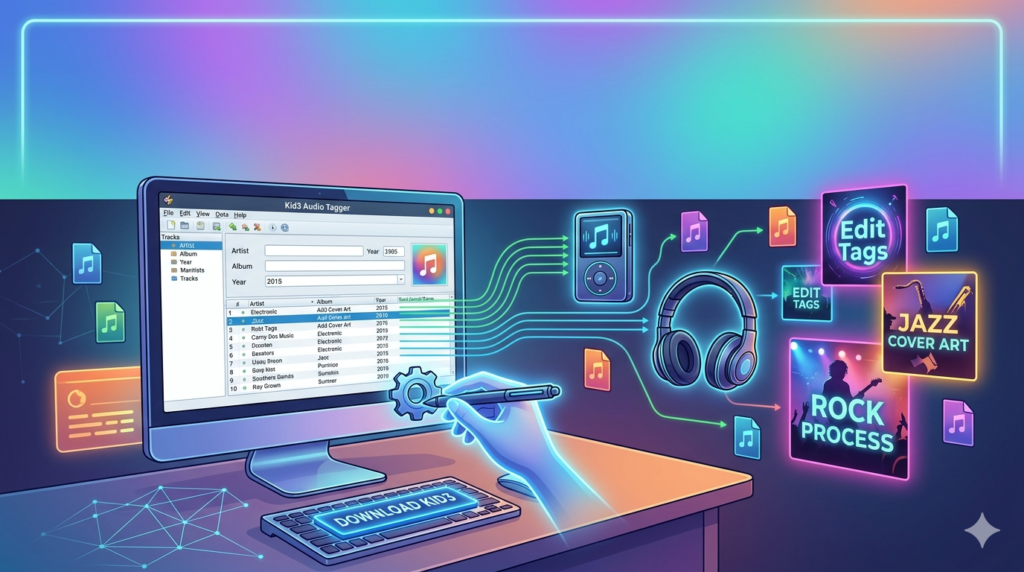


Download the Kid3 Audio Tagger (The Complete Guide to Features, Setup & Safe Use) from this link…

Overview of the Software
Table of Contents
Kid3 Audio Tagger is an efficient, cross-platform tag editor. Developed by Urs Fleisch, it allows users to edit, standardize, and manage metadata across multiple audio file formats simultaneously. Whether you are a casual listener with thousands of MP3s or a professional archivist working with FLAC files, Kid3 provides the tools to automate data entry and correct inconsistencies.
The software adheres strictly to open-source licensing, meaning no activation bypasses or illegal patches are required. It relies on local processing and optional community databases like MusicBrainz, ensuring full legal compliance with copyright laws.
Key Features
Kid3 offers a robust feature set that rivals premium audio managers. Key capabilities include:
-
Multi-Format Support: Works with ID3v1, ID3v2 (MP3), Vorbis comments (Ogg, FLAC), and APE tags (Monkey’s Audio, MPC).
-
Batch Editing: Change artist names, album titles, or track numbers for hundreds of files in one click.
-
Online Database Integration: Auto-fill missing tags and cover art from MusicBrainz and Discogs.
-
Filename to Tag Conversion: Extract metadata directly from file names (e.g., “01_Song_Title.mp3”).
-
Tag to Filename Conversion: Rename files based on their internal tags.
-
Export Functionality: Generate HTML, CSV, or playlist reports from your library.
-
Qt GUI & CLI: Use the graphical interface or command-line version for scripting.
Supported File Formats
-
MP3, MP2
-
OGG (Vorbis)
-
Opus
-
FLAC
-
WMA
-
MPC (Musepack)
-
SPX (Speex)
-
TrueAudio (TTA)
-
WavPack
-
AIFF
-
AAC
-
MP4/M4A
What’s New in the Latest Version
The current stable version (as of 2025) focuses on performance and modern audio standards. Recent updates include:
-
Improved support for MP4/M4A tags (iTunes-style metadata).
-
Native Qt6 framework integration for better rendering on Windows 11 and macOS Sonoma.
-
Enhanced MusicBrainz query logic for faster album lookups.
-
Dark mode support across all operating systems.
-
Fixes for Unicode handling in non-Latin scripts (e.g., Japanese, Arabic).
System Requirements
| Platform | Minimum Requirements |
|---|---|
| Windows | Windows 10 / 11 (64-bit), 2GB RAM, 100MB disk space |
| macOS | macOS 11 (Big Sur) or newer, Intel or Apple Silicon |
| Linux | KDE Plasma / GNOME (Qt6 libraries), 1GB RAM |
| FreeBSD | Version 12 or newer |
Note: No internet connection is required for local editing, but online tagging requires an active connection.
Installation Guide
Because Kid3 is open-source and legally distributed, installation is straightforward and safe.
For Windows:
-
Visit the official download portal (sourceforge or the developer’s GitHub).
-
Download the
.exeinstaller (64-bit recommended). -
Run the installer – decline any optional bundled software (toolbars are not part of Kid3).
-
Launch from the Start Menu.
For macOS:
-
Download the
.dmgfile. -
Drag the
Kid3icon into theApplicationsfolder. -
Right-click and select “Open” to bypass Apple’s Gatekeeper for unsigned apps (first launch only).
For Linux (Debian/Ubuntu):
sudo apt update
sudo apt install kid3-qt
How to Use the Software
Follow this workflow to organize your first album:
-
Open a Directory: Launch Kid3 and navigate to your music folder (e.g.,
Downloads/New_Album). -
Select Files: Highlight all tracks in the right-hand panel.
-
Edit Tags (Manual): In the left panel, type the Artist name, Album title, Genre, and Year. Click “Apply” to write to all selected files.
-
Auto-Tag (Online): Click the “MusicBrainz” icon (or use the
Toolsmenu). Search by album name. Kid3 will download track titles, cover art, and release dates. -
Rename Files: Go to
File>Rename Files. Use a pattern like%{track} %{title}to rename files to “01 Song Name.mp3”. -
Save: The software saves changes immediately, but you can use
Undo(Ctrl+Z) if needed.
Best Use Cases
Kid3 is not just for individual users. It excels in several professional scenarios:
-
DJs: Standardize cue points, BPM tags, and key notation across MP3 and AIFF files before loading into Rekordbox or Serato.
-
Plex/Jellyfin Admins: Fix mismatched metadata so home media servers correctly identify TV soundtracks and albums.
-
Audiobook Collectors: Edit Chapter tags and narrators for long-form FLAC files.
-
Archivists: Remove personal data (embedded comments) before sharing legal, public-domain audio.
-
Cross-Platform Sync: Ensure Android, iPhone, and Windows Media Player all display the same album art.
Advantages and Limitations
Advantages
-
100% Free & Open Source: No licensing fees, no ads, no hidden malware.
-
Cross-Platform: One tool for Windows, Mac, and Linux.
-
Batch Processing: Saves hours compared to manual tagging.
-
No Cloud Lock-in: All data stays on your local drive.
Limitations
-
Learning Curve: Batch logic (e.g., regular expressions) can confuse beginners.
-
UI is Dated: The Qt interface looks like software from 2010, not modern streaming apps.
-
No Built-in Player: You cannot preview songs; you need a separate audio player.
-
Slow for 10k+ Libraries: Very large collections (over 50,000 files) may lag during initial directory scans.
Alternatives to the Software
If Kid3 does not suit your workflow, consider these legal alternatives:
| Software | Best For | Platform | License |
|---|---|---|---|
| MusicBrainz Picard | Automated acoustic fingerprinting | Win/Mac/Linux | Open Source |
| Mp3tag | Windows power users (Windows only) | Windows | Freemium |
| Meta | macOS native design | macOS | Paid (Trial) |
| Beets | Command-line music geeks | Linux/macOS | Open Source |
| MediaMonkey | Library management + syncing | Windows | Freemium |
Frequently Asked Questions
1. Is Kid3 Audio Tagger safe to download?
Yes. Download only from the official GitHub repository or SourceForge page. Avoid third-party “portable” sites that may bundle adware.
2. Can Kid3 remove duplicate songs?
No. Kid3 edits tags; it does not scan for duplicate audio content (use tools like dupeGuru for that).
3. Does Kid3 work with Apple Music (M4P) files?
It can tag standard .m4a and .mp4 files, but it cannot modify DRM-protected .m4p files purchased from the old iTunes Store.
4. How do I recover overwritten tags?
Use the Undo function immediately. Kid3 does not keep version history after closing the app.
5. Why is my album art not showing on my iPhone?
Ensure you embed the cover art as a “front cover” type using ID3v2.3 (not v2.4). Kid3 allows you to change the ID3 version under Settings > Configure Kid3.
6. Can I use Kid3 for podcasts?
Yes. You can edit Podcast, Episode, and Chapter tags in MP3 and M4A podcast files.
7. Is there a portable version (no install)?
Yes. A portable ZIP archive is available for Windows on the official download page.
Final Thoughts
Building a pristine music library does not require risky software or expensive subscriptions. Kid3 Audio Tagger delivers enterprise-grade batch editing, database integration, and format flexibility—all without compromising your system security. While the interface is utilitarian, the underlying engine is reliable and precise.
For users migrating from messy downloads to a clean Plex server or DJ USB drive, Kid3 is arguably the most efficient tool available today. Download it legally, pair it with MusicBrainz, and transform your audio chaos into a structured, searchable archive.
Premium Software Support Service
If you need professional help with software installation, setup, or technical configuration, our team is available to assist you.
Contact & Support
For quick assistance and latest updates, connect with us using the links below:
🔹 Direct Telegram Support
https://t.me/PlayoutKing
🔹 Official Telegram Updates Group
https://t.me/yourgroup
Service Policy
- Remote testing available through AnyDesk before confirmation.
• Verify the setup and performance before completing the order.
• Support available for single or multiple systems.
• Step-by-step guidance to ensure smooth installation and working environment.
Our goal is to provide reliable technical assistance so your software runs smoothly without interruptions.