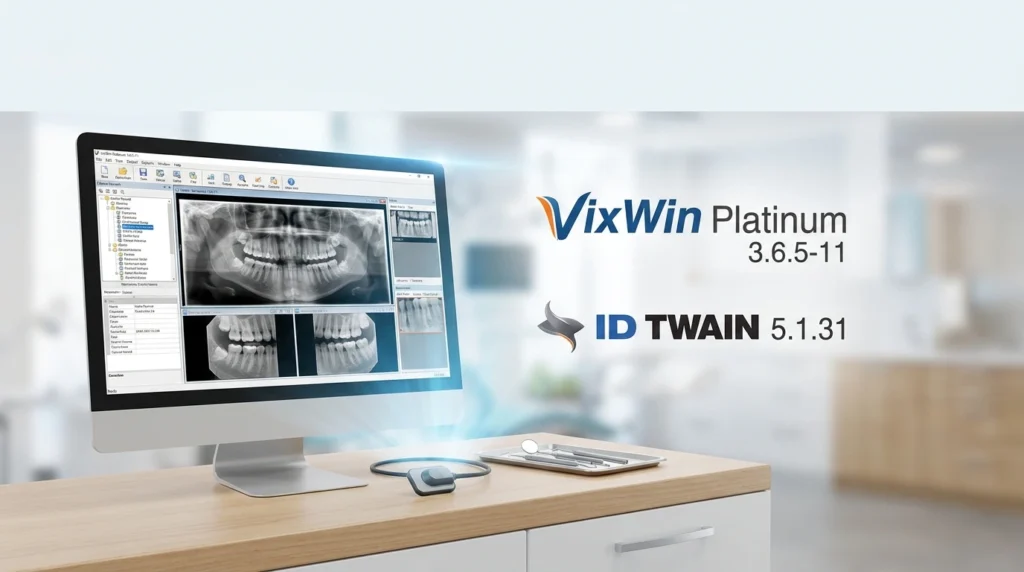

Overview of VixWin Platinum 3.6.5-11
Table of Contents
VixWin Platinum is the advanced tier of Gendex’s VixWin imaging software line, developed for dental professionals who need reliable 2D image capture and diagnostic viewing. DEXIS has owned the product since 2022, and the software is licensed with Gendex hardware rather than sold as a standalone purchase. It operates as either a Bridge application, connected to a practice management system that owns the patient database, or in Standalone mode, where VixWin itself stores patient records and images.
The inclusion of ID TWAIN 5.1.31 is significant for compatibility. TWAIN is the standard protocol that allows imaging software to communicate with capture devices such as sensors and scanners. While VixWin Platinum natively supports Gendex sensors (including the GXS-700 and Visualix eHD series), the TWAIN layer opens acquisition to third-party devices that expose a TWAIN driver. The 5.1.31 designation refers to the TWAIN data source version bundled with or supported by this build, and older Gendex documentation notes that TWAIN DLL version 1.5 or higher is required for peripheral compatibility.
VixWin Platinum remains a Windows-only, desktop-based solution. It is widely regarded as legacy software in 2026; DEXIS’s strategic direction has shifted toward the DEXIS Imaging Suite, and VixWin Platinum is no longer under active feature development. This context matters: the software still functions for existing installations, but new deployments should weigh long-term support and operating-system compatibility carefully.
Key Features of VixWin Platinum
VixWin Platinum’s feature set is centered on speed, image clarity, and integration with existing dental workflows. The following capabilities are documented in Gendex/DEXIS materials and the official user manual.
Automated Series Capture and Mounting
-
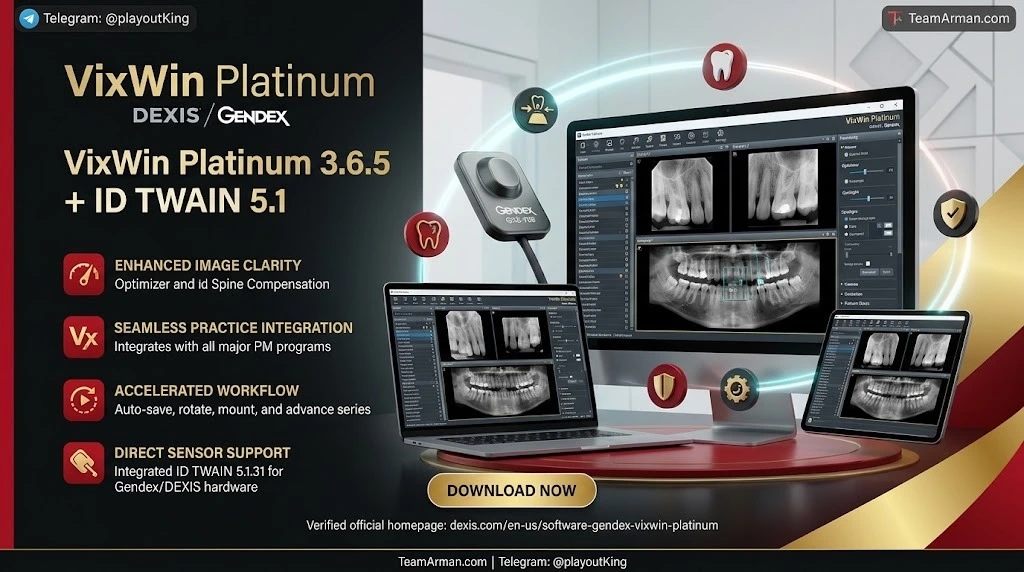
Auto-save, auto-orient, and auto-mount: When capturing a full-mouth series or any other image sequence, the software automatically stores, rotates, and mounts each image in the correct anatomical position.
-
Auto-advance: After each exposure, VixWin Platinum moves to the next slot in the series without requiring keyboard or mouse input from the operator.
-
Quick Mount Selector: Teams can predefine their most frequently used mounts and access them instantly, reducing setup time between patients.
Image Enhancement and Diagnostic Tools
-
Optimizer: A one-click enhancement tool that improves overall clarity and definition for diagnostic review.
-
Spine Compensation: Specifically designed to improve the quality of digital panoramic images by reducing the visual impact of the cervical spine.
-
Spotlight: Maximizes contrast in a localized, user-defined region, helping clinicians examine subtle areas of interest without altering the entire image.
-
Flexible processing filters: Region-of-interest magnification, equalization, unsharp mask sharpening, edge enhancement, iso-density, and colorization are available for customized image presentation.
-
Hue and saturation adjustment: Users can modify these parameters to better visualize decay or bony abnormalities, a capability frequently cited in user reviews as a practical diagnostic aid.
Integration and Data Management
-
Practice management bridges (VxLink): VixWin Platinum shares the selected patient context with major practice management programs, so the correct image set loads automatically when a patient is opened in the PM system.
-
DICOM DIR support: Enables structured export and interoperability with DICOM-compliant viewing and archival systems.
-
Multiple file formats: Supports TIFF (8-bit and 16-bit), TIFF-JPEG (8-bit and 16-bit), and JFIF at various compression levels; JPG is the preferred format for email attachments.
-
User access control: Up to eight user accounts can be configured with distinct privileges for patient access, editing, and deletion, with optional Windows or VixWin-native authentication.
TWAIN and Device Compatibility
-
Gendex native sensors: Supports DenOptix, DenOptix QST, Visualix/Gx-S USB/HDI, Visualix eHD, GXS-700, KaVo Dig eXam, Orthoralix DPI, and Orthoralix DDE systems.
-
Intraoral and extraoral cameras: Compatible with AcuCam Concept IV FWT, GXC-300, and eZ1 series cameras, among others.
-
TWAIN-compliant third-party devices: The ID TWAIN 5.1.31 layer allows image acquisition from non-Gendex sensors and scanners that provide a compliant TWAIN driver, though users should verify driver compatibility on their specific Windows build.
What’s New in Version 3.6.5-11
Version 3.6.5 is not a feature release. According to the DEXIS Download Centre, the 3.6.5 software update contains “regulatory updates related to the KaVo to DEXIS/DITC brand change”. In practical terms, this means the changes are administrative and branding-related rather than clinical or performance-focused. The core imaging engine, tools, and workflow behavior remain consistent with the established VixWin Platinum feature set.
The accompanying ID TWAIN 5.1.31 component reflects the TWAIN interface version supported in this distribution. TWAIN remains a relevant acquisition standard in dental imaging, but its implementation in VixWin Platinum is tied to the software’s broader Windows compatibility profile. Practices upgrading from earlier VixWin builds should treat 3.6.5 as a maintenance and compliance update, not a functional upgrade.
System Requirements for VixWin Platinum 3.6.5-11
VixWin Platinum was engineered for operating systems of the Windows XP through Windows 7 era. The official minimum configuration references Windows XP Professional, Windows Vista Business (32-bit), or Windows 7 Professional (32-bit and 64-bit). DEXIS documentation also notes that the software operates on Windows 8 and select server environments, but modern Windows 10 and Windows 11 compatibility is widely reported as incomplete.
The following table summarizes the documented hardware guidance:
| Component | Minimum (per user manual) | Recommended (per vendor materials) |
|---|---|---|
| Processor | Pentium 4, 2.0 GHz | Intel Core i3 or higher |
| Memory | 1,024 MB (1 GB) | 4 GB or higher |
| Hard disk | 30+ GB, with sufficient free space for image storage | 512 GB or larger recommended for image volume |
| Display | 1,024 × 768 at 24-bit true color | 1,024 × 768 at 32-bit true color |
| Video RAM | 4+ MB | 8 MB |
| Optical drive | CD-ROM | CD-ROM (6× or faster) |
Sources: user manual minimums and vendor-recommended configuration.
Critical compatibility note: Multiple verified user reviews state that “many features no longer work with Windows 10” and that Gendex has not announced plans to update the software for newer operating systems. Practices on modern Windows workstations should test VixWin Platinum thoroughly—or plan a transition to a supported DEXIS product—before relying on it for routine image acquisition.
Installation Guide for VixWin Platinum and ID TWAIN 5.1.31
VixWin Platinum is typically installed by a trained service technician during hardware commissioning, but the general installation sequence follows these steps. Administrator rights are required, and installation should be performed outside active clinical hours because the process may restart the workstation.
Pre-Installation Checklist
-
Verify operating-system compatibility. Confirm that the workstation meets the documented Windows requirements and that any pending Windows updates have been applied.
-
Close all dental applications. Exit practice management software, imaging viewers, and any TWAIN-dependent programs.
-
Disconnect imaging hardware. Unplug USB sensors, camera interfaces, and scanner connections until the software installation is complete.
-
Back up the existing image database. If upgrading from an earlier VixWin version, create a verified backup of the database drive before making any changes.
Installation Steps
-
Run the VixWin Platinum installer with administrative privileges. If prompted to select components, install only the modules required for the connected hardware; for example, third-party camera drivers should be deselected if they are not in use.
-
Install the ID TWAIN component when prompted. The TWAIN data source allows the software to communicate with compliant acquisition devices. If a separate TWAIN driver is supplied by a sensor manufacturer, install that driver according to the manufacturer’s instructions before launching VixWin Platinum.
-
Restart the workstation when the installer requests it. Do not skip this step; TWAIN registration and driver initialization often require a full restart.
-
Launch VixWin Platinum and configure the operating mode. Choose Bridge mode if the practice uses a supported management system (such as Eaglesoft or Dentrix Ascend); choose Standalone mode if VixWin will own the patient database.
-
Set up user accounts and security. Navigate to Options > Security to create user profiles, assign privileges, and enable password protection if required by practice policy.
-
Reconnect and test each imaging device. Acquire a test image from every sensor, camera, and scanner. Confirm that the image appears in the correct mount and that the patient context matches the selected record.
Post-Installation Verification
-
Confirm that the TWAIN source appears correctly when selecting an acquisition device inside VixWin.
-
Test DICOM DIR export if the practice archives images to a DICOM-compliant system.
-
Verify that bridge integration opens the correct patient images from the practice management software.
How to Use VixWin Platinum in Daily Practice
VixWin Platinum is designed to keep image acquisition fast and predictable. The following workflow reflects the software’s intended use pattern and the features most relevant to chairside efficiency.
Capturing a Full-Mouth Series
-
Select the patient in the practice management system or directly in VixWin’s patient database.
-
Choose a mount using the Quick Mount Selector. Preconfigured mounts reduce the number of clicks required before exposure.
-
Acquire images using the connected Gendex sensor or TWAIN device. VixWin automatically saves, orients, and mounts each image, then advances to the next position.
-
Review the series for missing or mis-mounted images. Because the software handles placement automatically, the operator can focus on exposure technique rather than software navigation.
Enhancing an Image for Diagnosis
-
Open the image in the viewing window.
-
Apply the Optimizer for baseline clarity, then use Spotlight to examine a specific region of interest.
-
Adjust hue and saturation to improve visualization of caries or osseous changes.
-
Use magnification and equalization filters from the Region-of-Interest toolset for closer inspection.
-
Save the enhanced view or export the image in TIFF or JPG format, depending on referral or record-sharing requirements.
Exporting and Sharing Images
-
Use DICOM DIR export for interoperability with DICOM viewers and archival systems.
-
For referrals, export a JPG copy—the manual identifies JPG as the preferred email attachment format.
-
When transferring images to another office, verify that the export preserves patient identification and acquisition metadata.
Best Use Cases for VixWin Platinum
VixWin Platinum is best understood as a focused 2D acquisition and mounting tool, not a comprehensive imaging platform. Its strongest use cases align with that scope.
Existing Gendex Hardware Installations
Practices that already own Gendex intraoral sensors or panoramic units can continue to use VixWin Platinum for routine 2D capture. The software’s native support for Gendex devices and its automated mounting workflow remain functional on compatible Windows workstations.
High-Volume Intraoral Series Capture
The auto-advance and auto-mount features are particularly valuable in general dentistry settings where full-mouth series and bitewing sets are captured frequently. Reducing post-exposure software interaction shortens chairside time and lowers the risk of mounting errors.
Endodontic Working-Length Measurement
User reviews highlight the ability to measure endodontic working length directly on the image—for example, measuring how many millimeters remain to the apex—as a practical time-saver during treatment. This use case is consistent with the software’s image analysis toolset.
Practices Needing Bridge Integration with Legacy PM Systems
VixWin Platinum’s VxLink bridge shares patient context with supported practice management programs, including Eaglesoft, Dentrix Ascend, and Curve Dental. For offices running older PM software, this integration can preserve a familiar imaging workflow even as the imaging software itself ages.
Image Review and Referral Export
The software’s ability to adjust contrast, hue, and saturation supports diagnostic review, while its multi-format export options make it usable for creating referral images and patient records. However, the lack of a free standalone viewer means external recipients may need a compatible DICOM or image viewer to open exported data.
Advantages and Limitations of VixWin Platinum
A balanced assessment is essential for any practice evaluating whether to maintain, replace, or tolerate VixWin Platinum in its current form.
Advantages
-
Fast series capture: Automatic save, orient, mount, and advance functions reduce operator workload during full-mouth series.
-
Practical image enhancement: Optimizer, Spine Compensation, Spotlight, and hue/saturation controls give clinicians useful diagnostic flexibility.
-
Broad Gendex device support: Native compatibility with a long list of Gendex sensors, scanners, and panoramic units protects existing hardware investments.
-
TWAIN extensibility: The ID TWAIN layer allows acquisition from compliant third-party devices, extending the software’s usable lifespan.
-
Established PM integrations: VxLink connects to several major dental management systems, supporting synchronized patient workflows.
Limitations
-
Legacy status and discontinued development: DEXIS has shifted focus to the DEXIS Imaging Suite, and VixWin Platinum is no longer actively enhanced. SaaSHub lists the product as discontinued.
-
Modern Windows incompatibility: Verified reviews report that many features no longer function correctly on Windows 10, and no vendor update is planned. Practices on Windows 11 face even greater uncertainty.
-
Performance sensitivity: Some users describe the software as “heavy” and note slowdowns on hardware that is not sufficiently provisioned.
-
Integration fragility: Reviews mention technological errors when VixWin is used with Eaglesoft and occasional image-loss or file-organization frustrations.
-
No free viewer for external recipients: Unlike some competing systems that include a read-only disc viewer, VixWin Platinum is licensed with hardware and does not provide a free viewer for referrals or patient transfers.
-
Quote-only pricing and limited support channels: Third-party analyses rate pricing clarity and support availability poorly, with quote-only licensing and a single support channel listed.
Alternatives to VixWin Platinum
Because VixWin Platinum is a legacy product, practices evaluating a transition should consider alternatives that match their hardware, workflow, and IT environment. The following options appear consistently in comparison resources.
DEXIS Imaging Suite
DEXIS Imaging Suite is the natural upgrade path for VixWin Platinum users. It is DEXIS’s current Windows software for capturing and managing 2D dental X-rays and clinical photos, with automatic mounting, practice management bridges, and an optional DEXassist AI feature. For practices already within the DEXIS ecosystem, this is the most straightforward migration.
Dentsply Sirona Sidexis 4
Sidexis 4 is the capture and viewing suite for Dentsply Sirona hardware (Orthophos, Axeos, and Xios/Schick devices). It supports 2D and 3D imaging and includes a free read-only viewer on exported patient discs, which can simplify referrals. Practices using Dentsply Sirona sensors or panoramic units should evaluate Sidexis 4 as a native alternative.
Apteryx XrayVision
XrayVision is a dental imaging application that supports a wide range of sensors, including Gendex, Schick, Carestream, and Ei devices. For practices with mixed hardware vendors, XrayVision’s broad sensor compatibility may reduce dependence on a single manufacturer’s software stack.
Planmeca Romexis
Romexis is an all-in-one dental software platform that covers 2D and 3D imaging, CAD/CAM, and practice management functions. It is known for comprehensive functionality and cross-platform flexibility, though it represents a larger platform commitment than a focused 2D capture tool.
Curve Hero
Curve Hero is a cloud-based dental practice management and imaging platform that allows access to patient data from any location. It is a relevant option for practices considering a shift away from workstation-bound, on-premises imaging software.
Selection guidance: Practices with substantial Gendex hardware investment and a stable Windows 7 environment may choose to maintain VixWin Platinum in the short term. Practices planning hardware refreshes or operating-system upgrades should prioritize migration to a supported platform, because the compatibility risks of remaining on VixWin Platinum will increase over time.
Frequently Asked Questions
Is VixWin Platinum 3.6.5-11 still supported by DEXIS?
VixWin Platinum is owned by DEXIS, but the product is widely classified as legacy software and is no longer under active feature development. The 3.6.5-11 release itself is a regulatory and branding update rather than a functional enhancement. Practices should confirm current support terms directly with DEXIS or their authorized dealer, because support availability can vary by region and contract.
Can VixWin Platinum run on Windows 10 or Windows 11?
Official documentation lists Windows XP, Windows Vista, and Windows 7 as the primary supported operating systems, with limited references to Windows 8. Verified user reviews explicitly state that many features no longer work with Windows 10 and that no update is planned. Windows 11 is not documented as a supported platform. Running VixWin Platinum on modern Windows requires thorough testing and may not be reliable for clinical use.
What is the role of ID TWAIN 5.1.31 in this software package?
ID TWAIN 5.1.31 is the TWAIN interface component that allows VixWin Platinum to acquire images from TWAIN-compliant devices, including third-party sensors and scanners beyond the native Gendex device list. TWAIN is a standard acquisition protocol, and the version number indicates the interface revision supported in this build. Users should verify that their specific device provides a compatible TWAIN driver.
Does VixWin Platinum support DICOM export?
Yes. The software includes DICOM DIR support, which allows structured export of images and associated data to DICOM-compatible systems. This is important for archival interoperability and for sharing images with specialists or imaging centers that use DICOM-based viewers.
Can VixWin Platinum acquire images from non-Gendex sensors?
It can, within limits. The native device list is Gendex-centric, but the TWAIN layer supports compliant third-party devices. Compatibility depends on the device manufacturer providing a TWAIN driver that works with the installed Windows version and the ID TWAIN 5.1.31 interface. Practices should test third-party acquisition before relying on it clinically.
What image file formats does VixWin Platinum support?
The software supports TIFF (8-bit and 16-bit), TIFF-JPEG (8-bit and 16-bit), and JFIF (100%, 75%, and 50%). JPG is the preferred format for email attachments. DICOM DIR is available for structured export to DICOM systems.
Is there a free viewer for VixWin Platinum images?
No. VixWin Platinum is commercial software licensed with Gendex hardware, and it does not include a free standalone viewer for external recipients. Practices that need to share images with referring doctors or patients may need to export in a universally readable format such as JPG or use a DICOM viewer on the receiving end.
How many user accounts can be configured in VixWin Platinum?
Up to eight user accounts can be configured through Options > Security. Each account can be assigned a Windows or VixWin login type, along with privileges for patient access, editing, and deletion.
Final Thoughts
VixWin Platinum 3.6.5-11 with ID TWAIN 5.1.31 is a capable but aging 2D dental imaging application. Its automated series capture, practical enhancement tools, and Gendex hardware compatibility continue to serve practices that have maintained compatible Windows workstations and established workflows. The TWAIN layer adds a measure of flexibility by allowing acquisition from compliant third-party devices, and DICOM DIR export supports interoperability with broader imaging systems.
However, the software’s limitations are no longer marginal. It is a legacy product with no active feature development, documented incompatibilities with Windows 10, and performance sensitivities that become more pronounced as hardware and operating systems advance. Practices still using VixWin Platinum should treat it as a transitional tool, not a long-term platform. The most prudent path is to verify current support arrangements with DEXIS, test the software thoroughly on any planned Windows upgrade, and evaluate a migration to the DEXIS Imaging Suite or another supported imaging platform before compatibility issues disrupt clinical operations. For practices with stable legacy environments and no immediate upgrade pressure, VixWin Platinum can continue to perform its core capture-and-mount functions—but the window for comfortable reliance on this software is narrowing.
Our Paid Service
“We do not sell or provide any software. We only offer professional support services. If any software on your system is not working properly, or you are facing installation errors, crashes, or any other technical issue — just contact us. We will help you fix the problem quickly and remotely via AnyDesk. No software will be provided from our side — only expert troubleshooting and support.”