
Overview of VinylMaster XPT v5
Table of Contents
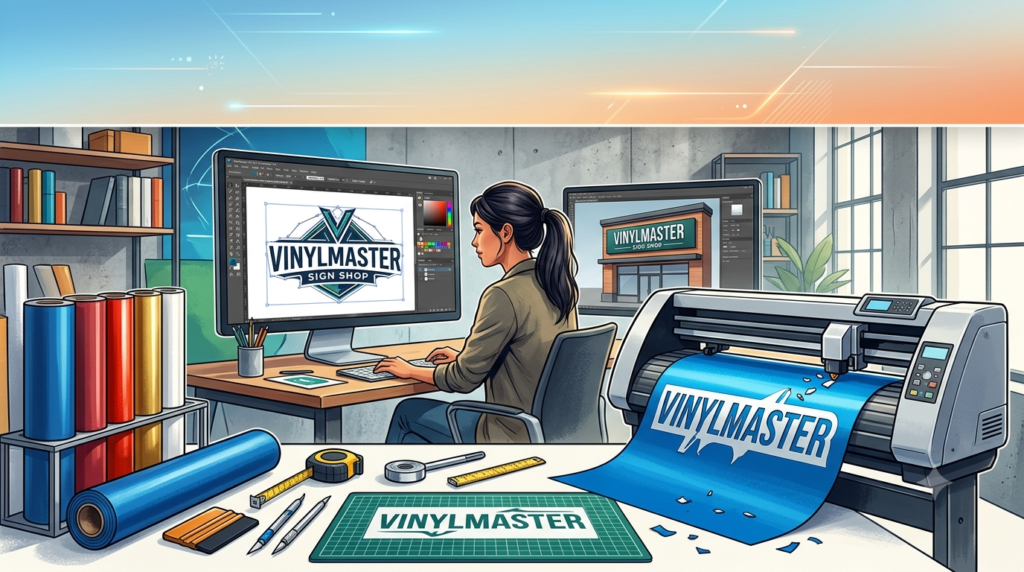
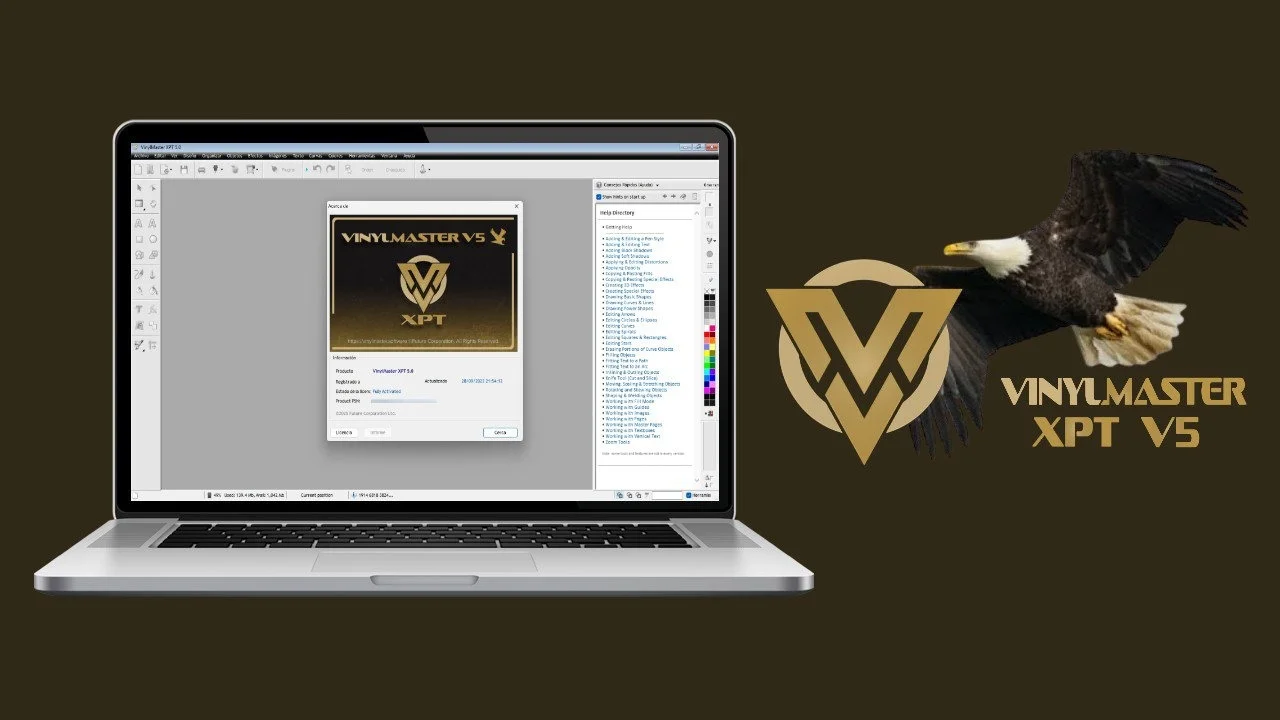
VinylMaster XPT v5 is a design and production software developed by Future Corporation. It is specifically tailored for the sign-making industry, offering tools for creating logos, decals, vehicle graphics, and more.
The software functions as an all-in-one solution that allows users to design from scratch or trace existing artwork. It then converts these vector designs into cutting paths compatible with various vinyl cutters. VinylMaster XPT v5 supports advanced features like contour cutting, weeding line generation, and print-and-cut workflows, making it a versatile asset for any sign shop or hobbyist workshop [citation:1].
Who Is It For?
-
Sign professionals: Seeking a reliable tool for everyday production.
-
Vehicle graphic installers: Need precision cutting for wraps and decals.
-
Small business owners: Looking to produce in-house signage without outsourcing.
-
Hobbyists: Wanting a user-friendly entry point into vinyl cutting.
Key Features of VinylMaster XPT v5
VinylMaster XPT v5 is packed with features designed to streamline the sign-making process. Here are the core capabilities that make it stand out.
Advanced Design Tools
The software provides a comprehensive set of drawing and editing tools. Users can create complex vector graphics using Bezier curves, shapes, and text tools. It also includes powerful node-editing capabilities for fine-tuning designs.
-
Vectorization (Auto-Tracing): It efficiently converts bitmap images (like logos or scanned sketches) into scalable vector paths [citation:1].
-
Text Handling: Offers extensive font management and text-on-path capabilities for creating curved lettering.
Production and Cutting Features
VinylMaster XPT v5 excels in turning designs into physical products.
-
Contour Cutting: Supports the registration mark system required for cutting printed graphics [citation:2].
-
Weed Lines: It allows users to add “weed borders” or “weed boxes” around text and graphics, making the weeding process significantly faster and easier [citation:1][citation:2].
-
Tiling: For large banners or oversized signs that exceed the cutting width, it can split the design into manageable panels.
-
Cutting Optimization: The software calculates the most efficient cutting path to minimize material waste and reduce wear on the cutting blade.
File Format and Hardware Compatibility
Flexibility is a key strength of VinylMaster XPT v5. It supports a wide array of file formats for import and export.
-
Vector Formats: AI, EPS, SVG, PDF.
-
Raster Formats: JPG, PNG, BMP, TIFF.
-
Plotter Compatibility: It works with a broad range of cutter brands, including Graphtec, Roland, Mimaki, Summa, and generic HPGL-compatible devices [citation:2].
What’s New in VinylMaster XPT v5
The v5 iteration introduces several improvements designed to enhance user experience and production speed.
-
Enhanced Vectorization Engine: The auto-trace function is reportedly faster and more accurate, handling complex images with fewer artifacts.
-
Improved User Interface: The layout has been refined for better accessibility, placing frequently used tools within easier reach.
-
Updated Cutting Drivers: The database of supported cutters has been expanded, ensuring compatibility with newer plotters on the market.
-
Performance Optimizations: The software handles larger, more complex files with smoother performance and faster rendering.
System Requirements for VinylMaster XPT v5
To run VinylMaster XPT v5 efficiently, your system should meet the following specifications:
Minimum Requirements
-
Operating System: Windows 7, 8, 10, or 11 (64-bit recommended) / macOS 10.14 or newer.
-
Processor: Intel Core i3 or equivalent.
-
RAM: 4 GB (8 GB recommended for larger files).
-
Hard Disk Space: 1 GB for installation.
-
Display: 1024 x 768 resolution.
Recommended Requirements
-
Processor: Intel Core i5 or i7.
-
RAM: 16 GB or more.
-
Graphics: Dedicated GPU for smoother rendering.
-
Connectivity: USB port or parallel port for plotter connection.
Installation Guide for VinylMaster XPT v5
Installing VinylMaster XPT v5 is a straightforward process, but a few steps ensure a smooth setup.
-
Purchase and Download: Obtain the software from the official Future Corporation website or an authorized reseller.
-
Run the Installer: Locate the downloaded
.exe(Windows) or.dmg(macOS) file and run it. -
User Account Control: On Windows, you may need to allow the program to make changes to your device.
-
License Activation: Enter your serial number when prompted. Ensure you have an active internet connection to verify the license.
-
Driver Installation: During installation, the software will install essential drivers for communication with your plotter. Connect your cutter via USB or network to allow the system to detect it.
-
Hardware Configuration: Once installed, open the software and navigate to the “Cut” settings. Select the specific model of your vinyl cutter from the list of supported devices.
How to Use VinylMaster XPT v5
Understanding the workflow is key to mastering VinylMaster XPT v5. The process generally follows a logical sequence from design to production.
The Design Process
-
Creating a New File: Open the software and select “New Document.”
-
Building Your Design:
-
Text: Use the Text Tool to type your message. You can manipulate the font, size, and spacing.
-
Shapes: Use the drawing tools to create basic shapes like rectangles, circles, and polygons.
-
Importing: Use the “Import” function to bring in an SVG or AI file.
-
-
Tracing: If you have a raster image (like a logo JPG), select it and use the “Auto-Trace” function. Adjust the trace settings to capture the necessary detail.
Preparing to Cut
-
Color Palette: Ensure your design uses a single color (or specific layers for multi-color jobs). The software often uses the “CutContour” color (usually a bright pink/magenta) to designate cutting lines.
-
Adding Weed Lines: For text, use the “Weed Border” tool to create a box around the letters. This creates a guide for easier weeding [citation:1].
-
Material Settings: Load your vinyl into the plotter. In the software’s cutting menu, specify the material type (e.g., Vinyl, Reflective) and adjust the cutting force and speed accordingly. Test cuts are highly recommended to dial in the settings.
Sending the Job
-
Go to the “Cut” or “Output” menu.
-
Review the preview to ensure the design matches your expectations.
-
Click “Send” to start the cutting process. Monitor the plotter to ensure the material feeds correctly and the cut is successful.
Best Use Cases for VinylMaster XPT v5
The versatility of VinylMaster XPT v5 makes it suitable for a wide range of projects.
-
Custom Vehicle Graphics: Designing and cutting window decals, full vehicle wraps, and racing stripes.
-
Signage and Banners: Creating indoor and outdoor signs, including real estate signs, retail storefront graphics, and safety signage.
-
Decals and Stickers: Producing bumper stickers, laptop decals, and promotional stickers for businesses.
-
Industrial Applications: Creating paint masks and sandblasting stencils for etching glass or metal [citation:2].
-
Die-Cutting: Utilizing the contour-cutting feature to create custom-shaped stickers or product labels [citation:2].
Advantages and Limitations of VinylMaster XPT v5
Like any professional software, VinylMaster XPT v5 has its strengths and areas where it falls short.
Advantages
-
Cost-Effective: It provides a large set of professional features at a more accessible price point than some enterprise competitors.
-
User-Friendly: The interface is intuitive, making it relatively easy for beginners to get started.
-
Versatile: Supports a broad range of file formats and cutter brands.
-
Weed Functionality: The weed line feature is a significant time-saver in the production process [citation:1].
-
Wide Format Support: Excellent handling of large-format projects through tiling.
Limitations
-
OS Support: While it supports macOS, the software is traditionally known for being more stable on Windows.
-
Learning Curve for Advanced Features: While basic design is easy, mastering the vectorization and advanced cutting parameters requires practice.
-
Not an Illustration Standalone: As a sign-making tool, it is optimized for production rather than complex, multi-layered digital art (like Adobe Illustrator).
Alternatives to VinylMaster XPT v5
Depending on your budget and technical requirements, several other software options are available for the sign-making industry.
| Software | Best For | Key Feature |
|---|---|---|
| VinylMaster XPT v5 | Hobbyists to Professionals | Weed line generation, cost-effective. |
| Adobe Illustrator | Professional Graphic Design | Advanced vector illustration tools. |
| CorelDRAW | Design & Layout | Strong print and digital publishing tools. |
| SAi FlexiSIGN | Professional Sign Shops | Integrated RIP, Print, and Cut workflow. |
| VinylMaster Cut | Entry-level Users | A more basic version focused solely on cutting. |
| Sure Cuts A Lot | Crafters | Affordable and accessible for home users. |
Frequently Asked Questions
Q1: What is the difference between VinylMaster XPT v5 and VinylMaster Cut?
VinylMaster Cut is the entry-level version, focusing primarily on basic cutting functionalities. VinylMaster XPT v5 is the “Pro” version that includes advanced features like contour cutting, tiling, photo vectorization, and weed line tools [citation:1][citation:2].
Q2: Can VinylMaster XPT v5 work with my non-Future Corporation plotter?
Yes, it supports a wide range of third-party cutters, including Graphtec, Roland, Mimaki, and Summa brands, as well as generic HPGL drivers [citation:2].
Q3: Does VinylMaster XPT v5 work on a Mac?
Yes, it is compatible with macOS 10.14 and newer versions [citation:2].
Q4: How do I update to the latest version of VinylMaster?
You can check for updates within the software by going to the “Help” menu and selecting “Check for Updates.” Alternatively, visit the official Future Corporation website to download the latest installer [citation:2].
Q5: What is the “Weed Border” tool and why is it important?
The “Weed Border” tool allows you to create a rectangle or custom shape around your design. This acts as a boundary line that makes it much faster and easier to peel away the excess vinyl (weeding) after cutting, especially around small text [citation:1].
Q6: Is an internet connection required to use VinylMaster XPT v5?
You generally need an internet connection for the initial software activation and license verification. However, you can use the software offline once it is activated.
Final Thoughts on VinylMaster XPT v5
VinylMaster XPT v5 stands out as a compelling option for anyone serious about sign-making. It successfully balances professional-grade production capabilities with a user-friendly design. The inclusion of time-saving features like the Weed Border tool and robust vectorization engine makes it suitable for both fast-paced commercial shops and meticulous hobbyists.
While it may not fully replace high-end illustration software like Adobe Illustrator, it serves its specific niche—bridging the gap between design and physical output—extremely well. If you are looking for a reliable and feature-rich solution to drive your vinyl cutter, VinylMaster XPT v5 is certainly a worthy investment. For those starting out, considering a more affordable version like VinylMaster Cut might be a good stepping stone [citation:2].