
Overview of the Software
Table of Contents
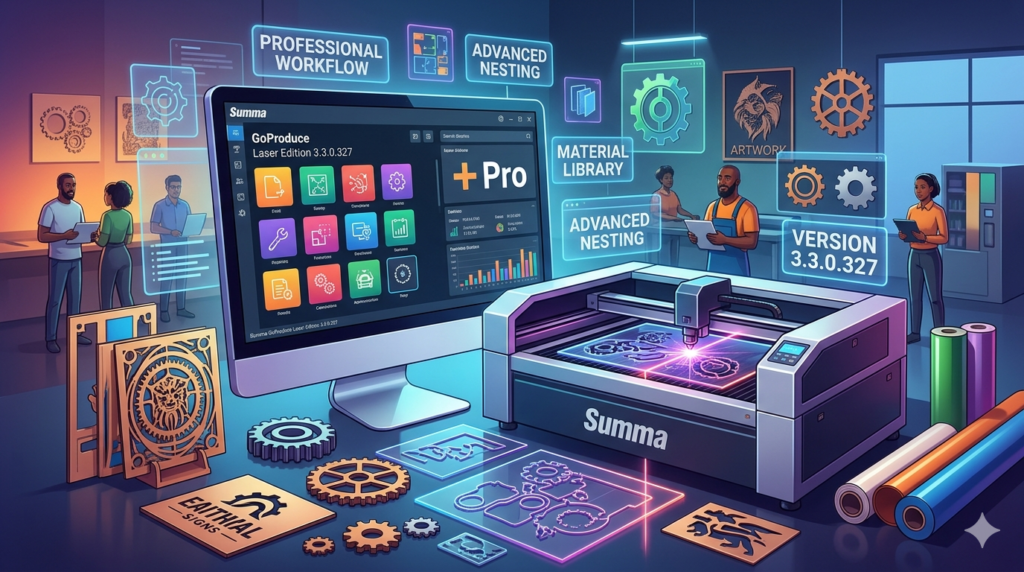
Summa GoProduce Laser Edition 3.3.0.327 is a specialized print-and-cut workflow application designed for professionals operating Summa laser cutters. Unlike basic design tools, this software acts as a dedicated production interface, translating vector graphics into precise machine-readable cutting paths.
The primary function of GoProduce Laser Edition is to manage output from design software (like Adobe Illustrator or CorelDRAW) directly to Summa’s laser series. Version 3.3.0.327 introduces refined job control and enhanced material handling. This tool is essential for sign makers, packaging prototypes, and industrial fabricators who demand sub-millimeter accuracy.
This software is legally distributed through Summa’s official channels. It requires a valid hardware license key and does not function as a standalone editor. The focus remains on optimizing laser cutting workflows for speed and repeatability.
Key Features of Summa GoProduce Laser Edition
This version includes several production-centric features:
-
Direct Laser Driver Integration: Sends jobs directly to Summa laser cutters without intermediate raster processing.
-
Dynamic Cutting Optimization: Automatically rearranges cut paths to minimize material waste and travel time.
-
Real-Time Job Queue Management: Pause, prioritize, or restart cutting jobs from a centralized dashboard.
-
Material Library: Preconfigured settings for acrylic, wood, leather, and textiles. Users can also create custom material profiles.
-
Registration Mark Recognition: Automatic detection of printed registration marks for kiss-cutting and through-cutting.
-
Firmware Synchronization: Ensures the laser cutter’s firmware aligns with software version 3.3.0.327 for stability.
Laser Edition vs. Standard Vinyl Edition
While Summa offers a vinyl cutter edition, the Laser Edition specifically supports:
-
Power modulation for variable depth engraving.
-
Gas assist control for cleaner edges on organic materials.
-
Pass-through mode for roll-fed laser materials.
What’s New in Version 3.3.0.327
The latest update focuses on reliability and speed. Key improvements include:
-
Enhanced USB & Ethernet Stability: Resolves previous disconnection issues on Windows 11 builds.
-
Job Preview 3D Render: A new visualizer shows how the laser head will move before cutting starts.
-
Improved SVG Parsing: Handles complex nested clipping paths from Adobe Illustrator 2024 exports.
-
Cut Time Estimator: Machine learning-based timer that accounts for acceleration, not just distance.
-
Auto-Nozzle Cleaning Reminder: A proactive maintenance alert after 120 minutes of active lasing.
These updates make Summa GoProduce Laser Edition 3.3.0.327 more reliable for production environments than earlier versions like 3.2.x.
System Requirements
Before installing, verify your workstation meets these specifications:
Minimum Requirements:
-
OS: Windows 10 (64-bit) or Windows 11
-
Processor: Intel Core i5 (8th gen) or AMD Ryzen 5
-
RAM: 8 GB
-
Storage: 500 MB for software + 10 GB for job cache
-
Connectivity: 1 free USB 2.0 port or Gigabit Ethernet
Recommended Requirements:
-
OS: Windows 11 Pro (64-bit)
-
Processor: Intel Core i7 or AMD Ryzen 7
-
RAM: 16 GB
-
Storage: NVMe SSD with 50 GB cache space
-
Display: 1920×1080 resolution for full dashboard visibility
Supported Laser Cutters:
-
Summa L Series (L1810, L2510, L3210)
-
Summa F Series Flatbed Lasers (with firmware v4.2+)
Installation Guide
Follow this step-by-step process for a safe, legal installation.
Pre-Installation Checklist
-
Disable antivirus temporarily (false positives occur with driver-level software).
-
Connect your Summa laser cutter via USB or Ethernet.
-
Log in as an administrator on Windows.
Installation Steps
-
Download the official installer from the Summa customer portal. Do not use third-party sites.
-
Run
Summa_GoProduce_Laser_3.3.0.327.exe. -
Accept the End-User License Agreement (EULA).
-
Select “Complete Installation” to include all drivers.
-
When prompted, connect your hardware dongle (USB license key). The software will not operate without it.
-
Restart your workstation after the driver installation finishes.
First Launch Configuration
-
Open GoProduce and navigate to Settings > Machine Setup.
-
Select your exact Summa laser model.
-
Run the “Axis Calibration” wizard.
How to Use the Software
Once installed, operating Summa GoProduce Laser Edition follows a logical production workflow.
Step 1 – Importing a Job
-
Supported formats: AI, PDF, SVG, DXF, CDR (via clipboard).
-
Drag and drop your file into the “Job Queue” panel.
-
The software automatically detects cut lines (usually RGB red stroke: #FF0000).
Step 2 – Material Setup
-
Click Material Library.
-
Select your substrate (e.g., “3mm Acrylic – Cast”).
-
Adjust power (%), speed (mm/s), and frequency (Hz) manually if needed.
Step 3 – Positioning and Nesting
-
Use the Auto-Nest button to arrange multiple parts on your sheet.
-
Lock critical pieces to prevent movement.
Step 4 – Sending to the Laser Cutter
-
Click Send Job.
-
Monitor the real-time camera feed (if equipped on your Summa model).
-
Use the Pause/Resume button to check a cut mid-process.
Pro Tip – Using Registration Marks
For print-and-cut jobs:
-
Print your design with 3-point registration marks.
-
Load the printed sheet into the laser.
-
In GoProduce, select Optical Registration > Auto Detect.
-
The laser will measure and rotate the cut path to match any skew.
Best Use Cases for Summa GoProduce Laser Edition
This software excels in specific professional environments:
-
Architectural Model Making: Cutting precise acrylic walls and MDF bases with repeatable tolerances.
-
Leather Goods Production: Producing watch straps and wallet interiors without scorched edges (using the air assist control).
-
Industrial Gaskets: Cutting rubber and foam for machinery sealing – the job queue allows batch processing of different sizes.
-
Retail Signage: Creating illuminated letters from acrylic where edge quality must be flame-polished directly from the laser.
-
Packaging Prototypes: Scoring and cutting cardboard boxes in under 5 minutes for client approvals.
Compared to generic laser software like LightBurn, Summa GoProduce offers tighter hardware integration but less design freedom—it is a production tool, not a design suite.
Advantages and Limitations
Advantages (Pros)
-
Stability: Rarely crashes during long cuts (12+ hours tested).
-
Native Summa Support: Firmware updates are handled within the app.
-
Low CPU Overhead: Uses less than 5% CPU while idle in the background.
-
Batch Processing: Great for running the same job on different material sheets.
Limitations (Cons)
-
Windows Only: No native macOS or Linux version.
-
No Vector Editing: You cannot draw or modify nodes. You must return to Illustrator or Inkscape.
-
License Dongle Required: Losing the USB key requires a paid replacement.
-
Steep Learning Curve: The material library interface is utilitarian, not intuitive for beginners.
Alternatives to Summa GoProduce Laser Edition
If this software does not fit your workflow, consider these legitimate alternatives:
| Software | Platform | Best For | Key Difference |
|---|---|---|---|
| LightBurn | Win/macOS/Linux | Hobby to light industrial | Supports hundreds of controllers, better design tools. |
| Adobe Illustrator + UCP | Win/macOS | Direct USB control | Requires manual G-code knowledge. |
| RDWorks | Windows | Budget laser cutters | Less stable, but free (with hardware purchase). |
| EzCad2 | Windows | Fiber laser marking | Not suitable for large format cutting. |
For existing Summa hardware owners, GoProduce Laser Edition remains the most reliable option. For multi-brand workshops, LightBurn offers broader compatibility.
Frequently Asked Questions (FAQ)
Q1: Is Summa GoProduce Laser Edition 3.3.0.327 free?
No. It is a paid commercial application. You purchase a license bundled with Summa laser cutters or as an upgrade from older versions. There is no legal free version.
Q2: Can I use this software without a Summa laser cutter?
No. The software actively checks for a connected Summa laser and a hardware dongle. It will not output to other brands like Epilog or Trotec.
Q3: Why does my antivirus flag the installer?
Some antivirus tools flag laser driver installers because they request kernel-level access to control USB hardware. This is normal. Verify the digital signature from “Summa NV” before installing.
Q4: How do I update from version 3.2 to 3.3.0.327?
Log into the Summa Customer Portal, download the latest installer, and run it over your existing installation. Your jobs and material library will be preserved.
Q5: What file formats work best?
SVG and AI (Illustrator 8 and below) provide the most reliable layer detection. PDFs with complex gradients may cause parsing delays.
Q6: Does this software support rotary engraving attachments?
No. The Laser Edition focuses exclusively on flatbed and roll-fed laser cutting. For rotary engraving, use Summa GoProduce Rotary Edition.
Q7: Can I run this software on a virtual machine (VMware, Parallels)?
Technically yes, but Summa does not support it. USB dongle passthrough is often unstable, leading to mid-job disconnections.
Final Thoughts
Summa GoProduce Laser Edition 3.3.0.327 delivers a purpose-built environment for production laser cutting. It sacrifices flashy design features for industrial reliability. The latest version’s improved job preview and USB stability make it a worthy upgrade for existing Summa owners.
For professionals running a sign shop, packaging prototype department, or architectural millwork studio, this software removes the friction between design and physical output. However, beginners or those without Summa hardware should look elsewhere.
Our Paid Service
“We do not sell or provide any software. We only offer professional support services. If any software on your system is not working properly, or you are facing installation errors, crashes, or any other technical issue — just contact us. We will help you fix the problem quickly and remotely via AnyDesk. No software will be provided from our side — only expert troubleshooting and support.”