
Overview of FumeFX 7.5.2
Table of Contents
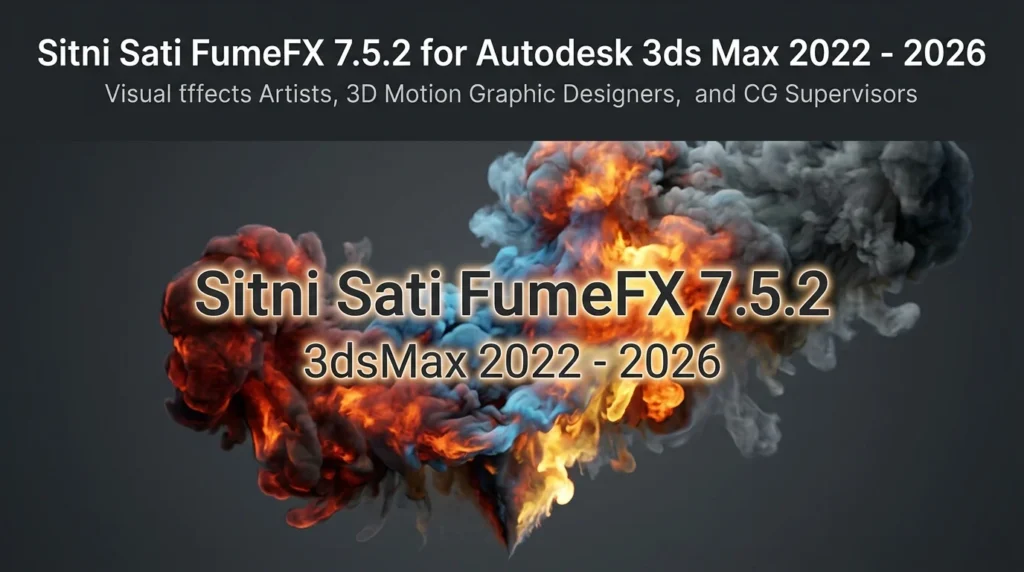
FumeFX 7.5.2 is a multiphysics simulation plugin designed to integrate seamlessly into the 3ds Max 2022–2026 production pipeline. Unlike basic particle systems, FumeFX simulates the physical properties of fluids — including temperature, velocity, fuel, and density — within a voxel-based grid. This scientific approach produces highly detailed, interactive effects that respond dynamically to scene geometry, forces, and animation.
The plugin is widely adopted in film and game production for its ability to deliver cinematic-quality fire, smoke, and explosion effects. It has become a cornerstone tool for blockbuster VFX and AAA game cinematics, trusted for combining physical accuracy with an efficient, artist-friendly workflow.
With version 7.5.2, Sitni Sati continues to refine the GPU solver, NodeWorks node-based system, and rendering integrations, ensuring FumeFX remains at the forefront of fluid simulation technology for 3ds Max users.
Key Features of FumeFX 7.5.2
FumeFX 7.5.2 includes a comprehensive set of features designed to streamline complex VFX creation:
Voxel-Based Fluid Solver
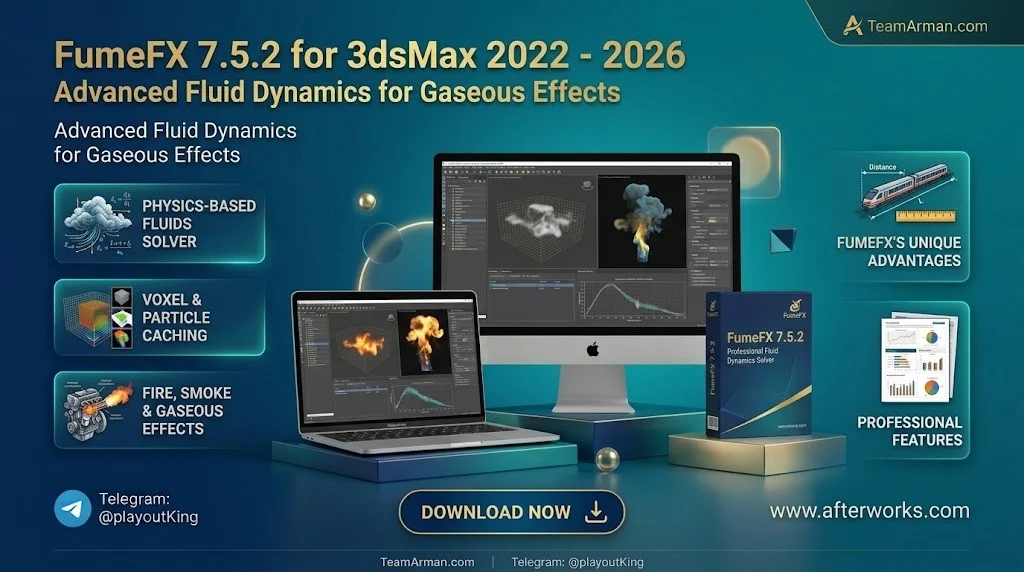
The core simulation engine uses a high-fidelity voxel grid to calculate fluid dynamics based on temperature, fuel, and smoke density, ensuring physically accurate motion and interaction. This approach supports millions of voxels within the viewport, enabling detailed simulations that hold up under close inspection.
GPU Acceleration with NVIDIA CUDA
FumeFX 7.5 introduced powerful NVIDIA® CUDA acceleration, delivering on average 2× to 5× faster simulation performance compared to CPU-based workflows. The GPU solver is particularly effective for high-resolution fire and smoke simulations, and it automatically falls back to CPU mode if GPU memory is exceeded, preventing workflow interruptions.
NodeWorks Node-Based Workflow
NodeWorks is a node-based editor that provides unparalleled control over simulations. Artists can create complex, layered effects by chaining together nodes for sources, forces, and modifiers, enabling non-destructive experimentation. NodeWorks includes over 170 nodes covering particles, cloth, soft body, rigid body dynamics, and fluid components.
Multiphysics Support
Beyond fire and smoke, FumeFX supports simulation of liquids, splashes, foam, and rigid body interactions, enabling the creation of rich, complex scenes where different material types collide and interact.
Advanced Rendering Integration
FumeFX offers direct rendering support for Arnold CPU, Redshift, V-Ray, and Corona, ensuring volumetric elements render with accurate light interaction, shadows, and translucency. Native OpenVDB support allows seamless import of volumetric caches from tools like SideFX Houdini and EmberGen.
GPU Viewport and Interactive Feedback
The redesigned GPU viewport in FumeFX 7.5 delivers a new multiview core with significantly faster feedback, supporting proper blending with scene geometry and direct viewport PNG export during simulation.
Two-Way Coupling
FumeFX 7.5 added two-way coupling between fluids and rigid bodies, allowing simulations to actively interact with objects — pushing, lifting, and reacting to motion for realistic physical behavior.
What’s New in FumeFX 7.5.2
The 7.5.2 update, released on February 24, 2026, focuses on workflow improvements, viewport enhancements, and NodeWorks refinements:
Enhanced GPU Viewport Display
The Arnold/Redshift Volume Shader viewport display now uses color when the color channel is enabled, providing more accurate visual feedback during simulation. This improvement helps artists make better creative decisions without waiting for final renders.
FumeFX Wind Radial Falloff
FumeFX Wind gained radial falloff support, along with a refined UI layout. This feature allows for more natural, localized wind effects that taper off smoothly rather than affecting the entire simulation grid uniformly.
NodeWorks Single Frame Mode
NodeWorks simulation now includes a Single Frame mode for fast per-frame tuning. This mode enables artists to iterate quickly on specific frames without re-simulating the entire sequence.
tyFlow to FumeFX Quick Preset
A new Quick Preset for tyFlow to FumeFX makes it faster and easier to drive FumeFX simulations directly from tyFlow particles. The preset automates channel setup, reducing the manual configuration required for tyFlow-driven simulations.
Additional NodeWorks Enhancements
-
Drag-and-drop support for particle groups directly into the node editor
-
Import Particle System node with a Setup NodeWorks Channels button for tyFlow custom channels
-
Spawn Gen node options for spawning from particle shape surfaces
-
Import Shape node options for tracking position, rotation, and scale
-
Object Info node output pin for object bounding box size
Bug Fixes
Version 7.5.2 resolves several issues, including GPU viewport ghosting when dragging selections, Arnold shader path handling with sequence files, cache VDB string comparison case sensitivity, and various NodeWorks stability improvements.
System Requirements
To run FumeFX 7.5.2 efficiently, your system should meet the following specifications:
Minimum Requirements
-
Operating System: Windows 8 64-bit or Windows 10 64-bit
-
Processor: Intel Core i7 or AMD Ryzen 7 (or equivalent) with SSE 4.1 support
-
RAM: 8 GB minimum, 16 GB recommended
-
Graphics Card: NVIDIA or AMD GPU with at least 4 GB VRAM, supporting DirectX 11 or higher
-
Host Application: Autodesk 3ds Max 2022 through 2026
Recommended for GPU Simulation
-
NVIDIA RTX 3090 (24 GB): Baseline for FumeFX GPU, approximately 2× faster than high-end CPU
-
NVIDIA RTX 4090 (24 GB): Approximately 3× to 5× faster than CPU
-
NVIDIA RTX 5090 (32 GB): Roughly 30% faster than RTX 4090, with additional VRAM for larger simulations
Important: FumeFX GPU relies on NVIDIA CUDA technology. AMD/ATI GPUs are not supported for GPU simulation. If a simulation exceeds available GPU memory, FumeFX automatically switches to CPU mode.
For liquid simulation, an NVIDIA Pascal GPU or newer (GeForce GTX 10xx or higher) is required.
Installation Guide
FumeFX ships as a self-extracting package with a guided installation wizard. Follow these steps for a clean installation:
Step 1: Run the Installer
Double-click the FumeFX installer executable. A series of dialogs will guide you through the installation procedure.
Step 2: Choose Installation Type
-
Install FumeFX: Installs the full version with complete UI and simulation capabilities
-
Install FumeFX SL: Installs the simulation-only version with limited UI, used for network rendering slaves
Step 3: Verify 3ds Max Path
The installer automatically detects your 3ds Max installation path. If the path is correct, do not alter it.
Step 4: Complete Installation
After installation, the plugin files will be placed in the appropriate directories, and the AfterFLICS service will be running in the background.
Step 5: Authorize the Plugin
Start 3ds Max and create a FumeFX object. You will be prompted with the authorization dialog to enter your license information.
Installation File Locations
-
[MAX_PATH]\AWUtils.dll -
[MAX_PATH]\plugins\AfterWorks\Common\FusionWorks.dlr -
[MAX_PATH]\plugins\AfterWorks\FumeFX\FumeFX.dlo -
[WINDOWS_DRIVE]\Program Files(x86)\AfterFLICS
Note: Custom installation is required only if you own cebas Thinking Particles and want to install FumeFX support for it.
How to Use FumeFX 7.5.2
Getting started with FumeFX involves creating a simulation grid, setting up sources, and running the simulation.
Creating a FumeFX Grid
-
Go to the Create Command Panel in 3ds Max
-
Select FumeFX from the Geometry dropdown menu
-
Create a FumeFX grid object in your scene
-
Adjust the grid dimensions to encompass your simulation area
Setting Up Simulation Sources
-
Simple Source: For basic emission from a defined area
-
Object Source: For emission from scene geometry
-
Particle Source: For emission from particle systems like tyFlow or Particle Flow
Configuring Simulation Parameters
-
General Parameters: Set simulation quality, grid resolution, and GPU/CPU mode
-
Simulation Parameters: Control buoyancy, turbulence, vorticity, and cooling
-
Rendering Parameters: Configure fire color, smoke color, and illumination
Running the Simulation
Click the Simulate button in the FumeFX UI. The simulation will process frame by frame, with results visible in the GPU viewport. For best performance, enable CUDA acceleration in General Parameters.
NodeWorks Workflow
To use NodeWorks, go to the Create Command Panel, select FumeFX from the Geometry dropdown, and click the NodeWorks button. Open the node editor by pressing CTRL+SHIFT+N or clicking the Open Editor button. Within the NodeWorks editor, press the TAB key to search for and create nodes.
Caching and Post-Processing
After simulation, caches can be refined using Wavelet Turbulence mode, which upscales caches and applies procedurally generated detail. The Retimer mode allows cache retiming for slow-motion or speed-up effects.
Best Use Cases for FumeFX 7.5.2
FumeFX 7.5.2 excels across a wide range of VFX and simulation scenarios:
Film and Television VFX
Create photorealistic explosions, fire, smoke, and dust for blockbuster films and episodic television. The two-way coupling between fluids and rigid bodies enables realistic destruction sequences where simulations interact with scene objects.
Game Cinematics
AAA game studios use FumeFX for high-end cinematics that require cinematic-quality fire, smoke, and explosion effects. Native OpenVDB support allows integration with other pipeline tools.
Architectural Visualization
Simulate realistic fireplaces, smoke from chimneys, and atmospheric effects for architectural presentations with accurate lighting and shadows.
Motion Graphics
Create stylized smoke and fire effects for broadcast motion graphics, title sequences, and commercial work.
Product Visualization
Simulate smoke, steam, and fire effects for product renders in advertising and marketing materials.
Ocean and Liquid Simulation
FumeFX 7 supports ocean simulation, splashes, foam, and liquid effects, making it suitable for water-based VFX.
Advantages and Limitations
Advantages
High-Quality Output: FumeFX is recognized for its ability to deliver cinematic-quality fire and smoke effects with physically accurate behavior. It excels in specialized smoke and fire effects with a user-friendly interface.
GPU Acceleration: The CUDA-based GPU solver delivers 2× to 5× faster simulation performance compared to CPU, dramatically reducing iteration times for high-resolution simulations.
NodeWorks Flexibility: The node-based workflow system provides granular control over every simulation parameter, enabling complex, layered effects that would be difficult to achieve with traditional parameter panels.
Broad Renderer Support: Direct integration with Arnold, Redshift, V-Ray, and Corona ensures compatibility with most production pipelines.
OpenVDB Pipeline Compatibility: Native OpenVDB import and export allow seamless integration with Houdini, EmberGen, and other volume-capable applications.
Limitations
Windows Only: FumeFX runs exclusively on Windows 8 and Windows 10 64-bit operating systems. There is no macOS or Linux support.
NVIDIA GPU Required for GPU Simulation: GPU acceleration requires an NVIDIA CUDA-capable graphics card. AMD GPU users cannot access GPU simulation features and must rely on CPU-based simulation.
Learning Curve: While the interface is considered artist-friendly, the depth of features and NodeWorks workflow require time to master, particularly for artists new to fluid simulation.
3ds Max Exclusive: FumeFX is designed exclusively for Autodesk 3ds Max. Artists working in other host applications must use the Maya version or alternative solutions.
Liquid Simulation Requires Specific Hardware: Liquid simulation requires an NVIDIA Pascal GPU or newer (GTX 10xx or higher), which may exclude users with older hardware.
Alternatives to FumeFX 7.5.2
Several competing fluid simulation solutions exist for 3ds Max and other platforms:
Phoenix FD (Chaos)
Phoenix FD is a versatile fluid simulation tool for 3ds Max and Maya that handles fire, smoke, liquids, oceans, and splashes. It is ideal for those seeking a comprehensive fluid simulation tool, while FumeFX excels in specialized smoke and fire effects with a user-friendly interface. Phoenix FD has historically been considered more challenging for beginners.
EmberGen (JangaFX)
EmberGen is a real-time GPU-powered fluid simulation tool known for its exceptional speed. However, it is primarily suited for stylized smoke and fire effects and does not match the grid resolutions achievable with FumeFX or Phoenix FD. EmberGen is best for interactive projects and rapid iterations rather than final cinematic-quality simulation.
Houdini (SideFX)
Houdini offers industry-leading procedural fluid simulation through its Pyro and FLIP solvers. While more complex and requiring a steeper learning curve, Houdini provides greater procedural control and pipeline integration. FumeFX’s OpenVDB support allows Houdini simulations to be imported into 3ds Max for rendering and further effects work.
RealFlow
RealFlow is a dedicated fluid and dynamics simulation tool historically used for liquid simulation in 3ds Max pipelines. It has been largely superseded by Phoenix FD and Houdini for most production workflows.
Blender Mantaflow
Blender’s built-in Mantaflow solver provides free fluid simulation capabilities for fire, smoke, and liquids. While capable for smaller projects, it lacks the production-proven feature set and performance optimizations of FumeFX.
Frequently Asked Questions
What is FumeFX 7.5.2 used for?
FumeFX 7.5.2 is used for creating photorealistic fire, smoke, explosions, dust, and other gaseous effects in Autodesk 3ds Max. It is widely used in film VFX, game cinematics, architectural visualization, and motion graphics.
Is FumeFX compatible with 3ds Max 2026?
Yes, FumeFX 7.5.2 is fully compatible with Autodesk 3ds Max 2022 through 2026, with streamlined integration for the 2026 version.
Does FumeFX require an NVIDIA GPU?
For GPU-accelerated simulation, FumeFX requires an NVIDIA CUDA-capable graphics card. However, the software can run simulations on CPU if you do not have a compatible NVIDIA GPU.
What is NodeWorks in FumeFX?
NodeWorks is a node-based editor included with FumeFX that allows artists to create complex simulation setups using over 170 nodes covering particles, fluid dynamics, cloth, soft body, and rigid body simulation.
Can FumeFX render with Redshift and Arnold?
Yes, FumeFX has direct volume rendering support for Redshift and Arnold CPU. It also supports V-Ray and Corona through custom shader integration.
What file formats does FumeFX support?
FumeFX supports native OpenVDB for cache import and export, Alembic export, and its native .fxd cache format. OpenVDB files can be shared with Houdini, EmberGen, and other volume-capable applications.
What are the system requirements for FumeFX GPU simulation?
For GPU simulation, you need an NVIDIA RTX 3090 (24 GB) or newer. The RTX 4090 delivers 3× to 5× faster performance than CPU, while the RTX 5090 offers 32 GB of VRAM for larger simulations.
Is there a free trial available for FumeFX?
Sitni Sati offers a 30-day trial license for FumeFX. Trial licenses cannot be used for commercial content, and caches carry a watermark. The grid size is limited to 125 million voxels (500×500×500).
Final Thoughts
Sitni Sati FumeFX 7.5.2 represents a mature, production-proven solution for fluid dynamics simulation in Autodesk 3ds Max. The 7.5.2 update delivers meaningful improvements to GPU simulation stability, NodeWorks workflow, and renderer integration, addressing the needs of professional VFX artists working in film, television, and game production.
The plugin’s combination of voxel-based fluid solving, NVIDIA CUDA acceleration, and the NodeWorks node-based system makes it a powerful choice for artists who need both performance and creative control. While the Windows-only requirement and NVIDIA GPU dependency for GPU simulation may limit accessibility for some users, the CPU fallback ensures that simulations can still be completed on a wider range of hardware.
For 3ds Max users seeking a dedicated fire and smoke simulation tool with deep renderer integration and a robust node-based workflow, FumeFX 7.5.2 remains one of the most capable options available. Artists evaluating fluid simulation solutions should consider their specific needs — FumeFX for specialized fire and smoke effects with fine control, Phoenix FD for comprehensive fluid simulation including liquids, and EmberGen for fast, real-time iteration on stylized effects.
For licensing details, system requirements, and to download a trial, visit the official Sitni Sati website. Always ensure you are using properly licensed software for commercial projects.
Our Paid Service