
Download the SambaPOS | Restaurant Point of Sale & Full-Service Management System from this link…

Overview of the Software
Table of Contents
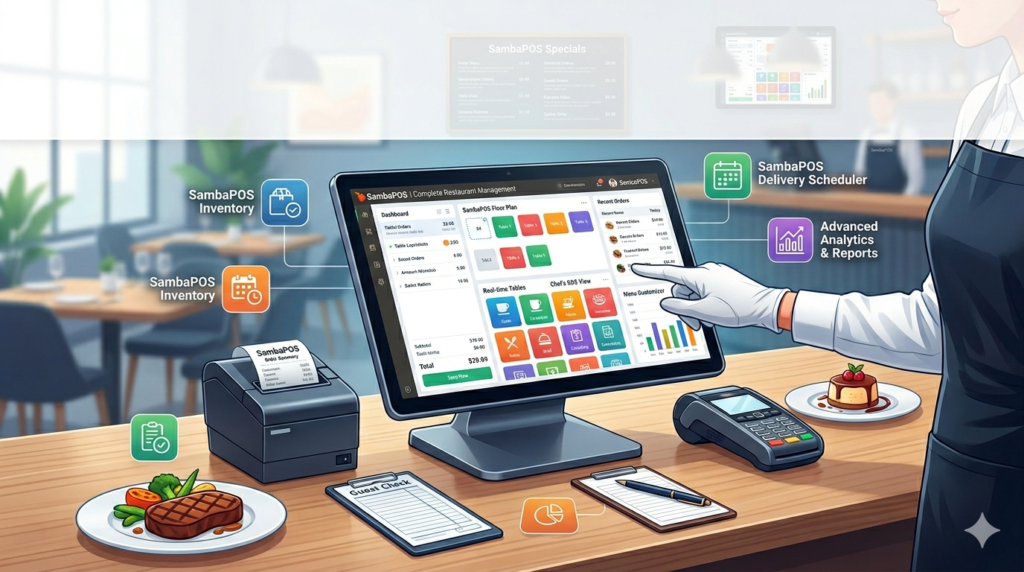
SambaPOS is a free, open-source restaurant point of sale (POS) and management system designed to streamline operations for food and beverage businesses. Unlike many commercial POS systems that charge recurring fees, SambaPOS offers a customizable, self-hosted solution ideal for restaurants, cafes, bars, fast-food outlets, hotels, and patisseries.
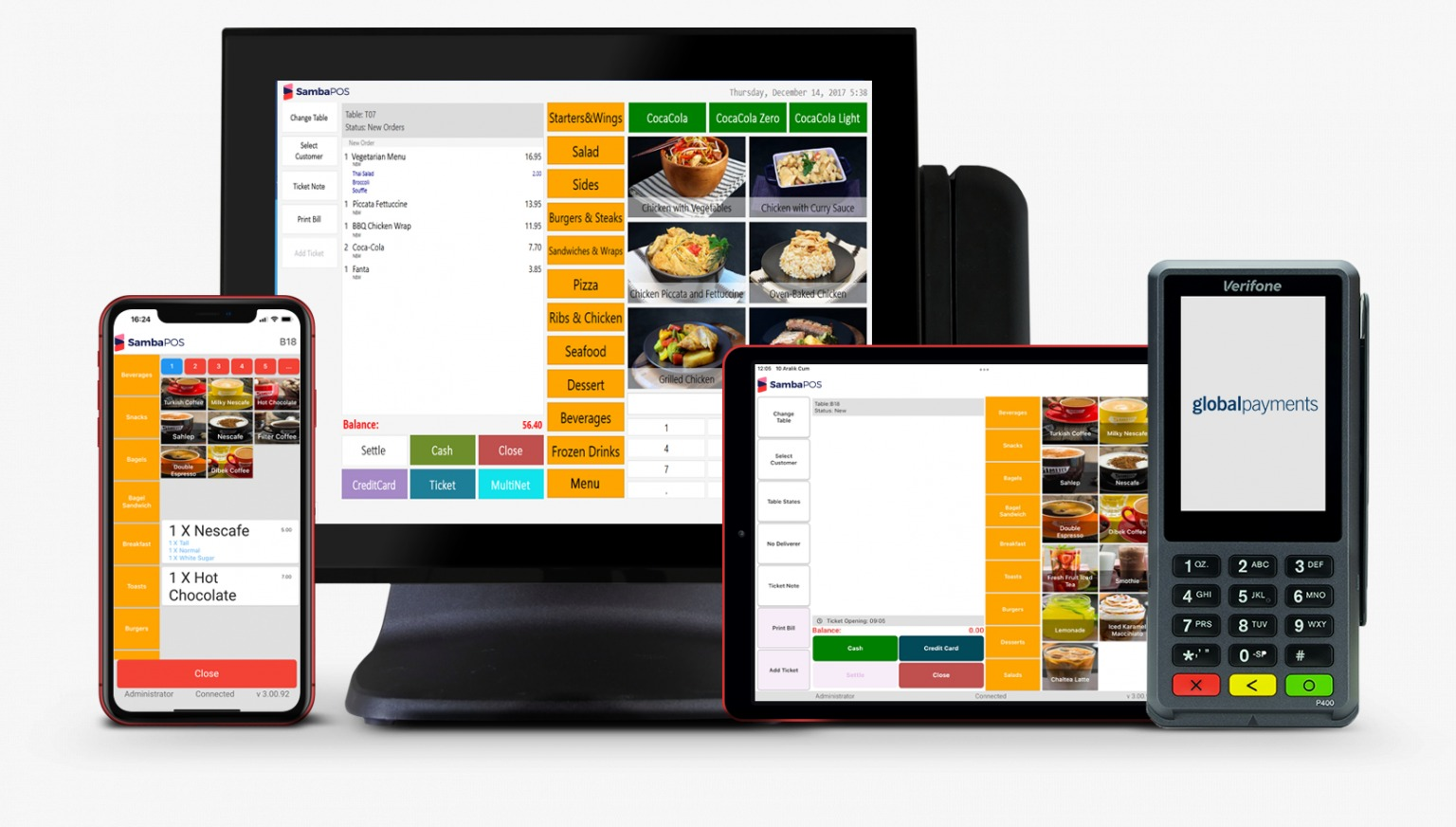
Originally developed to provide a flexible alternative to rigid, expensive POS software, SambaPOS allows business owners to tailor the workflow to their exact needs—from order entry and split billing to inventory management and real-time analytics. The software runs on Windows and integrates with various receipt printers, cash drawers, kitchen display systems (KDS), and customer-facing displays.
Because SambaPOS is open-source and fully configurable, it has gained a strong following among independent restaurant owners and IT professionals who value data ownership, no recurring licensing fees, and deep control over their POS logic. This article provides a comprehensive, legally compliant guide to SambaPOS, covering its features, installation, use cases, alternatives, and expert best practices.
Key Features
SambaPOS includes a robust set of features that compete with paid POS systems. Below is a breakdown of its core functionality.
-
Order Management
-
Support for dine-in, takeout, delivery, and drive-thru order types.
-
Tableside ordering with split bills, shared items, and course sequencing.
-
Quick service mode for fast-casual operations.
-
Modifier groups (e.g., size, temperature, toppings) with price variations.
-
-
Billing & Payments
-
Multiple split payment methods (cash, credit card, gift card, mixed).
-
Automatic tax calculation (VAT/GST inclusive or exclusive).
-
Ticket tagging for discounts, comps, and promotions.
-
Customer account management for recurring business.
-
-
Kitchen & Production
-
Kitchen Display System (KDS) integration to replace paper tickets.
-
Order routing by category or item to different preparation stations.
-
Preparation time tracking and order bumping.
-
-
Inventory & Cost Control
-
Recipe management linking menu items to ingredient stock levels.
-
Automatic inventory deduction upon order completion.
-
Low-stock alerts and purchase order generation.
-
-
Reporting & Analytics
-
Sales reports by hour, day, week, or month.
-
Server performance tracking and tip reporting.
-
Product popularity and margin analysis.
-
Z-Out reports for end-of-day reconciliation.
-
-
Hardware Compatibility
-
Works with Epson, Star Micronics, and other ESC/POS receipt printers.
-
Customer pole displays, cash drawers (via printer or USB), and barcode scanners.
-
Touchscreen and standard mouse/keyboard input.
-
-
User Management
-
Role-based permissions (manager, cashier, server, kitchen).
-
Login auditing and action logging.
-
What’s New in the Latest Version
As of the latest stable release (version 5.8+), SambaPOS has introduced several enhancements focusing on stability and modern payment workflows. Key updates include:
-
Improved touch UI for larger tablet-style screens with resizable tiles.
-
Faster local database performance using SQLite optimizations, reducing lag on older hardware.
-
Enhanced ticket tagging with custom discount rules (e.g., “Happy Hour 15% off” automatically applies between 4–6 PM).
-
Prepaid order support for event catering and group bookings.
-
Extended printer mapping allowing one printer to handle multiple ticket formats.
-
Bug fixes for multi-user environments and network printer timeouts.
System Requirements
Before installing SambaPOS, verify that your hardware meets the following minimum and recommended specifications.
| Component | Minimum Requirement | Recommended for 5+ Terminals |
|---|---|---|
| Operating System | Windows 7 SP1 | Windows 10/11 Pro (64-bit) |
| Processor | 1.5 GHz dual-core | 2.5 GHz quad-core |
| RAM | 2 GB | 8 GB |
| Storage | 1 GB available space | SSD with 5 GB free space |
| Network | 100 Mbps LAN | Gigabit LAN (for multi-terminal sync) |
| Database | SQLite (included) | Microsoft SQL Server Express (free) |
| Other | .NET Framework 4.7.2+ | .NET Framework 4.8 |
-
Multi-terminal setups: A dedicated Windows PC acting as the server (hosting the database) and client terminals connected via LAN.
-
Offline mode: Each terminal caches transactions and syncs when the server is reachable.
Installation Guide
Follow this step-by-step installation guide for a single-terminal setup. For multi-terminal configurations, consult the official SambaPOS documentation.
Step 1: Download the Installer
-
Go to the official SambaPOS website → Downloads → “SambaPOS Setup.exe”.
-
Verify the file hash (SHA256) if provided for security.
Step 2: Run the Installer
-
Right-click the installer and select Run as Administrator.
-
Accept the license (GNU General Public License v3).
-
Choose installation directory (default:
C:\Program Files\SambaPOS). -
Select components: Core, Sample Data (optional for testing), and Printer Drivers.
Step 3: Initial Launch
-
After installation, launch SambaPOS from the desktop shortcut.
-
The software will create a default local database (
SambaData.sdfor SQLite). -
Log in with the default credentials: User:
admin/ Password:(blank).
Step 4: First-Time Configuration Wizard
The wizard will guide you through:
-
Restaurant Name & Currency – Set your business name and local currency symbol.
-
Ticket Numbering – Choose automatic or manual ticket numbering.
-
Tax Setup – Define tax rates (e.g., 10% GST, 5% service charge).
-
Printer Installation – Add receipt printer(s) and test a sample ticket.
Step 5: Secure the Admin Account
-
Immediately change the default admin password: Administration → Users → Change Password.
-
Create additional user roles (cashier, server) with limited permissions.
How to Use the Software
Once installed and configured, using SambaPOS daily is intuitive. Below is a typical workflow for a restaurant server.
Creating a New Order
-
From the main screen, tap New Ticket.
-
Select the Table or takeout counter.
-
Tap menu categories (e.g., Appetizers, Mains, Desserts).
-
Select an item. If modifiers exist, a popup appears (e.g., “Choose doneness: Rare/Medium/Well”).
-
Add notes (e.g., “No onions, extra sauce”).
-
Tap Add to Ticket.
-
Repeat for all items.
Sending Orders to the Kitchen
-
By default, SambaPOS automatically sends orders to the configured KDS or receipt printer after a 2-second delay (configurable).
-
To send immediately: Tap Send Order.
-
The kitchen display highlights new orders and plays an optional sound.
Splitting a Bill
-
Open the ticket from the Active Tickets list.
-
Tap Split Bill.
-
Choose split method:
-
By item: Assign each item to a guest number.
-
By amount: Divide total equally among guests.
-
Manual: Drag items to separate tabs.
-
-
Print individual guest checks.
Closing a Ticket
-
Open the ticket → Pay.
-
Select payment type: Cash, Card, Gift Voucher, or Mixed.
-
Enter amount received (if cash, system calculates change).
-
Tap Finalize. The ticket is closed, and a customer receipt prints.
Best Use Cases
SambaPOS excels in specific restaurant and retail environments due to its flexibility and low total cost of ownership.
| Use Case | Why SambaPOS Works |
|---|---|
| Independent full-service restaurant | Table mapping, split billing, course timing, and server tracking. |
| Pizzeria / takeaway joint | Fast order entry, modifier-heavy menu (toppings, crust types), delivery address logging. |
| Café / coffee shop | Simple menu, customer loyalty account tracking, and quick service mode. |
| Food truck / pop-up | Offline-capable, works with mobile hotspot, lightweight hardware requirements. |
| Hotel banquet / event catering | Prepaid orders, group billing, and multi-terminal coordination across banquet halls. |
| Patisserie / bakery | Recipe cost tracking, barcode scanning for packaged goods, and expiration alerts. |
Advantages and Limitations
Advantages
-
Zero licensing fees: Free and open-source; no monthly subscriptions.
-
Full data ownership: Your sales and customer data stay on your local server.
-
Highly customizable: Modify workflows, ticket layouts, and automation rules using built-in “Rules Engine.”
-
Offline mode: Continues operating during internet outages.
-
Active community forum: User-contributed plugins, printer templates, and troubleshooting.
Limitations
-
Steep learning curve for setup: Requires Windows administration knowledge and willingness to configure rules manually.
-
No native cloud dashboard: Remote reporting requires third-party tools or VPN.
-
Limited support: No official paid support; relies on community forums and self-help.
-
Windows-only: Cannot run on iPad, Android, or Linux natively (but can run on Windows tablets).
-
Less polished UI: Compared to modern SaaS POS systems (Toast, Square), the interface feels dated.
Alternatives to the Software
If SambaPOS does not fit your business needs, consider these legitimate alternatives. Each offers different trade-offs between cost, features, and ease of use.
| Software | Best For | Pricing Model | Cloud-Based? | Key Differentiator |
|---|---|---|---|---|
| Loyverse POS | Small retail & cafes | Free (paid add-ons) | Yes | Mobile-first, inventory included |
| Odoo POS | Integrated ERP users | Free (self-hosted) / Paid (cloud) | Optional | Full business suite (accounting, CRM) |
| Square for Restaurants | Fast setup, low upfront cost | Free software (paid processing) | Yes | All-in-one payments, hardware available |
| UniCenta oPOS | Feature-rich open-source | Free (GPL) | No | Similar to SambaPOS, different UI |
| Toast POS | High-volume full-service restaurants | Paid (subscription + processing) | Yes | Dedicated restaurant features, excellent support |
Comparison note: SambaPOS remains the best choice for budget-conscious owners willing to invest time in configuration. For those wanting instant setup and built-in payment processing, Square or Toast are easier but more expensive long-term.
Frequently Asked Questions
1. Is SambaPOS really free for commercial use?
Yes. SambaPOS is released under the GNU General Public License v3. You can use it in a commercial restaurant, modify the code, and even redistribute changes—without paying any license fee. The only costs are your hardware, Windows licenses, and payment processor fees.
2. Can SambaPOS run on an iPad or Android tablet?
No. SambaPOS requires Windows. However, you can install it on a Windows-based tablet (e.g., Surface Go, Dell Latitude tablet) and use touch input. There is no official iOS or Android app.
3. Does SambaPOS integrate with credit card processors?
Not directly. SambaPOS does not have built-in payment gateway integration. You must process credit cards separately using a standalone terminal or integrate via a third-party middleware solution (like TCMPOS or rtpBridge). For most users, this means swiping/dipping a card on a separate physical terminal and entering the amount manually.
4. How do I back up my SambaPOS data?
Stop the SambaPOS service (or close the app on the server), then copy the database file (SambaData.sdf or your SQL database .mdf file) to an external drive or cloud backup folder. Schedule this daily. For automated backups, use a script with the official SambaPOS Backup Tool (available in the Tools folder).
5. Can I use SambaPOS for a multi-location restaurant?
Yes, but with limitations. Each location requires its own SambaPOS server and database. Centralized reporting across locations is not built-in. Some users achieve this by consolidating data via custom SQL queries or using third-party reporting tools like Power BI connected to each database.
6. What is the best printer for SambaPOS?
Epson TM-T20III or Star Micronics TSP654II are widely compatible. Use “ESC/POS” mode. Avoid printers requiring proprietary Windows drivers without ESC/POS emulation. SambaPOS prints via raw text commands, not Windows print dialogs, for speed and reliability.
7. How do I update SambaPOS without losing data?
Download the latest installer and run it on the server. It will detect the existing installation and upgrade the database schema automatically. Always back up your database first. Clients can remain on the older version briefly, but update all terminals to the same version to avoid sync issues.
Final Thoughts
SambaPOS remains one of the most powerful free, open-source restaurant point of sale systems available today. It delivers enterprise-level features—split billing, kitchen displays, inventory control, and detailed reporting—without any recurring fees. The trade-off is a steeper setup curve and a Windows-only environment.
For independent restaurant owners who have basic IT confidence or a trusted technical partner, SambaPOS offers unmatched value and data control. For those who prefer a ready-to-run, cloud-based solution with phone support, alternatives like Square or Toast may be better suited.
Before deploying SambaPOS in a live environment, run it side-by-side with your existing system for two weeks, test all hardware, and train your staff thoroughly. When configured correctly, SambaPOS will reliably run your front-of-house and back-of-house operations for years—without vendor lock-in or surprise fees.
Premium Software Support Service
If you need professional help with software installation, setup, or technical configuration, our team is available to assist you.
Contact & Support
For quick assistance and latest updates, connect with us using the links below:
🔹 Direct Telegram Support
https://t.me/PlayoutKing
🔹 Official Telegram Updates Group
https://t.me/yourgroup
Service Policy
- Remote testing available through AnyDesk before confirmation.
• Verify the setup and performance before completing the order.
• Support available for single or multiple systems.
• Step-by-step guidance to ensure smooth installation and working environment.
Our goal is to provide reliable technical assistance so your software runs smoothly without interruptions.