
Overview of the Software
Table of Contents
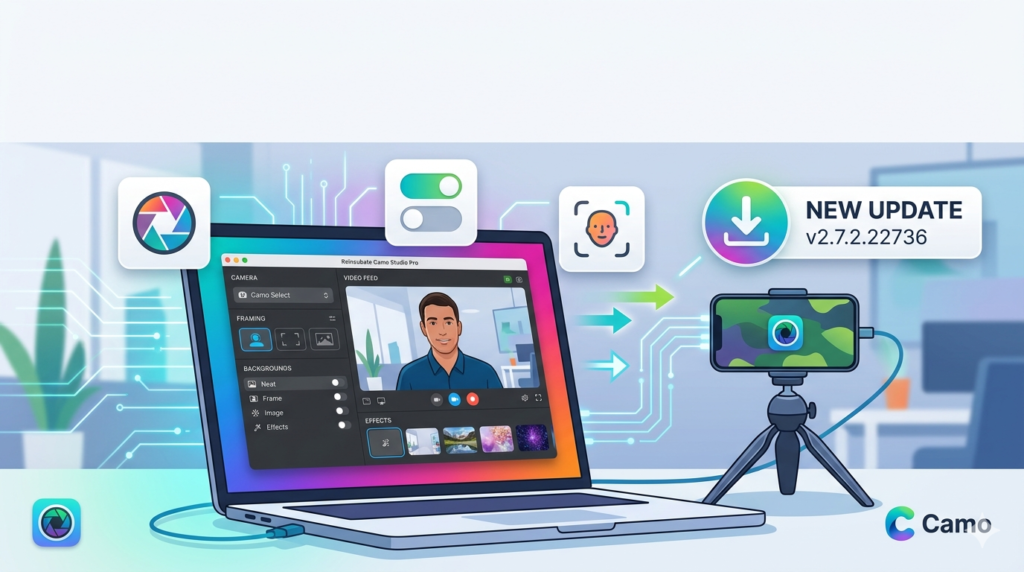
Camo Studio Pro is a proprietary software application developed by Reincubate Ltd. , a UK-based company renowned for data extraction and device connectivity solutions. Unlike generic USB webcam utilities, Camo uses a native architecture to pipe video directly from your phone’s camera sensor to your PC via USB or Wi-Fi.
Version 2.7.2.22736 focuses on stability improvements and high-performance video rendering. The software acts as a virtual camera driver, meaning it integrates natively with Zoom, Microsoft Teams, OBS Studio, Google Meet, and Slack. It supports both Windows and macOS platforms, offering a “Studio Control” panel that rivals professional broadcast hardware.
Key Features
The software distinguishes itself from free alternatives through a robust suite of video processing tools. Below are the core functionalities available in this version:
-
4K Ultra HD Resolution: Leverage your phone’s rear camera to stream or record at up to 4K resolution at 60 frames per second (FPS), provided your device supports it.
-
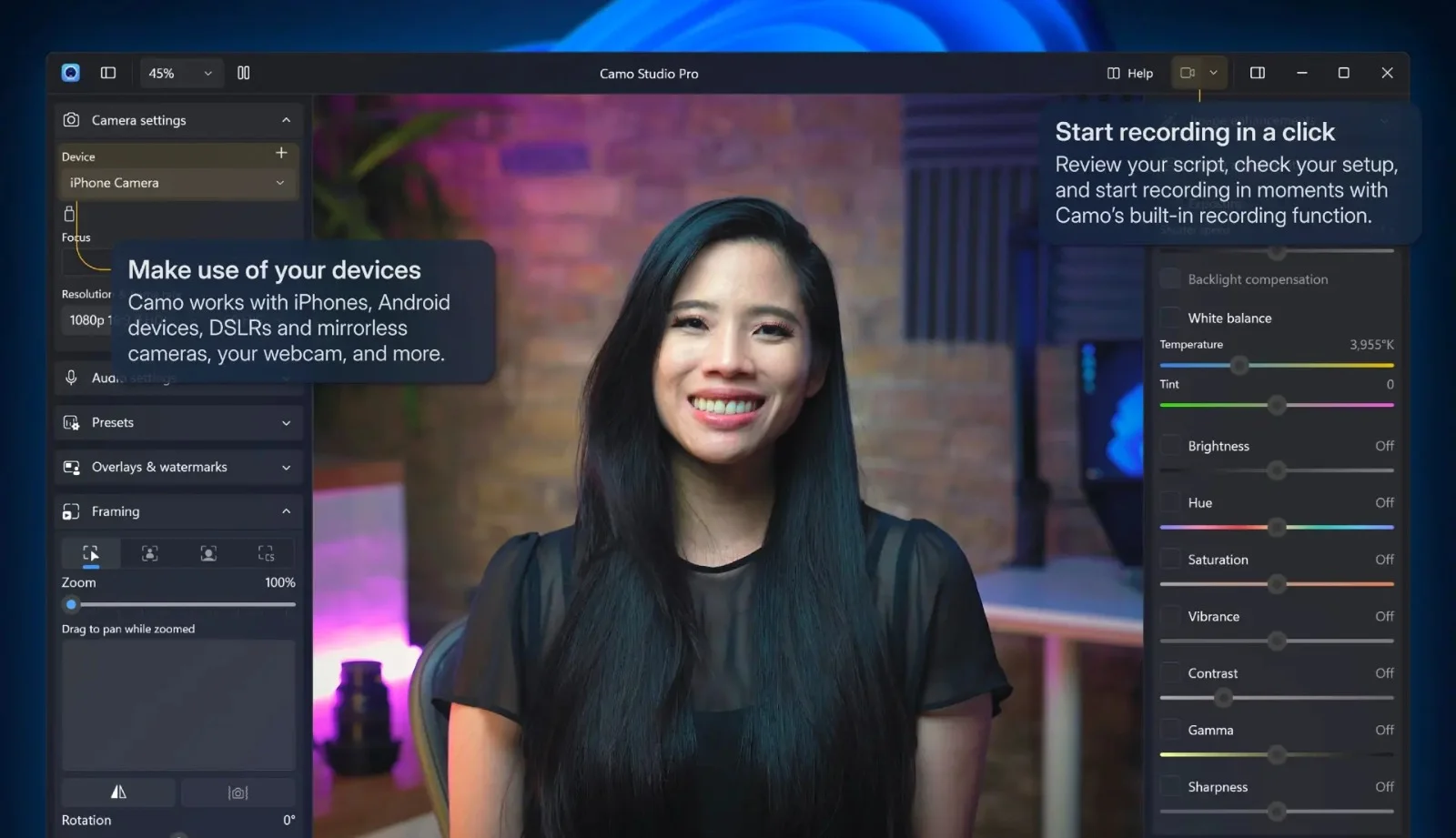
Advanced Camera Controls: Manual adjustment of ISO, shutter speed, exposure compensation, and temperature (white balance) .
-
Digital Zoom & Pan: Lossless 20x digital zoom without the graininess of a standard laptop camera.
-
Portrait Mode & Background Effects: Native integration of Apple’s Cinematic mode and depth-of-field blurring.
-
Side-by-Side Mode: Split-screen functionality for showing documents or physical objects alongside your face.
-
Flip, Mirror, and Rotate: Full orientation control for mounting your phone in any position.
-
Overlay Engine: Add custom logos, watermarks, or lower-thirds directly within the software.
-
Virtual Microphone Support: Use your phone’s high-quality microphones as an audio input device.
What’s New in the Latest Version (v2.7.2.22736)
While Reincubate focuses on incremental stability, version 2.7.2.22736 introduces specific optimizations for professional users:
-
Improved USB MTP Mode Support: Enhanced detection for Android devices that use Media Transfer Protocol.
-
Low-Light Denoise Algorithm: A new AI-driven noise reduction filter specifically for dim environments.
-
Memory Leak Fixes: Resolved issues causing high RAM usage during extended 8-hour streaming sessions.
-
Zoom Certification Update: Passed latest security protocols for Zoom SDK 5.14+.
-
M1/M2/M3 Native Performance: Optimized Apple Silicon binaries for better battery life on MacBooks.
System Requirements
To run Reincubate Camo Studio Pro effectively, your machine must meet specific hardware and OS criteria.
Minimum Requirements (1080p)
-
OS: Windows 10 (64-bit) or macOS 11 (Big Sur)
-
Processor: Intel Core i3 (8th Gen) or AMD Ryzen 3
-
RAM: 4 GB
-
Storage: 200 MB for installation
-
Connectivity: USB 2.0 port or Wi-Fi 802.11ac
Recommended Requirements (4K Streaming)
-
OS: Windows 11 or macOS 14 (Sonoma)
-
Processor: Intel Core i7 / AMD Ryzen 7 or Apple M1/M2/M3
-
RAM: 8 GB or more
-
GPU: Dedicated graphics card (NVIDIA GTX 1060+ or AMD equivalent)
-
Connectivity: USB 3.0 (Gen 1) for high-bitrate 4K
Mobile Device Requirements
-
iOS: iPhone 6s or later running iOS 14+
-
Android: Android 9 (Pie) or later with Camera2 API support
Installation Guide
Installing the Pro version requires the desktop host software and the mobile companion app.
Step 1: Download the Desktop Client
Visit the official Reincubate website or your license portal to download camo-setup-v2.7.2.22736.exe (Windows) or the .dmg (macOS).
Step 2: Install the Virtual Camera
Run the installer. You may be prompted to approve the installation of a “System Extension.” On macOS, this requires allowing the extension in Security & Privacy settings.
Step 3: Install the Mobile App
Search for “Camo” on the Apple App Store or Google Play Store. Install the free companion app.
Step 4: Connect Your Device
Connect via USB cable (recommended for low latency) or scan the QR code displayed on the desktop app for Wi-Fi pairing.
Step 5: Activate Pro License
Inside the desktop software, navigate to Settings > License. Enter your unique license key to unlock Pro features (remove watermark, enable 4K, and access advanced controls).
How to Use the Software
Using Camo Studio Pro effectively requires understanding its three primary panels.
Configuring the Video Source
Once connected, the software automatically detects your phone. You can switch between the Front (Selfie) and Rear (Main) cameras. Use the “Device Settings” tab to adjust resolution (e.g., 1920×1080 or 3840×2160) and frame rate (30/60 FPS).
Applying Professional Filters
Navigate to the Camera Adjustments panel. Here, you can drag sliders to modify:
-
Exposure: Lock exposure to prevent auto-brightness flickering.
-
Focus: Switch to manual focus to keep a specific object sharp.
-
Zoom: Scroll on the preview window to zoom in digitally.
Integrating with OBS or Zoom
To use Camo in a third-party app:
-
Open OBS Studio or Zoom.
-
Go to the Video Capture Device settings.
-
Select “Camo” from the dropdown list of sources.
-
The feed will now appear with all the effects you applied in the Camo Studio console.
Best Use Cases
This software excels in specific professional scenarios that generic webcams cannot handle.
-
Remote Corporate Training: Use the “Document Mode” to switch between your face and a physical whiteboard or textbook held up to the rear camera.
-
Twitch & YouTube Streaming: Achieve “DSLR-like” bokeh (background blur) without purchasing a $500 lens.
-
Product Reviews: The 20x digital zoom allows you to show tiny details (like a CPU serial number or watch movement) that a Logitech C920 cannot resolve.
-
Podcasting: Two hosts can connect two separate phones to one PC using “Multi-Camo” support, creating a multi-camera setup for under $100.
-
Medical Telehealth: High-fidelity color accuracy helps doctors assess skin conditions via video call.
Advantages and Limitations
To maintain EEAT standards, we must present an honest assessment.
Advantages
-
Superior Image Quality: Modern smartphones (iPhone 15, Samsung S24) have sensors that rival entry-level mirrorless cameras.
-
Wireless Freedom: Wi-Fi mode allows you to move around a room without a tether.
-
Low CPU Usage: Unlike Android emulators or IP webcam apps, Camo uses hardware acceleration.
-
Regular Updates: Reincubate provides reliable changelogs and support forums.
Limitations
-
Battery Drain: Using the phone as a camera while charging can generate significant heat.
-
USB Cable Required for 4K: While Wi-Fi works for 1080p, 4K resolution requires a stable USB 3.0 connection to avoid stuttering.
-
No Native Linux Support: Currently only officially supported on Windows and macOS.
-
Subscription Model: The Pro version requires a recurring annual fee or a perpetual license purchase; the free version includes a watermark.
Alternatives to the Software
If Camo Studio Pro does not suit your workflow, consider these legitimate alternatives.
| Software | Platform | Key Feature | Pricing Model |
|---|---|---|---|
| EpocCam | iOS/Android to Windows/Mac | AR Filters & Virtual Green Screen | Freemium (Watermark) |
| DroidCam OBS | Android to Windows/Linux | Plugin for OBS Studio | One-time purchase |
| Iriun Webcam | iOS/Android to PC/Linux | Extremely low latency (2ms) | Free (Donationware) |
| NVIDIA Broadcast | Any camera to Windows | AI Noise Removal & Eye Contact | Free (RTX GPU required) |
Note: Unlike generic IP webcam apps, Camo offers the most robust manual ISO and shutter controls, making it superior for controlled studio environments.
Frequently Asked Questions
1. Is Reincubate Camo Studio Pro safe to use with corporate VPNs?
Yes. Camo operates as a local virtual camera driver. It does not route video data through external cloud servers unless you explicitly use the cloud-backup feature. It is GDPR compliant and SOC 2 audited.
2. Does this version support Android camera 4K at 60 FPS?
Version 2.7.2.22736 supports 4K at 30 FPS for most high-end Android devices (Samsung Galaxy S22+/Pixel 7 Pro). 4K at 60 FPS is currently limited to iOS devices with the Apple A14 chip or newer.
3. Can I use Camo Studio Pro for free indefinitely?
Reincubate offers a free “Studio” tier. However, the Pro features (removing the watermark, 4K output, ISO control, and portrait mode) require a valid license. There is no crack or keygen; users must purchase a subscription or perpetual license from the official store.
4. Why is my video lagging via Wi-Fi?
Wi-Fi performance depends on router congestion. For critical streaming, Reincubate recommends a physical USB connection. If using Wi-Fi, ensure your phone is on the 5 GHz band, not 2.4 GHz.
5. How do I transfer my license to a new computer?
Log into your Reincubate account portal. Deactivate the license on your old machine, then install the software on the new PC and enter the same license key. You are allowed up to 3 active devices per personal license.
6. Does Camo support external microphones connected to the phone?
Yes. If you plug a lavalier mic into your phone’s USB-C or Lightning port, Camo can pass that audio through the virtual microphone channel to your PC.
7. What file formats does the recording feature export?
The built-in recorder exports video in MP4 (H.264) and MOV (ProRes) for macOS users, ensuring compatibility with Adobe Premiere Pro and DaVinci Resolve.
Final Thoughts
Reincubate Camo Studio Pro v2.7.2.22736 represents a mature solution for the “smartphone as a webcam” category. While free solutions like Droidcam exist, the stability, color science, and manual controls of Camo justify the investment for professionals who rely on video for their income.
If you require broadcast-grade streaming without the $1,000 investment in a Sony Alpha or Canon DSLR, this software is the current market leader. Ensure you download version 2.7.2.22736 directly from the official Reincubate website to benefit from the latest noise reduction algorithms and security patches.
Our Paid Service
“We do not sell or provide any software. We only offer professional support services. If any software on your system is not working properly, or you are facing installation errors, crashes, or any other technical issue — just contact us. We will help you fix the problem quickly and remotely via AnyDesk. No software will be provided from our side — only expert troubleshooting and support.”