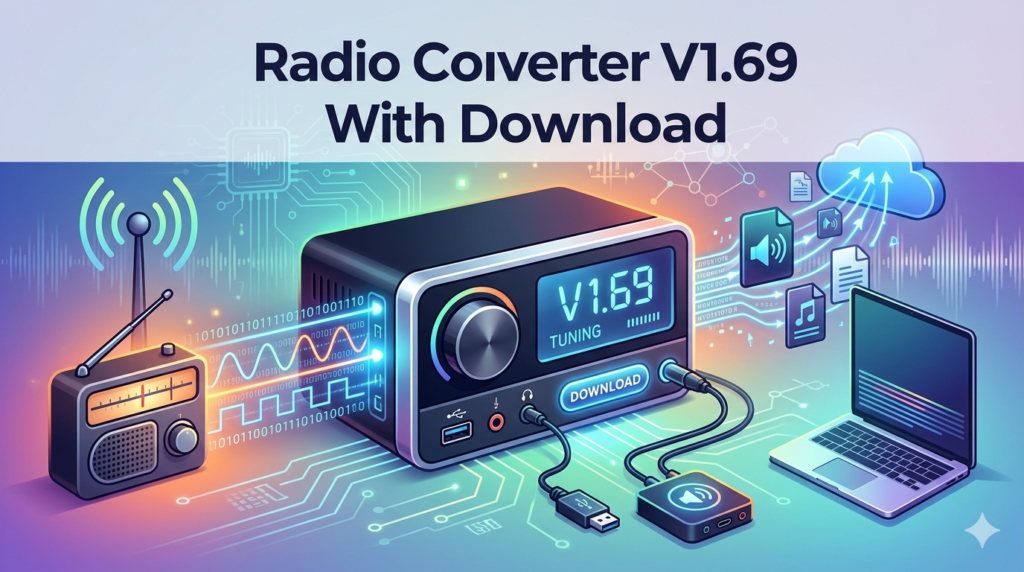


Download the Radio Converter V1.69 (Professional Audio Format Migration Tool) from this link…

Overview of Radio Converter Software
Table of Contents
Radio Converter V1.69 is a specialized utility designed for broadcast engineers, radio station managers, and audio archivists who need to migrate legacy broadcast audio formats into modern digital standards. Unlike standard media converters, this software understands proprietary broadcast file structures—such as Cart Chunk, DJB, and RCS Zetta—ensuring metadata, cue points, and audio integrity remain intact.
In the evolving landscape of digital broadcasting, radio converter software acts as a critical bridge between legacy automation systems and contemporary production workflows. Version 1.69 focuses on stability and expanded format recognition, allowing professionals to consolidate decades of audio assets into MP3 or WAV libraries without manual re-editing.
Key Features of Radio Converter V1.69
This tool distinguishes itself through deep compatibility with industry-specific audio containers. Below are the primary functional capabilities:
-
Legacy Format Decoding: Converts proprietary formats from over 15 major radio automation systems.
-
Metadata Preservation: Retains cue points, cart numbers, title/artist tags, and segmentation data.
-
Batch Processing Engine: Convert entire audio libraries (thousands of files) with a single queue.
-
Dropbox Integration: Direct import from cloud storage for Enco and other supported systems.
-
Lossless & Lossy Outputs: Export to MP3, WAV, AAC, or maintain original PCM quality.
-
Drag-and-Drop Workflow: Simple interface requiring no command-line scripting.
What’s New in Radio Converter V1.69
The latest version introduces several quality-of-life improvements for audio engineers:
-
Expanded Rivendell Support: Improved parsing of Riverdell’s .rdx metadata.
-
Storq & AirForce Optimization: Faster decoding for older automation hard drive images.
-
Windows 11 Compatibility: Full support for 64-bit environments and NTFS permissions.
-
Error Logging Enhancements: Detailed CSV logs for failed conversions to aid troubleshooting.
System Requirements
Before installing Radio Converter V1.69, ensure your system meets these specifications:
| Component | Minimum Requirement |
|---|---|
| OS | Windows 10 or 11 (64-bit); Windows Server 2016+ |
| CPU | Dual-core 2.0 GHz (Intel i3 or AMD Ryzen 3) |
| RAM | 4 GB (8 GB recommended for batch conversions) |
| Storage | 200 MB for installation + space for source/target audio |
| Additional | .NET Framework 4.8 or later |
Installation Guide
Follow these steps to set up Radio Converter V1.69 safely and correctly:
-
Download from Official Source: Always obtain the installer from the developer’s verified website or authorized reseller.
-
Disable Antivirus Temporarily (Optional): Some AV tools flag audio conversion tools incorrectly; add an exception if needed.
-
Run Installer: Right-click
RadioConverter_v1.69_setup.exeand select Run as Administrator. -
Accept License Agreement: Read the EULA, which prohibits reverse engineering or redistribution.
-
Choose Installation Path: Default is
C:\Program Files\Radio Converter\. Click Install. -
Launch Software: After completion, open the application and enter your valid license key (purchased separately).
How to Use the Software (Step-by-Step Workflow)
Converting a radio station’s audio library is straightforward with this interface:
-
Select Source Format: From the “Convert FROM” dropdown, choose your automation system (e.g., RCS NexGen/Zetta, WideOrbit, Station Playlist).
-
Add Files/Folders: Click Add Folder to import a directory of .DAT, .CDD, or proprietary cart files.
-
Configure Output Settings:
-
Format: MP3 (192-320 kbps) or WAV (16-bit/44.1kHz).
-
Destination: A new folder (do not overwrite originals).
-
-
Metadata Mapping: Map source fields (Cart #, Cut ID) to ID3 tags (Title, Track Number).
-
Execute Conversion: Click Start Batch. Monitor progress in the real-time log window.
-
Verify Output: Spot-check 5-10 files in a media player to confirm audio levels and metadata.
Best Use Cases for Radio Converter Software
This tool is not for casual music listeners. It solves specific professional problems:
-
Station Automation Migration: Moving from Enco DAD to WideOrbit without re-recording spots.
-
Archive Digitization: Converting 90s-era Cart Chunk libraries to cloud-ready MP3s.
-
Disaster Recovery: Extracting audio from corrupted Arrakis or AudioVault drives.
-
Podcast Repurposing: Turning Myriad or NextKast logs into episodic podcast folders.
-
Legal Evidence Preparation: Converting radio airchecks from proprietary formats to standard WAV for court exhibits.
Advantages and Limitations
Advantages (Strengths)
-
Supports niche formats that ffmpeg or Audacity cannot read.
-
Preserves broadcast automation cues (EOM, segue points).
-
Batch processing saves weeks of manual labor.
-
Lightweight – runs on older studio PCs.
Limitations (Weaknesses)
-
No native macOS or Linux version (Windows only).
-
Does not convert streaming protocols (Shoutcast, Icecast).
-
User interface is utilitarian, not modern.
-
Requires purchased license; no free tier for commercial use.
Legitimate Alternatives to Radio Converter V1.69
If Radio Converter does not fit your workflow, consider these legal alternatives:
| Software | Best For | Platform |
|---|---|---|
| Soundminer | Metadata-intensive audio asset management | Win/macOS |
| Audition (Adobe) | Manual conversion & restoration | Win/macOS |
| XLD (Free) | Batch conversion of standard audio files | macOS only |
| DBpoweramp | Consumer-grade format shifting | Windows |
| SoX | Command-line scripted conversion | Cross-platform |
Note: No alternative offers the same depth of radio automation formats (DJB, NexGen, Maestro) as Radio Converter V1.69.
Frequently Asked Questions (FAQ)
Q1: Is Radio Converter V1.69 compatible with Windows 11?
Yes. Version 1.69 has been tested on Windows 11 22H2 and later, including Arm64 emulation.
Q2: Does the software remove DRM or copy protection?
No. Radio Converter assumes you own the rights to the audio. It cannot bypass encryption or DRM locks on commercial audio files.
Q3: Can I convert streaming audio from internet radio?
No. This tool works with file-based automation formats, not network streams. Use a stream ripper (legally) for that purpose.
Q4: What is the difference between Cart Chunk and DJB format?
Cart Chunk (standard .DAT) is a linear 16-bit PCM container with cue markers. DJB is a proprietary compressed format used by older RCS systems. Radio Converter handles both.
Q5: My station uses Maestro 3.0. Will this work?
Yes. The software explicitly lists Maestro in its “Convert FROM” compatibility list. Contact support for pre-2005 Maestro versions.
Q6: How do I obtain a legal license?
Visit the developer’s official website. A single-user commercial license costs approximately $249–$349 USD. Volume discounts are available for station groups.
Q7: The software asks for a “Dropbox import key.” Where do I find this?
For Enco systems using Dropbox watch folders, you must generate an API token from your Dropbox developer dashboard and paste it into the settings panel.
Final Thoughts on Radio Converter V1.69
Radio Converter V1.69 fills a narrow but essential niche: migrating decades of broadcast audio out of obsolete, proprietary formats. While the interface feels dated, the format support is unmatched for radio engineers dealing with legacy systems from Arrakis, BSI, RCS, or WideOrbit.
For professional users, the time savings of batch converting 10,000+ cart files justifies the license cost. However, home users or podcasters working with standard MP3s will find no benefit here. Always use legally obtained software and ensure you have the rights to convert any audio assets. For mission-critical station migrations, pair Radio Converter with a manual QC process to verify cue point accuracy.
Premium Software Support Service
If you need professional help with software installation, setup, or technical configuration, our team is available to assist you.
Contact & Support
For quick assistance and latest updates, connect with us using the links below:
🔹 Direct Telegram Support
https://t.me/PlayoutKing
🔹 Official Telegram Updates Group
https://t.me/yourgroup
Service Policy
- Remote testing available through AnyDesk before confirmation.
• Verify the setup and performance before completing the order.
• Support available for single or multiple systems.
• Step-by-step guidance to ensure smooth installation and working environment.
Our goal is to provide reliable technical assistance so your software runs smoothly without interruptions.