
Overview of Promob Software
Table of Contents
Promob is a comprehensive software ecosystem designed specifically for the furniture industry, providing solutions that bridge the gap between design, manufacturing, and sales . Developed by Promob (now rebranded as Cyncly), the software suite serves a diverse range of stakeholders, including carpenters, factories, furniture stores, designers, architects, and educational institutions .
At its core, Promob furniture design software enables users to create detailed 3D projects, generate photorealistic renders, produce accurate budgets, and integrate with CNC machinery for streamlined manufacturing. The software has evolved significantly, establishing itself as an industry standard for furniture design and interior decoration, particularly in markets like Brazil and Latin America .
The 2025 version (v60.16.28) represents the latest iteration of this powerful tool, focusing on enhancing rendering quality, automating repetitive tasks, and improving integration between design and production workflows .
Key Features
3D Project Design and Modeling
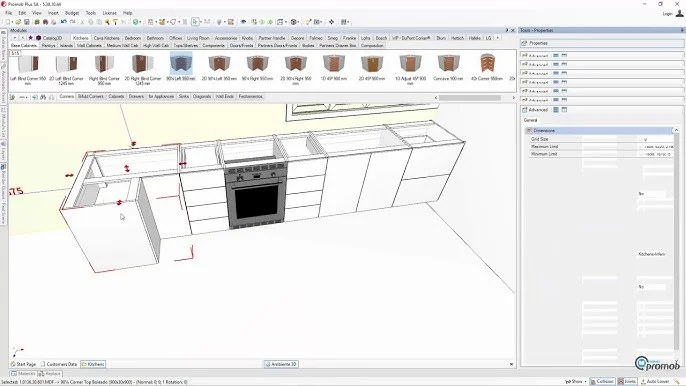
Promob Studio provides robust 3D modeling tools that allow users to create detailed interior spaces and furniture designs with precision. Key modeling capabilities include:
-
Parametric furniture modeling with customizable dimensions
-
Extensive library of modular components and materials
-
Real-time visualization of design changes
-
Precise measurement tools and dimension control
Photorealistic Rendering
The rendering engine in Promob v60.16.28 delivers high-quality furniture rendering with advanced lighting and material effects. Users can generate professional-grade visualizations for client presentations and portfolio development. The software supports:
-
Multiple lighting setups and environments
-
High-definition texture mapping
-
360-degree rendering for immersive presentations
Budget and Documentation Automation
One of Promob’s most valuable features is its ability to automatically generate project budgets, cutting lists, and documentation. This automation reduces manual errors and saves significant time in the project workflow:
-
Promob Prices for online price management and margin control
-
Automatic material quantity calculation
-
Professional documentation generation
-
Integration with supplier pricing systems
CNC Integration and Manufacturing
Promob Maker provides direct integration between design and manufacturing processes. This feature streamlines production by generating optimized cutting plans and CNC machine code directly from project files .
Project Management and Collaboration
Promob includes Manager, an online management platform specifically designed for the furniture sector. Available in both free and Pro editions, Manager facilitates sales, review, purchasing, and project delivery processes .
What’s New in Promob v60.16.28 (2025)
The 2025 version introduces several enhancements focused on improving user experience and expanding capabilities:
AI-Enhanced Rendering
While traditional rendering remains a core feature, Promob v60.16.28 includes advanced rendering technologies that leverage artificial intelligence to produce even more realistic visualizations. These improvements allow for faster rendering times and higher-quality results with less manual adjustment .
Enhanced Automation Features
The latest version expands automation capabilities, allowing users to streamline repetitive tasks in both design and manufacturing workflows. This includes improvements in automated budgeting, cutting optimization, and project documentation .
Upgraded CNC Integration
Promob Maker in v60.16.28 features improved integration with CNC machinery, enabling smoother data transfer and more efficient production processes .
Performance Optimizations
The 2025 release includes performance enhancements that improve software responsiveness and stability, particularly when handling complex projects with numerous components and high-resolution renderings .
System Requirements for Promob v60.16.28
To ensure optimal performance, your computer must meet specific Promob system requirements. Promob provides both minimum and recommended specifications .
Hardware Requirements
| Component | Minimum | Recommended |
|---|---|---|
| Processor | 2 GHz multicore, 64-bit compatible | 2.8 GHz or higher multicore, 64-bit compatible |
| RAM | 8 GB | 16 GB or higher |
| Graphics Card | Dedicated 1 GB OpenGL compatible | Dedicated 2 GB or higher OpenGL compatible |
| Storage Space | 4-8 GB | 4-8 GB |
| Internet | 10 Mbps upload / 30 Mbps download | 10 Mbps upload / 30 Mbps download |
Graphics Card Considerations
Promob strongly recommends Nvidia graphics cards as they consistently meet the software’s technical specifications. The software has restrictions with Intel, SIS, and Nvidia GeForce 210 models. It is essential that graphics drivers are updated to the manufacturer’s latest version, as drivers outdated for more than six months can compromise performance .
Software Requirements
-
Operating System: Windows 10 or Windows 11 with administrative permissions
-
Framework: .NET Framework 4.8
-
Internet Explorer: Version 11
Important Compatibility Notes
Promob does not run in virtual environments, cannot be installed on network units, and is not compatible with Windows Server or MAC operating systems . Windows must be legalized for optimal performance, and antivirus software should be configured to not block Promob folders .
Installation Guide
Pre-Installation Checklist
Before beginning installation, verify that:
-
Your computer meets the minimum system requirements
-
Windows is up-to-date with the latest updates
-
You have administrative permissions on the computer
Installing via Promob Downloader
The standard installation process uses the Promob Downloader tool :
-
Download your Promob version through Promob Downloader
-
Once the download completes, you will receive a confirmation message
-
Set your preferred installation language
-
Follow the Installation Wizard prompts
-
Select the installation location (default is Local Disk C:\Program Files)
-
Wait for the installation to complete
-
Choose your Promob shortcut options
-
Click “Launch” when the installation completion message appears
Installing on Another Computer
To install Promob on another computer using an installation folder :
-
Locate the installation file in your download directory
-
Copy the entire Promob folder to an external storage device
-
Transfer the folder to the target computer’s local directory
-
Run the PromobInstaller.exe file
-
Complete the installation and activate Promob when prompted
Post-Installation
After installation, you may need to activate your subscription and configure the software for your specific needs. For licensing-related issues or activation problems, consult Promob technical support .
How to Use Promob Software
Getting Started
-
Launch Promob from your desktop shortcut or Start menu
-
Create a new project or open an existing one
-
Set up your workspace according to your preferences
Designing a Project
The design process in Promob Studio typically follows these steps :
-
Create the environment: Set up the room dimensions and basic layout
-
Add furniture and components: Insert modular furniture pieces from the extensive library
-
Customize items: Adjust dimensions, materials, and configurations
-
Apply materials and textures: Select from the library or import custom materials
-
Position elements: Arrange furniture within the space using precise positioning tools
-
Add lighting: Insert and adjust lighting fixtures for realistic rendering
Creating Renders
To generate photorealistic renders :
-
Set up your view: Position the camera for the desired perspective
-
Configure rendering settings: Select quality, resolution, and output format
-
Render the image: Use the Render Up plugin or built-in rendering tools
-
Export the image: Save the render in your preferred format
Generating Budgets and Documentation
-
Select the project or specific items to budget
-
Access the budgeting tools (Promob Prices or Manager)
-
Review pricing tables and margins
-
Export the budget in the required format
-
Print or share project documentation
Exporting Images and Projects
Promob allows exporting images, project files, and documentation in various formats . For project files, ensure compatibility with your manufacturing or collaboration needs.
Best Use Cases
Furniture Stores and Retailers
Furniture stores can use Promob for furniture retail to create personalized designs for customers, generate professional presentations, and streamline the sales process. The integration with pricing tools allows for accurate quotes and efficient order management .
Architects and Interior Designers
Architects and interior designers benefit from Promob’s detailed 3D modeling and rendering capabilities to present design concepts to clients. The ability to create realistic visualizations helps in communicating design intent and securing project approvals .
Furniture Manufacturers
Manufacturers can leverage Promob Maker to bridge the gap between design and production. The CNC integration reduces errors, optimizes material usage, and improves production efficiency .
Educational Institutions
Promob Academic provides educational institutions with access to professional software, supporting student learning in furniture design and production with free access for up to five years .
Advantages and Limitations
Advantages
-
Industry-specific: Tailored for the furniture and interior design industry
-
Complete workflow: From design to manufacturing integration
-
Professional rendering: High-quality visualizations for client presentations
-
Localized content: Extensive library of components relevant to specific markets
-
Automation: Reduces manual errors and saves time in budgeting and documentation
-
Integration: Works with various systems including Manager and Promob Prices
Limitations
-
System requirements: Requires relatively powerful hardware, especially for rendering
-
Platform restrictions: Not compatible with MAC or Linux operating systems
-
Learning curve: Comprehensive features may require training for new users
-
Cost: Professional editions represent a significant investment
-
No virtual environments: Cannot run in virtual machines
Alternatives to Promob Software
Blender with Home Builder
Blender with Home Builder presents a free alternative for interior design projects. While Blender is a powerful open-source 3D modeling tool, the Home Builder add-on enables parametric furniture design. However, this alternative lacks the comprehensive features of Promob, particularly in budgeting and manufacturing integration .
Comparison Overview
| Feature | Promob Studio | Blender + Home Builder |
|---|---|---|
| Cost | Subscription-based | Free |
| Rendering Quality | Professional | High with additional setup |
| Manufacturing Integration | Yes | No |
| Budgeting Tools | Comprehensive | Not available |
| Learning Curve | Moderate | Steep |
| Industry-Specific Features | Extensive | Limited |
Other Alternatives
The furniture design software market includes several alternatives, though many are either less specialized or more expensive. When evaluating alternatives, consider your specific needs, whether they be design-focused, manufacturing-focused, or both.
Frequently Asked Questions
1. What is the latest version of Promob?
The latest version as of 2025 is Promob v60.16.28, which includes enhanced rendering capabilities, improved automation features, and performance optimizations for furniture design and manufacturing workflows .
2. What are the system requirements for Promob?
Promob requires Windows 10 or 11, a 64-bit multicore processor (2.8 GHz or higher recommended), 16 GB of RAM (8 GB minimum), and a dedicated Nvidia graphics card with 2 GB of memory. A stable internet connection is also necessary .
3. Is Promob compatible with Mac or Linux?
No, Promob is not compatible with MAC operating systems or Linux. It requires Windows 10 or Windows 11 with administrative permissions .
4. Can I use Promob on multiple computers?
Yes, Promob can be installed on multiple computers, but you must have the appropriate subscription licensing to activate the software on each device .
5. How do I install Promob?
Promob is installed using the Promob Downloader. After downloading, run the installer, select your installation preferences, and follow the Installation Wizard. Ensure your computer meets the system requirements before proceeding .
6. What is the difference between Promob Plus and Promob Start?
Promob Plus is the professional edition offering complete modeling, rendering, and integration features. Promob Start is a more basic edition (free/trial) with limited functionality, suitable for beginners or those needing essential features only .
7. How do I create renders in Promob?
Renders are created using Promob’s rendering tools, including the Render Up plugin. Set up your camera view, configure quality settings, and generate the render. For the best results, ensure your hardware meets or exceeds recommended specifications .
8. What is Promob Manager?
Promob Manager is an online management platform for the furniture sector that helps with sales, review, purchasing, and project delivery processes. It is available in both free (Manager Free) and paid (Manager Pro) editions .
Final Thoughts
Promob v60.16.28 2025 stands as a comprehensive solution for furniture design professionals, offering a powerful combination of design, rendering, and manufacturing tools. The software’s integration of advanced rendering capabilities, automation features, and CNC connectivity makes it an invaluable asset for furniture stores, manufacturers, and design professionals .
The 2025 update continues Promob’s tradition of improving the furniture design workflow, with particular emphasis on enhancing efficiency and output quality. Whether you are creating client presentations, designing custom furniture, or managing production processes, Promob furniture design software provides the tools needed to succeed .
For those in the furniture industry, Promob offers a legitimate, professional solution that bridges the gap between creative vision and manufacturing reality. To get started, ensure your system meets the requirements, obtain a valid license, and follow the installation guide provided in this article.