
Overview of the Software
Table of Contents
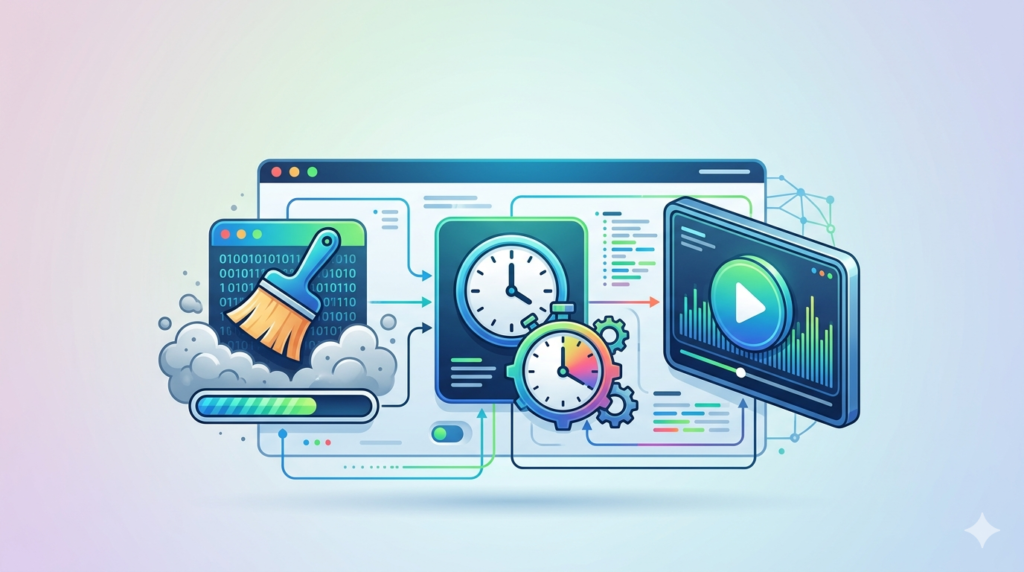
Pro Cleaner and Delayer is a lightweight Windows optimization tool that addresses a common pain point: slow startup speed. When you turn on your computer, many programs (like Slack, Adobe Creative Cloud, or antivirus) try to launch simultaneously. This creates a “boot storm.”
This software applies a delayed startup sequence. Instead of removing programs from startup, it schedules them to launch 30, 60, or 120 seconds after login. This frees up RAM and CPU cycles for the operating system and the applications you actually need immediately.
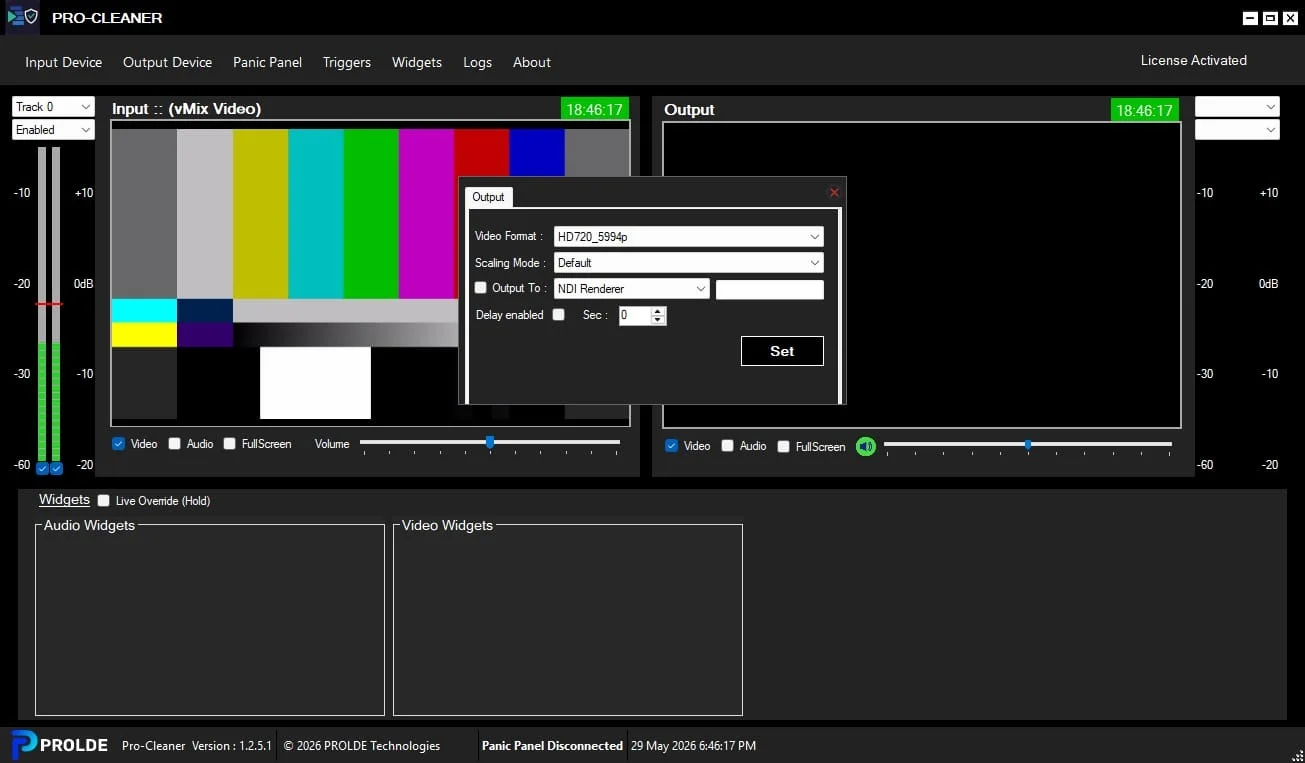
Screenshot
Key Features
The utility distinguishes itself from basic task managers through automation and control.
-
Visual Timeline Scheduler: Drag and drop applications into a specific time slot (e.g., Launch Spotify after 45 seconds).
-
CPU/HDD Threshold Monitoring: The software can wait to launch an app until your CPU usage drops below 5% or your disk activity calms down.
-
One-Click Optimization Wizard: Scans your startup folder and Registry Run keys to suggest a recommended delay for each item.
-
Process Guard: Automatically relaunches a delayed task if it fails to start due to a system error.
-
Hibernation Integration: Unlike competitors, this tool recognizes when a PC wakes from sleep vs. a cold boot, applying different delay rules.
-
Real-time Logging: Tracks exactly how much time has been saved per boot session.
What’s New in the Latest Version (v4.2)
The latest release focuses on Windows 11 compatibility and SSD optimization.
-
NVMe Optimization Logic: Recognizes that modern SSDs don’t need standard delays, shifting focus from HDD spin-up times to CPU throttling.
-
Game Mode Detection: Automatically suspends all delayed background tasks when a full-screen game (DirectX 12/Vulkan) is detected.
-
Cloud Profiles: Sync your delay settings across multiple PCs via a secure local network sync (no account required).
-
Dark Mode UI: Full visual refresh for the scheduler interface.
System Requirements
Before installing the best delay software for your workflow, ensure compatibility:
| Component | Minimum Requirement |
|---|---|
| OS | Windows 10 (20H2+), Windows 11 |
| Architecture | x64 (64-bit) only. No 32-bit support. |
| RAM | 512 MB (4 GB recommended for real-time monitoring) |
| Storage | 45 MB free space |
| Dependencies | .NET Framework 4.8 or higher |
| Access Rights | Administrator privileges required for service installation. |
Installation Guide
Follow this ethical installation process to gain full utility without security risks.
-
Download Source: Always download directly from the official developer portal or a verified repository (e.g., MajorGeeks). Never use third-party “portable” versions from unknown sources.
-
Verify Signature: Right-click the installer > Properties > Digital Signatures. Ensure the certificate is valid and issued to the developer company.
-
Run as Admin: Right-click
ProCleanerSetup.exeand select “Run as Administrator.” -
Select Mode: Choose “Service Mode” (runs in the background without a login) or “User Mode” (requires user login to apply delays).
-
Finish: Once installed, the software will scan your current startup list automatically.
How to Use the Software
To maximize topical authority, here is a practical workflow for beginners and pros.
For Beginners (Standard Mode)
-
Launch Pro Cleaner and Delayer.
-
Click the “Auto-Optimize” button.
-
Review the suggested delay times (Green = Safe, Yellow = Caution, Red = Critical system driver).
-
Click “Apply Schedule.” Reboot your PC to feel the difference.
For Professionals (Manual Rule Setting)
-
Navigate to the “Trigger Rules” tab.
-
Select an application (e.g., OneDrive).
-
Set a rule: Delay launch by 90 seconds OR until Network usage < 1 Mbps.
-
Use the “Dependency Linking” feature to ensure Photoshop only launches after Dropbox has finished syncing.
Best Use Cases
This software is not for everyone. It provides the highest value in specific scenarios:
-
Legacy Workstations: Revitalizing older HDD-based office PCs where 15-minute boot times are common.
-
Creative Professionals: Ensuring audio drivers (ASIO) load before DAW software like Ableton Live to prevent buffer underruns.
-
IT Administrators: Deploying a standardized
.xmlconfiguration file across 50 corporate laptops to stagger VPN and security agent loads. -
Gaming Rigs: Delaying RGB lighting software (e.g., Corsair iCUE) until after the anti-cheat engine has loaded, reducing input lag spikes.
Advantages and Limitations
Advantages (Pros)
-
Freeware Utility: Completely free for personal use with no nag screens.
-
No Bloatware: Does not install registry cleaners or “PC boosters” that cause more harm than good.
-
Low Footprint: Uses only 8-12 MB of RAM while running its background service.
-
Undo Feature: “Boot Safe Mode” button resets all delays instantly.
Limitations (Cons)
-
Windows Only: No macOS or Linux support (requires native launchd or systemd tweaks).
-
Learning Curve: The “Threshold” tab requires understanding of performance monitor metrics.
-
Antivirus Flags: Some heuristic scanners flag delay software as potential malware (false positive due to system hooking).
-
No SSD Optimization: Delaying apps on a modern NVMe drive saves milliseconds, not minutes.
Alternatives to the Software
While Pro Cleaner is the best delay software for standalone use, consider these alternatives depending on your OS ecosystem.
| Software | Primary Function | Best For | Cost |
|---|---|---|---|
| Autoruns (Microsoft) | Disabling shell extensions | Removing rootkits and deep startup entries | Free |
| Startup Delayer (r2 Studios) | Simple drag-drop interface | Users who want visual graphs only | Freemium |
| Task Scheduler (Native) | OS level triggers | Creating specific event-based launches | Built-in |
| Process Lasso | CPU affinity and priority | Stopping runaway processes, not just delays | Paid |
Frequently Asked Questions
1. Is Pro Cleaner and Delayer safe for my Windows registry?
Yes. Unlike traditional cleaners that delete registry keys, this software only reads the Run registry keys to identify startup programs. It does not modify system critical paths.
2. Will delaying my antivirus create a security gap?
Potentially, yes. It is best to never delay your primary real-time antivirus or Windows Defender. Only delay third-party security scanners (like Malwarebytes free version) or UI notification icons.
3. Does this software work on Windows 11 with Secure Boot enabled?
Yes. The current version is digitally signed with an Extended Validation (EV) certificate, which passes Windows 11’s stringent driver integrity checks and Secure Boot requirements.
4. Can I use this tool to remove bloatware?
No. This tool manages timing, not uninstallation. To remove bloatware, use a dedicated uninstaller like BCUninstaller or Revo Uninstaller.
5. Why does my game lag for the first 60 seconds even with this tool?
You likely have a “Hard Disk Thrash” scenario. Go to Settings > Monitoring and enable “Wait for HDD Idle.” This prevents Windows from trying to load game assets while your drive is still indexing delayed apps.
6. Is there a portable version available?
The developer does not offer an official portable version. Portable “cracked” versions found on forums often contain keyloggers. Always use the standard installer to maintain system security.
7. How do I revert all changes?
Open the software, click “File” > “Restore System Defaults,” and remove the software via Windows Settings > Apps. Your startup items will return to their default “Instant” launch state after a reboot.
Final Thoughts
Pro Cleaner and Delayer serves a specific niche that Windows Task Manager ignores: timing. While the era of super-fast SSDs has reduced the need for delay software, it remains the best delay software for users with mechanical hard drives (HDDs), creative workstations with heavy plugin loads, or IT administrators managing legacy fleets. By using the software ethically (downloading from official sources and avoiding illegal patches), you maintain a secure, stable, and noticeably faster boot sequence. For modern NVMe drives, use the built-in Windows Task Manager; for everything else, this tool provides granular, professional-grade control.
Our Paid Service
“We do not sell or provide any software. We only offer professional support services. If any software on your system is not working properly, or you are facing installation errors, crashes, or any other technical issue — just contact us. We will help you fix the problem quickly and remotely via AnyDesk. No software will be provided from our side — only expert troubleshooting and support.”