
Overview of PCScoreboards Basketball Scoreboard Pro v2.2.4
Table of Contents
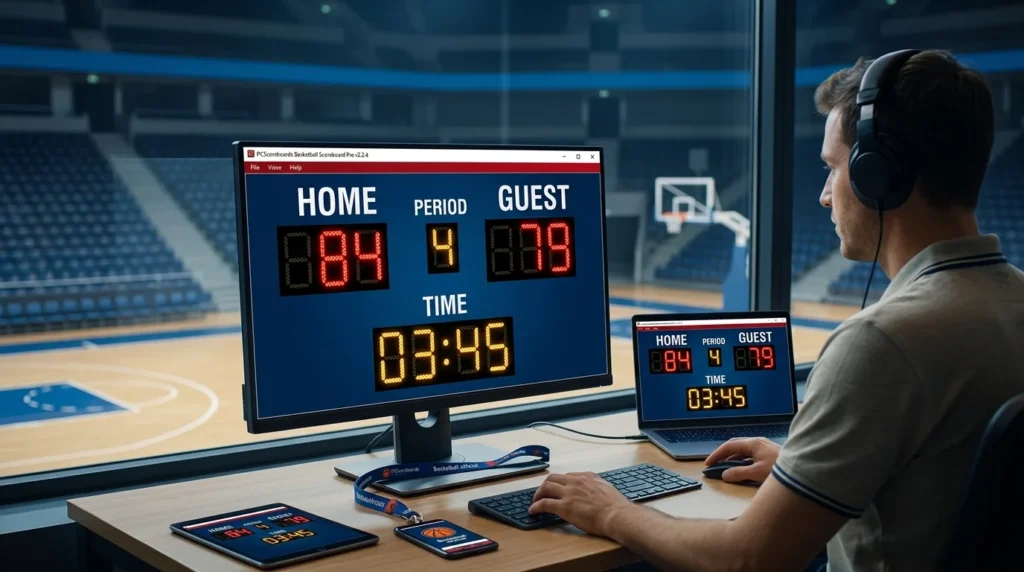
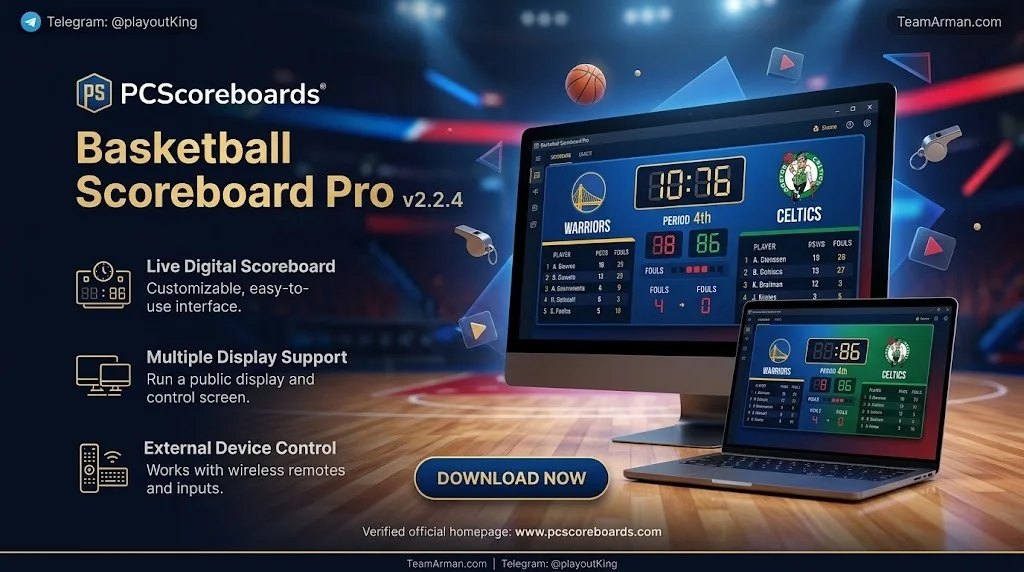
PCScoreboards Basketball Scoreboard Pro v2.2.4 is designed to turn a standard Windows computer into a dedicated basketball scoreboard controller. Instead of relying only on a physical control desk, operators can use a familiar PC interface to run game data and send output to a compatible scoreboard or display.
What Is PCScoreboards Basketball Scoreboard Pro?
It is a basketball scoreboard software solution from PCScoreboards. The software targets indoor and outdoor basketball games where accurate timing, scoring, and display control are essential.
Typical users include:
-
High school and college gym operators
-
Youth basketball leagues
-
Club tournament organizers
-
Community centers and churches
-
Broadcast and live stream production teams
-
Coaches running practice sessions
Who Should Use It?
This software is best for operators who need a reliable, Windows-based scoreboard control workflow. It is especially useful when a gym already has a compatible LED scoreboard, shot clock, horn, or display system.
How It Fits in a Gym or Arena
PCScoreboards Basketball Scoreboard Pro v2.2.4 usually sits between the operator and the scoreboard hardware. The PC sends game data to the scoreboard through a supported connection, such as USB, serial, or another vendor-approved interface. The exact setup depends on the scoreboard model and the official PCScoreboards documentation.
Key Features
PCScoreboards Basketball Scoreboard Pro v2.2.4 includes features that support live basketball game management. Feature availability can vary by license, hardware, and scoreboard model.
Game Clock and Shot Clock Control
-
Start, stop, and reset the game clock
-
Manage period length and overtime
-
Control shot clock timing
-
Adjust clock rules for different leagues
-
Display time in a clear, readable format
Score, Foul, and Timeout Management
-
Add or subtract points for home and away teams
-
Track team fouls
-
Manage player fouls where supported
-
Record timeouts
-
Display bonus and double-bonus indicators
-
Update possession arrow
Display and Hardware Integration
-
Send output to compatible scoreboards
-
Support external monitors or projectors
-
Drive horn and buzzer systems where supported
-
Work with USB or serial hardware adapters
-
Manage multiple display outputs in some configurations
Operator Controls and Hotkeys
-
Keyboard shortcuts for fast game updates
-
Mouse-friendly controls for training staff
-
Quick score and clock adjustments
-
Clear game-state indicators
-
Reduced risk of operator error during fast play
Customization and Game Setup
-
Set team names and abbreviations
-
Configure periods, overtime, and clock rules
-
Adjust display colors or layouts where supported
-
Save game templates for repeat events
-
Prepare multiple games in advance
What’s New in PCScoreboards Basketball Scoreboard Pro v2.2.4
The v2.2.4 release is generally positioned as a maintenance and compatibility update. For the exact changelog, always check the official PCScoreboards release notes.
Compatibility and Stability Improvements
-
Better support for modern Windows versions
-
Improved hardware communication reliability
-
Fewer connection drops during live games
-
Refined support for selected scoreboard interfaces
Interface and Workflow Refinements
-
Cleaner operator controls
-
Improved game setup flow
-
More responsive buttons and hotkeys
-
Better visibility for clock and score data
Bug Fixes and Performance
-
Fixes for minor display issues
-
Improved clock accuracy in some scenarios
-
Reduced startup or shutdown errors
-
General performance tuning
System Requirements
System requirements can change by build and hardware setup. Use the following as a practical guide, then confirm exact requirements with official PCScoreboards documentation.
Minimum vs Recommended
| Component | Minimum | Recommended |
|---|---|---|
| Operating System | Windows 10 (64-bit) | Windows 11 (64-bit) |
| Processor | Dual-core Intel or AMD | Quad-core Intel or AMD |
| RAM | 4 GB | 8 GB or more |
| Storage | 500 MB free space | 1 GB free space |
| Display | 1366 x 768 | 1920 x 1080 or higher |
| Ports | USB 2.0 | USB 3.0 or serial adapter |
| Input | Keyboard and mouse | Dedicated keyboard with hotkeys |
Hardware and Connectivity
-
Compatible LED scoreboard or display controller
-
USB-to-serial adapter if required
-
Vendor-approved cables and connectors
-
Horn or buzzer interface where supported
-
Stable power supply for the PC and scoreboard
Display Output
-
HDMI, VGA, or DisplayPort output
-
Projector or external monitor for backup display
-
Correct resolution and scaling settings
-
Optional second monitor for operator preview
Licensing and Activation
PCScoreboards Basketball Scoreboard Pro v2.2.4 requires a valid license from the developer or an authorized reseller. Keep your license details safe and follow the official activation process.
Installation Guide
Follow these steps to install PCScoreboards Basketball Scoreboard Pro v2.2.4 safely and legally.
Step 1: Verify License and Download Source
-
Purchase or obtain a valid license from PCScoreboards or an authorized reseller.
-
Download the installer only from the official PCScoreboards website or a trusted vendor.
-
Avoid unauthorized sources that may contain modified or unsafe files.
Step 2: Run the Installer
-
Save the installer to a known folder.
-
Close other scoreboard or timing applications.
-
Run the
.exeor.msiinstaller. -
Follow the on-screen prompts.
-
Restart the PC if requested.
Step 3: Connect Scoreboard Hardware
-
Connect the scoreboard interface cable.
-
Install any required USB or serial drivers.
-
Confirm the correct COM port or device in Windows Device Manager.
-
Open PCScoreboards Basketball Scoreboard Pro v2.2.4.
Step 4: Configure Display and Game Settings
-
Select the correct scoreboard model or output type.
-
Set the display resolution and screen position.
-
Configure game clock, shot clock, and period rules.
-
Enter team names and game details.
-
Test the horn, clock, and score output.
Step 5: Test Before Game Day
-
Run a full mock game.
-
Check home and away score updates.
-
Test fouls, timeouts, and possession arrow.
-
Confirm the shot clock resets correctly.
-
Keep a backup keyboard and cable on site.
How to Use PCScoreboards Basketball Scoreboard Pro v2.2.4
The exact workflow may vary by scoreboard model and league rules. The steps below describe a typical game-day process.
Setting Up a New Game
-
Launch the software.
-
Create a new game or load a saved template.
-
Enter home and away team names.
-
Set period length, overtime length, and shot clock rules.
-
Confirm the connected scoreboard is receiving data.
Running the Game Clock
-
Use the start/stop control to run the clock.
-
Reset the clock at the start of each period.
-
Adjust time for referee corrections.
-
Switch to overtime when regulation ends.
Managing Scores and Fouls
-
Add points for home or away.
-
Correct score errors quickly.
-
Track team fouls per period.
-
Display bonus situations.
-
Record timeouts and remaining timeouts.
Using Shot Clock and Possession Arrow
-
Reset the shot clock after possession changes.
-
Adjust the shot clock for offensive rebounds where rules allow.
-
Update the possession arrow after jump balls or alternating possessions.
-
Confirm the scoreboard reflects the correct shot clock value.
Ending and Saving the Game
-
Stop the clock at the final buzzer.
-
Confirm the final score.
-
Save or export game data if the software supports it.
-
Reset the system for the next game.
Best Use Cases
PCScoreboards Basketball Scoreboard Pro v2.2.4 is useful in many basketball environments.
High School and College Gyms
Schools need reliable scoreboard control for varsity, junior varsity, and intramural games. This software can simplify operation when paired with compatible hardware.
Youth Leagues and Club Tournaments
Tournament organizers often run many games in one day. Saved templates and quick controls help reduce setup time between games.
Community Centers and Churches
Community gyms may not need a full hardware control desk. A PC-based scoreboard solution can be more affordable and easier to train volunteers to use.
Broadcast and Live Stream Production
Streaming teams can use the software alongside video production tools. A clean scoreboard feed or external display helps viewers follow the game.
Training and Practice Sessions
Coaches can use the software to practice clock situations, late-game scenarios, and shot clock management without running a full official game.
Advantages and Limitations
Advantages
-
Windows-based interface that many operators already understand
-
Central control for clock, score, fouls, and timeouts
-
Supports compatible scoreboard hardware
-
Good for schools, clubs, and tournaments
-
Can reduce reliance on older dedicated control desks
-
Useful for training and live events
Limitations
-
Windows-focused; not natively designed for macOS or mobile
-
Hardware compatibility depends on the scoreboard model
-
Requires correct cables, drivers, and setup
-
Live games need a stable PC and power source
-
Advanced league rules may require custom configuration
-
Official support and updates depend on the vendor
How to Mitigate Limitations
-
Test the full setup before game day.
-
Keep spare cables, keyboards, and power supplies.
-
Use a dedicated PC for scoreboard control.
-
Save game templates for common rule sets.
-
Confirm hardware compatibility before purchasing.
Alternatives to PCScoreboards Basketball Scoreboard Pro v2.2.4
Several alternatives exist depending on your budget, hardware, and league needs.
Dedicated Hardware Scoreboard Systems
Brands such as Daktronics, Nevco, and AllSport offer dedicated control systems. They are often more expensive but deeply integrated with their own scoreboards.
Cloud-Based Scoreboard Apps
Tools like KeepTheScore and similar web-based scoreboards are useful for casual games, streams, and practices. They may not control physical LED scoreboards.
OBS and Streaming Scoreboard Overlays
For live streams, OBS plugins and browser-based overlays can display score and clock graphics. These are not direct replacements for hardware scoreboard control.
Mobile Scoreboard Apps
Mobile apps can work well for small gyms or practices. They usually lack the hardware integration and advanced rule support of PC-based software.
Comparison Table
| Alternative | Best For | Platform | Hardware Control |
|---|---|---|---|
| PCScoreboards Basketball Scoreboard Pro | Gym scoreboard control | Windows | Yes, with compatible hardware |
| Daktronics / Nevco / AllSport | Dedicated arena systems | Proprietary | Yes |
| KeepTheScore | Casual games and streams | Web | No |
| OBS overlays | Live stream graphics | Windows/macOS | No |
| Mobile scoreboard apps | Practices and small events | iOS/Android | Limited |
Frequently Asked Questions
What is PCScoreboards Basketball Scoreboard Pro v2.2.4 used for?
It is used to control basketball scoreboard data from a Windows PC, including game clock, shot clock, scores, fouls, timeouts, and display output.
Is PCScoreboards Basketball Scoreboard Pro v2.2.4 free?
It is generally commercial software. You should check the official PCScoreboards website or an authorized reseller for current pricing, licensing, and trial options.
Can I download PCScoreboards Basketball Scoreboard Pro v2.2.4 for Windows 11?
Many modern versions support Windows 10 and Windows 11. Always confirm the exact compatibility list on the official PCScoreboards download or support page.
Does it work with LED scoreboards and shot clocks?
It can work with compatible LED scoreboards and shot clocks, but support depends on the hardware model, interface, and driver requirements. Verify compatibility before purchase.
Do I need an internet connection to run it?
In most cases, live scoreboard control is local to the PC and hardware. Internet access may be needed for license activation, updates, or support.
Is there a Mac or mobile version?
PCScoreboards Basketball Scoreboard Pro is primarily a Windows application. For macOS or mobile use, consider cloud-based or mobile scoreboard alternatives.
How do I update to the latest version?
Use the official PCScoreboards website, built-in update checker, or authorized vendor portal. Avoid third-party sources that may distribute modified installers.
Where can I get official support or download?
Visit the official PCScoreboards website or contact an authorized reseller. Official channels provide safe downloads, licensing help, and technical support.
Final Thoughts
PCScoreboards Basketball Scoreboard Pro v2.2.4 is a practical option for Windows-based basketball scoreboard control. It fits well in schools, clubs, community gyms, and tournament settings where operators need fast access to clock, score, foul, and timeout controls.
Before buying or installing, confirm hardware compatibility, system requirements, and licensing details through official PCScoreboards channels. For best results, test the complete setup before game day and keep backup equipment on hand. When used correctly, PCScoreboards Basketball Scoreboard Pro v2.2.4 can help deliver a smoother, more professional basketball game experience.
Our Paid Service
“We do not sell or provide any software. We only offer professional support services. If any software on your system is not working properly, or you are facing installation errors, crashes, or any other technical issue — just contact us. We will help you fix the problem quickly and remotely via AnyDesk. No software will be provided from our side — only expert troubleshooting and support.”