
Overview of MOTOTRBO CPS 2.0
Table of Contents
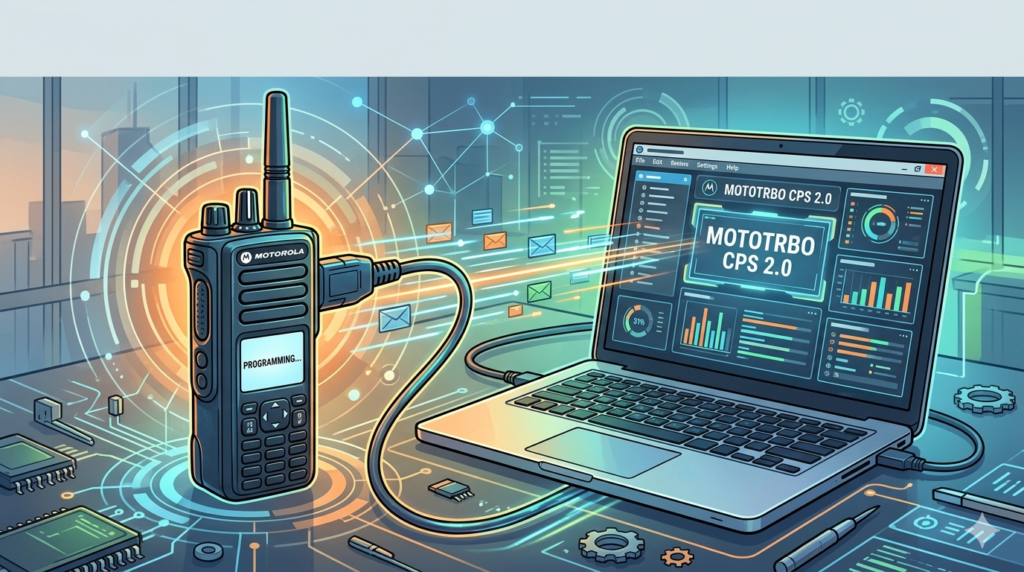
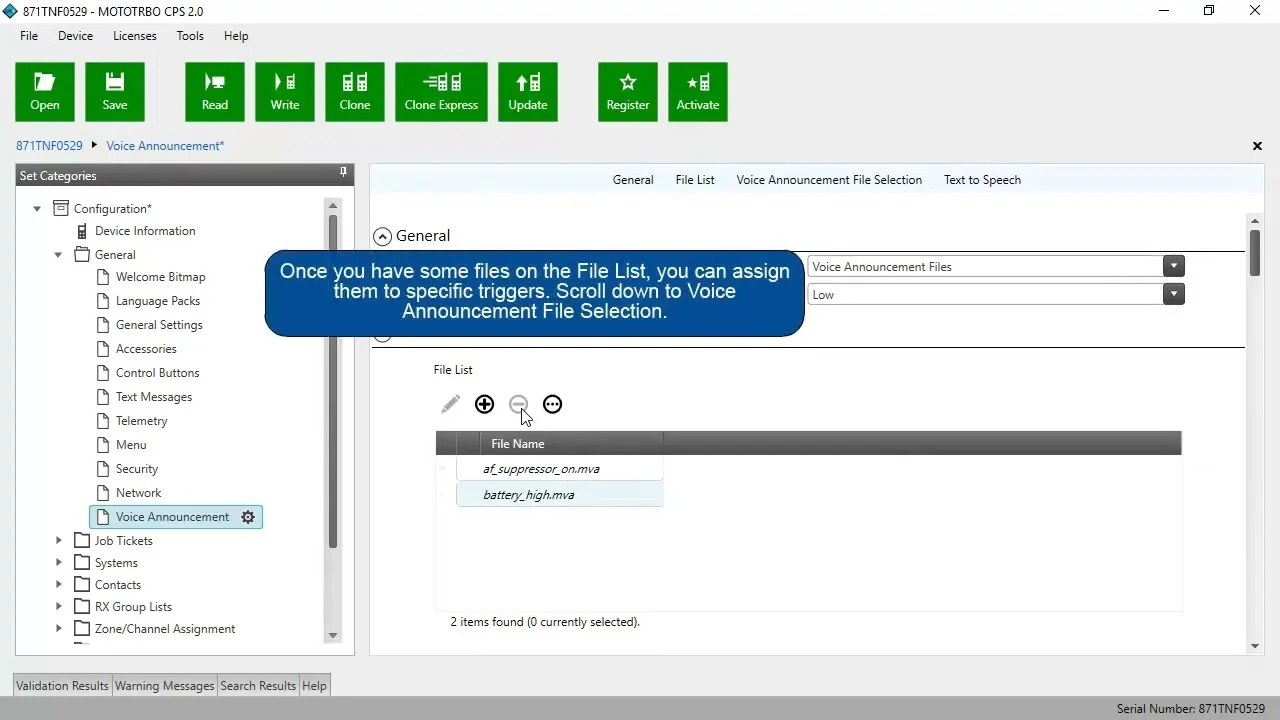
MOTOTRBO CPS 2.0 is the official software from Motorola Solutions used to configure, manage, and program digital and analog two-way radios within the MOTOTRBO series. This software is an essential tool for system administrators, radio technicians, and IT professionals who are responsible for maintaining efficient and secure communication networks.
The move to CPS 2.0 marked a significant shift from the older CPS version 1, introducing a new architecture designed to support the latest radio models and firmware, including the MOTOTRBO R2.10 system release and newer. The specific build v2.153.167.0 is recognized as a 2025 update, ensuring compatibility with the newest MOTOTRBO devices and incorporating the latest feature enhancements.
Key Features of MOTOTRBO CPS 2.0
MOTOTRBO CPS 2.0 offers a comprehensive suite of tools for managing your radio fleet, from basic configuration to advanced system integration. The interface is designed to streamline complex programming tasks through a user-friendly, graphical interface. Here are some of its key functionalities:
-
Radio Configuration (CodePlug Management): Read and write the complete configuration file, known as a CodePlug, from a radio. This allows you to program critical parameters like frequencies, channel assignments, zones, contact lists, and talk groups. The software also includes a built-in validation tool to check for configuration errors before writing to a radio.
-
Licensing Management: Manage and update feature licenses and system keys that enable advanced functionalities on your radios.
-
Fleet Cloning and Mass Configuration: Program a single “master” radio, save its configuration, and then clone that setup to dozens or hundreds of other radios in your fleet instantly. This feature saves significant time by eliminating manual programming.
-
Firmware Updates: Access the necessary tools to update your radio’s firmware directly through the CPS software, ensuring your devices have the latest security patches and features.
-
Expanded Device Support: The CPS 2.0 v2.153.167.0 provides official support for a wide range of MOTOTRBO radios, including the latest R-series (R2, R5, R7), as well as CP, SL, XPR, and CM series models.
-
Reporting and Auditing: The software maintains a detailed operations log, allowing for system audits and troubleshooting.
-
Radio Management Integration: It can be integrated with centralized Radio Management (RM) systems for large-scale network administration and policy enforcement.
What’s New in the Latest Version (v2.153.167.0)
The v2.153.167.0 update, released in 2025, introduces several improvements and new features designed to enhance user experience and system capability. These changes help administrators manage their communication infrastructure more effectively.
Key updates include:
-
Enhanced User Interface and Workflow: Improvements to the UI/UX for managing radios, making the software more intuitive.
-
Support for Newer Hardware: Formal support for the MOTOTRBO R7 radio series, ensuring compatibility with the newest devices.
-
Improved Audio Management: New options to hide or show audio settings in the radio menu via CPS, providing more control over the end-user experience.
-
Automatic Recording Service: Introduction of the SIE (Service d’enregistrement automatique) feature for the Nil region (Asia-Pacific and EMEA), automating certain setup processes.
-
Codeplug Protection: New file protection features for CPS 2.0 codeplugs, enhancing security for your radio configurations.
System Requirements for MOTOTRBO CPS 2.0
To ensure smooth operation, your computer must meet the minimum system requirements for MOTOTRBO CPS 2.0. The software is designed for the Windows operating system environment.
Minimum Hardware:
-
Processor: Intel Core i3 or equivalent.
-
RAM: 4 GB.
-
Storage: 500 MB of free hard drive space.
-
USB: USB 2.0 port for connecting the programming cable.
Recommended Hardware:
-
Processor: Intel Core i5 or AMD Ryzen 5 for better performance.
-
RAM: 8 GB or more.
-
Storage: 1 GB free on an SSD for faster file access and operation.
-
USB: USB 3.0 port for the fastest data transfer.
Operating System:
-
Windows 10 (64-bit) or Windows 11 (64-bit). The software is not compatible with macOS or other operating systems.
Installation Guide
The MOTOTRBO CPS 2.0 software is distributed exclusively through official channels. You must purchase a license or have access rights through a Motorola Solutions account to download the software legally. This is typically handled through Motorola’s official partner portal (MOL).
Installation Steps:
-
Obtain the Software: Log in to your authorized Motorola Solutions account and download the CPS 2.0 installation package. Using unauthorized sources is illegal and may install corrupted or outdated software.
-
Run the Installer: Locate the downloaded installer file (e.g.,
.exe) and run it. -
Follow the On-Screen Prompts: The installation wizard will guide you through the process. Accept the license agreement and choose the installation directory (the default is usually
C:\Program Files (x86)\Motorola\MOTOTRBO CPS 2.0). -
Connect the Radio: After a successful installation, turn on the radio and connect it to your PC using a compatible Motorola programming cable.
-
Initial Launch: Launch the MOTOTRBO CPS 2.0 application.
How to Use the Software for Programming
Once the software is installed and your radio is connected, you can begin programming. The basic workflow involves reading, editing, and writing the radio’s configuration.
-
Connect and Launch: Turn on your MOTOTRBO radio and connect it to the PC with a programming cable. Open the CPS 2.0 software.
-
Read the Radio: In the CPS 2.0 interface, select the “Read” command to extract the current CodePlug and licenses from the radio.
-
Save a Backup: Once the read is complete, immediately save an unedited copy of the CodePlug as a backup. This ensures you can always revert to the original configuration if needed.
-
Edit the Configuration: Make your desired changes to the CodePlug, such as adjusting frequencies, talk groups, or button functions.
-
Validate and Write: After editing, use the “Validate” function to check the configuration for errors. Once you are certain it is correct, select the “Write” command to program the radio with the new settings.
Best Use Cases for MOTOTRBO CPS 2.0
MOTOTRBO CPS 2.0 is a critical tool for any organization that relies on MOTOTRBO two-way radios for its daily operations.
-
Fleet-Wide Cloning: The most impactful use case is for rapidly setting up a large fleet of radios. By creating one perfect “golden” CodePlug and using the clone function, administrators can deploy hundreds of radios with consistent, error-free settings in minutes.
-
System Administration and Maintenance: IT and communications specialists use CPS 2.0 to perform routine maintenance, such as firmware updates, troubleshooting faulty configurations, and updating licensing as a network grows.
-
Deployment in Service Centers: Service centers use the software to configure and repair radios for clients. The ability to quickly read, diagnose, and reprogram radios makes it an essential tool for professional radio technicians.
Advantages and Limitations
Understanding the strengths and weaknesses of MOTOTRBO CPS 2.0 is key to effective fleet management.
Advantages:
-
Modern Architecture: Unlike its predecessor, CPS 2.0 is built on a new architecture to support the latest radios and future developments.
-
Streamlined Workflow: The modern UI and built-in validation help prevent errors and save time.
-
Effortless Fleet Cloning: The clone feature is incredibly efficient for managing multiple radios, far exceeding the capabilities of manual programming.
Limitations:
-
Windows-Only: It is strictly a Windows application and is not compatible with macOS or Linux, which may be a barrier for some users.
-
Official Acquisition Required: The software must be obtained through official, paid channels. It is not freely available, and the licensing model requires a legitimate purchase from Motorola Solutions.
-
Software and Firmware Compatibility: To upgrade to CPS 2.0, your radios must first be on a recent version of the older v1.0 firmware. This requires a multi-step upgrade process for older hardware.
-
File Version Locking: A codeplug file saved with a newer version of CPS 2.0 cannot be opened by an older version of CPS 2.0. This requires all devices in a fleet to be kept up to date.
Alternatives to MOTOTRBO CPS 2.0
While MOTOTRBO CPS 2.0 is the official solution, other options exist depending on your needs.
-
MOTOTRBO Radio Management (RM): For larger organizations, RM is a more powerful, server-based platform that allows you to manage thousands of radios over the air or via the network. It is a superior alternative to CPS 2.0 for centralized and automated fleet management.
-
MOTOTRBO CPS (Legacy v1.0): For extremely old hardware that cannot be upgraded to the v2.0 firmware, you must use the older legacy CPS version. This version is being retired and does not support new radios.
-
Older CPS Version: Some older models may require a specific version of the legacy software. It’s essential to check compatibility based on the specific radio model and its firmware version.
Frequently Asked Questions (FAQ)
1. What is MOTOTRBO CPS 2.0 used for?
MOTOTRBO CPS 2.0 is the official Motorola Solutions software used to program, configure, and manage all settings on MOTOTRBO series two-way radios, including frequencies, channels, and talk groups.
2. Is MOTOTRBO CPS 2.0 free to download?
No, it is not free. The software is commercial and must be legally purchased through an authorized Motorola Solutions dealer or by obtaining a licensed digital download from the Motorola Online (MOL) portal.
3. What are the system requirements for MOTOTRBO CPS 2.0?
The software requires a Windows 10 or Windows 11 (64-bit) PC, at least 4 GB of RAM, and a USB port. An Intel Core i5 or Ryzen 5 processor and 8 GB of RAM are recommended for optimal performance.
4. How do I install MOTOTRBO CPS 2.0?
After legally purchasing the software, you will receive an installer package. Run the .exe file on your Windows PC and follow the on-screen instructions to complete the installation.
5. What is the difference between CPS 2.0 and the older version?
CPS 2.0 is a completely new application designed to support the latest MOTOTRBO radios and firmware. The older version is being retired and is primarily for legacy devices. CPS 2.0 also offers a modernized user interface.
6. Can I program multiple radios at the same time with CPS 2.0?
Yes, CPS 2.0 has a powerful “Clone” feature. This allows you to configure one radio and then copy its programming to numerous other radios simultaneously, saving significant time for fleet setup.
7. Is MOTOTRBO CPS 2.0 compatible with macOS?
No, the software is only compatible with Windows 10 and Windows 11 operating systems.
8. What is a CodePlug in MOTOTRBO CPS 2.0?
A CodePlug is the configuration file that contains all the programming data for a radio. CPS 2.0 is used to read, edit, write, and clone these files.
Final Thoughts
The MOTOTRBO CPS 2.0 v2.153.167.0 is a powerful and essential tool for anyone responsible for managing a fleet of MOTOTRBO two-way radios. It provides all the necessary features for modern radio management, from basic configuration to complex fleet cloning. While the software comes with a cost and is only available for Windows, its robust feature set and official support for the latest Motorola hardware make it the definitive solution. Always ensure you obtain the software through legal channels and keep your CPS version and radio firmware updated for the best performance and security.
Our Paid Service
“We do not sell or provide any software. We only offer professional support services. If any software on your system is not working properly, or you are facing installation errors, crashes, or any other technical issue — just contact us. We will help you fix the problem quickly and remotely via AnyDesk. No software will be provided from our side — only expert troubleshooting and support.”