
Overview of Monokai Pro
Table of Contents
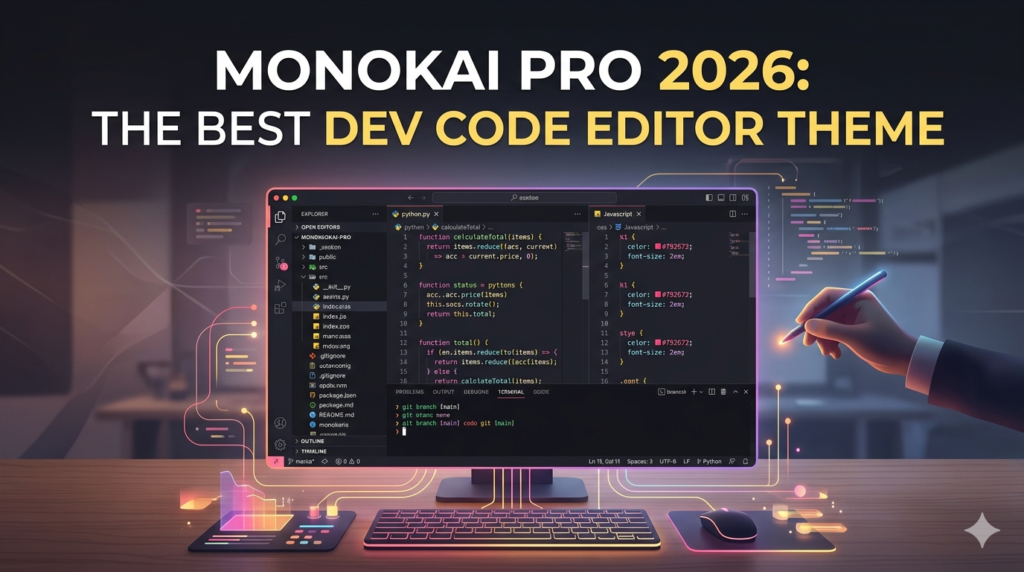
Monokai Pro is a premium developer-focused color theme designed to improve code readability, reduce visual fatigue, and create a more productive programming environment. Built for modern code editors such as Visual Studio Code, JetBrains IDEs, Sublime Text, and other popular development platforms, Monokai Pro combines carefully balanced color palettes with semantic syntax highlighting.
The theme is widely used by software developers, web designers, DevOps engineers, and programmers who want a visually consistent coding workspace. Unlike traditional dark themes, Monokai Pro focuses heavily on contrast optimization, semantic token coloring, and long coding-session comfort.
The latest version introduces performance improvements, refined syntax highlighting, expanded editor compatibility, and updated UI customization options for modern development workflows.
Whether you are working with JavaScript, Python, TypeScript, React, PHP, Java, or C++, Monokai Pro helps create a clean and distraction-free coding experience.
Key Features of Monokai Pro
Advanced Syntax Highlighting
Monokai Pro uses semantic color differentiation to make variables, functions, classes, and keywords easier to identify.
Key benefits include:
- Better code readability
- Reduced eye strain
- Faster debugging workflows
- Improved visual hierarchy
- Easier navigation in large projects
Multiple Theme Variants
The package includes several professionally tuned variants:
- Monokai Pro Classic
- Monokai Pro Filter Spectrum
- Monokai Pro Machine
- Monokai Pro Octagon
- Monokai Pro Ristretto
Each variant offers different contrast levels and color intensity preferences.
IDE and Editor Compatibility
Monokai Pro supports multiple development environments including:
- Visual Studio Code
- JetBrains IntelliJ IDEA
- WebStorm
- PyCharm
- Sublime Text
- Atom Editor
- Vim
- Neovim
Optimized UI Design
The interface styling includes:
- Consistent sidebar coloring
- Refined icon visibility
- Better tab distinction
- Improved terminal appearance
- Cleaner activity bar visuals
Semantic Token Support
Modern semantic highlighting improves language-aware syntax recognition in supported editors.
This allows:
- Smarter variable detection
- Better object visualization
- Cleaner class differentiation
- Enhanced function visibility
Developer Productivity Enhancements
The theme is designed to improve focus during:
- Software development
- Frontend engineering
- Backend programming
- Full-stack development
- Data science projects
- DevOps scripting
- API development
What’s New in the Latest Version
The newest Monokai Pro release introduces several improvements focused on usability and modern editor support.
Updated Color Calibration
The latest update improves contrast balancing for:
- High-resolution monitors
- OLED displays
- Ultra-wide screens
- Dark-mode environments
Expanded Language Support
Enhanced syntax styling now supports newer frameworks and languages including:
- React
- Next.js
- Vue.js
- TypeScript
- Rust
- Go
- Kotlin
- Tailwind CSS
Performance Improvements
Recent optimization updates reduce theme rendering overhead in larger projects.
This helps maintain smoother editor performance when working with:
- Large codebases
- Multi-root workspaces
- Complex repositories
- Enterprise applications
Improved Accessibility
Accessibility enhancements include:
- Better text contrast
- Improved readability
- Enhanced token separation
- Reduced visual clutter
System Requirements
Before installing Monokai Pro, ensure your system meets the following requirements.
Minimum Requirements
| Component | Requirement |
|---|---|
| Operating System | Windows 10/11, macOS, Linux |
| RAM | 4 GB |
| Storage | 200 MB free space |
| Editor Support | VS Code, JetBrains IDEs, Sublime Text |
| Display | 1280×720 resolution |
Recommended Requirements
| Component | Recommended |
| RAM | 8 GB or higher |
| Processor | Multi-core CPU |
| Display | Full HD or 4K monitor |
| GPU | Hardware acceleration enabled |
Installation Guide
How to Install Monokai Pro in Visual Studio Code
- Open Visual Studio Code.
- Navigate to the Extensions Marketplace.
- Search for “Monokai Pro”.
- Install the official theme package.
- Open the Command Palette.
- Select “Color Theme”.
- Choose your preferred Monokai Pro variant.
Installing in JetBrains IDEs
- Open IntelliJ IDEA or another JetBrains IDE.
- Go to Settings → Plugins.
- Search for Monokai Pro.
- Install the plugin.
- Restart the IDE.
- Apply the theme from Appearance Settings.
Manual Theme Configuration
Advanced users can further customize:
- Syntax colors
- Terminal themes
- Sidebar appearance
- Icon themes
- Font rendering
- Cursor styling
How to Use Monokai Pro Effectively
Choose the Right Variant
Different variants suit different workflows.
- Machine variant works well for high contrast
- Ristretto is ideal for softer tones
- Spectrum offers vibrant coding visuals
Pair with Developer Fonts
Recommended programming fonts include:
- Fira Code
- JetBrains Mono
- Cascadia Code
- Source Code Pro
Ligature-enabled fonts improve readability and modern coding aesthetics.
Configure Semantic Highlighting
Enable semantic token coloring inside your editor settings for better language-aware highlighting.
Optimize Workspace Appearance
Developers often combine Monokai Pro with:
- Minimal icon packs
- Transparent terminal settings
- Custom status bars
- Productivity extensions
Best Use Cases for Monokai Pro
Web Development
Frontend and backend developers benefit from cleaner JavaScript, React, CSS, and HTML syntax visibility.
Full-Stack Development
The theme improves readability across multiple languages in enterprise-scale projects.
Data Science and Python Programming
Python developers can easily distinguish:
- Variables
- Functions
- Libraries
- Data structures
- Imports
DevOps and Cloud Engineering
Monokai Pro improves shell scripting readability for:
- Bash
- PowerShell
- YAML
- Dockerfiles
- Kubernetes configuration files
Long Coding Sessions
The balanced dark theme helps reduce eye strain during extended development work.
Advantages and Limitations
Advantages
- Professional visual design
- Excellent syntax differentiation
- Multiple theme variants
- Broad IDE compatibility
- Reduced coding fatigue
- Regular updates
- Strong developer community support
Limitations
- Premium features may require a license
- Some variants may appear overly saturated on certain monitors
- Advanced customization may require manual configuration
- Semantic highlighting depends on editor compatibility
Alternatives to Monokai Pro
Several alternatives provide similar coding experiences.
Dracula Theme
A popular dark theme focused on vibrant contrast and broad editor compatibility.
One Dark Pro
Inspired by Atom’s One Dark theme with balanced modern visuals.
Nord Theme
Designed with cooler colors and softer contrast levels.
Solarized Dark
Known for carefully engineered color science and low eye fatigue.
Tokyo Night
A modern dark theme optimized for frontend and JavaScript development.
Frequently Asked Questions
Is Monokai Pro free to use?
Some versions and editor integrations may offer free access, while premium features or advanced variants may require a valid license.
Which code editors support Monokai Pro?
Monokai Pro supports Visual Studio Code, JetBrains IDEs, Sublime Text, Vim, Neovim, and several other development tools.
Does Monokai Pro reduce eye strain?
Yes. The theme is designed with balanced contrast and semantic coloring to improve readability during long coding sessions.
Is Monokai Pro suitable for beginners?
Yes. Beginners benefit from clearer syntax differentiation and improved code visibility.
Can I customize Monokai Pro?
Yes. Most supported editors allow users to customize colors, fonts, icon packs, and UI elements.
Does Monokai Pro support semantic highlighting?
Yes. Modern versions support semantic token coloring in compatible editors.
What programming languages work best with Monokai Pro?
The theme performs well with JavaScript, Python, TypeScript, PHP, Java, C++, Go, Rust, and many other languages.
Is Monokai Pro good for professional developers?
Yes. Many professional developers use Monokai Pro because of its readability, clean visual hierarchy, and productivity-focused design.
Final Thoughts
Monokai Pro remains one of the most popular premium coding themes for modern software developers. Its balanced dark interface, semantic syntax highlighting, and extensive editor support make it suitable for both beginners and experienced programmers.
The latest version continues to improve readability, accessibility, and developer productivity while supporting modern frameworks and programming languages.
For developers seeking a professional and visually optimized coding environment, Monokai Pro is a strong choice across multiple IDEs and operating systems.
Our Paid Service
“We do not sell or provide any software. We only offer professional support services. If any software on your system is not working properly, or you are facing installation errors, crashes, or any other technical issue — just contact us. We will help you fix the problem quickly and remotely via AnyDesk. No software will be provided from our side — only expert troubleshooting and support.”