

Download the Mividi Multi View Monitoring System 2.7 (Centralized Video Stream Monitoring Software) from this link…

Overview of the Software
Table of Contents
In the demanding fields of broadcast engineering, IPTV management, and live event production, maintaining visual oversight of multiple video feeds is critical. The Mividi Multi View Monitoring System version 2.7 is a professional-grade software solution designed to replace expensive hardware multiviewers. This release allows engineers and content managers to display, monitor, and analyze numerous SDI, IP, and file-based video sources simultaneously on a single screen.
Unlike basic video players, this system focuses on real-time stream health, offering visual and audible alerts for signal loss, black frames, frozen video, or audio silence. Version 2.7 refines this capability with improved latency management and a more responsive user interface, making it a trusted tool for broadcasters, audiovisual installers, and security operation centers.
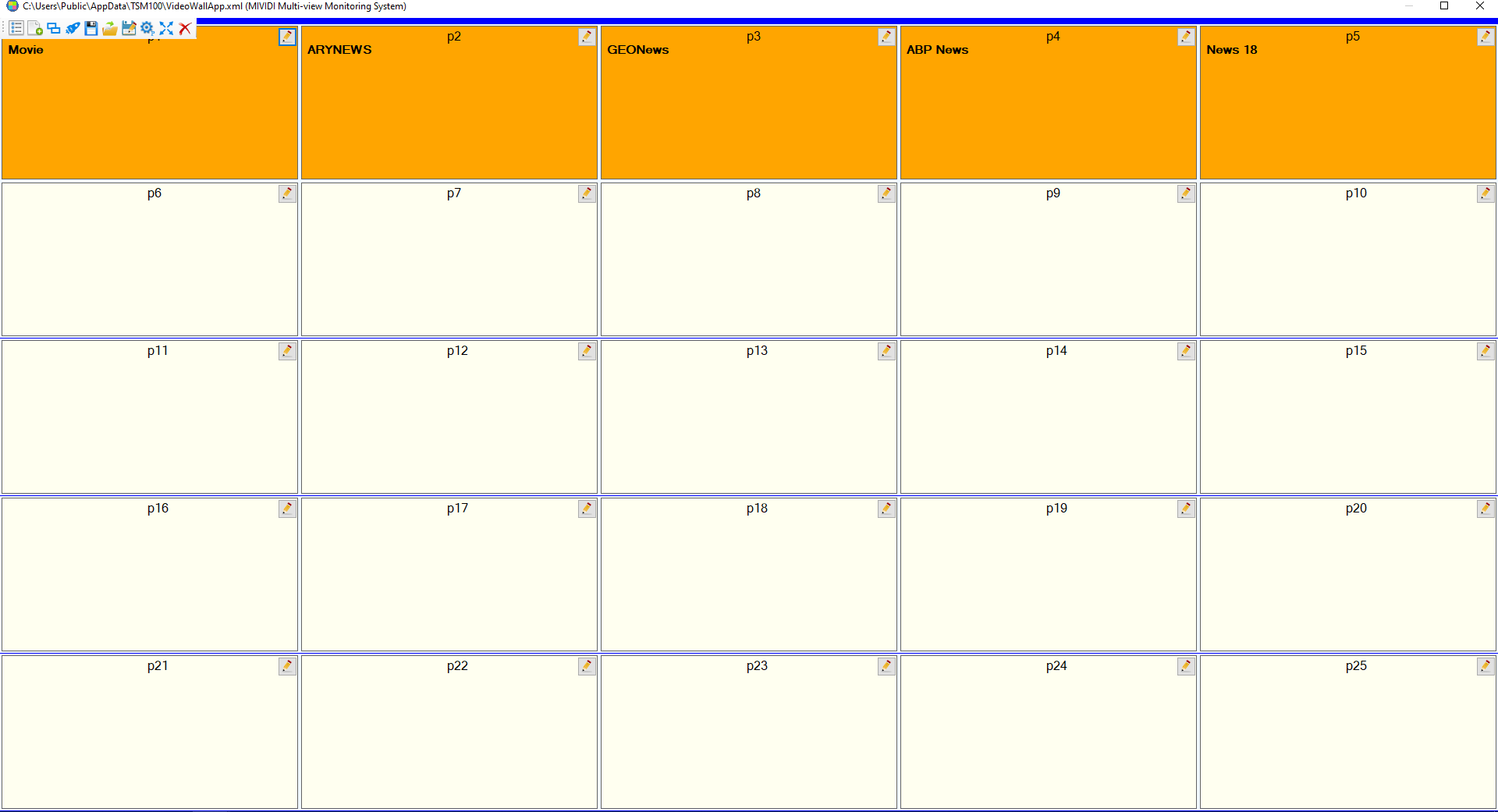
Screenshot:


Key Features of Mividi Multi View Monitoring System 2.7
This software consolidates complex monitoring tasks into a manageable workflow. Below are its primary functional components:
-
Unlimited Multi-Source Inputs: Supports up to 64 video sources simultaneously, including UDP/RTP streams, RTMP, HLS, local files, and capture cards.
-
Customizable Grid Layouts: Users can create any grid arrangement (e.g., 2×2, 3×3, 4×4, or custom aspect ratios) to fit different display sizes and monitoring needs.
-
Audio Presence Monitoring: Each tile includes VU meters and audio loss detection, essential for ensuring live broadcast audio continuity.
-
Real-Time Alerts: Configurable alarms for video loss, black screen, frozen frame, and audio silence – all logged with timestamps.
-
Program Output: One monitored source can be selected for full-screen program output via a secondary display or NDI.
-
Remote Control via Web UI: Operators can change layouts and sources from any device on the same network without installing additional clients.
What’s New in Version 2.7
The latest patch (2.7) focuses on stability and workflow efficiency. Key improvements include:
-
Reduced GPU Utilization: Optimized rendering engine decreases graphics card load by approximately 15%, allowing longer monitoring sessions on standard workstations.
-
SRT Protocol Support: Adds Secure Reliable Transport (SRT) input, enabling stable monitoring over unpredictable networks like public internet or 4G/5G links.
-
Enhanced Alert Logging: The event log now exports to CSV format for post-incident analysis and compliance reporting.
-
Dark Mode UI: A redesigned interface reduces operator eye strain during 24/7 monitoring shifts.
System Requirements
To run Mividi Multi View Monitoring System 2.7 efficiently, your hardware should meet these specifications:
| Component | Minimum Requirement | Recommended |
|---|---|---|
| Operating System | Windows 10 (64-bit) | Windows 11 or Windows Server 2019+ |
| Processor | Intel Core i5 (6th gen) | Intel Core i7/i9 or AMD Ryzen 7 |
| RAM | 8 GB | 16 GB or more |
| GPU | DirectX 11 compatible | NVIDIA GeForce RTX 2060+ (for 8+ streams) |
| Network | 1 Gbps Ethernet | 10 Gbps for high-bitrate IP streams |
| Storage | 500 MB for installation | SSD for faster layout loading |
Installation Guide
Follow these steps to install the software legally and safely:
-
Download the Official Installer: Visit the official Mividi website and download
Mividi_MultiView_Setup_2.7.exe. Do not use third-party or unauthorized distribution sites. -
Run as Administrator: Right-click the installer and select “Run as administrator” to ensure registry permissions.
-
Accept License Agreement: Read and accept the End-User License Agreement (EULA).
-
Choose Installation Path: Select the default
C:\Program Files\Mividior a custom folder. -
Install Codecs (if prompted): Allow the installer to add necessary video decoders (e.g., for H.264/H.265).
-
Activate License: Enter your purchased license key. The software will not function without a valid key.
-
Restart System: Reboot to finalize driver integrations.
How to Use the Software
Once installed, here is a basic workflow for new users:
Adding Your First Video Sources
-
Launch the application. The main grid will appear empty.
-
Right-click any tile and select “Add Source”.
-
Choose protocol:
UDP/RTP(for MPTS/SPTS),SRT,RTMP,File, orCapture Device. -
Enter the stream URL or local file path. Example:
udp://@239.1.1.1:1234 -
Click “Apply”. The video will appear within seconds.
Creating a Custom Layout
-
Use the toolbar’s Layout Editor.
-
Drag the edges of tiles to resize.
-
Save the layout as a preset (e.g., “Sports_4cam” or “News_8feeds”).
-
Assign keyboard shortcuts (F1–F12) to recall layouts instantly.
Setting Up Alerts
-
Navigate to Tools > Alert Configuration.
-
Enable “Black Frame Detection” and set threshold (e.g., 5 seconds).
-
Enable “Audio Silence Detection” and set decibel floor (-50 dB).
-
Choose alert actions: on-screen red border, system beep, or write to log file.
Best Use Cases
This system excels in professional environments where visual reliability is non-negotiable:
-
Live Broadcast Master Control: A single operator can monitor 16+ incoming satellite feeds, local servers, and remote return feeds simultaneously.
-
IPTV Headend Monitoring: Verify that multicast streams (SD and HD) are delivering uninterrupted service to thousands of subscribers.
-
Security & Surveillance: Aggregate ONVIF camera streams into one view, with alerts for camera tampering or signal loss.
-
Post-Production Quality Control (QC): Load multiple exported timeline versions side-by-side to check color consistency and sync.
-
Remote Production: Using SRT inputs, a director can monitor multiple remote camera feeds from a central studio over the internet.
Advantages and Limitations
Advantages
-
Cost Efficiency: Replaces hardware multiviewers that cost 5–10x more.
-
Flexibility: Change layouts in seconds; no need to re-cable equipment.
-
Low Latency: Sub-200ms delay for most IP streams, suitable for live switching.
-
Comprehensive Logging: Every alert is timestamped, aiding in SLA compliance.
Limitations
-
Windows Only: No native Linux or macOS version (though it can run via virtualization).
-
GPU Dependent: Rendering 16+ high-bitrate streams requires a dedicated graphics card.
-
No Recording: This is a monitoring tool. For recording, pair it with Mividi Recorder.
-
Learning Curve: Advanced alert thresholds require basic broadcast engineering knowledge.
Alternatives to the Software
If Mividi Multi View does not fit your workflow, consider these legitimate alternatives:
| Software | Primary Strength | Platform | Typical User |
|---|---|---|---|
| OBS Studio | Free, great for local file & capture card monitoring | Win/macOS/Linux | Small studios, streamers |
| vMix | Integrated production switcher + multiviewer | Windows | Live event producers |
| Mitto (ex-VLC based) | Lightweight, network stream focused | Windows | IPTV technicians |
| BirdDog Multiviewer | NDI-native, hardware-like UI | Windows | NDI-based production |
Frequently Asked Questions (FAQ)
Q1: Is Mividi Multi View Monitoring System 2.7 free to use?
No, it is commercial software. Mividi offers a fully functional 30-day trial. After that, a paid license is required. No cracked or unauthorized versions are supported.
Q2: Can this software monitor RTSP streams from IP cameras?
Yes, version 2.7 supports RTSP over UDP and TCP. Use the format rtsp://camera_ip:554/stream1.
Q3: Does it support 4K and HDR video monitoring?
Yes, but with a performance caveat. You can monitor 4K streams, but each 4K tile consumes significant GPU resources. For 4K, limit total tiles to 4 or fewer on high-end hardware.
Q4: How do I update from version 2.6 to 2.7?
Download the official 2.7 installer from Mividi and run it over your existing installation. Your layouts and license key will be preserved.
Q5: Can I output one stream to a projector while monitoring others on my PC screen?
Yes. Use the “Program Output” feature to send a selected source to a second monitor or via NDI to another device on your network.
Q6: Does this software include any hidden data collection?
No. Mividi’s privacy policy states that the software does not phone home with your stream metadata. Only license validation requires an internet connection.
Q7: What should I do if a stream shows “No Signal”?
Check: (1) Network connectivity, (2) Firewall rules (allow the application), (3) Stream is actually active via VLC, (4) Correct URL format.
Final Thoughts
The Mividi Multi View Monitoring System Patch 2.7 stands out as a reliable, professional-grade solution for any organization that cannot afford undetected video or audio failures. Its strength lies not in flashy effects but in uncompromising stability and real-time alerting. While it requires a Windows workstation with a decent GPU, the cost savings compared to hardware multiviewers are substantial.
For broadcast engineers, IPTV operators, and AV managers, this software transforms a standard PC into a command center for visual quality assurance. Download the trial, test it with your actual streams, and evaluate how its custom alerts can reduce your team’s reaction time to service disruptions.
Our Paid Service
Looking for full-version software without limitations? You’re in the right place. Instead of wasting time on unreliable or outdated sources, unlock a powerful bundle of 10k+ premium tools covering marketing, SEO, broadcasting, automation, and business productivity — all in one place at an affordable price. This collection is specially curated for freelancers, agencies, and business owners who want fast, real results with professional tools.
Direct contact: Telegram ID :
Join Us For Update Telegram Group :
Join Us For Updated WhatsApp group:
You Can test through AnyDesk before Buying,
And When You Are Satisfied, Then Buy It.
Unlimited PCs/Users.
Join today and upgrade your workflow with premium tools.