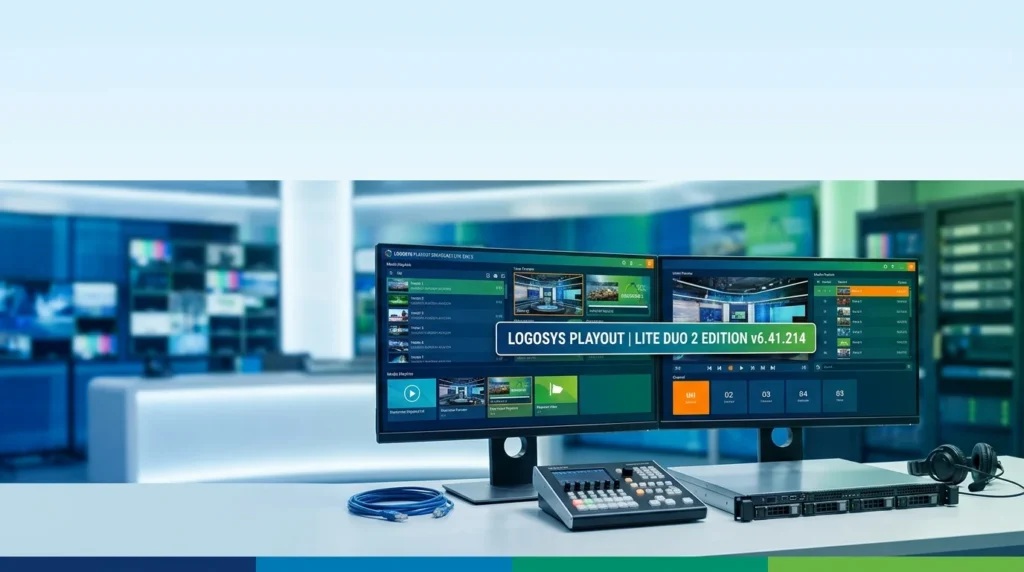


Overview of Logosys Playout Broadcast Software
Table of Contents
Logosys Playout Broadcast is a comprehensive automation system. It manages the entire broadcasting workflow, from media ingest to scheduling and on-air playback. The Lite Duo 2 Edition is tailored for operations that require two playout channels.
This software serves as the backbone for many local TV stations, cable networks, and educational broadcasters. It provides a stable and feature-rich environment. The system is designed to reduce operational costs while maintaining high-quality output.
Key Features of the Logosys Playout Broadcast System
This software is packed with professional features. Here is a breakdown of its core capabilities:
-
Multi-Channel Playout: Supports two independent broadcast channels from a single server.
-
Advanced Scheduling: Create and manage complex program schedules with precision.
-
Automated Playout: Set up playlists for 24/7 automated broadcasting.
-
Media Management: Ingest, transcode, and organize a vast media library.
-
Graphics and Logo Insertion: Overlay station logos, graphics, and tickers.
-
Multiple File Format Support: Works with a wide range of video and audio formats.
-
Remote Access & Control: Manage your broadcast from anywhere with network connectivity.
-
Reliability and Redundancy: Built with fail-safes to ensure uninterrupted on-air playout.
These features make the Logosys Playout Broadcast system a powerful tool for any broadcaster.
What’s New in Version 6.41.214
The latest update, version 6.41.214, focuses on refinement. It is not a major overhaul but a significant stability patch. Key improvements in this release include:
-
Enhanced Stability: Improved memory management to prevent crashes during extended broadcast sessions.
-
Improved Codec Support: Updated libraries for better compatibility with modern file formats.
-
Bug Fixes: Addressed issues in the scheduling engine for smoother playlist transitions.
-
Performance Optimizations: Faster rendering and background processing for media assets.
-
User Interface Tweaks: Minor updates to the user interface for a more intuitive workflow.
This update ensures the software remains reliable for daily broadcast operations.
System Requirements for Logosys Playout Broadcast
To ensure smooth operation, verify your hardware meets the minimum specifications. These requirements are for the software version 6.41.214.
Minimum System Specifications
-
Operating System: Windows 10 (64-bit) or Windows 11.
-
Processor: Intel Core i5 or equivalent.
-
RAM: 8 GB (16 GB recommended).
-
Graphics Card: Dedicated GPU with DirectX 11 support.
-
Storage: 256 GB SSD for OS and software; dedicated high-speed storage for media.
-
Network: Gigabit Ethernet for remote management and data transfer.
Meeting these Logosys Playout Broadcast system requirements is essential for stable performance.
Installation Guide: Downloading and Setting Up
Setting up this software is straightforward. Follow these steps for a successful installation.
-
Download the Installer: Obtain the Logosys Playout Broadcast installer from the official website.
-
Run as Administrator: Right-click the installer and select “Run as administrator.”
-
Accept the License: Read and accept the End-User License Agreement (EULA).
-
Select Installation Directory: Choose the folder where the software will be installed.
-
Choose Components: Select the components you need, such as the main application, codecs, or additional tools.
-
Begin Installation: Click “Install” and wait for the process to complete.
-
Launch the Application: Once finished, launch the software from your desktop shortcut or start menu.
-
Enter License Key: Upon first launch, enter your valid license key to activate the software.
Always ensure your system meets the system requirements before starting the installation.
How to Use the Software for Broadcast Automation
Once installed and configured, the software is ready for use. Here is a basic guide to get started with operations.
Creating a Program Schedule
-
Open the Scheduler module from the main interface.
-
Select the date and time for your first program block.
-
Use the “Add Program” button to select an asset from your media library.
-
Set the in/out points and any transitions for the clip.
-
Repeat this process to build a full day’s schedule.
-
Save the schedule, and the system will automatically load it for playback.
Setting Up a Playlist
-
Navigate to the Playlist module.
-
Create a new playlist and give it a name.
-
Drag and drop media files from the library into the playlist.
-
Reorder the clips as needed for a smooth flow.
-
Save the playlist for regular use.
The intuitive Logosys Playout Broadcast interface makes this process efficient for all users.
Best Use Cases for the Logosys Playout Broadcast Lite Duo 2
This software is versatile and fits many broadcast scenarios. Its dual-channel capability is a major advantage.
-
Local Television Stations: Ideal for community or local news broadcasters.
-
Cable Networks: Manage multiple cable channels efficiently.
-
Educational Institutions: Run internal TV stations, student broadcasts, or lecture channels.
-
Corporate Broadcasting: Create internal corporate TV networks for communication and training.
-
OB Vans (Outside Broadcast): The Lite Duo 2’s compact footprint makes it perfect for on-location production and sports broadcasting.
-
Digital Signage: Use it to power professional digital signage networks with scheduled content.
Its primary use is to provide a cost-effective, robust solution for professional content delivery.
Advantages and Limitations of the Lite Duo 2 Edition
Every software has its strengths and weaknesses. Here is an objective look at this broadcast solution.
Advantages
-
Cost-Effective: Offers powerful dual-channel capabilities at a competitive price point.
-
Stable and Reliable: Renowned for its stability, which is crucial for on-air operations.
-
User-Friendly: The interface is intuitive and easy to learn.
-
Feature-Rich: Includes all the core tools needed for professional broadcast automation.
-
Extensive Format Support: Handles a wide array of media file formats.
Limitations
-
Scalability: The Lite Duo 2 Edition supports only two channels. For larger needs, you would need the full Enterprise version.
-
Hardware Dependent: Performance is directly tied to the quality of the underlying hardware.
-
No Native Cloud Integration: While it supports remote access, it is primarily an on-premise solution.
-
Learning Curve: While user-friendly, mastering advanced scheduling can take some time.
This balance makes Logosys Playout Broadcast a solid choice for its target audience.
Alternatives to the Logosys Playout Broadcast
While this is a strong contender, other solutions exist in the market. Here is a comparison with key alternatives.
| Software | Key Feature | Best For |
|---|---|---|
| OBS Studio | Open-source, free, versatile recording & streaming. | Beginners, live streaming, and small web shows. |
| vMix | Powerful live production and switching. | Live events, sports, and complex live productions. |
| CasparCG | Professional, open-source playout and graphics. | Technical users needing a free, powerful system. |
| Pixel Power | High-end branding and graphics integration. | Large broadcasters requiring integrated graphics. |
For a turnkey, dedicated broadcast solution, Logosys Playout Broadcast stands out as a practical and professional choice.
Frequently Asked Questions (FAQ)
Q: What is the difference between Logosys Playout Broadcast and the Lite Duo 2 Edition?
A: The Lite Duo 2 Edition is the entry-level version designed for two playout channels. The full version supports an unlimited number of channels and includes more advanced enterprise features.
Q: Can I use Logosys Playout Broadcast Lite Duo 2 for 24/7 automated broadcasts?
A: Yes, the software is designed for reliable 24/7 automation. It includes features like failover to ensure continuous broadcasting.
Q: Is Logosys Playout Broadcast v6.41.214 compatible with Windows 11?
A: Yes, the latest version is fully compatible with Windows 10 and Windows 11 operating systems.
Q: What are the minimum system requirements for the software?
A: The minimum requirements are an Intel Core i5 processor, 8 GB of RAM, and Windows 10/11. A dedicated GPU is recommended for best performance.
Q: How do I perform a clean uninstall of Logosys Playout Broadcast?
A: Use the Windows Control Panel to uninstall the program. After uninstalling, restart your system to remove any residual temporary files.
Q: Does the Logosys Playout Broadcast support remote access?
A: Yes, it supports remote access and control, allowing you to manage your broadcast from a different location.
Q: Where can I download the latest version of the software?
A: You can download the latest version and updates from the official Logosys website.
Q: Is there a free trial available?
A: Please contact Logosys directly or visit their official website for information on available trials and product demonstrations.
Final Thoughts
Logosys Playout Broadcast Lite Duo 2 Edition v6.41.214 is a robust, stable, and user-friendly solution for professional broadcast automation. It is an excellent choice for small to medium-sized operations needing reliable multi-channel playout.
With this update, the software reinforces its position as a trusted tool in the broadcast industry. By using this guide, you can confidently download, install, and utilize the software to power your broadcast needs.
Our Paid Service