

Download the LIVE MEDIA 4 Channel Playout 4.10.0.14 (Complete Broadcast Software Guide) from this link…

Overview of the Software
Table of Contents
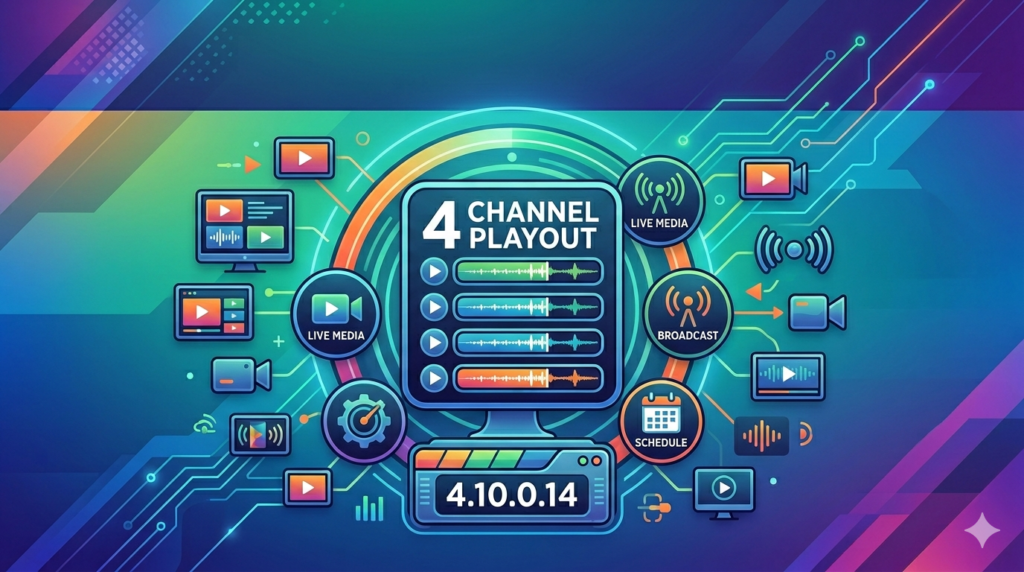
LIVE MEDIA 4 Channel Playout (Version 4.10.0.14) is a Windows-based software application that allows broadcasters, media houses, and digital signage operators to manage up to four independent playout channels from a single workstation. Unlike basic media players, this software is built for 24/7 automated broadcasting, supporting live input mixing, scheduled playlists, and graphics overlays.
The software is widely used for TV channels, community broadcasting, hotel television networks, and live event streaming. It bridges the gap between expensive hardware playout servers and consumer-grade video tools, offering a professional feature set without proprietary hardware dependencies.
Screenshot


Key Features
-
Multi-Channel Playout: Simultaneously manage up to four independent SDI or NDI video channels.
-
Advanced Scheduling: Build daily, weekly, or monthly playlists with automatic failover and filler content.
-
Live Input Integration: Seamlessly switch between live cameras, pre-recorded files, and network streams.
-
Graphics & Titling: Real-time text overlays, lower thirds, logo insertion, and animated graphics (PNG sequence support).
-
Audio Management: Per-channel audio mixing, normalization, and multi-track support.
-
Output Formats: Direct output to SDI, HDMI, NDI, or RTMP streaming platforms (YouTube Live, Facebook Live, Twitch).
-
Logging & Compliance: Automatic logging of all played content for regulatory compliance.
What’s New in Version 4.10.0.14
This latest maintenance and feature release focuses on stability and workflow improvements:
-
Improved NDI 5 Support: Lower latency and better discovery for NDI sources.
-
Enhanced GPU Decoding: Reduced CPU load when playing H.264/H.265 files.
-
Playlist Auto-Recovery: Automatic restoration of the last playlist after an unexpected shutdown.
-
Updated Codec Pack: Expanded support for variable frame rate (VFR) MP4 files.
-
Bug Fixes: Resolved memory leaks during long-duration (72+ hour) continuous playout.
System Requirements
To run LIVE MEDIA 4 Channel Playout 4.10.0.14 effectively, your broadcast workstation should meet or exceed these specifications:
| Component | Minimum Requirement | Recommended (4 Channels) |
|---|---|---|
| OS | Windows 10 Pro (64-bit) | Windows 11 Pro / Windows Server 2022 |
| CPU | Intel Core i5 (6th gen) | Intel Core i7/i9 (12th gen) or AMD Ryzen 7 |
| RAM | 8 GB | 16 GB or 32 GB |
| GPU | NVIDIA GTX 1050 (4GB) | NVIDIA RTX 3060+ (6GB for 4K) |
| Storage | 256 GB SSD (system) | 1 TB NVMe + RAID storage for media |
| Capture | DirectShow-compatible device | DeckLink or AJA SDI card |
Installation Guide
Step-by-step installation:
-
Download the official installer from the developer’s website (ensure SHA256 hash verification).
-
Disable antivirus temporarily (false positives may occur for legitimate automation tools).
-
Run
Setup_LIVE_MEDIA_4_v4.10.0.14.exeas Administrator. -
Accept the EULA and select Complete Installation.
-
Enter your valid license key when prompted.
-
Restart your workstation after installation completes.
-
Launch the software and configure your output devices under Settings > Playout Hardware.
How to Use the Software
Setting Up a Basic Channel
-
Create a Playlist: Click
New Playlist→ Drag video files (MP4, MOV, MXF) into the timeline. -
Set Transition Effects: Right-click between clips → Add crossfade or cut (default: 0 frames cut).
-
Add a Logo: Go to
Overlay Manager→ Upload PNG with alpha channel → Position via X/Y coordinates. -
Schedule Live Switching: Insert a
Live Eventinto the playlist → Select your capture card input. -
Start Playout: Click
On Air→ Monitor audio levels and video output in the preview window.
Pro Tip for 4 Channels
Use the Channel Matrix View (shortcut: F12) to see all four outputs simultaneously. Assign separate audio monitoring for each channel via a multi-output sound card or Dante audio network.
Best Use Cases
| Industry | Application |
|---|---|
| Terrestrial TV | Automated playout for local news, commercials, and reruns. |
| IPTV / OTT | 24/7 themed channels (movies, sports, music) for streaming platforms. |
| Corporate AV | Internal news channels and digital signage across office campuses. |
| House of Worship | Live streaming with scheduled pre-recorded segments. |
| Education | Campus television for lecture capture and student broadcasts. |
Advantages and Limitations
Advantages
-
Cost-effective: Replace hardware playout servers costing $20,000+ with a single PC.
-
Flexible scheduling: Granular control over primetime, off-peak, and emergency break-ins.
-
Active community: Regular updates and third-party plugin support.
-
Low latency: Sub-100ms switching when using SDI I/O cards.
Limitations
-
Windows-only: No native macOS or Linux support.
-
Steep learning curve: Advanced features (GPI triggers, automation scripts) require technical training.
-
No built-in transcoding: Files must be pre-encoded to match your output format.
-
Resource intensive: 4K multi-channel playout demands high-end GPU and RAID storage.
Alternatives to LIVE MEDIA 4 Channel Playout
| Software | Key Difference | Best For |
|---|---|---|
| vMix Pro | Better for live production (less automation) | Live events, sports |
| OBS Studio | Free, open-source, but no multi-channel playout | Single-stream casual use |
| PlayBox Neo | Enterprise-grade, but higher cost | Large TV networks |
| Casper CG | More graphics-focused | News and sports tickers |
| mimoLive | macOS native | Mac-based broadcasters |
Frequently Asked Questions
1. Can I use LIVE MEDIA 4 for 24/7 automated streaming without human intervention?
Yes. The software includes a scheduler with failover logic. Set up a weekly repeating playlist and enable the “Auto-Start on Boot” option for headless operation.
2. Does version 4.10.0.14 support 4K resolution?
Yes, it supports up to 4K (3840×2160) at 50/60 fps, provided your GPU and storage bandwidth meet the requirements (minimum 400 MB/s read speed per channel).
3. Is there a free trial available?
The developer offers a fully functional 30-day trial with a watermark. No credit card is required. Visit the official website to request a trial license.
4. Can I integrate this software with Adobe Premiere Pro or DaVinci Resolve?
Not directly. However, you can export XML playlists from those NLEs and convert them to the software’s .playlist format using a third-party utility (available on user forums).
5. What happens if a video file is corrupted during live playout?
The software will log the error, skip the corrupted file, and automatically play the next item or a specified “filler clip” to avoid dead air.
6. Does this software include a built-in encoder for streaming to YouTube or Facebook?
Yes. Under Output Settings > RTMP, you can add multiple streaming destinations. It supports adaptive bitrate streaming via the included FFmpeg engine.
7. How do I legally obtain the latest version?
Purchase a license from the official reseller list. Licenses are node-locked (one PC) or floating (network). Version 4.10.0.14 is a free update for all version 4.x license holders.
Final Thoughts
LIVE MEDIA 4 Channel Playout 4.10.0.14 is a robust, professional-grade solution for anyone needing reliable multi-channel broadcast automation. While it requires a capable PC and a willingness to learn broadcast workflows, it delivers enterprise-level reliability at a fraction of the cost of hardware alternatives.
For best results, pair this software with a dedicated SDI output card, a redundant storage array, and a UPS power supply. Always use legitimate licensing to ensure security, updates, and technical support.
Premium Software Support Service
If you need professional help with software installation, setup, or technical configuration, our team is available to assist you.
Contact & Support
For quick assistance and latest updates, connect with us using the links below:
🔹 Direct Telegram Support
https://t.me/PlayoutKing
🔹 Official Telegram Updates Group
https://t.me/yourgroup
Service Policy
- Remote testing available through AnyDesk before confirmation.
• Verify the setup and performance before completing the order.
• Support available for single or multiple systems.
• Step-by-step guidance to ensure smooth installation and working environment.
Our goal is to provide reliable technical assistance so your software runs smoothly without interruptions.