
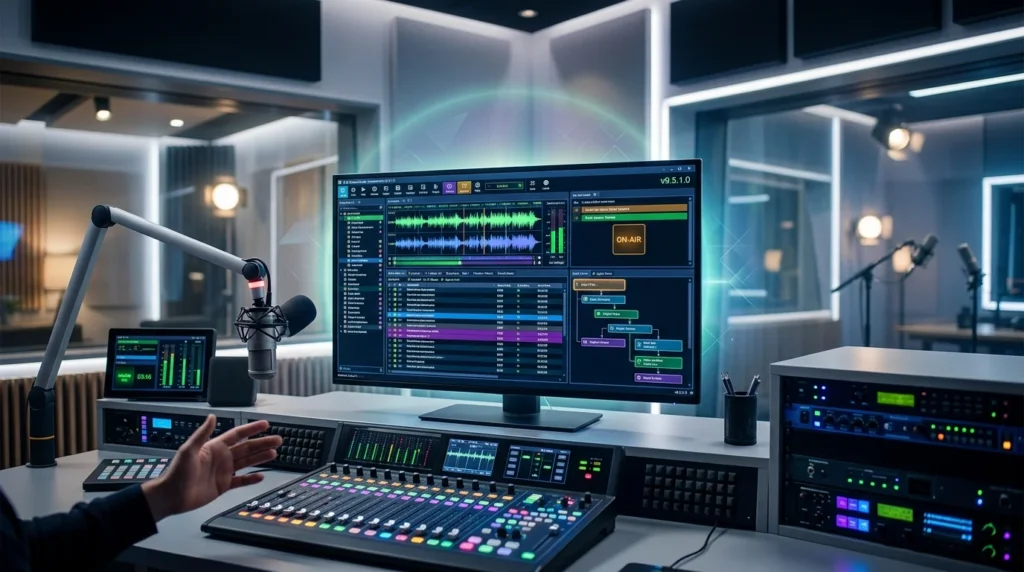


Overview of DJB Radio Studio Automation
Table of Contents
DJB Radio Studio Automation v9.5.1.0 is a powerful, professional-grade broadcasting software solution for internet and FM radio stations. This robust radio automation software is designed to streamline the entire broadcasting workflow, from scheduling and playout to remote management and voice tracking. It provides a comprehensive set of tools for radio DJs, station managers, and broadcast engineers to maintain a polished, 24/7 on-air presence with minimal manual intervention.
This guide offers a complete walkthrough of the software, covering its key features, system requirements, and installation process. Whether you’re a professional broadcaster or a hobbyist setting up an online radio station, this article provides a detailed overview of this broadcast software’s capabilities.
Key Features of DJB Radio Studio Automation
DJB Radio Studio Automation is packed with features designed for professional radio environments. Here are some of its most notable components:
-
Advanced Scheduling Engine: Create complex broadcast schedules with ease. The software supports rotation rules, clock wheels, and category-based scheduling to automate your entire playlist and program lineup.
-
Live Assists & Voice Tracking: Seamlessly integrate live broadcasts with automated segments. The voice tracking feature allows DJs to pre-record their shows with songs, creating the impression of a live broadcast.
-
Remote Operation & Management: A key feature is its ability to be managed remotely. Users can log in from anywhere to update playlists, monitor the live stream, and even broadcast directly using a remote voice-tracking module.
-
Multi-Station Support: The software can manage multiple radio stations from a single installation, with separate databases, playlists, and configurations for each.
-
Integrated Music Management: Import, organize, and tag your audio library efficiently. It supports multiple audio formats and provides detailed metadata editing capabilities for a professional presentation.
-
Audio Processing and Effects: Utilize built-in DSP effects like compressors, limiters, and equalizers to ensure your audio output meets broadcast quality standards.
What’s New in DJB Radio Studio Automation v9.5.1.0
The latest version, v9.5.1.0, brings several key enhancements aimed at improving stability, user experience, and overall performance.
-
Enhanced Remote Studio Functionality: The remote module has been optimized for lower latency and more stable connections, making it easier for teams to broadcast from multiple locations.
-
Improved Audio Codec Support: Added support for newer audio codecs to ensure compatibility with the latest encoding standards and audio formats.
-
UI and UX Refinements: The user interface has been refined for improved navigation and workflow efficiency. Menus and key actions are more intuitive.
-
Database Optimization: The underlying database structure has been optimized for faster performance, especially when handling large audio libraries and complex playlists.
-
Bug Fixes and Performance Improvements: A range of bug fixes and performance enhancements have been implemented to ensure a more stable and reliable broadcast software experience.
System Requirements
To run DJB Radio Studio Automation v9.5.1.0 effectively, ensure your system meets the following minimum requirements:
-
Operating System: Windows 7, Windows 8, Windows 10, or Windows Server 2008 and above (32-bit and 64-bit versions supported).
-
Processor: 1 GHz or faster processor (Dual-core recommended for optimal performance).
-
RAM: At least 4 GB of RAM (8 GB or more is recommended for large audio libraries).
-
Hard Disk: 50 GB of free space for installation and storage. Additional space is needed for your audio files.
-
Sound Card: A full-duplex sound card with appropriate drivers for audio input and output.
-
Internet Connection: An active internet connection is required for remote studio functionality and some features.
Installation Guide for DJB Radio Studio Automation
Installing the software is a straightforward process. Follow these steps to set up DJB Radio Studio Automation on your system.
-
Download the Installer: Obtain the official setup file for v9.5.1.0 from a trusted source or the developer’s website.
-
Run as Administrator: Right-click the setup file and select “Run as administrator” to grant necessary permissions.
-
Follow the Wizard: The installation wizard will guide you through the process. Accept the license agreement and choose the installation directory.
-
Select Components: You will be prompted to choose which components to install. For a full installation, select all options, including the main server, remote studio, and voice-tracking modules.
-
Configure Database: The setup will help you set up the database connection. For first-time installations, choose the option to create a new database.
-
Complete the Installation: Click “Install” and wait for the process to finish. Once complete, you can launch the software.
-
Initial Configuration: Upon first launch, you’ll be guided through initial configuration steps, such as setting up your audio devices and creating your first station profile.
How to Use DJB Radio Studio Automation
Once the installation is complete, the following steps will get you on the air quickly.
Setting Up Your First Station
-
Launch the application and navigate to the “Station Manager”.
-
Click “Add New Station”.
-
Enter your station’s name and assign a base directory for its content.
-
Configure the audio input and output devices for this station.
-
Save the station profile.
Importing and Building Your Music Library
-
Go to the “Music Library” section.
-
Use the “Import” function to scan a folder containing your MP3, WAV, or other audio files.
-
The software will read and organize the ID3 tags, allowing you to search and filter your library efficiently.
-
Create categories (e.g., “Jazz,” “Pop,” “News”) to help organize your music for scheduling.
Creating a Schedule
-
Navigate to the “Scheduler” module.
-
Create a new playlist event and select a category.
-
Set the time and recurrence pattern (e.g., daily, weekly) for the event.
-
You can further enhance your schedule by adding voice-tracking segments, station IDs, and commercial breaks.
-
The scheduler will automatically populate your playlist based on the rules you define, ensuring a seamless broadcast.
Best Use Cases for DJB Radio Studio Automation
This versatile broadcast automation software is suitable for a variety of applications:
-
Internet Radio Stations: Perfect for broadcasters looking to maintain a 24/7 online presence with a professional and automated output.
-
Professional FM Stations: Serves as a reliable primary or backup system for traditional radio stations, offering robust scheduling and emergency playback.
-
Community & Campus Radio: An affordable and comprehensive solution for community broadcasters and university radio stations with limited technical staff.
-
Automated Podcast Networks: Can be used to schedule and broadcast pre-recorded podcasts and content at specific times.
Advantages and Limitations
Advantages
-
Reliable 24/7 Automation: Ensures your station never goes silent.
-
Feature-Rich: A comprehensive, all-in-one solution.
-
Remote Access: Allows for management and broadcasting from anywhere.
-
Scalable: Supports single DJ setups up to multi-station networks.
Limitations
-
Windows-Only: The software is designed exclusively for the Windows operating system.
-
Steep Learning Curve: The depth of features can be overwhelming for new users. It requires time to master the scheduler and advanced features.
-
Resource Intensive: Can be demanding on system resources, particularly with large music libraries and multiple stations.
Alternatives to DJB Radio Studio Automation
If DJB Radio Studio Automation doesn’t perfectly fit your needs, consider these powerful alternatives:
-
RadioDJ: A free, open-source option that is highly regarded for its stability and extensive feature set for community and internet broadcasters.
-
SAM Broadcaster: A popular, premium choice known for its user-friendly interface, robust scheduling, and strong community support.
-
Mixxx: A free, open-source DJ software that, while primarily for live mixing, can be used with automation plugins for broadcasting.
-
Airtime Pro: A cloud-based solution that simplifies the setup process, ideal for stations that prefer a Software-as-a-Service (SaaS) model.
Frequently Asked Questions
What is DJB Radio Studio Automation used for?
It is a professional radio automation software used for scheduling and playing audio content for internet and FM radio stations, enabling 24/7 broadcasting with minimal manual control.
Is DJB Radio Studio Automation compatible with Windows 11?
Yes, DJB Radio Studio Automation v9.5.1.0 is compatible with Windows 11 and other recent versions of the Windows operating system.
Can I run this software on multiple computers?
Yes, you can install the software on multiple computers, allowing different team members to connect to the same database for remote management and broadcasting.
Does this broadcast software support voice tracking?
Yes, the software includes a powerful voice-tracking module. DJs can record their segments to be played between scheduled songs, creating a live-sounding show.
Is a professional sound card required to use this software?
While a professional sound card is not strictly mandatory, it is highly recommended for broadcast-quality audio output and to ensure low-latency performance.
Where can I find user support for this software?
Documentation, user forums, and official support channels are typically available through the developer’s website. The user community is often a great resource for troubleshooting.
Final Thoughts
DJB Radio Studio Automation v9.5.1.0 stands as a robust and feature-rich platform for anyone serious about radio broadcasting. Its powerful scheduling engine, remote management capabilities, and advanced features make it suitable for both professional networks and dedicated hobbyists. While it may have a learning curve for beginners, its comprehensive toolset and reliability are a significant advantage for a professional on-air workflow. We hope this complete guide has provided you with the information you need to consider it for your next broadcasting project.
Our Paid Service
“We do not sell or provide any software. We only offer professional support services. If any software on your system is not working properly, or you are facing installation errors, crashes, or any other technical issue — just contact us. We will help you fix the problem quickly and remotely via AnyDesk. No software will be provided from our side — only expert troubleshooting and support.”


