
Overview of DINESAT V9
Table of Contents
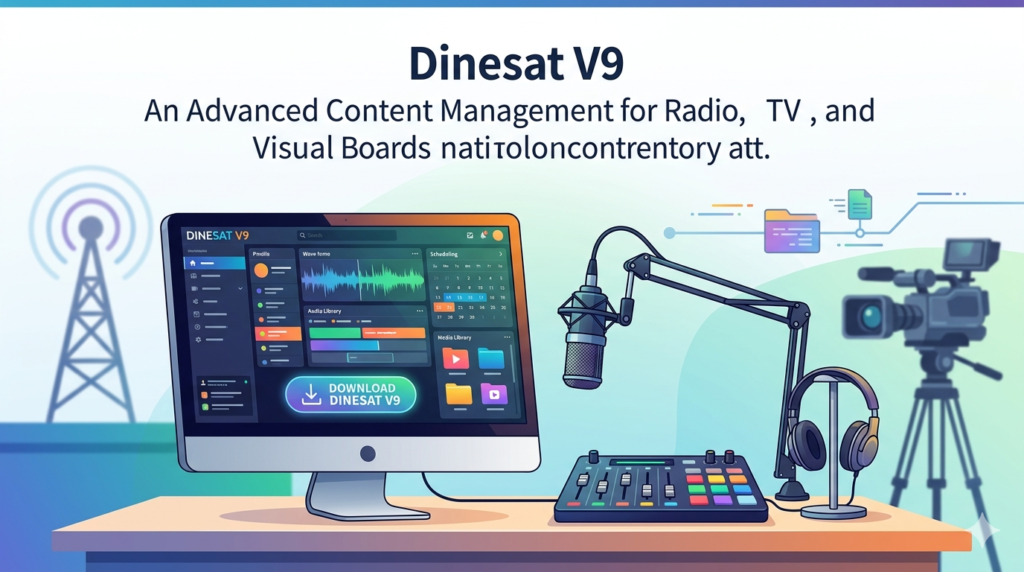
DINESAT V9 is a professional-grade broadcasting solution designed for radio, television, and visual broadcasters who require robust content management and automation. Building on the foundation of DINESAT PRO, this version offers a seamless workflow that reduces manual intervention while increasing operational reliability. Unlike consumer audio editors, DINESAT V9 is engineered for 24/7 broadcast environments where stability and precision are non-negotiable.
The software excels at handling large audio and video file libraries, managing multiple broadcast windows, and providing real-time updates. For organizations seeking a scalable investment, DINESAT V9 supports modern operating systems and offers a structured pricing model—approximately Q5,000 for the core server and Q3,500 per connected terminal. This combination of advanced automation, user control, and legal compliance makes it a strategic choice for broadcasters aiming to modernize their infrastructure.
Key Features of DINESAT V9
DINESAT V9 includes a comprehensive set of tools for professional broadcasting. Below are its most significant capabilities:
-
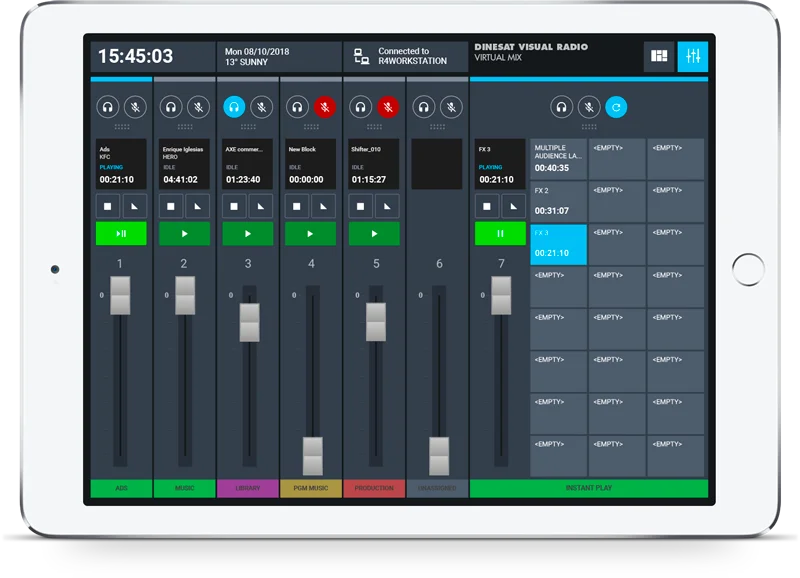
Unified Audio & Video Management – The DINESAT 12 VISUAL module allows operators to manage both audio and video within a single interface, supporting SD and HD movie integration.
-
Dual Broadcast Windows – Two independent playback windows (Aire1 for commercial spots and Aire2 for music) enable organized content separation.
-
AI-Powered Automation – Automates weather updates, news capsules, promotions, and generates hyper-realistic synthetic voices for natural-sounding live announcements.
-
Multiple Playback Modes – Supports DirectShow, Wave mode, and SoundBlaster-compatible boards for flexible hardware integration.
-
Advanced Codec Support – Compatible with WAV, MP3, MPEG Layer 3, PCM, IMA ADPCM, and MPEG Layers I, II, and III.
-
Professional Audio Hardware Integration – Works with Digigram and AudioScience technologies for enhanced broadcast sound quality.
-
Ingest & Playout Automation – Simplifies movie broadcasting with integrated file handling, real-time updates, and smooth transitions.
-
Character Generator (CG) – Built-in CG enables custom graphics, text overlays, titles, and credits during live or automated playback.
-
Streaming & Output Options – Supports NDI, SDI outputs, and RTMP streaming for multi-platform distribution.
-
Transition Modes – Includes “Music with Fade,” “Commercials + Music,” and auxiliary input switching to ensure seamless audio handoffs.
What’s New in DINESAT V9 Compared to DINESAT PRO
The latest version introduces several workflow improvements and technical advancements:
-
Modern OS Support – Fully compatible with current Windows versions, unlike legacy broadcast software.
-
Enhanced AI Engine – Generates dynamic advertisements and live announcements with improved spontaneity.
-
Visual Broadcasting Module – Native support for video and movie playback without third-party plugins.
-
Reduced Manual Overlap – Automation now handles playlist scheduling, real-time changes, and error recovery more effectively.
-
Optimized Compression Algorithms – Improved audio file compression and decompression for smaller file sizes without quality loss.
-
Structured Licensing – Clear server-plus-terminal pricing model (Q5,000 server + Q3,500 per terminal) for budget planning.
System Requirements for DINESAT V9
| Component | Minimum Requirement |
|---|---|
| Operating System | Windows 10 / 11 (64-bit) or Windows Server 2019+ |
| Processor | Intel Core i5 or AMD equivalent (i7 recommended) |
| RAM | 8 GB (16 GB for video broadcasting) |
| Storage | 500 GB SSD (NVMe recommended for media libraries) |
| Audio Hardware | SoundBlaster-compatible board or Digigram/AudioScience card |
| Graphics | DirectX 11 compatible (for CG and video playback) |
| Network | Gigabit Ethernet for terminal-server communication |
| Outputs | NDI or SDI (optional for TV broadcasting) |
Supported File Formats
-
Audio: WAV, MP3, MPEG Layer I/II/III, PCM, IMA ADPCM
-
Video: SD, HD, MPEG, and broadcast-standard containers via DirectShow
Installation Guide for DINESAT V9
Follow these steps for a legal and successful installation. Note: You must obtain a valid license from an authorized DINESAT distributor.
-
Prepare the Server Machine – Install a clean, supported Windows OS. Disable power-saving settings that could interrupt broadcasts.
-
Install Core Server Software – Run the DINESAT V9 installer as administrator. Select “Server Installation” when prompted.
-
Configure Audio Hardware – Connect your SoundBlaster-type, Digigram, or AudioScience board. Install official drivers before launching DINESAT.
-
Activate License – Enter your licensed server key. Do not attempt unauthorized activation methods; the software uses online validation.
-
Install Terminals – On each connected PC, run the terminal installer. Point each terminal to the server’s IP address.
-
Set Up Broadcast Windows – Configure Aire1 (commercials) and Aire2 (music) according to your station’s workflow.
-
Test Playback Modes – Verify DirectShow and Wave mode outputs. Test fade transitions and auxiliary input switching.
-
Ingest Media – Import your audio and video libraries. The system supports batch importing and metadata tagging.
How to Use DINESAT V9 (Beginner to Pro Workflow)
For Daily Radio Operations
-
Load Content – Drag MP3 or WAV files into the Aire2 window (music) and commercial spots into Aire1.
-
Schedule Playlists – Use the scheduling tool to plan hourly, daily, or weekly rotations.
-
Set Transition Modes – Choose “Music with Fade” for natural crossfades or “Commercials + Music” to pause music during ads.
-
Enable AI Announcements – Activate the AI voice generator for weather, news capsules, and promotions. The system will read real-time data.
-
Monitor Live – Switch between manual and automatic modes as needed. Use the auxiliary input to skip external audio for emergency ads.
For TV & Visual Broadcasting
-
Open DINESAT 12 VISUAL Module – Import SD or HD movies.
-
Add Graphics – Use the built-in CG to overlay titles, credits, or lower thirds during playback.
-
Configure Output – Route video to NDI, SDI, or RTMP streaming destinations.
-
Enable Ingest & Playout – Automate movie playback with real-time synchronization between audio and video.
Best Use Cases for DINESAT V9
-
Commercial Radio Stations – Separate commercial (Aire1) and music (Aire2) windows reduce manual overlap and human error.
-
Community & Campus Radio – AI automation helps smaller teams maintain 24/7 broadcasts with minimal staff.
-
TV Channels with Limited Budget – The visual module and CG provide professional TV playout without expensive dedicated hardware.
-
Religious or Talk Broadcasting – Auxiliary input switching allows live call-ins or external audio sources to override scheduled content seamlessly.
-
Multi-Station Networks – Server-plus-terminal architecture enables centralized content management across multiple studios.
Advantages and Limitations of DINESAT V9
Advantages
-
High reliability for 24/7 operation with automated error recovery
-
Unified audio and video management reduces software sprawl
-
AI voice synthesis saves production time for repetitive announcements
-
Flexible playback modes (DirectShow, Wave, SoundBlaster) support legacy hardware
-
Separation of commercial and music workflows improves billing accuracy
Limitations
-
Initial cost (Q5,000 server + Q3,500 per terminal) may be high for small internet radio stations
-
Learning curve for users migrating from consumer software like Winamp or OBS
-
Video features require more powerful hardware (16+ GB RAM recommended)
-
No native Linux or macOS support—Windows only
-
AI voice quality depends on language and accent training data
Alternatives to DINESAT V9
| Software | Primary Focus | Pricing Model | Best For |
|---|---|---|---|
| AIRTIME | Open-source radio automation | Free (self-hosted) | Budget-conscious community radio |
| Rivendell | Full-featured radio automation | Free (open source) | Technical teams with Linux experience |
| StationPlaylist | Radio playout & voice tracking | One-time purchase (lower cost than DINESAT) | Small to medium web radio stations |
| OBS Studio | Live video streaming | Free | Visual-only broadcasters (no audio automation) |
| vMix | Video switching & playout | Subscription / one-time | TV production (no radio features) |
Note: Alternatives lack DINESAT’s integrated AI voice generation and dual-window commercial/music separation. For hybrid radio/TV workflows, DINESAT remains unique.
Frequently Asked Questions (FAQ)
Q1: Is DINESAT V9 compatible with Windows 11?
Yes. DINESAT V9 fully supports Windows 10 and Windows 11 (64-bit). Older versions like DINESAT PRO may not run on modern OS.
Q2: Can I use DINESAT V9 for internet radio streaming?
Yes. The software supports RTMP streaming and multiple streaming outputs, making it suitable for both terrestrial and online radio stations.
Q3: What is the difference between Aire1 and Aire2?
Aire1 is dedicated to commercial spots, promotional capsules, and scheduled ads. Aire2 is reserved for continuous music playback. This separation allows natural transitions without manual intervention.
Q4: Does DINESAT V9 require an internet connection?
Internet is required for license validation, AI content updates (weather, news), and RTMP streaming. However, local playback can continue offline after activation.
Q5: Can I import my existing MP3 library into DINESAT V9?
Yes. DINESAT V9 supports MP3, WAV, MPEG Layer 3, PCM, and IMA ADPCM formats. Batch importing preserves metadata like artist and title.
Q6: How many terminals can connect to one server?
Scalability depends on your server hardware and network. DINESAT V9 supports dozens of terminals in a standard studio network. Each terminal requires its own license.
Q7: Is training available for DINESAT V9?
Authorized DINESAT distributors offer paid training. Many radio engineering consultants also provide remote setup and workflow optimization services.
Q8: Can I generate synthetic voices in languages other than English?
Yes. The AI module supports multiple languages, but voice quality varies. Test your specific language with a demo before purchasing.
Final Thoughts
DINESAT V9 represents a meaningful upgrade for broadcasters still relying on DINESAT PRO or fragmented audio-video workflows. Its dual-window design, AI automation, and visual broadcasting module directly address the operational friction of live radio and TV production. While the upfront investment (Q5,000 server + Q3,500 per terminal) is significant, stations that value reliability, reduced manual errors, and legal compliance will find the platform cost-effective over a 3–5 year horizon.
Our Paid Service
“We do not sell or provide any software. We only offer professional support services. If any software on your system is not working properly, or you are facing installation errors, crashes, or any other technical issue — just contact us. We will help you fix the problem quickly and remotely via AnyDesk. No software will be provided from our side — only expert troubleshooting and support.”