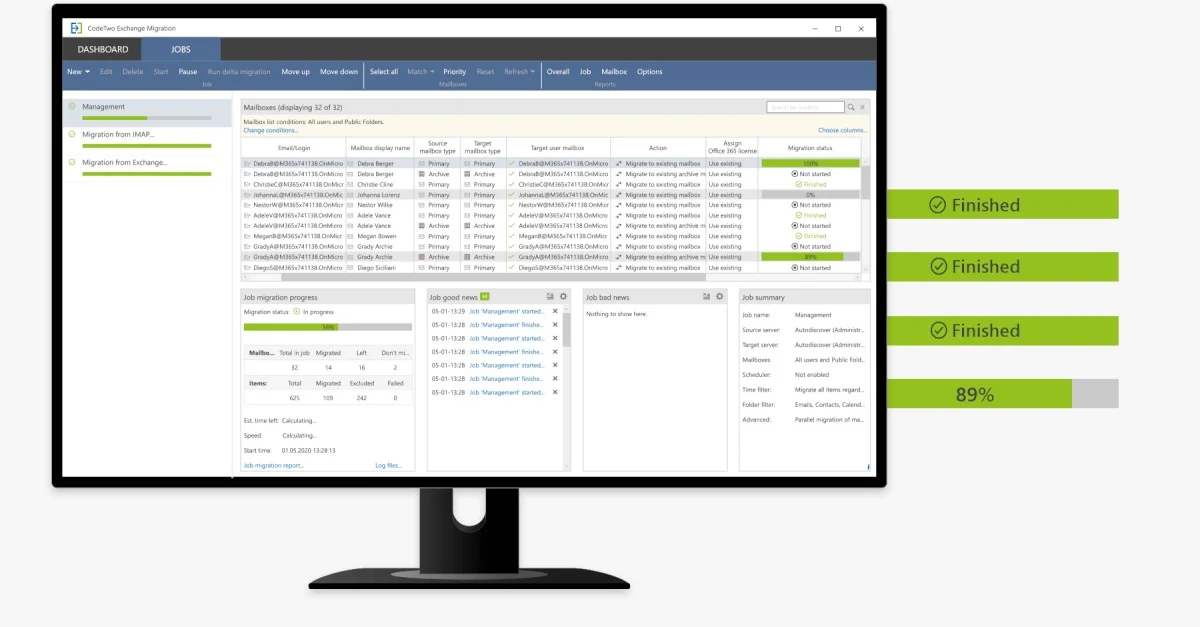
Overview of CodeTwo Exchange Migration
Table of Contents
CodeTwo Exchange Migration v3.2.14.2 is a powerful and reliable software solution designed to simplify the complex process of email migration. This tool is specifically built to help businesses and IT professionals migrate mailboxes, public folders, and other critical data from legacy on-premises Exchange servers or other hosted email platforms directly to Microsoft 365 (formerly Office 365) .
This version enhances the tool’s reputation as a leading Exchange migration tool by introducing new features, performance improvements, and broader platform support. It helps organizations maintain continuity during transitions by ensuring that all data—including calendars, contacts, and tasks—is transferred with high fidelity and minimal downtime.
Key Features of CodeTwo Exchange Migration
-
Direct Migration to Microsoft 365: Effortlessly move mailboxes and public folders from Exchange Server 2019, 2016, 2013, 2010, or 2007.
-
Public Folder Replication: Supports the migration of public folder hierarchies, permissions, and content to Microsoft 365 Groups or shared mailboxes.
-
Cross-Platform Support: Capable of migrating from other IMAP-based email systems, making it a versatile email migration tool.
-
Multi-Mailbox Migration: Migrate multiple mailboxes in parallel, drastically reducing the overall migration window.
-
Synchronization Capabilities: Offers continuous sync options to keep source and target environments aligned until the final cutover.
-
Minimal End-User Impact: Preserves existing email structures and folder permissions, allowing users to continue working without interruption.
-
Detailed Logging and Reporting: Provides comprehensive reports on migration status, allowing administrators to track progress and troubleshoot issues.
-
Retry Mechanism: Automatically retries failed items to ensure a complete and successful Microsoft 365 mailbox migration.
What’s New in Version 3.2.14.2
The latest update, CodeTwo Exchange Migration v3.2.14.2, focuses on stability, security, and user experience. Key enhancements include:
-
Improved Performance: Optimized multithreading for faster data transfer, reducing the time required for large-scale migrations.
-
Enhanced Security: Updated security protocols to support modern authentication methods, including modern OAuth 2.0 for Microsoft 365.
-
Advanced Reporting: New features for creating detailed, customizable reports for better compliance tracking.
-
Bug Fixes: Resolved issues related to large public folder migrations, improving stability and reliability.
-
Wider OS Compatibility: Now supports Windows Server 2022 and Windows 11 for the installation environment.
System Requirements
Requirements for the Migration Tool
-
Operating System: Windows Server 2022, 2019, 2016; Windows 11, 10 (64-bit).
-
Hardware: Processor: 1.4 GHz (x64) or faster; RAM: 4 GB minimum (8 GB recommended).
-
Software: Microsoft .NET Framework 4.8 or newer.
-
Database: A local or remote instance of Microsoft SQL Server or SQL Express (for storing migration data).
Source Environment
-
Exchange Server: 2007, 2010, 2013, 2016, or 2019.
-
Other Platforms: Any IMAP-compliant email server.
Target Environment
-
Microsoft 365: Business Basic, Business Premium, E1, E3, E5, or Exchange Online plans.
Comprehensive Installation Guide
Step 1: Prepare Your Environment
-
Download the installation file from the official CodeTwo website.
-
Run the installer and allow the setup wizard to extract files.
Step 2: Prerequisites Check
The installer automatically checks for necessary components (like .NET Framework and SQL Server). If missing, you will be prompted to download and install them. It is recommended to close other applications to avoid conflicts.
Step 3: Install the Software
-
Follow the on-screen instructions to install the CodeTwo Exchange Migration service.
-
Choose a directory for installation (the default is recommended).
-
During installation, you will be prompted to configure the connection to the SQL Server database.
Step 4: Initial Configuration
-
Launch the Migration Manager interface.
-
Connect to your Microsoft 365 tenant using an admin account.
-
Configure the connection to your source environment (Exchange server or IMAP server).
How to Use CodeTwo Exchange Migration
Setting Up a Migration Job
-
Open the Migration Manager.
-
Select Source: Choose “Exchange” or “IMAP” as your source.
-
Select Target: Choose “Microsoft 365” as your destination.
-
Connect to Source: Enter the necessary credentials for your Exchange server.
-
Authenticate to Microsoft 365: Use modern authentication to link your tenant.
Choosing Data to Migrate
-
Mailboxes: Select individual users or import a CSV list of all employees.
-
Public Folders: Choose specific folders or migrate all public folder content.
-
Archives: Migrate both primary and archived mailboxes.
-
Users and Groups: Automatically match source on-premises users with target Microsoft 365 user accounts.
Migration Options
-
Initial Sync: Migrate the full dataset.
-
Incremental Sync: Migrate only changes made after the initial sync, making it ideal for cutover phases.
-
Final Cutover: Stop new emails to the source, perform a final sync, and redirect email flow to Microsoft 365.
Best Use Cases for CodeTwo Exchange Migration
-
Server Decommissioning: Replacing legacy on-premises Exchange servers to reduce infrastructure costs.
-
Mergers and Acquisitions: Consolidating multiple organizations into a single Microsoft 365 tenant.
-
Email Platform Updates: Moving from an outdated IMAP-based host to a modern cloud solution.
-
Large-Scale Data Migration: For organizations managing hundreds of mailboxes, offering bulk migration capabilities with precision.
-
Public Folder Modernization: Transitioning traditional Exchange Public Folders to Microsoft 365 Groups for better collaboration and management.
Advantages and Limitations
Advantages
-
User-Friendly Interface: Designed to be accessible for both seasoned IT staff and less technical users.
-
Zero-Downtime Synchronization: Enables you to keep your source and target environments in sync until the final cutover.
-
Data Integrity: Ensures metadata such as permissions, timestamps, and categories are preserved.
-
Secure and Compliant: Supports modern security protocols and generates audit trails for compliance.
-
Comprehensive Support: Backed by CodeTwo’s dedicated technical support team.
Limitations
-
Dependency on SQL Server: Requires an external SQL database, which adds an extra step to the setup process.
-
Bandwidth Requirements: Large migrations are heavily dependent on your network’s upload speed.
Alternatives to CodeTwo Exchange Migration
1. Microsoft Exchange Migration Tool
-
Description: Microsoft’s native tool is integrated into the Exchange Admin Center.
-
Pros: Free and built-in.
-
Cons: Limited to Exchange-to-Exchange migrations and less feature-rich.
2. AvePoint
-
Description: A robust platform for Microsoft 365 governance and migration.
-
Pros: Feature-rich with strong governance capabilities.
-
Cons: More expensive and complex to set up for smaller organizations.
3. BitTitan MigrationWiz
-
Description: A popular SaaS-based migration tool.
-
Pros: Fast and simple setup. No server infrastructure required.
-
Cons: Can become expensive for large-scale, long-duration migrations.
Comparison: CodeTwo sits as a balanced middle-ground, offering the power of on-premises management with a user-friendly interface. While MigrationWiz excels in simplicity, CodeTwo provides more granular control over the migration process, making it suitable for enterprises with complex requirements.
Frequently Asked Questions
1. Is CodeTwo Exchange Migration compatible with Exchange 2007?
Answer: Yes, version 3.2.14.2 supports migrations from Exchange Server 2007 through Exchange 2019, ensuring compatibility with older infrastructures.
2. Can I migrate public folders to Microsoft 365 Groups?
Answer: Yes. The software allows you to migrate public folder structures directly to Microsoft 365 Groups, modernizing your collaboration infrastructure.
3. How long does a typical migration take?
Answer: The duration depends on data volume and bandwidth. It can take a few hours for a small organization or several days for large enterprises with terabytes of data.
4. Does this tool support password migration?
Answer: No. While it migrates mailbox data, passwords are handled separately via Azure AD Connect or a similar identity management solution.
5. Is there a free trial available?
Answer: Yes, CodeTwo offers a fully functional 30-day trial, allowing you to test the migration process and features before committing to a purchase.
6. Can I use the software to migrate from Google Workspace?
Answer: The software is designed for Exchange and IMAP migrations. For Google Workspace, you would need to set up IMAP access, but the primary functionality remains focused on Exchange Server environments.
7. What happens to my calendar and contact data?
Answer: The tool preserves calendar events and contact lists, ensuring that all mail items are migrated to Microsoft 365 with full fidelity.
Final Thoughts
CodeTwo Exchange Migration v3.2.14.2 stands out as a reliable and efficient solution for organizations planning their move to the cloud. It effectively addresses the complexities of email migration to Microsoft 365, offering features like multi-mailbox migration, public folder replication, and data synchronization. Its focus on minimizing downtime and preserving data integrity makes it a top choice for IT teams.
Whether you are decommissioning an Exchange Server or consolidating infrastructure, this tool provides the necessary control, stability, and security to ensure a successful migration project.
Our Paid Service
“We do not sell or provide any software. We only offer professional support services. If any software on your system is not working properly, or you are facing installation errors, crashes, or any other technical issue — just contact us. We will help you fix the problem quickly and remotely via AnyDesk. No software will be provided from our side — only expert troubleshooting and support.”