
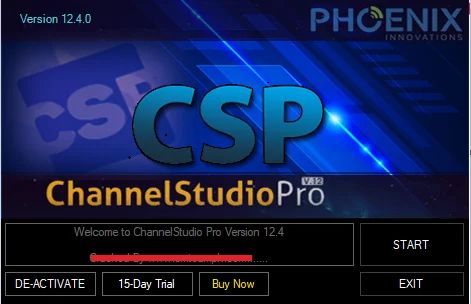

Overview of Channel Studio Pro V12.4.0
Table of Contents
Channel Studio Pro V12.4.0 is a professional-grade broadcast automation and playout solution designed for television studios, live event producers, corporate media teams, and streaming broadcasters. This software functions as a central hub for broadcast operations, allowing users to move from manual control to fully automated, scheduled playout across SD, HD, and 4K channels.
In the competitive landscape of broadcast software, Channel Studio Pro distinguishes itself by integrating multiple media sources—live SD/HD inputs, pre-recorded files, graphics, and effects—into a single, reliable playlist. Version 12.4.0 focuses specifically on workflow stability, expanded codec support, and enhanced 4K rendering, making it a robust choice for modern broadcasting environments ranging from traditional TV to live internet streaming.
Unlike basic media players, this professional playout solution includes advanced scheduling, real-time branding tools, and hardware-accurate output, ensuring broadcasters maintain a polished, legally compliant on-air presence without constant manual intervention.
Key Features of Channel Studio Pro V12.4.0
Channel Studio Pro V12.4.0 delivers a comprehensive toolset organized into four core functional areas.
Playout Automation and Scheduling
The foundation of this broadcast automation software is its ability to manage complex playlists with precision.
-
Automated Playout: Schedule video clips, commercials, promos, and interstitials to air automatically according to a predefined timeline, significantly reducing manual labor.
-
Advanced Scheduling Engine: Plan programming days or weeks in advance using a visual scheduler that handles daily rotations, weekly blocks, and special event overrides.
-
Cue Tone & Hardware Triggers: Supports industry-standard GPI (General Purpose Interface) triggers and cue tones for seamless integration with external routers, servers, and legacy automation systems.
Graphics, Logo, and Branding Suite
Maintain a consistent on-air identity with dynamic graphics tools.
-
Real-Time Graphics Overlay: Insert static or animated logos, lower thirds, news tickers, and “next up” slates over live or recorded video without rendering.
-
Template-Based Graphics Engine: Use bundled templates for news headlines, sports scores, or weather updates, or create custom templates to ensure brand consistency across all programming.
-
Dynamic Ticker Management: Link ticker data to live RSS feeds, stock data APIs, or manual text inputs for continuously updating information during broadcasts.
Media Asset Management (MAM)
Efficient organization is critical in fast-paced control rooms.
-
Centralized Media Library: Catalog all video files, audio clips, images, and graphics in a searchable database with thumbnail previews.
-
Rich Metadata Support: Assign metadata including duration, codec type, resolution, creation date, and custom tags to enable rapid filtering and sorting.
-
Watch Folders: Automatically ingest new media from designated folders on your network, applying preset metadata rules to streamline pre-broadcast preparation.
Live Input and Multi-Format Handling
Channel Studio Pro V12.4.0 excels at accepting and playing diverse media types.
-
Live Source Integration: Switch between multiple live camera feeds, satellite receivers, NDI sources, and network streams without external switching hardware.
-
Extensive Format Support: Natively play H.264, H.265/HEVC, MPEG-2, ProRes, DNxHD, and more across containers like MOV, MP4, MXF, and AVI, without transcoding.
-
4K/UHD & 3D Playout: Supports 4K resolution workflows and stereoscopic 3D formats (side-by-side, top-bottom) for broadcasters handling next-generation content.
Ingest and Quick-Editing Tools
Prepare incoming media directly within your broadcast workflow.
-
Media Ingest Module: Capture and digitize content from external sources such as tape decks, live satellite feeds, or camera SDI outputs.
-
Trim & Cut Editing: Perform simple cuts, trims, and fade adjustments on clips to ensure exact start/end timing without launching a separate non-linear editing (NLE) application.
What’s New in Channel Studio Pro Version 12.4.0
The V12.4.0 update focuses entirely on performance, reliability, and modern broadcast standards.
-
Enhanced 4K/Ultra HD Workflow: A rebuilt rendering and playback engine reduces CPU/GPU load when processing high-bitrate 4K files, enabling smoother playout on moderately spec’d workstations.
-
Expanded Codec Support: Native compatibility with the latest camera codecs (including H.265 10-bit and XAVC Class 300) eliminates pre-ingest transcoding steps for many production houses.
-
Refined User Interface: Updated UI elements in the playlist and scheduling modules improve color contrast, resizing behavior, and drag-drop responsiveness for faster operation under live conditions.
-
Stability & Long-Haul Performance: Memory management optimizations reduce the risk of crashes during 24/7 continuous broadcasts, a critical improvement for automated channel operations.
System Requirements for Channel Studio Pro V12.4.0
To run Channel Studio Pro V12.4.0 effectively, your broadcast workstation must meet these minimum or recommended specifications. For multi-channel or 4K operations, the recommended column is essential.
| Component | Minimum Requirement | Recommended for 4K/Multi-Channel |
|---|---|---|
| Operating System | Windows 10 Pro (64-bit) | Windows 11 Pro or Windows Server 2022 |
| Processor (CPU) | Intel Core i7 (8th Gen) or AMD Ryzen 7 | Intel Xeon W or AMD Threadripper (12+ cores) |
| Memory (RAM) | 16 GB | 32 GB – 64 GB (ECC recommended) |
| Graphics Card (GPU) | Dedicated GPU with 2GB VRAM (NVIDIA T1000) | NVIDIA RTX 4070+ or AMD Radeon Pro with 8GB+ VRAM |
| Storage | 500GB SSD (system) + 1TB HDD (media) | High-speed NVMe SSD array (RAID 10 for media storage) |
| Video I/O Hardware | Blackmagic Design, AJA, or Bluefish444 card | Blackmagic DeckLink 8K Pro or AJA Kona 5 |
| Network | Gigabit Ethernet | 10GbE for shared media access |
Installation Guide for Channel Studio Pro V12.4.0
Installing a legitimate copy of Channel Studio Pro requires a valid license from an authorized reseller or the official website. The following steps assume you have purchased the software legally.
Step 1 – Prepare Your Workstation
Verify that your computer meets the recommended system requirements above. Update Windows fully, update your GPU drivers, and ensure any capture cards have the latest manufacturer firmware. Temporarily disable third-party antivirus software to prevent false positives during installation, then re-enable it afterward.
Step 2 – Run the Installer as Administrator
Locate the downloaded setup file (e.g., ChannelStudioPro_Setup_v12.4.0.exe). Right-click and select Run as Administrator. This grants the installer necessary permissions to install drivers for broadcast I/O hardware and system codecs.
Step 3 – Follow the Setup Wizard
Proceed through the wizard:
-
Accept the End User License Agreement (EULA).
-
Choose installation directory (default:
C:\Program Files\ChannelStudioPro). -
Select components: main application, additional codec pack, and Blackmagic/AJA driver integration (if applicable).
Step 4 – Activate Your License
On first launch, the software prompts for a license key. Enter the key provided after purchase and activate online. Activation unlocks all features, including support, updates, and removal of any watermark. Important: Only use licenses purchased directly from the developer or authorized partners. Unauthorized activation methods violate copyright laws and may contain malware.
Step 5 – Configure Broadcast Hardware
After installation, connect your SDI/HDMI output card (e.g., Blackmagic DeckLink). Open Settings > Video Output and select the card, then configure your master output resolution (e.g., 1080i 59.94, 2160p 50). Run a test output to a monitor before building live playlists.
How to Use Channel Studio Pro: A Practical Workflow
This beginner-friendly workflow walks you from project creation to live playout.
1. Create a New Project
Launch Channel Studio Pro and select File > New Project. Name your project and define your channel’s master video standard (e.g., 1080p 29.97, 720p 59.94, 2160p 50). Audio settings (stereo vs. surround) are set here.
2. Import Media to the Library
Open the Media Library panel. Drag and drop video files, audio clips, images, and graphics from your file system. CSP will scan and generate thumbnails automatically. Use folders like “Commercials,” “Programs,” “Station IDs,” and “Emergency Fill” to stay organized.
3. Build a Playout Playlist
Open the Playlist window. Drag assets from the library into the playlist in broadcast order. Adjust clip durations (for stills), set transition effects (cut, crossfade, wipe), and program specific start times for scheduled events. For precise scheduling, switch to Schedule View and assign clips to clock times.
4. Add On-Air Graphics
Navigate to the Graphics Overlay tab. Load a logo file (PNG with alpha channel recommended) and position it on the preview monitor. To add a news ticker, select the Ticker tool, input text or link an RSS feed, and set scroll speed. Assign graphics to specific playlist events or run them continuously.
5. Play Out the Channel
With the playlist ready, click Take (manual mode) or engage Auto mode. In Auto mode, each clip plays to its end, then the next begins automatically based on your transition rules. Monitor the SDI or program output window continuously to confirm correct switching.
Best Use Cases for Channel Studio Pro V12.4.0
Channel Studio Pro adapts to several professional broadcast scenarios:
-
24/7 Linear Television Channels – Fully automated playout of movies, series, commercials, and promos with daily/weekly schedule rotations.
-
Live Event Broadcasting – Switching between multiple camera feeds, inserting instant replays, and overlaying live scores or voting results during sports or concerts.
-
Corporate TV Networks – Internal channels broadcasting company announcements, training videos, and executive messages across a global office network.
-
Religious & Community TV – Live worship services with lyric overlays, donation tickers, and scheduled community programming from a single workstation.
-
Internet Streaming Channels (FAST) – Professional automation for free ad-supported streaming TV (FAST) channels on platforms like Samsung TV Plus, Pluto TV, or Twitch.
Advantages and Limitations of Channel Studio Pro
Advantages
-
All-in-One Workflow – Combines playout, graphics, scheduling, and media management, reducing reliance on multiple separate tools.
-
High Scalability – Operates a single channel or expands to multi-channel environments on the same software platform.
-
Format Agnostic – Mixing codecs and resolutions without transcoding saves storage space and preparation time.
-
Professional Hardware Integration – Reliable support for Blackmagic, AJA, and Bluefish444 cards ensures broadcast-grade signal stability.
Limitations
-
Steep Learning Curve – The extensive feature set requires dedicated training, unlike simpler streaming tools.
-
Hardware Dependency – Full SDI input/output functionality requires external broadcast I/O cards (costing 300–1,500).
-
Resource Intensive – 4K playout with multiple graphics layers needs a high-end workstation (strong CPU, 32GB+ RAM, fast NVMe storage).
Alternatives to Channel Studio Pro
Depending on your budget and use case, consider these alternatives:
| Software | Best For | Key Difference from Channel Studio Pro |
|---|---|---|
| OBS Studio | Live streaming and basic recording | Free & open-source; lacks advanced scheduling and multi-channel automation. |
| vMix | Live event production & streaming | More accessible for beginners; stronger on live mixing, weaker on long-form 24/7 automation. |
| PlayBox AirBox | Professional channel-in-a-box | Direct competitor; similar features but typically higher pricing and stricter hardware certification. |
| CasparCG | Custom broadcast graphics & playout | Free and powerful but requires command-line configuration and programming skills. |
Frequently Asked Questions (FAQ)
1. What file formats does Channel Studio Pro V12.4.0 support?
CSP V12.4.0 natively supports MPEG-2, H.264/AVC, H.265/HEVC, ProRes, DNxHD, AVI, QuickTime (MOV), MXF, and MP4. Audio formats include AAC, MP3, PCM, and AC-3. For a complete list, refer to the official specification document.
2. Can I use Channel Studio Pro for live streaming to YouTube or Facebook?
Yes. Depending on your license and hardware, you can output via SDI to an external encoder (like OBS or hardware encoder) or use CSP’s built-in RTMP streaming output (available in certain editions) to send directly to live streaming platforms.
3. What capture hardware is required for professional SDI input/output?
For true broadcast input/output, you need a compatible I/O card from Blackmagic Design (DeckLink series), AJA (Kona series), or Bluefish444. Consumer USB capture devices are not supported for professional playout.
4. Is there a free trial of Channel Studio Pro?
Many resellers and the official website offer a time-limited, watermarked trial version (typically 14–30 days). A trial allows full feature testing but may restrict long-form playout or 4K export. Check the official site for current trial availability.
5. Can I run multiple independent channels on one computer?
Yes. Multi-channel licensing allows a single powerful server to run two, four, or more separate playout channels simultaneously, each with its own playlist, graphics, and output destination.
6. What is the difference between the Standard and Professional edition?
The Professional edition typically adds multi-channel support, advanced scheduling rules, redundant failover operation, and API access for third-party automation integration. Contact sales for a full edition comparison.
7. How do I obtain technical support?
Licensed users receive support via email, phone (business hours), and a searchable knowledge base on the official vendor website. Priority support contracts are available for 24/7 broadcast operations.
8. Does Channel Studio Pro support closed captions?
Yes. V12.4.0 supports embedded EIA-608/708 captions for SDI output and can import sidecar caption files (.SCC, .SRT) for file-based playout.
Final Thoughts
Channel Studio Pro V12.4.0 stands as a powerful, reliable channel-in-a-box solution for the broadcast industry. Its comprehensive approach to automation, media management, and on-air graphics makes it a valuable asset for serious broadcasters—from local community TV stations to multi-channel streaming networks. By consolidating playout, branding, and scheduling into a single platform, it reduces system complexity and operational overhead.
For the most current details on features, pricing, licensing options, and certified hardware, always refer to the official Channel Studio Pro website or speak with an authorized broadcast reseller.
Our Paid Service
Looking for full-version software without limitations? You’re in the right place. Instead of wasting time on unreliable or outdated sources, unlock a powerful bundle of 10k+ premium tools covering marketing, SEO, broadcasting, automation, and business productivity — all in one place at an affordable price. This collection is specially curated for freelancers, agencies, and business owners who want fast, real results with professional tools.
Direct contact: Telegram ID:
Join Us For Update Telegram Group :
Join Us For Updated WhatsApp group:
You Can test through AnyDesk before Buying,
And When You Are Satisfied, Then Buy It.
Unlimited PCs/Users.
Join today and upgrade your workflow with premium tools.