
Overview of the Software
Table of Contents
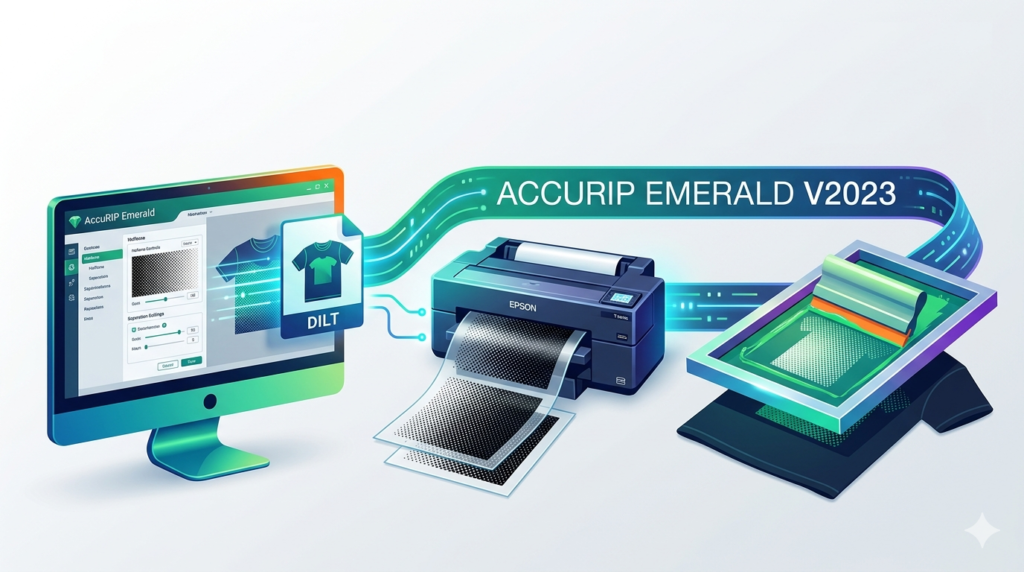
AccuRIP Emerald v2023 is a professional Raster Image Processor (RIP) software designed specifically for the screen printing industry. Developed by FreeSerif Software, this application replaces outdated print drivers to transform standard inkjet printers into high-fidelity positive output devices.
Unlike basic print drivers, AccuRIP Emerald separates spot colors, generates precise halftone dots, and controls density levels—ensuring that your film positives hold sharp detail under emulsion exposure. For screen printers seeking consistent edge definition and moiré-free results, this tool represents a foundational upgrade to the production workflow.
This guide provides an authoritative, legally compliant walkthrough of the software’s features, installation, system requirements, and practical use cases.
Key Features
AccuRIP Emerald v2023 distinguishes itself through specialized screen printing tools. Below are the core functionalities:
-
Advanced Halftone Screening: Offers multiple dot shapes (Elliptical, Round, Square) and screen angles (Default, Custom, and All Channels) to eliminate moiré patterns.
-
Spot Color Separation Engine: Automatically separates spot colors from vector or raster artwork, outputting individual films for each color channel.
-
Density Control Curves: Linearization tools allow users to calibrate ink density, ensuring that a 50% dot in software prints as a true 50% dot on film.
-
Ink Restriction Settings: Prevents pooling or bleeding by controlling the maximum amount of ink deposited on transparency film.
-
Print Resolution Support: Compatible with resolutions up to 2880×1440 dpi on supported Epson Stylus Pro, T-Series, and SureColor printers.
-
Preview Mode: A pre-rip visualization tool that shows exactly how halftones will render before printing, saving film and ink.
What’s New in the Latest Version (v2023)
FreeSerif Software introduced several optimizations in the 2023 release cycle:
-
Native Apple Silicon Support: The software now runs natively on M1, M2, and M3 Macs without Rosetta 2 translation, improving rasterization speed.
-
Improved Color Palette UI: A redesigned spot color library with search functionality and PANTONE matching system (PMS) integration.
-
Automated Tiling for Large Prints: Built-in functionality to automatically split large separations across multiple film sheets.
-
Enhanced 16-bit Processing: Increased tonal range for gradient-heavy designs, reducing banding in simulated process prints.
-
Cloud Backup for Profiles: Users can now save their custom density and linearization curves to the cloud for disaster recovery.
System Requirements
Before installation, verify that your workstation meets these specifications for optimal performance.
Minimum Hardware:
-
OS: Windows 10 (64-bit) or macOS 11 (Big Sur) or later
-
Processor: Intel Core i5 or Apple M1
-
RAM: 8 GB (16 GB recommended for large separations)
-
Storage: 2 GB available space (SSD recommended)
-
Printer Compatibility: Epson Stylus Photo 1400, 1430, 1500W; SureColor P400, P600, P800, T-Series; Canon imagePROGRAF (limited models)
Supported File Formats:
-
Input: PDF, EPS, AI, PS, TIFF, JPEG, PNG
-
Output: Proprietary .ERP (Emerald Raster Print)
Installation Guide
Follow these steps to install AccuRIP Emerald v2023 legally and correctly. Note: A valid license key purchased from an authorized reseller is required.
Step 1: Download the Official Installer
Visit the official FreeSerif Software website or your authorized distributor’s portal. Download the version matching your OS (Windows .exe or macOS .dmg).
Step 2: Disable Antivirus Temporarily (Optional)
Some antivirus tools flag RIP software installers. Temporarily disable real-time scanning during installation only, then re-enable it afterward.
Step 3: Run the Installer
-
Windows: Right-click the installer and select “Run as Administrator.”
-
macOS: Drag the AccuRIP Emerald icon into the Applications folder.
Step 4: Activate Your License
Launch the software. Enter the 25-character product key found in your purchase confirmation email. The software will verify the license online. This software does not support offline activation.
Step 5: Connect Your Printer
Ensure your supported Epson or Canon printer is connected via USB or Ethernet. Open AccuRIP Emerald and select your printer model from the “Device” dropdown menu.
How to Use the Software
This section provides a practical workflow for generating film positives.
Step 1 – Import Your Artwork
Open AccuRIP Emerald. Click File > Import. Supported vector files (AI, EPS, PDF) retain spot color definitions. Raster files (TIFF, PNG) will be treated as grayscale or indexed color.
Step 2 – Assign Spot Colors
From the Spot Color Palette, map each color in your design to a physical ink channel. The software automatically generates a separate film for each spot color.
Step 3 – Configure Halftone Settings
Navigate to the Halftone Setup panel:
-
Dot Shape: Select “Elliptical” for most textile applications.
-
Lines Per Inch (LPI): For standard mesh counts (110–156), set LPI between 45 and 55. Higher mesh (230+) can use 65–75 LPI.
-
Angle: Use the “All Channels” preset to avoid moiré.
Step 4 – Linearize Your Printer
Print a density test strip. Measure the output with a densitometer. Input the readings into the Linearization Curve editor. This corrects dot gain.
Step 5 – Print Your Positive
Load waterproof inkjet film. Select Print and choose “High Quality” media type. Use the Ink Restriction slider (typically 85-95%) to prevent pooling.
Best Use Cases
AccuRIP Emerald v2023 excels in specific production environments:
-
Garment Screen Printing: Producing opaque film positives for t-shirt, hoodie, and tote bag designs requiring high-density underbases.
-
Simulated Process Printing: Four-color process (CMYK) and six-color simulated process for photorealistic apparel graphics.
-
Poster and Fine Art Screen Printing: High-LPI halftones for limited edition art prints on paper.
-
Container and Industrial Printing: Durable films for cylindrical objects where edge sharpness is critical.
Advantages and Limitations
Advantages
-
Exceptional halftone dot control that rivals dedicated imagesetters.
-
Direct integration with consumer-grade Epson printers reduces hardware costs.
-
The preview feature saves significant material waste.
-
Native support for modern Apple Silicon hardware accelerates processing.
Limitations
-
Printer Lock-In: The software officially supports only Epson and select Canon models. HP and Brother printers are not compatible.
-
Windows ARM Incompatibility: Does not run on Windows 11 ARM-based devices (e.g., Surface Pro X).
-
Learning Curve: Beginners may require 2–4 hours to understand linearization and density curves.
-
Single-Device License: A standard license activates on only one workstation at a time.
Alternatives to the Software
For screen printers evaluating their RIP options, consider these legitimate alternatives.
| Software | Best For | Platform | Key Difference |
|---|---|---|---|
| AccuRIP Emerald v2023 | Epson users needing precise halftone control | Win, macOS (Native Silicon) | Best-in-class dot shape library |
| FilmMaker RIP | All-in-one separation + RIP | Windows only | Includes built-in color separation tools |
| Separation Studio | Graphic designers with vector-heavy workflows | Windows, macOS | Lower cost but fewer calibration tools |
| Ghostscript + Manual Workflow | Budget-conscious users | Cross-platform | Free but requires programming knowledge |
Frequently Asked Questions
1. What is the difference between AccuRIP Emerald and a standard printer driver?
A standard driver converts images for document or photo printing. AccuRIP Emerald, however, generates halftone dots optimized for screen exposure, separates spot colors, and controls ink density specifically for film positives.
2. Can I use AccuRIP Emerald v2023 without an Epson printer?
Officially, support is limited to Epson Stylus Photo, SureColor, and T-Series models, plus select Canon imagePROGRAF printers. The software will not detect most HP, Brother, or consumer Canon printers.
3. Does AccuRIP Emerald support white ink or metallic inks?
Yes. You can designate any spot color channel (including White, Silver, or Gold) for output. The software will generate a dedicated film positive for that channel.
4. How do I update from AccuRIP Ruby or older Emerald versions?
Licensed users can log into the FreeSerif customer portal. Version 2023 is a paid upgrade for Ruby users but a free update for Emerald 2022 license holders.
5. Is training available for the linearization feature?
FreeSerif provides PDF guides and YouTube video tutorials. Additionally, many screen printing supply companies offer paid one-on-one remote calibration sessions.
6. What LPI should I use for a 156 mesh count?
For a standard 156 mesh (yellow mesh), set your LPI between 45 and 55. Lower LPI provides better emulsion release; higher LPI increases detail but risks stencil breakdown.
7. Does this software require an internet connection to work?
Internet is required only for initial activation and optional cloud backup of profiles. After activation, the software prints offline without restrictions.
Final Thoughts
AccuRIP Emerald v2023 remains a gold-standard solution for screen printers who demand precise halftone reproduction without investing in a dedicated imagesetter. Its native Apple Silicon support, improved color palette UI, and robust linearization tools address the specific pain points of film positive output—dot gain, moiré patterns, and inconsistent density.
While the printer compatibility list is narrower than some alternatives, the depth of calibration control is superior for Epson-based shops. For professionals moving from all-purpose inkjet printing to serious separation-based screen printing, AccuRIP Emerald v2023 provides the reliability and repeatability required for commercial production.
Our Paid Service
“We do not sell or provide any software. We only offer professional support services. If any software on your system is not working properly, or you are facing installation errors, crashes, or any other technical issue — just contact us. We will help you fix the problem quickly and remotely via AnyDesk. No software will be provided from our side — only expert troubleshooting and support.”