
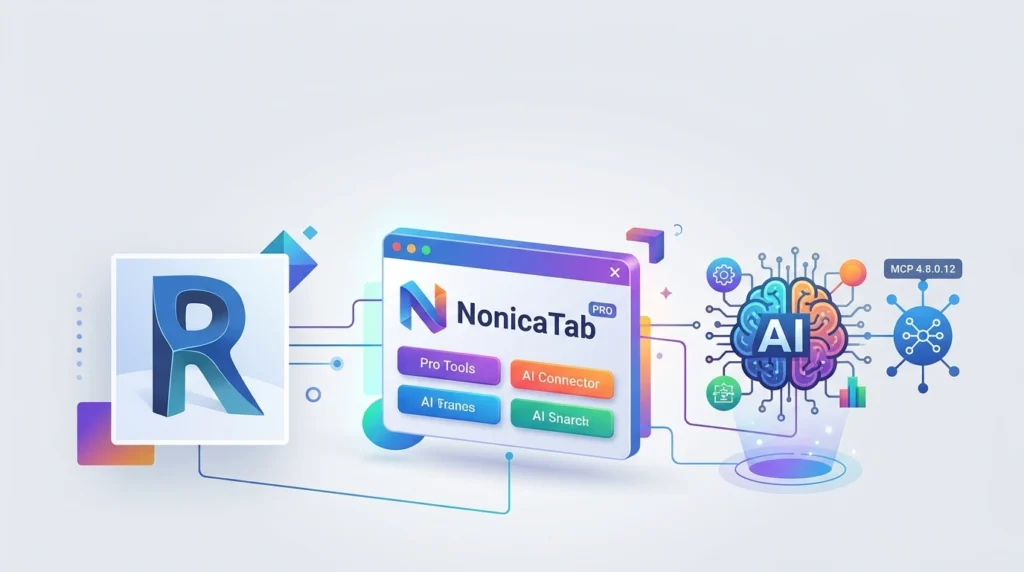


Overview of NonicaTab PRO
Table of Contents
NonicaTab PRO is developed by Nonica and distributed via the Autodesk App Store. It is built on two core pillars: a flexible ribbon toolbar that hosts ready-to-use tools or custom Dynamo scripts, and an AI Connector that leverages MCP to give AI assistants access to over 50 specialized Revit tools. The toolbar supports up to three switchable profiles (Default, Beta, and Gamma), each with 12 buttons, allowing teams to maintain up to 36 tools for different workflow stages.
The add-in is compatible with Revit 2020 through 2027 (with AI functionality requiring Revit 2022 or newer) and runs on Windows 10 or Windows 11 (64-bit). A stable internet connection is required for licensing, and a free 30-day trial is available for evaluation.
Key Features
Customizable Revit Toolbar
The toolbar system allows users to build personalized workflows without coding. You can drag and drop ready-to-use commands, add your own Dynamo scripts, and assign custom icons. Three profiles can be switched instantly, making it easy to separate tools for modeling, documentation, and QA tasks.
-
Room Finishing: Create wall finishes, skirtings, and floor finishes automatically.
-
Color Splasher: Color elements by parameter value for quick visual analysis.
-
Super Align: Align or distribute tags, elements, and views similar to word-processing alignment tools.
-
Master Purger / Model Cleaner: Remove unused families, CAD links, and scope boxes to reduce file size.
-
Bulk Duplicate & Rename: Duplicate sheets and views and rename them in batches.
-
Cut Openings: Generate openings for walls, floors, ceilings, and MEP elements with precise gap control.
-
Split Walls/Floors by Levels: Automatically split columns and walls at selected levels.
-
Transfer Single Level: Copy sheets, schedules, and legends between open documents.
AI Connector with MCP Integration
The AI Connector is the flagship feature of version 4.8.x. It uses Model Context Protocol (MCP) to establish a secure, local bridge between Revit and compatible AI desktop applications such as Claude Desktop, Cursor, ChatGPT Work, Copilot, and any other MCP-compatible platform.
Unlike generic AI chatbots that generate code from scratch, the connector provides the AI with more than 50 pre-built, tested tools specifically designed for Revit exploration, analysis, editing, and documentation. This approach reduces coding errors and makes AI-assisted workflows more reliable for production use.
Supported AI workflows include:
-
Comprehensive Reporting: Generate detailed reports linked to elements, types, and parameters.
-
Performance Analysis: Identify model warnings, bottlenecks, and optimization opportunities.
-
Accessibility Compliance: Evaluate rooms and spaces for ADA or wheelchair accessibility.
-
Schedule Integration: Extract schedule data and create visual dashboards.
-
Quality Control: Audit models and batch-edit parameters or properties.
-
Documentation Automation: Create room elevations, views, and sheets, and arrange viewports automatically.
Team Deployment and Monitoring
NonicaTab PRO supports office-wide toolbar sharing through OneDrive or network locations. BIM managers can export toolbars as .ntab or .nonica files and deploy them remotely. The built-in Connect feature allows target computers to update scripts, icons, and packages automatically when connected files are overwritten. Additionally, the monitoring dashboard tracks who ran which buttons and how often, enabling data-driven decisions about tool adoption and training.
What’s New in Version 4.8.0.12
Version 4.8.0.12 is a maintenance release that builds on the 4.8.x line, which introduced several important improvements over previous versions. Key updates in the 4.8 family include:
-
Enhanced AI Connector Stability: Improved connection reliability for Claude Desktop and Cursor environments.
-
Token Efficiency with TOON: Optimizations that reduce API consumption for AI interactions.
-
Expanded Tool Library: Support for up to 36 tools across three profiles, including new MEP hanger generation and opening creation tools.
-
Auto-Setup for AI Beginners: Claude Desktop integration now features automatic setup without Node.js dependencies.
-
Compatibility Extension: Full support for Revit 2020 through 2027, including the newest releases.
Users updating from a previous version to Revit 2027 should install the new version on top and update each built-in tool in their toolbars using the Set Up Button/Script feature.
System Requirements
Before installing NonicaTab PRO, verify that your environment meets the following prerequisites:
Revit Compatibility
-
Autodesk Revit: Version 2020 to 2027 (64-bit)
-
AI Connector: Requires Revit 2022 or newer
Operating System
-
Windows: Windows 10 or Windows 11 (64-bit)
Additional Requirements
-
Dynamo: Version 2.0 or later (Revit 2020 and newer satisfy this automatically)
-
Internet Connection: Stable connection required for licensing and updates
-
.NET Runtime: Version 8.0 if you do not have Revit 2025, 2026, or 2027 installed
-
AI Desktop Application: Claude Desktop, Cursor, ChatGPT Work, Copilot, or any MCP-compatible platform for AI Connector functionality.
Installation Guide
Installing NonicaTab PRO is straightforward, but the process differs slightly from standard App Store installers because it uses a custom installer.
Step-by-Step Installation
-
Close Revit: Ensure Autodesk Revit is completely closed before running the installer.
-
Download the Installer: Obtain the NonicaTab PRO installer from the Autodesk App Store or the official Nonica website.
-
Run the Installer: The custom installer will detect your Revit version and place files in the appropriate add-ins folder (e.g.,
C:\ProgramData\Autodesk\Revit\Addins\2027). -
Verify Installation Files: The installer also creates a
C:\NONICAPROfolder for related execution files. -
Launch Revit: Open Revit, and the NonicaTab PRO ribbon should appear.
Uninstallation
To uninstall, go to Add and remove programs in Windows and select NonicaTab PRO. Note that all toolbar scripts and icons configured by the user will be lost during uninstallation.
How to Use NonicaTab PRO
Setting Up the Toolbar
-
Access the Toolbar: After installation, the NonicaTab PRO panel appears in the Revit ribbon.
-
Choose a Profile: Select Default, Beta, or Gamma to configure a set of 12 buttons.
-
Add Tools or Scripts: Click Set up Script to browse for a Dynamo script, or choose from the ready-to-use tool library.
-
Customize Icons and Labels: Use Set up Icon to select from 55 included icons or upload your own PNG/JPG file. Use Set up Details to edit button titles and descriptions.
-
Export and Share: Use Export to save your toolbar as a
.nonicaor.ntabfile for deployment to other computers.
Using the AI Connector
-
Launch Revit: Open Revit 2022 or later and load your project.
-
Access the Connector: Navigate to NonicaTab → A.I. Connector.
-
First-Time Setup: If the tool is not visible, use the dropdown menu, select Set Up Button/Script, and add the AI Connector to your interface.
-
Launch Your AI App: Open Claude Desktop, Cursor, ChatGPT Work, or Copilot.
-
Establish Connection: Click A.I. Connector in NonicaTab to open the connection window. Keep this window open and the connection enabled throughout your session.
-
Interact with Your Model: In your AI app, ask questions such as:
-
“Generate a report of all doors in the project.”
-
“Analyze model warnings and suggest solutions.”
-
“Check accessibility compliance for all rooms.”
-
-
Review Results: The AI will use the pre-built Revit tools to analyze your model and return reports, charts, or recommendations. In PRO, it can also batch-edit parameters and create documentation elements.
Best Use Cases
For BIM Managers and Coordinators
NonicaTab PRO excels at standardizing workflows across teams. BIM managers can create a master toolbar with approved scripts for sheet creation, view templates, and parameter management, then deploy it office-wide. The monitoring dashboard provides insights into tool adoption, helping identify training needs or underutilized licenses.
For Documentation and QA/QC Teams
The AI Connector is particularly valuable for model auditing and compliance checking. Teams can ask the AI to identify inconsistent room names, missing fire ratings, or accessibility issues, and then batch-fix problems directly from the AI interface. This reduces the manual effort required for pre-issue QA and improves model consistency.
For Architects and Engineers
Daily repetitive tasks—renaming views, duplicating sheets, aligning tags, and coloring elements by parameter—can be executed in clicks rather than through multi-step manual processes. The toolbar’s support for custom Dynamo scripts also allows technically inclined users to extend functionality without leaving the Revit environment.
For Automation and Scheduling
The PRO version includes a Schedule feature that automates the execution of Dynamo scripts and ready-to-use tools based on time intervals (minimum 5 minutes) or specific Revit events such as opening files. This is useful for routine maintenance tasks that need to run consistently without manual triggers.
Advantages and Limitations
Advantages
-
Unified Workflow: Combines 30+ productivity tools and AI integration in a single ribbon, reducing the need to switch between multiple add-ins.
-
No-Code AI Access: The pre-built tool approach makes AI-assisted Revit workflows accessible to users without programming experience.
-
Team Scalability: Toolbar export, remote updates, and usage monitoring make it suitable for multi-office deployments.
-
Broad Compatibility: Supports Revit 2020 through 2027, covering a wide range of project environments.
-
Positive User Feedback: The Autodesk App Store listing shows a 5.0 average rating based on 19 reviews, with users highlighting time savings and responsive support.
Limitations
-
Subscription Cost: NonicaTab PRO is priced at $10.00 per month, which may be a consideration for individual users or small firms, although a free tier with a reduced tool set is available.
-
Internet Dependency: A stable internet connection is required for licensing and updates, which can be a constraint in offline or restricted network environments.
-
AI Connector Requires Revit 2022+: Users on Revit 2020 or 2021 can use the toolbar tools but cannot access the AI Connector functionality.
-
Windows Only: The add-in is designed for Windows 64-bit systems and is not available for Mac.
Alternatives to NonicaTab PRO
When evaluating NonicaTab PRO, it is helpful to compare it with other Revit automation and productivity tools.
NonicaTab FREE
The free version of NonicaTab offers a customizable toolbar with 12 buttons and a read-only AI Connector (37 tools for reading and analyzing models). It is a good starting point for individual users or teams that do not need advanced editing, documentation, or deployment features. The PRO tier adds 20+ additional tools, AI editing capabilities, remote toolbar management, and support.
pyRevit
pyRevit is an open-source Revit add-in that allows users to run Python scripts and build custom tools. It offers extensive flexibility for technically skilled users but requires programming knowledge and does not include a native AI Connector. NonicaTab PRO is often preferred by teams that want ready-to-use tools and a lower barrier to entry for AI-assisted workflows.
Naviate Accelerate
Naviate Accelerate is a commercial Revit add-in focused on design team productivity across disciplines. It provides tools for general design workflows but does not offer the same MCP-based AI Connector or the specific Dynamo script deployment and monitoring features found in NonicaTab PRO. The choice between the two often depends on whether AI integration and toolbar customization are primary requirements.
Autodesk Assistant for Revit / Public MCP Servers
Autodesk offers its own AI assistant and public MCP server options. These are integrated into the Autodesk ecosystem but may have different tool libraries and deployment models. NonicaTab PRO distinguishes itself through its pre-built, tested Revit tools and its focus on team-level toolbar standardization.
Frequently Asked Questions
What is NonicaTab PRO used for?
NonicaTab PRO is a Revit add-in that combines a customizable toolbar of productivity tools with an AI Connector. It is used to automate repetitive documentation tasks, standardize BIM workflows across teams, and enable AI-assisted model analysis and editing.
Is NonicaTab PRO compatible with Revit 2027?
Yes. NonicaTab PRO 4.8.0.12 supports Revit 2020 through 2027. The AI Connector requires Revit 2022 or newer, but the toolbar tools work across the full supported range.
Does the AI Connector require coding knowledge?
No. The AI Connector provides the AI with pre-built, tested Revit tools, so users can interact with their models using natural language prompts without writing code. This is a key distinction from traditional AI chatbots that generate scripts from scratch.
Which AI applications work with the NonicaTab AI Connector?
The connector is compatible with Claude Desktop, Cursor, ChatGPT Work, Copilot, and any other MCP-compatible desktop application. Claude Desktop and Cursor support automatic setup, while Copilot in Visual Studio Code and other MCP platforms can also be used.
What is the difference between NonicaTab FREE and PRO?
NonicaTab FREE includes a 12-button toolbar and a read-only AI Connector (37 tools for reading and analyzing models). PRO adds 20+ additional tools, AI editing and documentation capabilities, three toolbar profiles (36 buttons total), remote deployment, usage monitoring, and support. PRO is available for $10 per month with a free 30-day trial.
Can I share my toolbar with colleagues?
Yes. PRO users can export toolbars as .ntab or .nonica files and import them on other computers. The Connect feature allows for remote updates, so when a master toolbar file is overwritten, connected computers update their scripts, icons, and packages automatically.
Does NonicaTab PRO work offline?
A stable internet connection is required for licensing and updates. The toolbar tools may function for a period without connectivity, but the AI Connector relies on a local MCP bridge and does not require cloud AI processing. Users with restricted network environments should verify licensing requirements with Nonica support.
Is there a free trial for NonicaTab PRO?
Yes. A free 30-day trial is available for NonicaTab PRO, allowing users to evaluate the full feature set before committing to a subscription.
Final Thoughts
NonicaTab PRO 4.8.0.12 is a mature, well-supported Revit add-in that successfully bridges the gap between traditional BIM productivity tools and modern AI-assisted workflows. Its dual focus on a customizable toolbar and an MCP-based AI Connector makes it a compelling option for teams looking to reduce manual documentation effort, standardize processes, and explore AI in a controlled, production-ready way. While the subscription cost and Windows-only requirement may be limiting for some, the availability of a free tier and a 30-day trial lowers the barrier to evaluation. For BIM managers and technical users seeking a unified, scalable solution for Revit automation, NonicaTab PRO is a strong candidate worth testing against your team’s specific workflow needs.
Our Paid Service