
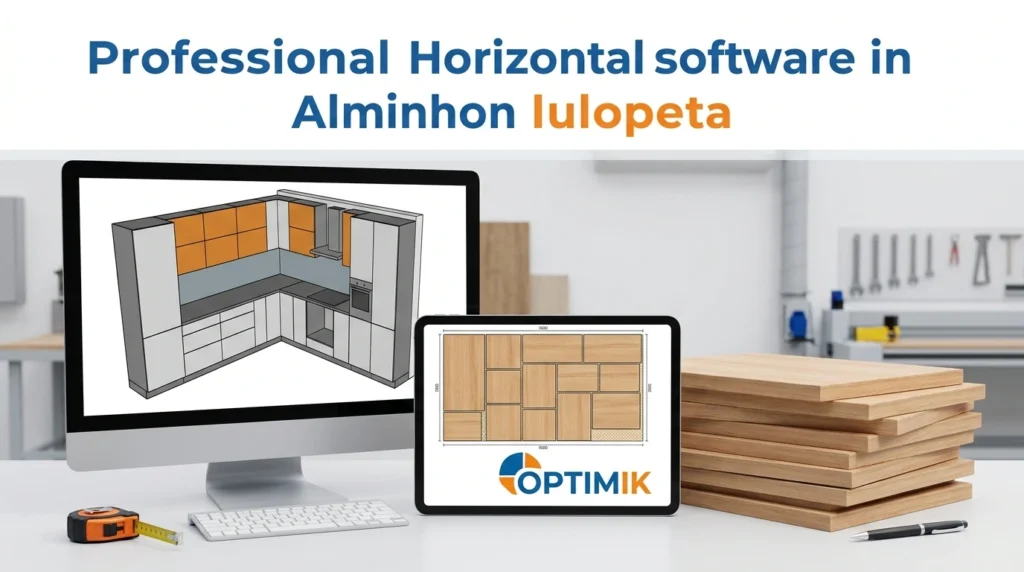

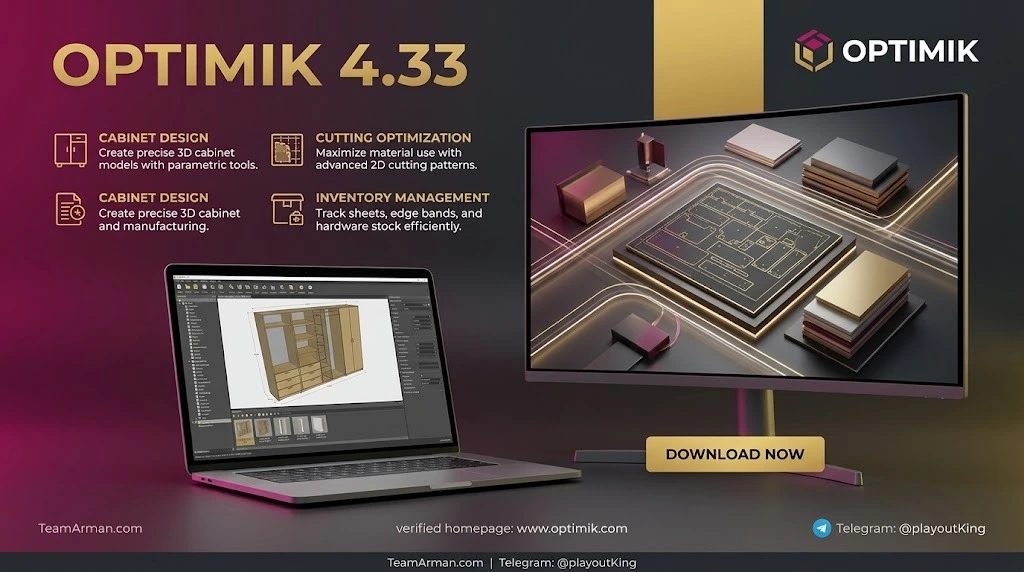
Overview of OPTIMIK 4.33
Table of Contents
OPTIMIK has been under continuous development since 1999, accumulating over 25 years of refinement in cutlist optimization logic. Its core strength lies in the optimization engine: it calculates sheet and bar layouts for materials including chipboard, MDF, plywood, solid wood panels, glass, steel sheets, aluminum profiles, and polycarbonate. Published comparative research indicates that OPTIMIK’s algorithm can outperform manual dimension-entry methods and occasionally achieve up to 3.21% better material utilization on certain part sets, particularly smaller elements.
The software is positioned as an all-in-one production companion rather than a design tool. It does not replace a CAD system for drawing cabinets; instead, it accepts part dimensions—either entered manually, imported from design software such as SWOOD or PRO100, or drawn from its own product catalog—and handles everything from quoting through to warehouse issue and CNC export. This makes it particularly valuable for small-to-mid-sized shops that need rigorous material control without adopting a full ERP suite.
The Free edition is genuinely usable without a time limit, capped at 30 parts per cutting plan, 15 stock items, and 10 operations. Paid tiers unlock larger plans, additional users, and modules such as CNC Export and the Cutting Plan Editor.
Key Features
Cutting diagram optimization with granular control. Every flat and bar material can be optimized with user-defined parameters: saw kerf, trimming allowance, cutting method, grain direction, and part priorities. The engine produces visual cutting diagrams that can be printed, reviewed, or edited before committing material.
Offer-to-production pipeline. Offers and jobs are linked: accepted offers convert directly into production batches, and the software automatically calculates the required materials and prices at the offer stage. Parts from multiple orders can be merged into a common cutting diagram, unlocking additional material savings that single-order nesting cannot achieve.
Product catalog and parametric parts. Products can be stored with parameters (dimensions, operations, materials, edgebanding). Changing a parameter propagates automatically to all associated parts, reducing repetitive data entry for product families.
Warehouse and stock control. Each stock item can hold multiple sub-stocks (different sheet sizes, for example), with storage location, expiration, and individual pricing. Production batches can automatically reserve or issue materials from stock, closing the loop between planning and inventory.
Production batch tracking. Selected parts from one or more jobs are consolidated into a production batch with status tracking—prepared, in production, or completed—giving the shop floor a single reference point for what to cut next.
CNC export (paid module). Cutting plans can be exported to a growing list of CNC saws, including Altendorf, FELDER Format 4 Kappa 550/590, HolzHer, SCM, Fimal (Paoloni), and Holzma (PTX format). This is not included in base licenses; the CNC Export module is priced separately at €990 perpetual or €330/year.
Cutting Plan Editor and Automatic Mode (modules). The editor allows manual adjustment of optimized layouts before export; Automatic Mode accelerates repetitive batch calculation. Both are optional paid add-ons.
What’s New in OPTIMIK 4.33
Released on July 18, 2026, version 4.33 is an incremental update focused on printouts and export reliability rather than headline features.
Added:
-
“Products and billing” printouts accessible from the Products and Parts window.
-
“Catalog” printout within the Product Catalog window, useful for generating customer-facing product summaries.
-
Automatic selection of the operation predefined in a material when editing a part, reducing clicks in repetitive workflows.
Fixed:
-
Export of production batches that contained an inserted order with an assigned intermediary.
-
Access-code generation after Firebird server reinstallation (the previous change required a second generation to take effect).
-
Window-maximization behavior and a broken link to video tutorials.
For shops already on 4.32, 4.33 is a low-risk stability update. For anyone evaluating the software now, version 4.34 (September 2026) adds Altendorf CNC export and label printing for FELDER machines, which may be more relevant if those saws are in use.
System Requirements
OPTIMIK 4.33 runs on any Windows PC meeting modest specifications:
-
Operating system: Windows 7 through Windows 11.
-
Disk space: Approximately 40 MB for installation, plus additional space for the database (scales with data volume).
-
Display resolution: 1440 × 900 minimum (1280 × 960 recommended for the standalone Cutting Assistant module).
-
Internet: Required only during license activation.
There is no native macOS or Linux version, and no mobile app. The software is desktop-based; the term “cloud-based” appears in some third-party listings, but the official distribution is a Windows installer. No dedicated GPU or high RAM is required—performance depends primarily on database size and plan complexity.
Installation Guide
-
Download the installer from the official OPTIMIK website (optimik.com). The current installer is approximately 24–25 MB.
-
Run the setup and follow the on-screen prompts. The installation is straightforward and does not require third-party dependencies beyond the bundled Firebird database server.
-
Launch the Free version first. It is fully functional without a time limit and requires no registration or license key.
-
Activate a paid license if you purchase one: enter the provided access code. Internet connectivity is required for activation.
-
Configure your material catalog before creating your first cutting plan. Accurate stock definitions—material type, thickness, sheet dimensions, and kerf—are the foundation of reliable optimization results. User reports consistently note that the initial material setup involves a learning curve, but becomes routine afterward.
How to Use OPTIMIK: A Practical Workflow
A typical production cycle in OPTIMIK follows five stages:
Step 1 — Define materials and stock. Create stock items for each sheet or bar format. Enter purchase price, dimensions, and kerf. Sub-stocks allow multiple formats under one material code.
Step 2 — Build products and parts. Either create a product in the catalog with parametric dimensions, or import parts from a design program. Each part carries dimensions, edgebanding, operations, and material assignments.
Step 3 — Create an offer or job. Add products to an offer; OPTIMIK calculates material quantities and prices automatically. Once the offer is accepted, convert it to a job.
Step 4 — Generate and refine cutting diagrams. Run optimization for the selected parts. Review the diagrams; if needed, adjust parameters (kerf, trim, cutting method) and re-optimize. For complex or grain-sensitive work, the Cutting Plan Editor module allows manual rearrangement.
Step 5 — Send to production or CNC. Print diagrams for manual saws, or use the CNC Export module to generate machine-ready files for supported saws. Production batches can then reserve materials from stock and track completion status.
Best Use Cases
Small-to-mid cabinet shops with recurring product lines. The catalog and parametric parts system pays off when the same cabinet families are produced repeatedly with varying dimensions.
Shops that cut multiple materials. OPTIMIK’s material-agnostic optimizer handles wood panels, glass, and metal profiles in the same production environment, which is uncommon among low-cost cutlist tools.
Businesses that need offer-to-invoice traceability without a full ERP. The built-in documents module (invoices, delivery notes, receipts) and warehouse reservation system provide a lightweight administrative backbone for shops that are not ready for a dedicated ERP.
Workshops integrating with design software. Import templates for SWOOD and PRO100 streamline the handoff from design to cutting, reducing manual data entry errors.
Less suitable for: Pure 3D design and visualization, complex joinery detailing, or operations that require real-time collaborative design. OPTIMIK assumes the design has been decided and focuses on execution.
Advantages and Limitations
Advantages
-
Strong optimization core with measurable results. Comparative studies show competitive material utilization, with occasional advantages on smaller parts.
-
Genuinely free entry point. The Free version is not a crippled trial; it supports real cutting plans up to 30 parts with no time limit.
-
Broad material support. Wood, glass, metal, and polycarbonate are handled natively, not as afterthoughts.
-
Integrated administrative workflow. Offers, jobs, stock, documents, and payments live in the same database, eliminating duplicate entry between cutting software and spreadsheets.
-
Transparent licensing. Perpetual and annual options are published; upgrades within version 4.xx are free.
Limitations
-
Learning curve on material setup. Multiple user reports mention that initial stock configuration requires patience; the interface is described as “quirky in places” by some long-term users.
-
Performance can degrade under heavy load. Third-party reviews note that the platform “can be slow under extensive load,” and that the breadth of capabilities may initially overwhelm new users.
-
No built-in 3D design. OPTIMIK is not a Cabinet Vision or PolyBoard replacement for drawing cabinets; it assumes part lists already exist or can be entered manually.
-
CNC export is a paid add-on. At €990 perpetual, the CNC module can exceed the cost of the base software for shops that need direct machine output.
-
Windows-only, desktop-only. No mobile app, no native Mac support, and no browser interface.
Alternatives to OPTIMIK
PolyBoard is a parametric cabinet design tool with integrated cutting output. It excels at 3D cabinet construction and real-time structural recalculation, making it a stronger fit for shops that need design and manufacturing in one environment. However, PolyBoard’s 3D visualization quality is considered limited by some users, and its cutting optimization is not the primary design focus. A common workflow pairs PolyBoard for design with a dedicated optimizer for production; OPTIMIK can serve as that optimizer via part import.
Cabinet Vision xOptimizer is an enterprise-grade optimization module tightly integrated with Hexagon’s Cabinet Vision design suite. It offers offcut management, multi-sheet-size definitions, and cost/time reporting, but the broader Cabinet Vision ecosystem is modular and expensive, with each capability (CAD, bidding, CNC, optimization) licensed separately. It is a better fit for larger manufacturers already committed to Cabinet Vision, whereas OPTIMIK is accessible to smaller shops as a standalone purchase.
CutList Optimizer and web-based tools (CutListCalc, optiCutter, MaxCut Lite) occupy the free-to-low-cost segment. They are fast to start with and often browser-based, but generally lack the integrated warehouse, offer, and production-batch management that OPTIMIK provides. For a one-person shop cutting occasional sheets, a web optimizer may be sufficient; for a workshop that needs to track material from quote to invoice, OPTIMIK’s administrative layer justifies its price.
SWOOD and PRO100 are design-oriented woodworking CAD programs. OPTIMIK complements rather than competes with them: both are supported as import sources for parts and edgebanding data.
Frequently Asked Questions
Is OPTIMIK 4.33 really free?
Yes. The Free edition has no time limit and supports cutting plans with up to 30 parts, 15 stock items, and 10 operations. It is suitable for personal projects, trial use, and very small jobs. Commercial use requires a paid license.
What is the difference between the Hobby, Workman, and Professional editions?
Hobby (€290 perpetual or €90/year) raises the cutting-plan limit to 100 parts and allows 2 computers and 4 users. Workman (€550 / €190/year) increases the plan limit to 500 parts and unlocks the Group Editor and text-file import. Professional (€750 / €250/year) removes all part and stock limits and adds extended parameters and text export for cutting plans.
Does OPTIMIK 4.33 work on Windows 11?
Yes. OPTIMIK 4 runs on Windows 7 through Windows 11 with approximately 40 MB of disk space and a minimum display resolution of 1440 × 900.
Can OPTIMIK export directly to my CNC saw?
It can, but CNC export is a separate paid module (€990 perpetual or €330/year). Supported exports include Altendorf, FELDER Format 4, HolzHer, SCM, Fimal (Paoloni), and Holzma. Check the official CNC compatibility list before purchasing, as support varies by machine model and firmware.
Does OPTIMIK design cabinets in 3D?
No. OPTIMIK is a cutting optimization and production management tool, not a 3D CAD program. It accepts part dimensions from manual entry, its own catalog, or imports from design software such as SWOOD and PRO100. For 3D design, pair it with a dedicated cabinet design tool and use OPTIMIK for optimization and production control.
Is there a steep learning curve?
The optimization itself is quick to grasp, but initial material and stock configuration requires care. User reports describe the interface as “quirky in places” and the material setup as involving “several subtleties” at the beginning. Once configured, the routine workflow is considered easy to operate.
Can I import parts from my existing design software?
Yes, for supported formats. OPTIMIK provides import templates for SWOOD and PRO100 (including edgebanding for PRO100 version 7). For other design tools, parts can be entered manually or imported via text files in higher editions.
Does OPTIMIK offer a mobile app or cloud access?
No. OPTIMIK is a Windows desktop application. The vendor does not offer a mobile app, and the official distribution is a local installer. Internet access is required only for license activation.
Final Thoughts
OPTIMIK 4.33 is not the flashiest cabinet software on the market, and it is not trying to be. Its value proposition is narrowly but deeply defined: take a list of parts, optimize the cuts with an engine refined over 25 years, and connect that optimization to the commercial and material-tracking realities of a working shop. The 4.33 update is a maintenance release that improves printouts and export stability rather than introducing new optimization capabilities—which is appropriate for a mature product.
For a cabinet maker or furniture manufacturer who already has a design workflow and needs a rigorous, affordable, Windows-based optimizer with integrated stock and job management, OPTIMIK remains a strong candidate. The Free edition provides a genuine evaluation path, and the perpetual licensing model offers long-term cost predictability that subscription-only competitors do not. The main caveats are the material-setup learning curve, the Windows-only desktop constraint, and the additional cost of CNC export. Shops that need native 3D design should look to PolyBoard or Cabinet Vision; shops that need cutlist optimization with production administration will find OPTIMIK’s combination difficult to match at its price point.
Our Paid Service