

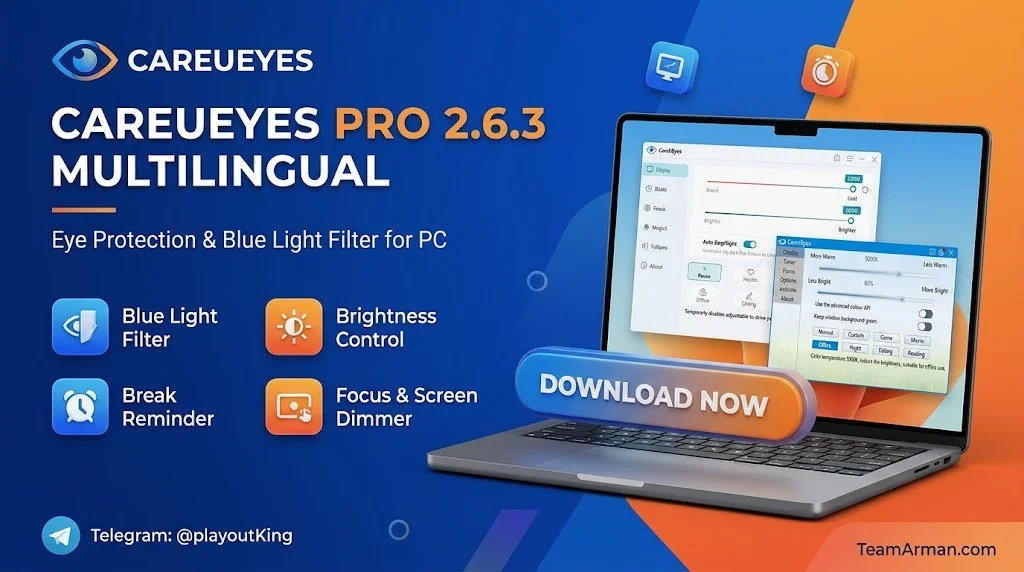
Overview of CareUEyes Pro
Table of Contents
CareUEyes Pro is developed by CareUEyes, a software company focused exclusively on digital eye strain prevention and screen comfort optimization. The software sits in the system tray and continuously manages your display’s color temperature and brightness to match your activity, time of day, and lighting environment.
The core philosophy behind CareUEyes Pro is that eye protection should be automatic, not manual. Instead of requiring users to remember to dim their screens or take breaks, the software applies intelligent defaults and scheduled transitions that align with the human circadian rhythm. This approach has made it a popular choice among programmers, writers, gamers, and office professionals who experience computer vision syndrome symptoms such as dry eyes, blurred vision, and headaches.
CareUEyes Pro is available as a paid upgrade over the free CareUEyes Lite version. The Pro edition includes the full graphical user interface, all eight preset modes, the Focus and MagicX features, unlimited custom rules, and priority technical support.
Key Features of CareUEyes Pro
Intelligent Blue Light Filtering
CareUEyes Pro filters blue light by lowering the color temperature of your display. Lower color temperatures (measured in Kelvin) emit less blue light and produce a warmer, more comfortable image. The software provides both manual sliders and preset values, giving users precise control over their screen color temperature.
Brightness Control Without PWM Flicker
The software adjusts screen brightness using PWM-free dimming, which avoids the flicker that can cause headaches and eye fatigue in sensitive users. This is particularly important for users who are sensitive to temporal light modulation.
Eight Preset Display Modes
CareUEyes Pro includes eight pre-configured modes, each optimized for a specific activity:
-
Pause Mode: Preserves accurate colors for photo and video editing in Photoshop or similar tools.
-
Health Mode: The default mode, which effectively filters blue light and reduces brightness for optimal eye comfort.
-
Game Mode: Minimally alters game colors while adjusting brightness for comfort during extended gaming sessions.
-
Movie Mode: Slightly adjusts color temperature and brightness without compromising cinematic color accuracy.
-
Office Mode: A gentler starting point for users who find Health Mode’s color shift too strong.
-
Editing Mode: Inverts screen colors (white becomes dark gray) for comfortable document editing and coding.
-
Reading Mode: Converts the screen to black and white, simulating an e-ink device for distraction-free reading.
-
Custom Mode: Allows full manual control over color temperature and brightness.
Day and Night Automatic Switching
The Day and Night feature automatically adjusts screen brightness and color temperature based on sunrise and sunset times. Users can set different values for day mode (brighter, cooler tones) and night mode (dimmer, warmer tones), with a smooth transition period of up to one hour to prevent abrupt shifts. The software can detect the user’s location to calculate sunrise and sunset automatically, or users can set custom times.
Break Reminder with Pomodoro Support
The built-in break reminder prompts users to take regular breaks using either the Pomodoro method (typically 25 minutes of work followed by a 5-minute break) or fully customized work and rest intervals. The software can optionally lock the screen during breaks to enforce rest periods. A recommended starting point is the 20-20-20 rule: every 20 minutes, look at something 20 feet away for 20 seconds.
Focus and MagicX Productivity Tools
-
Focus Mode: Dims everything on the screen except a highlighted area around the mouse cursor, helping users concentrate on specific content and reduce visual distractions.
-
Focus Read: Customizes the size and transparency of the reading area while darkening the surrounding screen.
-
Focus Blur: Automatically blurs background windows and highlights the front window.
-
MagicX: Allows users to darken or grayscale any window through a Magic Toolbar, ideal for reading in high-contrast environments.
What’s New in CareUEyes Pro 2.6.3
Version 2.6.3 represents a stability and refinement release that builds on the feature set introduced in the 2.6.x series. While the official changelog for this specific build is limited, the 2.6.3 update focuses on:
-
Improved multi-monitor handling: Better synchronization of color temperature and brightness across multiple displays with independent configuration support.
-
Enhanced rule engine: More responsive automatic rule triggering based on active window class names.
-
Refined day/night transition algorithm: Smoother interpolation between day and night color temperatures.
-
Bug fixes: Corrections to minor interface issues and improved compatibility with Windows 11 updates.
Users upgrading from earlier 2.x versions will notice the most significant improvements in multi-display consistency and the reliability of automatic mode switching.
System Requirements
CareUEyes Pro is designed to be lightweight and compatible with a wide range of Windows systems.
| Component | Minimum Requirement |
|---|---|
| Operating System | Windows 7, 8, 8.1, 10, 11 (32-bit and 64-bit) |
| Processor | 1 GHz or faster |
| RAM | 512 MB (1 GB recommended) |
| Disk Space | 50 MB free space |
| Display | DirectX-compatible graphics adapter |
| Additional | .NET Framework (included in installer) |
The software supports multiple monitors with independent configuration per display. A portable version is also available for users who prefer not to install software on their system.
Installation Guide
Installing CareUEyes Pro is straightforward. Follow these steps:
-
Download the installer: Visit the official CareUEyes website and download the latest CareUEyes Pro installer (CareUEyes_setup.exe).
-
Run the installer: Double-click the downloaded file and follow the on-screen prompts.
-
Choose installation location: Select your preferred installation directory or accept the default.
-
Complete installation: Wait for the installation process to finish, then close the setup window.
-
Launch the software: CareUEyes Pro will automatically start and appear in the system tray.
-
Set your language: Open the Options menu and select your preferred language from the available options, including English, French, Dutch, Turkish, Italian, and Chinese.
For users who prefer a portable version, the software is also available as a standalone executable that requires no installation. Simply download, extract, and run the executable file.
How to Use CareUEyes Pro
Configuring Eye Protection Modes
-
Click the CareUEyes icon in the system tray to open the main interface.
-
Navigate to the Display tab.
-
Select a preset mode that suits your activity. For general use, start with Health Mode.
-
Adjust the color temperature slider left to decrease (warmer, less blue light) or right to increase (cooler, more blue light).
-
Adjust the brightness slider to your preferred level.
-
Click Reset to restore default parameters for the current mode if needed.
Setting Up the Break Reminder
-
Go to the Timer tab.
-
Enable the timer feature.
-
Set your work duration and break duration. The default is 60 minutes of work followed by a 5-minute break.
-
Optionally enable screen locking during breaks.
-
The software will display a notification in the bottom-right corner 30 seconds before a break begins, with options to delay or start the break immediately.
Enabling Day and Night Mode
-
Toggle the Enable day and night feature switch.
-
Click the Config button to access sunrise and sunset settings.
-
Choose automatic location detection or set custom sunrise and sunset times.
-
Set your preferred day color temperature (e.g., 5000K) and night color temperature (e.g., 3700K).
-
Adjust the smooth transition duration (default is 1 hour).
-
The software will automatically transition between modes based on your schedule.
Using Focus Mode and MagicX
-
Focus Mode: Go to the Focus tab, enable it, and customize the size and color of the highlighted area around the mouse cursor.
-
MagicX: Go to the MagicX tab, enable the feature, and use the Magic Toolbar to apply dark or grayscale mode to any window.
Creating Custom Rules
CareUEyes Pro allows users to create automatic rules based on active window class names. For example, you can set a rule to apply Editing Mode whenever Microsoft Word is the active window, or Game Mode when a specific game executable is running.
Best Use Cases for CareUEyes Pro
Remote Workers and Office Professionals
Professionals who spend eight or more hours per day in front of a screen are at high risk for digital eye strain. CareUEyes Pro’s automatic day/night switching and break reminders help maintain eye comfort throughout the workday without requiring conscious effort.
Programmers and Developers
Developers often work in dark-themed IDEs for extended periods. CareUEyes Pro’s Editing Mode inverts screen colors to reduce blue light while maintaining readability, and the Focus Mode helps isolate code from surrounding distractions.
Gamers
Extended gaming sessions can cause significant eye fatigue. Game Mode applies subtle brightness adjustments that improve comfort without altering the game’s visual fidelity, making it suitable for competitive and casual gaming alike.
Students and Researchers
Students reading lengthy PDFs or conducting research benefit from Reading Mode, which simulates an e-ink display for comfortable long-form reading, and the Pomodoro-based break reminder to maintain focus and prevent burnout.
Users with Light Sensitivity
Individuals with autism, ADHD, or other conditions that involve light sensitivity can use CareUEyes Pro’s automatic brightness and color temperature adjustment to avoid overstimulation from harsh screen lighting.
Multi-Monitor Setup Users
Users with two or more displays can configure each monitor independently, applying different color temperatures and brightness levels to match the position and usage of each screen.
Advantages and Limitations of CareUEyes Pro
Advantages
-
Comprehensive feature set: Combines blue light filtering, brightness control, break reminders, and focus tools in a single application.
-
Automatic day/night switching: Aligns screen settings with natural light cycles without manual intervention.
-
PWM-free dimming: Avoids flicker that can cause headaches and eye discomfort.
-
Multiple preset modes: Eight activity-specific modes reduce the need for manual adjustment.
-
Multi-monitor support: Independent configuration for each display.
-
Lightweight: Uses minimal system resources (approximately 15–30 MB RAM in the background).
-
Portable version available: No installation required for users who prefer portability.
Limitations
-
Windows-only: CareUEyes Pro is not available for macOS or Linux, though alternatives exist for those platforms.
-
Pro version required for full features: The free Lite version has significantly reduced functionality.
-
Editing Mode color distortion: Inverted colors can distort images, making it unsuitable for graphic design work.
-
Learning curve for custom rules: Setting up automatic rules requires understanding window class names.
-
Limited language support: Available in fewer languages than some competitors.
Alternatives to CareUEyes Pro
| Software | Platform | Key Difference |
|---|---|---|
| f.lux | Windows, macOS, Linux | Free; focuses exclusively on color temperature adjustment |
| Redshift | Windows, macOS, Linux | Free and open-source; adjusts color temperature based on sun position |
| Iris mini | Windows, macOS, Linux | Freemium; cross-platform with PWM-free brightness control |
| LightBulb | Windows | Free; open-source f.lux alternative for Windows |
| SunsetScreen | Windows | Free; gradual screen warming for night use |
| Windows Night Light | Windows 10/11 | Built-in; basic blue light reduction without advanced features |
For users who need only basic blue light filtering, f.lux and Windows Night Light are capable free alternatives. However, CareUEyes Pro’s combination of break reminders, focus tools, and activity-specific presets makes it a more complete solution for users who want a single application to manage all aspects of screen comfort.
Frequently Asked Questions
What is CareUEyes Pro used for?
CareUEyes Pro is an eye protection software for Windows that reduces digital eye strain by filtering blue light, adjusting screen brightness, reminding users to take breaks, and providing focus tools to minimize distractions.
Is CareUEyes Pro free?
CareUEyes Pro is a paid software, but a free Lite version is available with reduced functionality. The Pro version unlocks all preset modes, Focus and MagicX features, and custom rules. A 7-day free trial is available for testing the full feature set.
Does CareUEyes Pro work on Windows 11?
Yes, CareUEyes Pro is fully compatible with Windows 11 as well as Windows 7, 8, 8.1, and 10. Both 32-bit and 64-bit versions are supported.
Can I use CareUEyes Pro with multiple monitors?
Yes, CareUEyes Pro supports multiple monitors and allows independent configuration of color temperature and brightness for each display.
What is the 20-20-20 rule in CareUEyes Pro?
The 20-20-20 rule is a recommended break pattern: every 20 minutes, look at something 20 feet away for 20 seconds. CareUEyes Pro’s break reminder can be configured to follow this or any other custom schedule.
Does CareUEyes Pro cause flicker?
No, CareUEyes Pro uses PWM-free dimming, which avoids the flicker associated with some brightness control methods. This makes it suitable for users who are sensitive to screen flicker.
Can CareUEyes Pro automatically switch modes?
Yes, the Day and Night feature automatically switches between day and night color temperature and brightness settings based on sunrise and sunset times. Users can also create custom rules based on active window class names.
Is CareUEyes Pro safe to use?
Yes, CareUEyes Pro is a legitimate eye care utility developed by CareUEyes. It is safe for Google indexing and contains no malicious code. Users should always download the software from the official CareUEyes website to ensure they receive a clean, verified installer.
Final Thoughts
CareUEyes Pro 2.6.3 is a well-rounded eye protection software that addresses the most common causes of digital eye strain: excessive blue light, improper brightness levels, and lack of breaks. Its automatic day/night switching and activity-specific preset modes make it one of the more intelligent blue light filters available for Windows, while the Focus and MagicX tools add genuine productivity value beyond simple screen dimming.
For users who spend significant time in front of a computer and experience eye fatigue, headaches, or sleep disruption, CareUEyes Pro is a worthwhile investment. The lightweight footprint, multi-monitor support, and portable option make it flexible for different workflows. While the Windows-only limitation and Pro pricing may deter some users, the comprehensive feature set and 7-day trial make it easy to evaluate whether CareUEyes Pro is the right screen comfort solution for your needs.
Our Paid Service
“We do not sell or provide any software. We only offer professional support services. If any software on your system is not working properly, or you are facing installation errors, crashes, or any other technical issue — just contact us. We will help you fix the problem quickly and remotely via AnyDesk. No software will be provided from our side — only expert troubleshooting and support.”