
Overview of CareUEyes Pro Software
Table of Contents
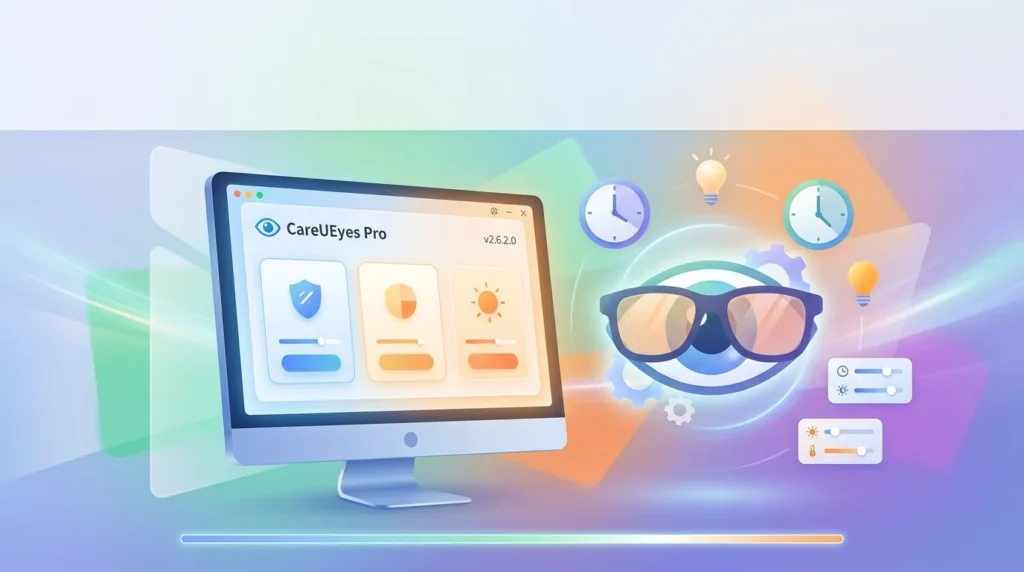
CareUEyes Pro is an advanced eye protection and blue light filter software for Windows. It is designed to reduce the harmful effects of blue light emitted by computer monitors and displays. Unlike basic screen dimmers, this application uses scientifically-backed algorithms to create a more natural and comfortable viewing environment.
The software goes beyond simple color temperature adjustment. It incorporates features like scheduled break reminders, a reading mode, and smart brightness control. This makes it an excellent tool for everyone, from professionals working long hours to students studying late at night. The CareUEyes Pro blue light filter helps to minimize eye strain, a condition often called computer vision syndrome, making your time on the PC more comfortable and productive.
Key Features of CareUEyes Pro v2.6.2.0
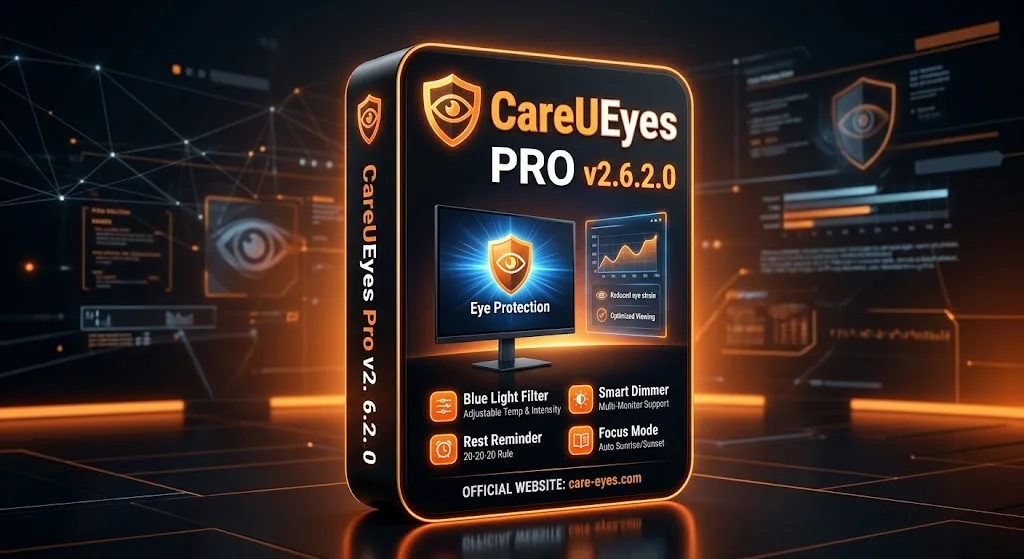
CareUEyes Pro is packed with features designed to create an optimal and healthy screen experience. Its intuitive interface makes accessing these features simple and efficient.
-
Blue Light Filter: This is the core feature. The software reduces the amount of blue light emitted from your screen. This is crucial for protecting your eyes and can help you fall asleep more easily after nighttime screen use.
-
Smart Brightness Control: CareUEyes Pro can automatically adjust your screen’s brightness based on the ambient light in your room, similar to a smartphone’s auto-brightness. This ensures your screen is never too bright or too dim, reducing eye fatigue.
-
Color Temperature Adjustment: You can manually adjust the screen’s color temperature in real-time. For daytime use, you can set a cooler temperature for focus. For the evening, a warmer temperature reduces blue light exposure.
-
Reading Modes: The software includes specialized modes like ‘Reading’ and ‘Office’. These modes optimize the screen’s color profile for different tasks, providing a more comfortable view for reading text on a white background.
-
Break Reminders: A crucial feature for maintaining eye health is the break reminder. CareUEyes Pro can remind you to take short breaks, prompting you to look away from the screen and reduce the risk of Computer Vision Syndrome (CVS).
-
Sunrise/Sunset Mode: This advanced feature adjusts your screen’s settings based on the time of day. It automatically switches to a warmer, blue-light-filtering mode after sunset to promote healthy melatonin production and better sleep.
What’s New in the Latest Version v2.6.2.0
The latest version of CareUEyes Pro comes with performance enhancements and new features to improve user experience.
-
Refined UI: The interface has been modernized and streamlined, making it even easier to access and adjust settings.
-
Improved Alerts: Notifications for upcoming breaks are now more distinct and helpful.
-
Bug Fixes and Performance: This version includes general bug fixes and optimizations for better system performance, ensuring a smoother and more reliable operation.
System Requirements for CareUEyes Pro
Before installing CareUEyes Pro, ensure your system meets the minimum requirements.
-
Operating System: Windows 11, Windows 10, Windows 8, and Windows 7
-
Processor: 1 GHz or faster
-
Memory (RAM): 512 MB or more
-
Hard Disk Space: 50 MB of free space
How to Install CareUEyes Pro
Getting started with CareUEyes Pro is a quick and straightforward process.
-
Download the Setup File: Download the official CareUEyes Pro installer from the developer’s website.
-
Run the Installer: Locate the downloaded file and double-click it to start the installation process.
-
Follow the Prompts: The installation wizard will guide you through the setup. Follow the on-screen instructions, accepting the license agreement and choosing your preferred installation directory.
-
Launch the Software: Once the installation is complete, you can launch CareUEyes Pro. The software will typically start with your system, appearing as an icon in the system tray.
How to Use CareUEyes Pro
Using CareUEyes Pro is intuitive, even for those new to eye-care software.
-
Access the Main Window: Double-click the CareUEyes Pro icon in your system tray (usually in the bottom right corner of your screen).
-
Adjust Blue Light Filter: Use the slider to adjust the intensity of the blue light filter. Moving the slider to the right will reduce blue light and create a warmer, yellow-orange tint on your screen.
-
Select a Mode: Choose from the available modes like “Office,” “Reading,” or “Game” to quickly apply optimized settings for your current activity.
-
Enable Break Reminders: Go to the “Timer” or “Break” section to enable break reminders. You can set the duration of work intervals and break times.
-
Configure Auto Settings: Use the “Sunrise/Sunset” feature to automatically adjust your screen for daytime and nighttime viewing.
Best Use Cases for CareUEyes Pro
CareUEyes Pro is a versatile tool that benefits a wide range of users.
-
Professional Developers and Programmers: Spend countless hours reading code on a screen. CareUEyes helps reduce eye strain, allowing for longer and more comfortable coding sessions.
-
Graphic Designers: While color accuracy is important, designers can use CareUEyes Pro to create a more comfortable baseline environment, switching to a “color-accurate” mode when critical work is needed.
-
Students and Researchers: Reading documents and writing papers for extended periods is made more comfortable with the “Reading” mode and blue light reduction.
-
Gamers: Long gaming sessions can be hard on the eyes. CareUEyes Pro can help reduce fatigue and improve performance during those marathon sessions.
-
Business Executives: Those who are constantly in meetings and replying to emails will find the software invaluable for reducing glare and eye fatigue, leading to clearer thinking and better focus.
CareUEyes Pro: Advantages and Limitations
While CareUEyes Pro is a leading solution in its category, it’s important to understand its strengths and weaknesses.
Advantages
-
Effective Blue Light Reduction: The core feature works seamlessly to reduce blue light, significantly decreasing eye strain.
-
Multiple Helpful Features: The combination of a blue light filter, break reminders, and auto-brightness provides a comprehensive eye-care package.
-
User-Friendly Interface: The software is simple to navigate, making it easy for anyone to adjust settings.
-
Lightweight and Resource-Efficient: CareUEyes Pro runs smoothly in the background without slowing down your system.
Limitations
-
Windows-Only: The software is only available for Windows, which excludes Mac and Linux users.
-
Manual Mode Switching: While the “Sunrise/Sunset” feature is a great addition, some users may find themselves wanting a more dynamic adjustment based on the application they are currently using.
-
Potential Impact on Color Work: For professionals who require precise color accuracy, such as photographers or video editors, the blue light filter can skew colors. These users will need to disable the feature or use a temporary “color-accurate” mode.
Top Alternatives to CareUEyes Pro
If CareUEyes Pro doesn’t meet all your needs, here are three excellent alternatives.
-
f.lux: This is the most popular free alternative. It focuses purely on adjusting screen color temperature based on the time of day. While it lacks features like break reminders and auto-brightness, it’s a robust and reliable tool for reducing blue light.
-
Iris Tech: Iris is a powerful competitor that offers similar features to CareUEyes Pro, including blue light reduction, break reminders, and a “Sunrise/Sunset” mode. It is available on multiple platforms, including Windows, Mac, and Linux, making it a great cross-platform option.
-
Windows Night Light: If you prefer a built-in solution, Windows 10 and 11 have a built-in “Night Light” feature. It’s a basic blue light filter that you can schedule or toggle on and off. While it’s free and convenient, it lacks the advanced features of dedicated software like CareUEyes Pro.
Frequently Asked Questions About CareUEyes Pro
1. Is CareUEyes Pro safe to use?
Yes, it is a legitimate and safe software application. It functions without accessing or modifying personal data in a harmful way.
2. Is CareUEyes Pro available for Mac?
No, CareUEyes Pro is currently developed exclusively for the Windows operating system.
3. Does CareUEyes Pro have a free version?
Yes, a limited free version is available. The Pro version offers premium features like automatic sunrise/sunset adjustment, break reminders, and more.
4. Can I use CareUEyes Pro for gaming?
Absolutely. The software includes a “Game” mode. It helps reduce eye fatigue without significantly impacting gaming performance.
5. Can I adjust the blue light filter intensity?
Yes, CareUEyes Pro offers a user-friendly slider that allows you to precisely adjust the intensity of the blue light filter to suit your preference.
6. How do I uninstall CareUEyes Pro?
You can uninstall it just like any other program. Go to the Control Panel in Windows, select “Uninstall a program,” find CareUEyes Pro in the list, and select “Uninstall.”
Final Thoughts
CareUEyes Pro v2.6.2.0 is more than just an eye strain reducer; it is a comprehensive solution for maintaining eye health in the digital era. Its blend of a powerful blue light filter, intelligent brightness control, and wellness features like break reminders makes it an essential tool for anyone who spends significant time in front of a computer screen. While it has some limitations, such as a lack of a Mac version, its robust feature set and user-centric design make it a top-tier choice for improving visual comfort and protecting long-term eye health.