
Overview of MT4 Floating Charts
Table of Contents
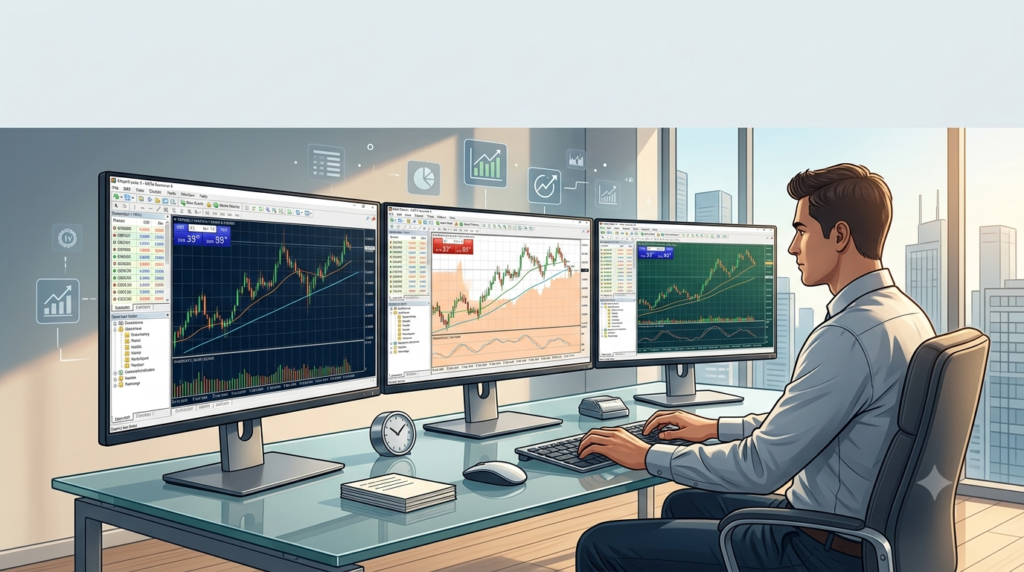
MT4 Floating Charts is a specialized utility that enhances the MetaTrader 4 trading platform by enabling true multi-monitor support. While MetaTrader 4 remains one of the most widely used trading platforms for forex and CFD trading, its default interface confines all charts within a single application window. This limitation becomes restrictive for traders who rely on multiple screens to monitor various currency pairs, timeframes, and indicators simultaneously .
Floating Charts solves this problem by allowing traders to detach individual chart windows from the main MT4 interface and position them anywhere on their desktop. A detached chart functions as an independent top-level window that can be moved freely across multiple monitors, resized, and arranged according to your preferred workflow . The software integrates seamlessly with MetaTrader 4, adding new menu options to the platform’s Window menu for floating and re-docking charts .
Trading with multiple monitors has become increasingly common among active traders who need to track several markets at once. Using MT4 Floating Charts, you can place specific currency pair charts on dedicated monitors, creating a customized trading environment that enhances visual clarity and reduces the time spent switching between tabs .
Key Features
Floating Chart Windows
The core functionality of MT4 Floating Charts revolves around its ability to detach charts from the main MetaTrader 4 window. You can float individual charts or all charts simultaneously, moving them to any monitor in your setup . Each floating chart retains all its indicators, drawing objects, and settings, maintaining the same appearance and behavior as when docked .
The software adds three new menu items to MT4’s Window menu:
-
FLOAT – Detaches the currently active chart into a separate window
-
FLOAT ALL – Undocks all open charts simultaneously (the active chart remains docked)
-
UNFLOAT ALL – Re-docks all floating charts back into the main MT4 workspace
A single floating chart can also be reattached by clicking the X button in the top-right corner of the floating window .
Tile Floating Charts Extension
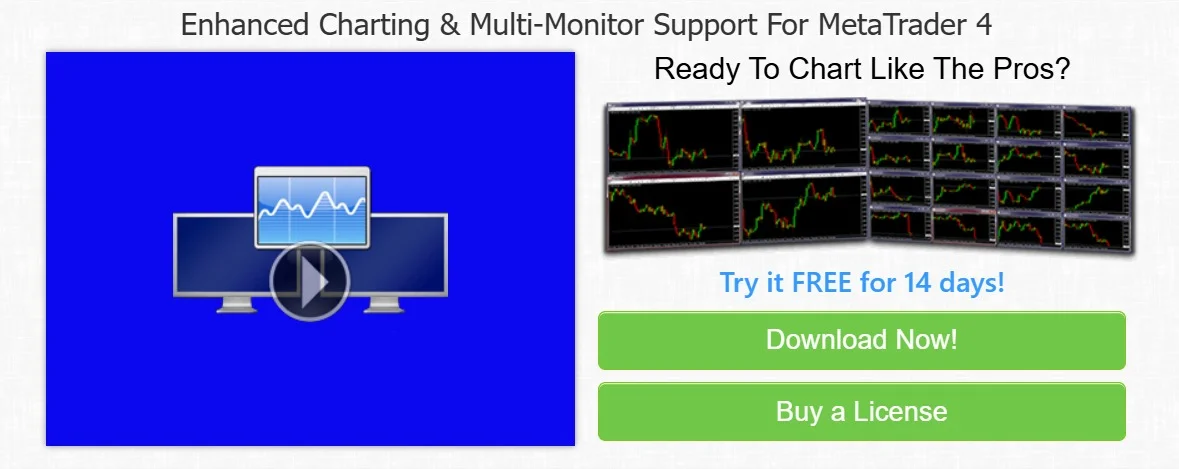
For traders managing multiple floating charts, the Tile Floating Charts extension automatically arranges floating windows across your monitors. This extension takes the number of floating charts and your monitor configuration, then evenly distributes and resizes charts to fill the available screen space .
For example, if you float 18 charts across 3 monitors with a maximum of 6 charts per monitor, the extension will create 6 evenly sized charts on each display, maximizing your screen real estate .
Float Profiles
The Float Profiles extension allows traders to save and load different floating chart setups. This feature is particularly valuable for traders who switch between different trading strategies or market sessions. You can create named profiles for specific configurations or use the default profile functionality to save and restore your last floating chart arrangement .
This capability eliminates the need to manually reposition charts each time you restart MetaTrader 4, ensuring your trading environment is ready immediately upon startup.
Float Charts by Symbol or Timeframe
Active traders often need to focus on specific instruments or timeframes. The Float Charts by Symbol and/or Timeframe extension enables you to float only charts matching selected criteria . You can, for instance:
-
Float only EURUSD charts
-
Float only EURUSD,H4 charts
-
Float only M15 timeframe charts
-
Float only EURUSD and USDCAD charts simultaneously
This granular control helps declutter your workspace and maintain focus on the markets that matter most for your current trading strategy.
Floating Chart Auto Rotator
The Auto Rotator extension is designed for traders who use stacked chart configurations. This feature automatically cycles through floating charts at user-defined intervals. For instance, you might stack two charts—a EURUSD,H4 chart and a EURUSD,M15 chart—and set the rotation interval to 5 seconds. The display will alternate between the two charts, allowing you to monitor multiple timeframes on a single screen .
This functionality proves especially useful when monitor space is limited, enabling you to effectively monitor multiple charts without dedicating separate screens to each.
Chart Sync Module
The Chart Sync Module ensures that floating chart positions are saved correctly when using the save locations feature. This module requires enabling DLL imports in MetaTrader 4’s Expert Advisors settings .
When active, the module preserves the precise position of floating charts using unique identifiers, ensuring consistent restoration of your multi-monitor layout between trading sessions.
What’s New in the Latest Version
MT4 Floating Charts has evolved to support newer MetaTrader 4 builds and extended functionality. Recent versions maintain compatibility with MT4 Build 600 and higher, requiring the Allow DLL imports option to be enabled for full functionality .
The software has expanded its extension ecosystem, providing traders with more control over their chart layouts. Newer builds include all available extensions in a single download package, simplifying installation and setup .
For traders using MT4’s native chart detachment capabilities introduced in recent builds, Floating Charts offers additional management features that extend beyond basic chart undocking, including automated tiling, profile management, and chart rotation .
System Requirements
Before installing MT4 Floating Charts, ensure your system meets these requirements:
-
Operating System: Windows XP or newer (Windows XP, Vista, 7, 8, 8.1, 10, 11)
-
RAM: 1 GB or more recommended
-
Disk Space: 10 MB of free space
-
MetaTrader 4: Build 401 or higher (Build 600 or higher recommended for full extension support)
-
.NET Framework: Version 2.0 SP2 or higher (required only for the updater program, which can be disabled)
Installation Guide
Installing MT4 Floating Charts is straightforward, and a single installation services all your MetaTrader 4 installations.
Step 1: Download the Installer
Download the MT4 Floating Charts installer from the official website. If you receive a ZIP archive, extract the installer file before proceeding .
Step 2: Run the Installer
Execute the installer and follow the on-screen prompts. During installation, you can select which components to install, including the Chart Sync Module .
Step 3: Register the Software
If you have a license key, enter it during registration. Trial users can select the TRIAL option to access the software for evaluation purposes .
Step 4: Enable DLL Imports (If Using Chart Sync Module)
If you installed the Chart Sync Module, you must enable DLL imports in MetaTrader 4:
-
Open MetaTrader 4
-
Go to Tools > Options
-
Select the Expert Advisors tab
-
Check the box next to Allow DLL imports
-
Click OK
Without this step, chart positions will not be saved correctly when using the save locations feature.
Step 5: Install Extensions (Optional)
To use floating chart extensions:
-
Open your MetaTrader 4 data folder (File > Open Data Folder)
-
Extract the extension ZIP file to the
MQL4\Scriptssubdirectory -
Restart MetaTrader 4
-
Extensions will appear in the Navigator window under Scripts > FloatingCharts > extensions
How to Use MT4 Floating Charts
Detaching Charts
The most basic operation in MT4 Floating Charts is detaching a chart from the main platform window. You can do this through the Window menu:
-
Open the chart you want to detach in MetaTrader 4
-
Click the Window menu
-
Select FLOAT to detach the active chart
-
Drag the floating window to your preferred monitor
To detach all charts simultaneously, select FLOAT ALL from the Window menu. The active chart will remain docked while all others become floating windows .
Managing Floating Charts
Floating charts behave like standard application windows. You can:
-
Move them by dragging the title bar
-
Resize them by dragging window edges
-
Place them on any monitor by dragging across screens
-
Minimize or maximize using standard window controls
Reattaching Charts
To return a floating chart to the main MT4 workspace, you have two options:
-
Click the X button in the top-right corner of the floating window to reattach it
-
Select UNFLOAT ALL from the Window menu to reattach all floating charts simultaneously
Important: Closing a floating chart using the X button closes the chart entirely rather than reattaching it . To preserve the chart and return it to the main workspace, use the reattach option.
Using Extensions
Extensions add advanced functionality to MT4 Floating Charts. To use an extension:
-
Navigate to the Navigator window in MetaTrader 4
-
Expand Scripts > FloatingCharts > extensions
-
Double-click the desired extension to run it
-
Follow any input prompts
Saving and Loading Chart Layouts
For traders who use consistent chart setups, the Float Profiles extension enables saving and loading configurations:
-
After arranging your floating charts as desired, use the profile extension to save the layout
-
Name the profile for easy identification
-
To restore a layout, select the saved profile from the extension menu
Best Use Cases
Multi-Monitor Trading Setups
The most common use case for MT4 Floating Charts is supporting traders with multiple monitors. By spreading charts across several screens, traders can:
-
Monitor multiple currency pairs simultaneously
-
View different timeframes of the same instrument side-by-side
-
Keep the main MT4 interface on one screen for order execution while charts occupy other displays
Traders can achieve this with a laptop connected to external monitors or with desktop systems supporting multiple displays. For example, a laptop with VGA, HDMI, and USB 3.0 outputs can support three external monitors plus the built-in display, providing a comprehensive multi-screen setup .
Dedicated Monitor for Each Market
Traders following different market sessions can dedicate specific monitors to particular instruments. For instance:
-
Monitor 1: Major forex pairs (EURUSD, GBPUSD, USDJPY)
-
Monitor 2: Commodity currencies (AUDUSD, USDCAD, NZDUSD)
-
Monitor 3: Cross pairs and exotic instruments
This organization reduces the need to switch between charts and allows for rapid market assessment .
Comparative Timeframe Analysis
MT4 Floating Charts enables traders to view the same instrument across multiple timeframes simultaneously. Placing H4, 1H, and 15M charts of the same pair on different monitors or in different window positions supports comprehensive technical analysis without constantly switching timeframes.
Trading Control Center Setup
Advanced traders can create a dedicated trading control center by combining floating charts with indicators and Expert Advisors (EAs) featuring graphical panels. This configuration creates a comprehensive trading workspace where all necessary information is visible at a glance .
Backtesting and Strategy Development
During strategy development, the ability to float charts aids backtesting by allowing traders to:
-
View historical data on one monitor while running backtests on another
-
Compare strategy performance across different instruments simultaneously
-
Monitor multiple timeframes during optimization runs
Advantages and Limitations
Advantages
Enhanced Multi-Monitor Support: MT4 Floating Charts solves MT4’s single-window limitation, enabling full utilization of multiple monitors for trading .
Preserved Chart Settings: Floating charts retain all indicators, drawing objects, and analysis tools when detached, ensuring consistency in your trading analysis .
Customizable Workflows: The software’s extensions allow traders to tailor their workspace to specific trading styles and strategies .
Profile Management: Saving and loading chart setups reduces setup time and ensures consistency across trading sessions .
No Additional Hardware Requirements: The software works with existing MT4 installations and standard multi-monitor configurations, requiring no specialized hardware .
Lightweight Installation: With minimal system requirements and small disk footprint, Floating Charts operates efficiently without degrading system performance .
Limitations
Windows-Only Availability: MT4 Floating Charts is designed for Windows operating systems only, limiting its use on macOS or Linux platforms.
DLL Import Requirements: Full functionality requires enabling DLL imports in MetaTrader 4, which may raise security considerations for some traders .
MT4-Specific: The software works exclusively with MetaTrader 4 and does not support MT5 or other trading platforms.
Memory Consumption: Running multiple detached charts consumes additional system memory and CPU resources compared to embedded charts .
Profile Recovery Issues: Some traders report challenges with layout persistence when restarting MT4, requiring manual chart repositioning .
Alternatives to MT4 Floating Charts
Native MT4 Chart Detachment
Recent builds of MetaTrader 4 include native chart detachment functionality through the right-click menu on a chart’s title bar . This built-in feature offers basic floating chart capability without requiring additional software.
When to choose native detachment: For traders who only need occasional chart undocking and prefer minimal software installation, native MT4 functionality may suffice.
Limitations: Native detachment lacks the advanced management features of MT4 Floating Charts, including tiling, auto-rotation, and profile management.
Multiple MT4 Instances
Running multiple copies of MetaTrader 4 simultaneously is another approach to multi-monitor trading. Each instance operates independently, and you can place each platform window on a different monitor .
To use this approach:
-
Install MT4 to different folders on your system
-
Launch each instance independently
-
Log into the same trading account (or different accounts) from each instance
When to choose multiple instances: This approach works well when you want separate Market Watch, Navigator, and Terminal windows per monitor rather than sharing one set across detached charts.
Limitations: Each instance consumes its own system resources (RAM and CPU), and running many instances can impact performance on lower-spec systems. Be careful not to duplicate orders when logged into the same account from multiple instances .
Modern Trading Platforms
Newer trading platforms such as MetaTrader 5, cTrader, ThinkTrader, and TradingView offer multi-monitor support as part of their core functionality . These platforms often provide:
-
More advanced charting capabilities
-
Modern, responsive interfaces
-
Built-in multi-screen support
-
Additional instrument coverage
When to choose modern platforms: Traders requiring comprehensive analysis tools, broader market access, or web-based access may benefit from transitioning to a newer platform .
Limitations: Migrating from MT4 involves adapting to a new interface, potentially reconfiguring Expert Advisors and custom indicators, and ensuring your broker supports the chosen platform.
Analysis-Focused Platforms
Platforms like TradingView emphasize charting and visual analysis as their primary function. They offer:
-
Flexible workspace configurations
-
Persistent layouts across sessions
-
Extensive built-in indicator libraries
-
Browser-based access
When to choose analysis-focused platforms: Traders whose workflow centers on technical analysis rather than automated execution may prefer these platforms.
Limitations: Order execution integration may vary by broker and platform combination, and automation capabilities differ from MT4’s Expert Advisor ecosystem .
Frequently Asked Questions
What is MT4 Floating Charts?
MT4 Floating Charts is a software utility that enables traders to detach chart windows from MetaTrader 4 and move them freely across multiple monitors. The software extends MT4’s native functionality by adding advanced features such as chart tiling, auto-rotation, and layout profiles .
Is MT4 Floating Charts compatible with all MT4 builds?
MT4 Floating Charts requires MetaTrader 4 Build 401 or higher. For full extension support, Build 600 or higher is recommended .
How do I reattach a floating chart to the main MT4 window?
To reattach a single floating chart, click the X button in the top-right corner of the floating window. To reattach all floating charts simultaneously, select UNFLOAT ALL from MT4’s Window menu .
Can I float multiple charts at once?
Yes, MT4 Floating Charts provides a FLOAT ALL option in the Window menu that detaches all open charts simultaneously, with the active chart remaining docked .
Will floating charts retain their settings when I restart MT4?
Floating charts preserve all indicators, drawing objects, and analysis settings when detached. To save chart positions across sessions, use the Float Profiles extension. Note that without the Chart Sync Module and proper DLL import settings, chart positions may not be restored correctly .
Does MT4 Floating Charts work with MT5?
No, MT4 Floating Charts is designed specifically for MetaTrader 4. For MT5 floating chart support, the platform offers native chart detachment functionality through the right-click menu .
How do I install MT4 Floating Charts extensions?
Download the extensions package, open your MT4 data folder (File > Open Data Folder), extract the files to the MQL4\Scripts subdirectory, and restart MT4. Extensions will appear in the Navigator window under Scripts > FloatingCharts > extensions .
What system resources does MT4 Floating Charts require?
MT4 Floating Charts requires Windows XP or newer, 1 GB RAM, 10 MB disk space, and MT4 Build 401 or higher. Running multiple detached charts increases memory and CPU usage compared to using MT4 in its default configuration .
Final Thoughts
MT4 Floating Charts addresses one of MetaTrader 4’s most significant limitations: the inability to effectively utilize multiple monitors. For active traders who rely on comprehensive market analysis across various instruments and timeframes, the ability to detach and position charts freely transforms the trading experience.
The software’s extension ecosystem provides advanced capabilities that go far beyond basic chart undocking, including automated tiling for efficient screen utilization, profile management for consistent workspace recovery, and chart rotation for traders with limited monitor space. These features enable traders to create customized workflows that align with their specific trading strategies.
While modern trading platforms continue to evolve, MT4 remains a widely adopted platform, particularly for traders who rely on Expert Advisors and automated trading strategies. MT4 Floating Charts ensures that these traders can maximize their productivity without abandoning their preferred platform.
Traders should ensure their hardware meets the system requirements and consider enabling the Chart Sync Module for consistent layout restoration. The software represents a valuable investment for any trader seeking to optimize their multi-monitor trading environment and enhance their market analysis capabilities.
Our Paid Service
“We do not sell or provide any software. We only offer professional support services. If any software on your system is not working properly, or you are facing installation errors, crashes, or any other technical issue — just contact us. We will help you fix the problem quickly and remotely via AnyDesk. No software will be provided from our side — only expert troubleshooting and support.”