
Overview of PlayIt Live 2.16 Radio Automation Software
Table of Contents
PlayIt Live is a professional-grade desktop application designed for Windows, developed by PlayIt Software based in Cambridge, England . It serves as the central “brain” for radio stations, automating the playout of music, jingles, advertisements, and other audio content . While the software operates locally on your computer and doesn’t require a constant internet connection for core functions, it integrates internet connectivity for features like streaming to online radio directories .
One of the strongest aspects of PlayIt Live is its flexible, scalable pricing model. You can start with a free version that includes essential features for basic playout and scheduling. As your station grows, you can unlock advanced capabilities by adding premium modules, such as the Voice Tracking Module and the Advanced Scheduling Module . The software boasts an intuitive interface, making it accessible even for beginners in the radio broadcasting field .
Key Features of PlayIt Live 2.16 (Build 4813)
PlayIt Live 2.16 comes packed with features designed to simplify radio station management. Here are some of its standout capabilities:
Integrated Internet Broadcasting and Streaming
A major highlight of version 2.16 is the built-in internet broadcasting feature. Previously a separate plugin, it is now integrated directly into the software, accessible via Tools > Internet Broadcast .
-
Direct Streaming: You can stream directly to popular servers like Icecast and SHOUTcast (v1 and v2) .
-
Now Playing Metadata: The software automatically sends track metadata (title, artist) to your streaming server, ensuring listeners see what’s currently playing . This functionality is built-in from version 2.16 onward .
-
Configurable Quality: You can adjust the audio quality with options like MP3 format, bitrate, and sampling rate .
-
Multiple Streams: The software supports running multiple concurrent streams, allowing you to broadcast to different servers or provide various bitrate options for listeners .
-
Auto-Reconnect: If the connection to your streaming server drops, PlayIt Live will automatically attempt to reconnect .
Built-In Scheduling and Automation
The integrated scheduler is a core component of PlayIt Live, enabling you to automate your broadcasts 24/7 .
-
Clocks: You can create hour-long templates called “clocks” that define the structure of your broadcast for a given hour .
-
Playlist Scheduling: Schedule your clocks across days and weeks using a calendar-based system .
-
Playout Logs: The software generates detailed playout logs, showing a list of items scheduled for specific times, and these logs can be manually modified if needed .
Live-Assist Mode for Real-Time Control
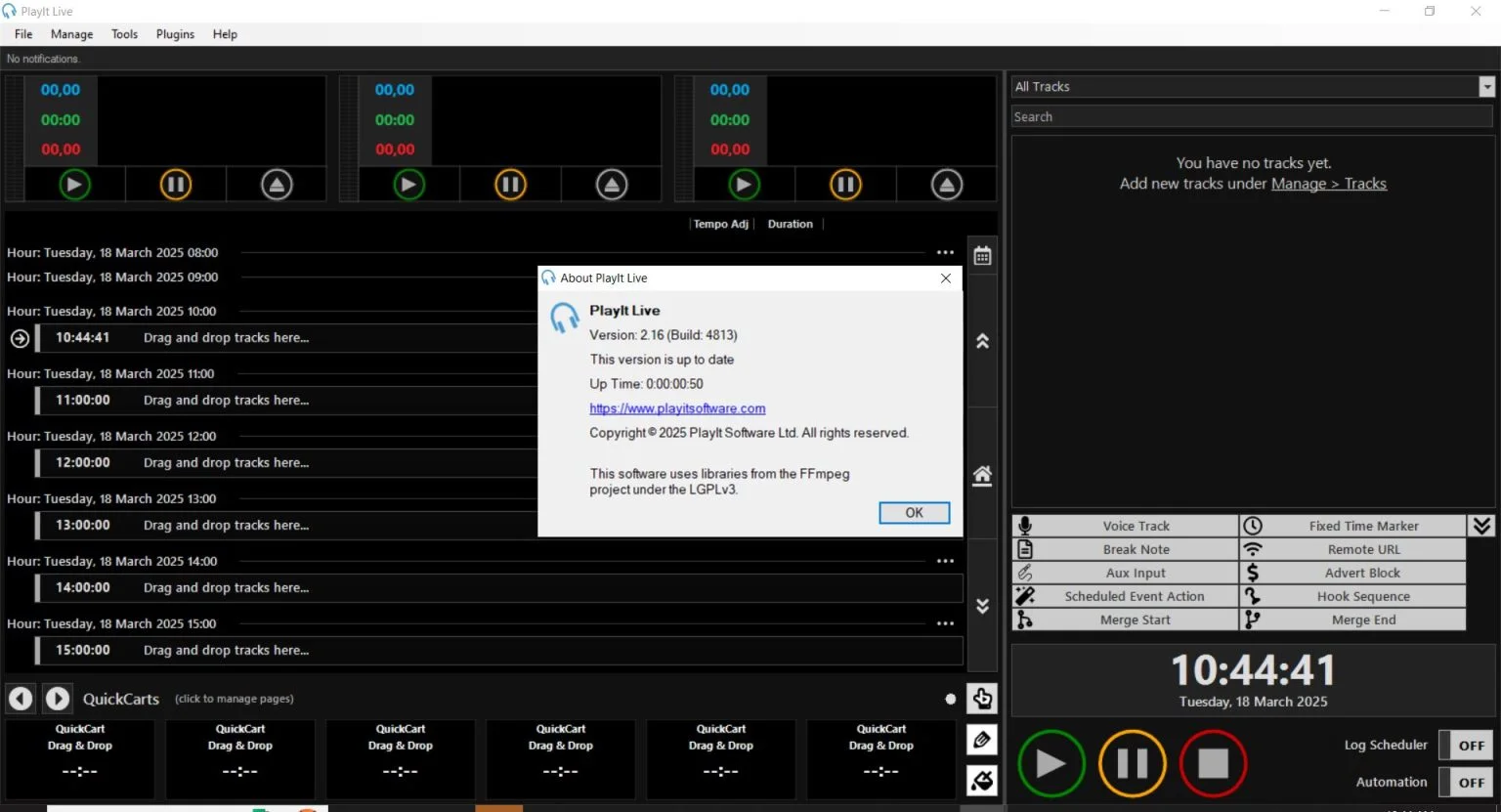
For broadcasters who want to blend automation with live interaction, the Live-Assist mode is invaluable. During a live show, presenters can see all their audio elements—songs, jingles, sound effects—in one interface. This setup allows for quick, click-based playback, eliminating the need to search for files manually while on air .
QuickCarts for Jingles and Sound Effects
QuickCarts are one-click players that allow you to trigger jingles, sound effects, or any short audio clips instantly. This feature is perfect for adding professional touches to live shows .
Premium Modules for Scalability
PlayIt Live’s true power lies in its ability to grow with your radio station. The premium modules offer advanced features for professional broadcasters .
-
Voice Tracking Module: Allows presenters to pre-record their segments and voice tracks, which are then seamlessly inserted into the automated playlist. This gives your station a “live” feel even outside of studio hours .
-
Advanced Scheduling Module: Unlocks complex scheduling options, including sophisticated advert scheduling and management .
-
Remote Management Module: Enables full remote management of your station’s data from anywhere with an internet connection .
What’s New in PlayIt Live Version 2.16 (Build 4813)
Version 2.16 marked a significant milestone for PlayIt Live, with one of the most impactful changes being the integration of internet broadcasting directly into the core software. Before this update, broadcasters needed to install a separate plugin for internet streaming . With this built-in feature, the setup and management of streaming are now more streamlined and reliable.
Furthermore, the built-in Now Playing feature, which sends track information to streams, has been enhanced and made more reliable in version 2.16, eliminating the need for older workarounds .
System Requirements for PlayIt Live
Before downloading and installing PlayIt Live 2.16, ensure your system meets the minimum requirements. This is crucial for the software to function correctly.
-
Operating System: Windows XP, Vista, 7, 8, 10, and 11 (32-bit and 64-bit versions) .
-
Framework: Requires .NET Framework 4.7.1 or later. If you are using Windows 7, you must have Windows 7 Service Pack 1 (SP1) installed to support this .NET version .
-
File Size: The installation package is approximately 57.4 MB .
Installation Guide for PlayIt Live 2.16
Getting started with PlayIt Live is a straightforward process. Follow this step-by-step guide to install the software on your Windows PC:
-
Download the Installer: Visit the official PlayIt Software website to download the latest version of the installer . Ensure you are downloading from the official source for security and to get the correct build.
-
Run the Installer: Double-click the downloaded file (e.g.,
PlayItLiveSetup_2.17.2.5046.exe) to launch the installation wizard. -
Follow the Prompts: Follow the on-screen instructions. Typically, you’ll need to agree to the license terms and choose an installation directory.
-
Launch the Software: Once the installation is complete, launch PlayIt Live from your Start Menu or desktop shortcut.
-
Initial Login: You may be prompted to log in with your PlayIt Software account. An initial internet connection is required for this step and for downloading any premium module licenses .
How to Use PlayIt Live 2.16: A Beginner’s Guide
Once installed, here is a basic workflow to get your station up and running with PlayIt Live.
Step 1: Import Your Music Library
The first step is to add your audio content. You can import music files in various formats, including MP3, WAV, and WMA . PlayIt Live will scan your folders and add them to its central track database .
Step 2: Categorize Your Music
To ensure a balanced playlist, you should organize your music into categories or “Track Groups” . For example, you can create groups for different genres, decades, or rotation categories (A-list, B-list, etc.).
Step 3: Set Up Your Schedule
Creating a schedule is key to automated broadcasting .
-
Create Clocks: Go to Manage > Clocks and define the structure of your hour. You can drag and drop tracks or playout items to build a template for an hour of content .
-
Build a Schedule: Go to Manage > Clock Schedule. Assign your saved clocks to specific hours across a day or week .
-
Generate Playout Log: The software uses the clocks and schedule to generate a complete playout log . This log shows exactly what will play and when.
Step 4: Configure Internet Broadcasting
With your schedule ready, set up your internet stream.
-
Navigate: Go to Tools > Internet Broadcast .
-
Add Stream: Click “Add Stream” and enter the details from your streaming service provider, such as:
-
Server Type: Select the appropriate server type (Icecast, SHOUTcast v1, or SHOUTcast v2) .
-
Server Address and Port: Enter the address and port number provided by your streaming host .
-
Username/Password: Enter your login credentials .
-
Mount Point: Provide the mount point (e.g.,
/stream,/live.mp3) .
-
-
Audio Settings: Select the bitrate and format for your stream .
-
Station Info: Add your station name, description, and genre .
-
Start Stream: Save your settings. You can then start the stream from the same menu, by right-clicking the stream and selecting “start” .
Step 5: Go Live
Once your music is imported, your schedule is set, and your stream is configured, simply hit the main play button. PlayIt Live will start broadcasting according to your programmed schedule .
Best Use Cases for PlayIt Live 2.16
PlayIt Live is versatile, catering to a wide range of broadcasting scenarios .
-
Internet Radio Stations: This is the primary use case. PlayIt Live allows internet radio stations to run automated broadcasts 24/7, providing a consistent listening experience without requiring a 24/7 team .
-
Community Radio: Its affordability and ease of use make it an excellent choice for community radio stations with limited budgets and volunteers .
-
College Radio Stations: For student-run stations, the intuitive interface and free version are ideal for training new broadcasters and managing student-created content.
-
Live-Assisted Broadcasting: For stations that have a presenter during certain hours, the Live-Assist mode provides the perfect blend of manual control and automated support .
-
Podcasters: Podcasters can use PlayIt Live to manage and distribute their podcast episodes, integrating them with other audio content to create a continuous audio stream.
Advantages and Limitations of PlayIt Live 2.16
Advantages (Pros)
-
User-Friendly Interface: One of the most lauded aspects of PlayIt Live is its intuitive, easy-to-navigate interface that does not overwhelm the user .
-
Flexible Scalability: The freemium model allows you to start for free and add premium features only when you need them, making it budget-friendly at every stage .
-
Built-In Streaming: The integration of internet broadcasting in v2.16 simplifies the process and reduces dependency on external plugins .
-
Strong Core Features: The built-in scheduler, QuickCarts, and playlist management are powerful enough for most small-to-medium broadcasting needs.
Limitations (Cons)
-
Format Limitations: The built-in encoder only supports the MP3 format. For advanced broadcasting with AAC+ or OGG formats, you must use an external encoder like Rocket Broadcaster alongside PlayIt Live .
-
Desktop-Only: PlayIt Live is a Windows desktop application. It is not a cloud-based solution, so you need a dedicated local PC for broadcasting .
-
Known Issues: As with any software, there may be occasional issues. For instance, some users have reported problems with mixing down playout logs that contain advert blocks .
Alternatives to PlayIt Live 2.16
While PlayIt Live is a powerful and popular solution, other radio automation software options are available. A key alternative is Rocket Broadcaster, which is often used alongside PlayIt Live to provide streaming encoding in formats like AAC+ and OGG . Here is a quick comparison of some alternatives:
| Software | Key Features | Best For |
|---|---|---|
| PlayIt Live | Intuitive interface, built-in scheduler, scalable premium modules . | Beginner to advanced broadcasters seeking a user-friendly, scalable system. |
| Rocket Broadcaster | High-quality streaming encoder, supports AAC+ and OGG, integrates with PlayIt Live for metadata . | Broadcasters who need to stream in advanced formats. |
| StationPlaylist | Robust automation, multi-platform support, advanced voice tracking. | Professional stations requiring a more complex feature set. |
Frequently Asked Questions about PlayIt Live 2.16
Q1: What is included in the free version of PlayIt Live 2.16?
The free version includes the core playout engine, music library management, the built-in scheduler, QuickCarts, and basic internet broadcasting .
Q2: What internet streaming formats does PlayIt Live 2.16 support?
The built-in encoder supports streaming in MP3 format to Icecast and SHOUTcast servers. If you need AAC+ or OGG, you’ll need to use an external encoder like Rocket Broadcaster .
Q3: Is PlayIt Live 2.16 cloud-based software?
No, PlayIt Live is a desktop application that runs locally on your Windows PC. It requires an internet connection for initial login and streaming, but core automation works offline .
Q4: Does PlayIt Live 2.16 require a separate plugin for Now Playing metadata?
No, as of version 2.16, the Now Playing metadata feature is built into the software and works with internet broadcasts by default .
Q5: Can I run multiple streams with PlayIt Live?
Yes, you can configure multiple streams to broadcast to different servers simultaneously, each with its own quality settings .
Q6: What are the system requirements for PlayIt Live 2.16?
It requires Windows XP through Windows 11 and the .NET Framework 4.7.1 or later .
Q7: How much does PlayIt Live cost?
The core software is free to use. Paid premium modules are available for advanced features like voice tracking, advanced scheduling, and remote management .
Q8: Does PlayIt Live have a live-assist mode?
Yes, the software includes a Live-Assist mode that allows presenters to easily manage and play out audio elements during a live broadcast .
Final Thoughts
PlayIt Live 2.16 (Build 4813) stands out as an accessible yet powerful radio automation software. Its combination of a user-friendly interface, free core features, and scalable premium modules makes it a compelling choice for anyone looking to start or upgrade an internet radio station. The integrated internet broadcasting in version 2.16 simplifies streaming, while features like the scheduler, QuickCarts, and Live-Assist mode provide everything needed to run a professional-sounding station . For broadcasters seeking a reliable and flexible solution, PlayIt Live is certainly worth exploring.
Our Paid Service
“We do not sell or provide any software. We only offer professional support services. If any software on your system is not working properly, or you are facing installation errors, crashes, or any other technical issue — just contact us. We will help you fix the problem quickly and remotely via AnyDesk. No software will be provided from our side — only expert troubleshooting and support.”