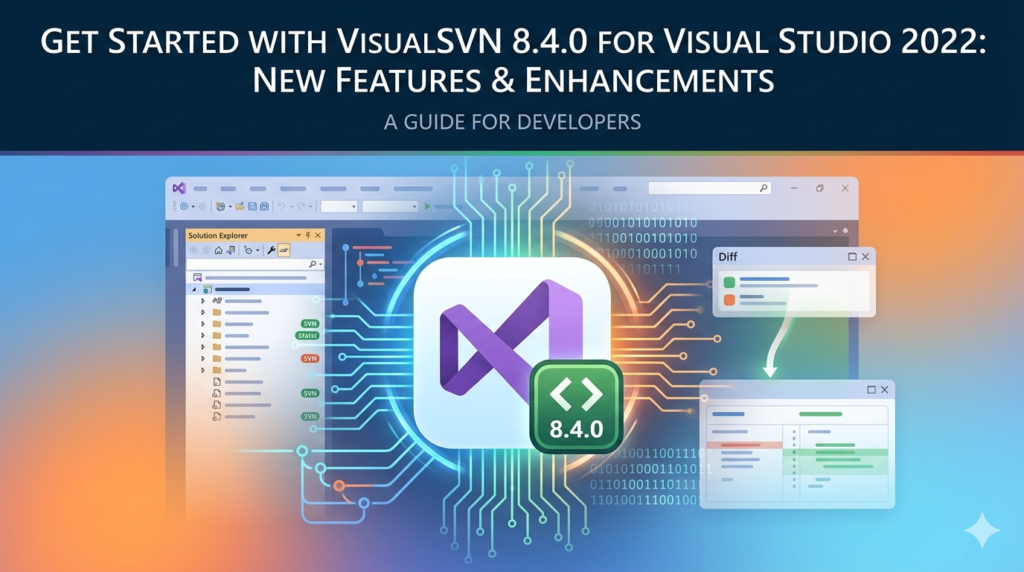


Overview of VisualSVN 8.4.0
Table of Contents
VisualSVN 8.4.0 is a powerful version control extension designed specifically for Visual Studio 2022 . It seamlessly integrates Subversion (SVN) repository management into the Visual Studio IDE, providing developers with a robust solution for source code management, team collaboration, and version tracking . Whether you’re working on enterprise-grade .NET applications or open-source projects, VisualSVN brings enterprise-level software configuration management directly to your development environment.
This latest release focuses on improving user experience through enhanced visual feedback, streamlined navigation, and critical bug fixes that make daily version control tasks more intuitive and efficient.
Key Features of VisualSVN 8.4.0
VisualSVN offers a comprehensive suite of features that streamline version control workflows:
Seamless IDE Integration
-
Real-time Status Indicators: VisualSVN overlays file status icons directly in Solution Explorer, showing modification states (Modified, Added, Conflicted, Deleted) at a glance
-
Context Menu Operations: Right-click any file, folder, or solution to access SVN commands including Commit, Update, Revert, Add, and Delete
-
Pending Changes Window: Centralized view of all modified files awaiting commit
Visual Diff and Merge Tools
-
Built-in diff viewer for comparing file versions
-
Three-way merge editor for resolving conflicts
-
Support for visualizing differences in code, images, and binary files
Advanced Repository Management
-
Support for HTTPS-encrypted connections to SVN servers
-
Integration with Active Directory for authentication and permissions management
-
Repository browsing directly within Visual Studio
Branching and Tagging
-
Intuitive branch management interface
-
Easy creation and switching between feature branches
-
Support for trunk-based development and release branching strategies
Performance Optimizations
-
Updated core components including APR 1.7.5, SQLite 3.46.0, and zlib 1.3.1
-
Reduced false positive performance warnings in Visual Studio
-
Optimized status request handling for large projects
What’s New in VisualSVN 8.4.0
The latest version introduces several notable improvements:
Open in Web Interface Command
A new context menu option and main menu command allows developers to quickly navigate to the corresponding item in the repository’s web interface. This feature requires properly configured webviewer properties in the repository .
Conflict Detection Infobar
When opening a file with unresolved conflicts, VisualSVN now displays a dedicated infobar at the top of the file. This visual cue helps developers identify conflicts immediately and resolve them before making further changes .
Shaped Status Icons
VisualSVN 8.4.0 introduces an optional new icon set called “Shaped icons.” Unlike the traditional traffic light status icons that rely solely on color, shaped icons can be distinguished by their shape as well—improving accessibility and visual clarity .
Enhanced JavaScript Project Support
This release adds official support for JavaScript project files (*.esproj), extending version control capabilities to modern web development workflows .
Status Bar Feedback
All commands now report completion status to the Visual Studio status bar, providing clearer feedback on long-running operations .
Bug Fixes
-
Fixed issues with Shared Projects not updating properly after VisualSVN commands
-
Resolved encoding mismatch messages when viewing differences for empty files
-
Addressed performance issues caused by excessive Subversion status requests
-
Fixed conflicts with other source control providers in Open Folder mode
System Requirements
Before installing VisualSVN 8.4.0, ensure your system meets these requirements:
| Component | Requirement |
|---|---|
| Operating System | Windows 8.1 or higher |
| Visual Studio | Visual Studio 2022 only (Express editions not supported) |
| CPU | Minimum 1.4 GHz |
| RAM | Minimum 512 MB |
| Disk Space | At least 50 MB available |
Important: VisualSVN 8.4.0 supports Visual Studio 2022 only. Users working with older Visual Studio versions should install the appropriate maintenance builds: VisualSVN 7.5 for VS2019, VisualSVN 6.9 for VS2017, or VisualSVN 5.8 for VS2015 and earlier .
Installation Guide
Step 1: Download the Installer
Visit the official VisualSVN download page to obtain the latest 8.4.0 build .
Step 2: Run the Installer
Launch the downloaded executable with administrator privileges to ensure proper installation.
Step 3: Follow Installation Wizard
-
Accept the license agreement
-
Choose the installation directory (default is recommended)
-
Select components to install (typically all components are required)
-
Click “Install” to begin the process
Step 4: Restart Visual Studio
After installation completes, restart Visual Studio 2022 to activate the extension.
Step 5: Verify Installation
Check that VisualSVN appears in the Visual Studio main menu and that file status icons are visible in Solution Explorer.
How to Use VisualSVN 8.4.0
Getting Started with an SVN Repository
Checkout a Repository:
-
Open Visual Studio 2022
-
Navigate to the VisualSVN menu
-
Select “Checkout” and enter your repository URL
-
Choose a local working copy directory
-
Click “OK” to download the repository contents
Daily Version Control Workflow
Update Your Working Copy:
-
Right-click the solution or project in Solution Explorer
-
Select “SVN Update” to download the latest changes from the repository
Commit Changes:
-
Right-click the solution or project
-
Select “Commit” to open the Pending Changes window
-
Review modified files and enter a commit message
-
Click “Commit” to push changes to the repository
Resolve Conflicts:
-
When conflicts appear, open the conflicted file
-
Use the VisualSVN diff/merge tool to resolve differences
-
Mark the file as resolved and commit
Enable Shaped Icons:
-
Go to the VisualSVN menu
-
Select “Options”
-
Under the Status Icons section, enable “Shaped icons”
Best Use Cases for VisualSVN
Enterprise Development Teams
VisualSVN’s Active Directory integration and granular permission controls make it ideal for organizations requiring robust security and audit trails .
.NET Development Projects
The seamless integration with Visual Studio 2022 makes VisualSVN the natural choice for C#, ASP.NET, and other .NET-based development teams.
Mixed-Technology Environments
With updated support for JavaScript projects and comprehensive binary file handling, VisualSVN accommodates diverse technology stacks within a single version control system .
Legacy System Support
For organizations maintaining large SVN repositories, VisualSVN provides the stability and performance needed for enterprise-scale projects.
Continuous Integration/CI/CD Integration
VisualSVN integrates smoothly with CI/CD pipelines including Azure DevOps and Jenkins, enabling automated builds from SVN repositories .
Advantages and Limitations
Advantages
-
Deep VS Integration: Unlike standalone SVN clients, VisualSVN operates entirely within the Visual Studio environment
-
Enhanced Usability: New infobar and shaped icons improve conflict detection and visual accessibility
-
Stability: Regular maintenance updates ensure compatibility and security
-
Performance: Optimized for large solutions and complex project structures
-
Enterprise Features: AD integration, HTTPS encryption, and permission controls
Limitations
-
Visual Studio Only: VisualSVN 8.4.0 is exclusively for Visual Studio 2022—no support for other IDEs or standalone use
-
Windows-Only: Requires Windows 8.1 or higher
-
SVN Focus: If your team is migrating to Git, VisualSVN doesn’t provide Git integration
-
Licensing: Enterprise features require a paid license for commercial use
Alternatives to VisualSVN
TortoiseSVN
-
Windows Shell-based SVN client integrated with File Explorer
-
Free and open-source with extensive diff/merge capabilities
-
Complements VisualSVN for developers who prefer shell-based operations
AnkhSVN
-
Historical SVN extension for Visual Studio (predecessor to VisualSVN)
-
Limited support for modern VS versions
Git Integration in Visual Studio
-
Native Git support is built into Visual Studio 2022
-
Ideal for teams using distributed version control
-
Requires migration from SVN workflows
Azure DevOps/TFVC
-
Microsoft’s enterprise version control solution
-
Offers centralized and distributed models
-
Provides integrated CI/CD, project management, and repository hosting
Mercurial (Hg)
-
Distributed version control system with simpler branching
-
Less popular in enterprise environments compared to Git
Frequently Asked Questions
Does VisualSVN 8.4.0 work with Visual Studio 2019?
No. VisualSVN 8.4.0 supports Visual Studio 2022 only. Users on Visual Studio 2019 should install VisualSVN 7.5, which continues to receive maintenance updates .
What’s the difference between shaped icons and traffic light icons?
Traffic light icons rely on color alone to indicate file status, while shaped icons use distinctive shapes in addition to color. This improves accessibility for color-blind users and provides clearer visual cues at a glance .
How do I configure the “Open in Web Interface” command?
This command requires webviewer properties to be configured in the SVN repository. Once set, the command appears in context menus and the main menu for all versioned items .
Is VisualSVN free to use?
VisualSVN offers both free and paid editions. The free version provides core functionality for individual developers, while paid editions unlock enterprise features including Active Directory integration, advanced permissions management, and dedicated support.
Can I use VisualSVN with Git repositories?
No. VisualSVN is specifically designed for Subversion (SVN) repositories. For Git integration in Visual Studio, use the built-in Git tools or third-party extensions designed for Git.
How do I enable shaped status icons?
Navigate to the VisualSVN menu, select Options, and under Status Icons, choose the “Shaped icons” option .
What should I do if I encounter a conflict?
Open the conflicted file—VisualSVN 8.4.0 will display an infobar alerting you to the conflict. Use the built-in merge tool to resolve differences, then commit your resolution .
How do I upgrade from an older version?
Uninstall the previous version and install VisualSVN 8.4.0, or simply run the new installer which will automatically upgrade your existing installation.
Final Thoughts
VisualSVN 8.4.0 for Visual Studio 2022 represents a thoughtful evolution of this essential version control extension. The release demonstrates a clear commitment to improving developer productivity through visual enhancements like shaped icons and conflict infobars, while maintaining the stability and performance that enterprise teams rely on .
For development teams working with Subversion repositories in Visual Studio 2022, VisualSVN remains the gold standard for IDE-integrated version control. Its seamless integration, robust feature set, and continuous refinement make it an indispensable tool for .NET developers and enterprise teams managing complex codebases.
The introduction of shaped icons addresses accessibility concerns, while the Open in Web Interface command bridges the gap between the IDE and web-based repository management tools. With updated core components and performance fixes, VisualSVN 8.4.0 delivers a smoother, more reliable development experience.
Whether you’re starting a new project or maintaining legacy systems, VisualSVN provides the tools you need to manage your source code effectively within your familiar Visual Studio environment.
Our Paid Service
“We do not sell or provide any software. We only offer professional support services. If any software on your system is not working properly, or you are facing installation errors, crashes, or any other technical issue — just contact us. We will help you fix the problem quickly and remotely via AnyDesk. No software will be provided from our side — only expert troubleshooting and support.”