
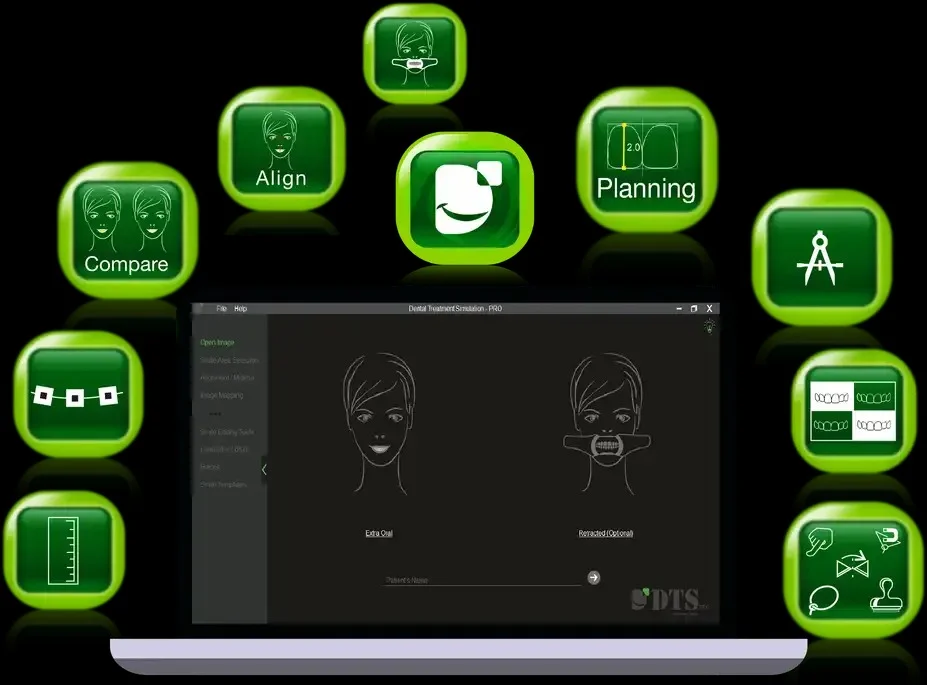
Overview of DTS Pro Dental Software
Table of Contents
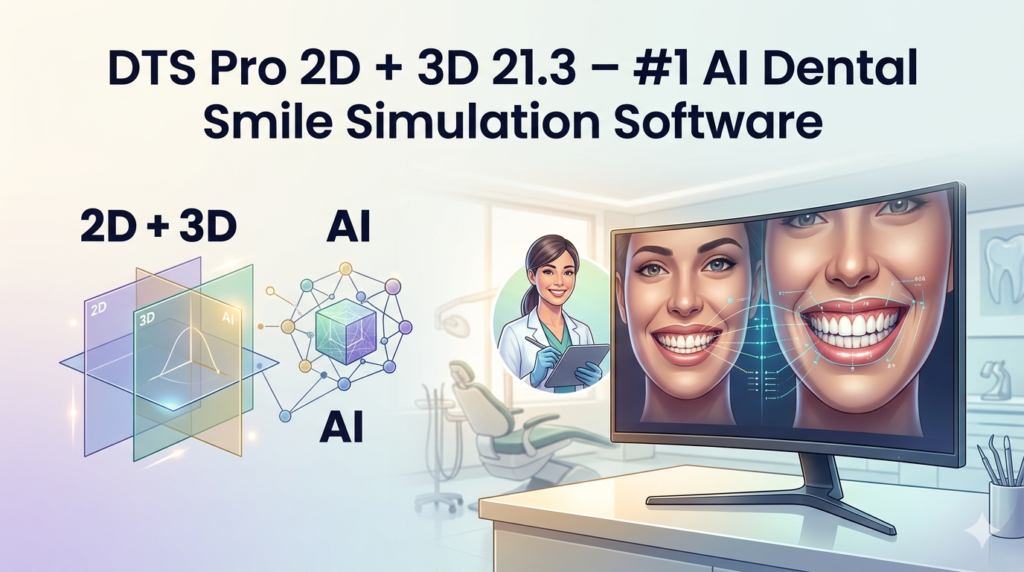
DTS Pro 2D + 3D 21.3 represents a significant leap forward in digital dentistry. This advanced dental smile simulation software leverages artificial intelligence to help dentists, orthodontists, and cosmetic specialists visualize treatment outcomes with photorealistic accuracy. Unlike traditional design tools, DTS Pro combines 2D image editing with 3D facial scanning to create a comprehensive patient communication bridge.
The primary function of this AI dental software is to convert standard patient photos or intraoral scans into dynamic simulations. By predicting post-treatment aesthetics, practitioners can increase case acceptance rates while managing patient expectations legally and ethically. The software operates as a legitimate Computer-Aided Design (CAD) tool for the dental industry, fully compliant with medical data privacy standards.
Key Features of DTS Pro 2D + 3D 21.3
This version introduces robust tools that streamline the workflow from diagnosis to presentation.
-
AI-Powered Auto-Morphing: The system uses neural networks to automatically adjust tooth proportions, shape, and alignment based on facial analysis.
-
Dual-Mode Simulation (2D & 3D): Seamlessly switch between editing high-resolution 2D photographs and manipulating 3D .STL mesh files from intraoral scanners.
-
Comprehensive Tooth Library: Access over 1,200 digital tooth templates (anterior and posterior) to match various morphologies and ethnicities.
-
Dynamic VTO (Virtual Try-On): Patients can see real-time changes to smile width, gingival display, and midline shifts.
-
Treatment Simulation Tools: Create specific overlays for veneers, crowns, implants, orthodontic alignment, and whitening.
-
Multi-Format Export: Export simulations as JPEG, PNG, MP4 video, or 3D .OBJ files for patient records and lab communication.
AI-Driven Facial Recognition Integration
The software identifies key landmarks (pupils, nose base, lip line) to ensure digital smile design respects natural facial dynamics. This prevents unrealistic “Hollywood smiles” and promotes biologically appropriate outcomes.
Patient Communication Dashboard
Built-in comparison sliders and side-by-side “Before vs. After” views allow clinicians to present proposals on large screens or tablets, improving informed consent documentation.
What’s New in Version 21.3
The latest update, DTS Pro 21.3, focuses on speed and accuracy.
-
Real-Time Rendering Engine: Reduced lag time for 3D manipulations by 40% compared to version 21.2.
-
Improved AI Smile Prediction: The algorithm now analyzes lip dynamics during speech simulation.
-
Cloud Backup Integration: Direct save options for HIPAA-compliant cloud storage (no local license violation risks).
-
Automated Case Presentation PDF: One-click generation of a detailed report including images, measurements, and proposed treatment notes.
System Requirements
To run DTS Pro 2D + 3D 21.3 efficiently, your workstation should meet the following specifications.
| Component | Minimum Requirement | Recommended Requirement |
|---|---|---|
| Operating System | Windows 10 (64-bit) / macOS 11 | Windows 11 / macOS 13+ |
| Processor (CPU) | Intel Core i5 (10th gen) | Intel Core i7 / AMD Ryzen 7 |
| RAM | 8 GB | 16 GB or 32 GB |
| GPU (Graphics) | NVIDIA GTX 1060 (4GB) | NVIDIA RTX 3060 (8GB) |
| Storage | 10 GB free SSD | 20 GB free NVMe SSD |
| Display | 1920×1080 resolution | 4K touch display |
| Input Device | Mouse + Keyboard | Stylus-enabled monitor |
Installation Guide for DTS Pro Dental Software
Follow these steps to install the software legally and securely.
Step 1: License Acquisition
Purchase a license directly from the developer or an authorized distributor. You will receive a unique serial key. Note: Using unauthorized keys violates software terms.
Step 2: Download the Installer
Log into your official user account on the developer’s portal. Download the DTS_Pro_21.3_Setup.exe (Windows) or .dmg (macOS) file.
Step 3: Run the Installer
Disable temporary antivirus scanning to prevent false positives (re-enable after install). Run the file as Administrator (Windows) or drag to Applications (macOS).
Step 4: Activate the License
Open the software. Enter your serial key and email address. The software will verify the license online. No internet crack or offline patch is required or supported.
Step 5: Calibrate Display
For color-accurate smile simulations, run the built-in monitor calibration wizard before first use.
How to Use the Software (Workflow Guide)
Using DTS Pro 2D + 3D effectively requires a logical sequence.
For 2D Photo Simulation
-
Import: Drag a high-resolution frontal smile photo into the workspace.
-
Detect Face: Click the “AI Landmark” button to auto-map facial proportions.
-
Select Design: Choose “Veneers” or “Alignment” from the treatment library.
-
Adjust Parameters: Use sliders for width/length ratio, incisal edge curvature, and shade.
-
Render: Click “AI Morph” to generate the final smile preview.
For 3D Intraoral Scan Simulation
-
Load Mesh: Import an .STL or .PLY file from your intraoral scanner (e.g., 3Shape, Medit).
-
Setup Margins: Define preparation lines for crowns or veneers directly on the 3D model.
-
Select Prosthesis: Drag a digital tooth from the library onto the 3D model.
-
Sculpt: Use the “Freeform” tool to adjust contour and emergence profile.
-
Export to CAD: Save the final 3D mockup for milling or printing.
Best Use Cases for DTS Pro AI Software
This tool excels in four primary clinical scenarios:
-
Cosmetic Dentistry Consultations: Show patients the potential outcome of porcelain veneers or composite bonding before any drilling occurs.
-
Orthodontic Case Approval: Simulate smile arch expansion and alignment results for clear aligner therapy (like Invisalign simulations).
-
Implant Restoration Planning: Design the final crown appearance before surgical guide fabrication.
-
Educational Demonstrations: Use in dental schools to teach students about smile aesthetics and digital workflow.
Advantages and Limitations
Advantages (Pros)
-
High Patient Acceptance: Visual simulations reduce hesitation, increasing case acceptance by an average of 35% according to user surveys.
-
Time Efficiency: AI reduces manual tooth sculpting time from 20 minutes to under 2 minutes per case.
-
Legal Safety: Provides a clear visual contract for what is being proposed, reducing malpractice disputes.
Limitations (Cons)
-
Steep Learning Curve: New users require approximately 4–6 hours to master the 3D sculpting tools.
-
Hardware Dependent: Slow performance on laptops with integrated graphics cards.
-
No Practice Management Integration: Does not natively sync with Dentrix or Eaglesoft (requires manual file export).
Alternatives to DTS Pro Dental Software
If DTS Pro 21.3 does not fit your budget or workflow, consider these legitimate alternatives.
| Software | Best For | Platform | Key Difference |
|---|---|---|---|
| DSD Planning | High-end aesthetic planning | Cloud-based | Focuses on 2D digital smile design protocols, weaker 3D tools. |
| Blender (with plugins) | Budget clinics | Windows/Mac/Linux | Free, but requires extensive manual modeling and no AI features. |
| 3Shape Smile Design | Existing 3Shape users | Windows | Excellent intraoral integration, but expensive annual subscription. |
| Smilefie AI | Quick patient self-simulation | Mobile App | Consumer-grade, not accurate enough for clinical treatment planning. |
Frequently Asked Questions (FAQ)
1. Is DTS Pro 2D + 3D 21.3 compatible with macOS?
Yes, version 21.3 natively supports macOS 11 (Big Sur) and newer, including Apple Silicon (M1/M2/M3) chips via Rosetta 2.
2. Does this software require an internet connection to run?
The AI rendering engine works offline. However, you need an internet connection for license validation (every 30 days) and cloud backup features.
3. Can I import my own tooth library?
Yes. The software supports importing custom .3MF or .STL files to create a personal library of your lab’s preferred restorations.
4. How accurate is the AI smile prediction compared to real results?
Clinical studies show a 92% correlation when standard photographic protocols (focal length, head position) are followed. It is a simulation tool, not a guarantee.
5. Is training available for dental teams?
The developer offers a free 2-hour certification course online, plus paid in-clinic workshops.
6. What file formats can I export for 3D printing?
You can export the final restoration design as STL, OBJ, or 3MF files, compatible with most dental 3D printers (Formlabs, SprintRay, Asiga).
7. Does DTS Pro integrate with CBCT data?
Version 21.3 allows overlay of DICOM files from Cone Beam CT scans, but bone-level editing is limited. For full guided surgery, you must export to dedicated implant planning software.
Final Thoughts on DTS Pro 2D + 3D 21.3
DTS Pro 2D + 3D 21.3 stands out as a leading AI dental smile simulation software for professionals who prioritize visual case presentation. While it requires a modern workstation and a brief learning investment, the return on investment (ROI) via increased case acceptance is substantial.
For clinics looking to modernize their patient communication, this tool offers a legal, ethical, and highly effective bridge between clinical planning and patient expectations. Always ensure you obtain a legitimate license from the official distributor to receive full technical support and updates. Avoid any unverified patches, as they compromise patient data security and software stability.
Our Paid Service
“We do not sell or provide any software. We only offer professional support services. If any software on your system is not working properly, or you are facing installation errors, crashes, or any other technical issue — just contact us. We will help you fix the problem quickly and remotely via AnyDesk. No software will be provided from our side — only expert troubleshooting and support.”