
Overview of the Software
Table of Contents
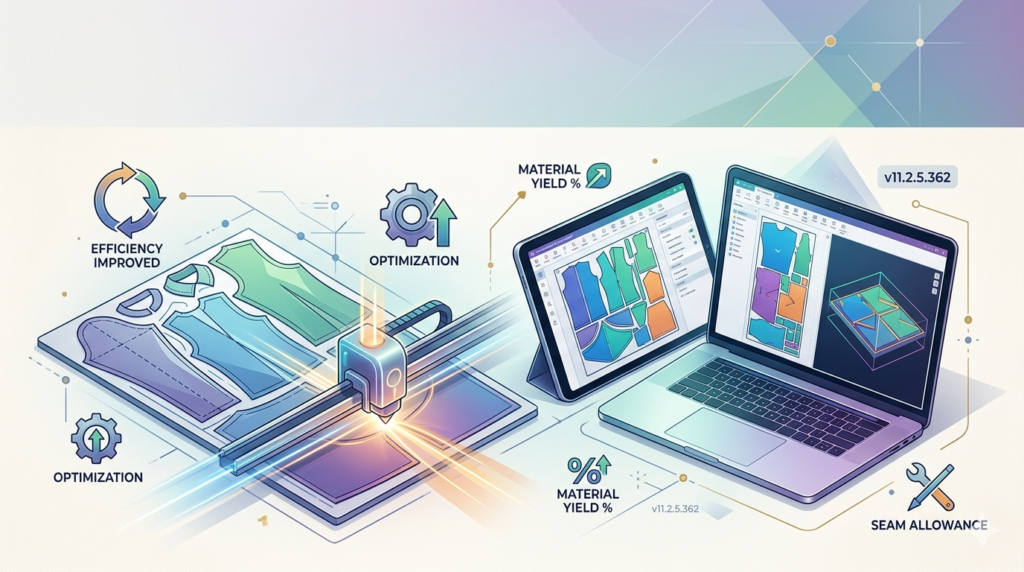
Autometrix PatternSmith is a dedicated CAD software for pattern engineering. Unlike general vector editors, PatternSmith focuses on material yield optimization and seamless integration with digital cutting tables.
Version 11.2.5.362 continues this legacy. It provides tools for creating, editing, and nesting 2D shapes to minimize waste. The software is trusted by manufacturers of technical textiles, composites, furniture, and protective covers.
This tool bridges the gap between design and manufacturing. It exports directly to Autometrix cutting machines and other CNC equipment. The software prioritizes real-world production efficiency over artistic rendering.
Key Features
This version includes several robust features that define its utility in a production environment.
Intelligent Pattern Nesting
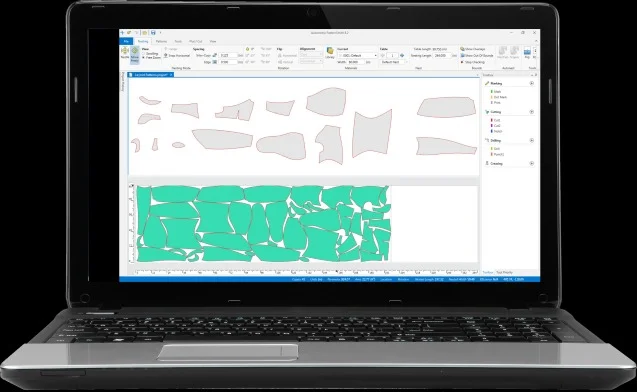
The software uses advanced algorithms to arrange shapes automatically. It maximizes fabric or material usage. This feature reduces waste by up to 15% compared to manual layouts.
Grading and Digitizing Tools
Users can import physical patterns via a digitizing tablet. The software then performs digital grading to create multiple sizes from a master pattern. This saves hours of manual resizing.
Seamless Cutting Integration
PatternSmith 11.2.5.362 connects directly with Autometrix cutting systems. It generates toolpaths and control commands without third-party converters. This reduces preparation errors.
Cut Path Editor
A dedicated editor allows users to define cutting sequences. You can specify start points, direction, and bridge cuts (leaving small uncut sections to hold pieces together).
Markup and Annotation
Add stitching lines, grain lines, notches, and drill holes. These annotations remain visible on printed or exported patterns for shop-floor use.
What’s New in the Latest Version
Version 11.2.5.362 introduces specific improvements over previous releases.
-
Improved Nesting Engine: Faster processing for complex layouts with hundreds of parts.
-
Enhanced File Compatibility: Direct import of DXF, Gerber (ZIP), and TIIP formats.
-
Updated User Interface: Cleaner tool palettes and customizable hotkeys for frequent actions.
-
Stability Fixes: Resolved a previous crash when opening large TIIP files on Windows 11.
-
Measurement Overlay Tool: A new dynamic ruler for checking distances directly on the nesting preview.
These updates make the software more reliable for daily production use.
System Requirements
Before installing Autometrix PatternSmith 11.2.5.362, ensure your workstation meets these specifications.
| Component | Minimum Requirement | Recommended Requirement |
|---|---|---|
| OS | Windows 10 Pro (64-bit) | Windows 11 Pro (64-bit) |
| CPU | Intel Core i5 (8th gen) | Intel Core i7 (12th gen) or AMD Ryzen 7 |
| RAM | 8 GB | 16 GB or more |
| Storage | 5 GB free SSD space | 10 GB free NVMe SSD |
| Graphics | DirectX 11 compatible (1GB VRAM) | Dedicated GPU with 4GB VRAM (for complex nests) |
| Display | 1920 x 1080 resolution | Dual monitors (1920 x 1080 each) |
| Optional | USB port for license dongle | Digitizing tablet support |
Compatibility note: This version does not support macOS or Linux natively.
Installation Guide
Follow these steps for a successful installation. Always use the official installer from Autometrix or an authorized distributor.
Preparation Steps
-
Uninstall any older PatternSmith version via Windows Control Panel.
-
Temporarily disable antivirus real-time scanning (re-enable after install).
-
Ensure your USB license dongle (HASP key) is inserted.
Installation Process
-
Run
PatternSmith_11.2.5.362_Setup.exeas Administrator. -
Accept the license agreement.
-
Choose the “Full Installation” option (includes all device drivers).
-
Select the destination folder (default:
C:\Program Files\Autometrix\PatternSmith). -
Click Install and wait for the driver setup to complete.
-
Restart your computer when prompted.
Post-Installation
-
Launch the software. It will detect the license dongle automatically.
-
Go to Settings > Machine Setup to configure your cutting table dimensions.
-
Run the “Test Nest” sample file to verify correct operation.
How to Use the Software
For beginners and experienced users, this workflow outlines typical usage.
Creating a New Pattern
-
Click File > New Pattern.
-
Use the Line, Arc, or Bezier tools to draw your shape.
-
Add internal cutouts or notches using the Internal Geometry tool.
-
Define material type (e.g., nylon, leather, foam) for future costing.
Digitizing a Physical Pattern
-
Connect your digitizing tablet (e.g., GTCO CalComp).
-
Select Digitize > New Session.
-
Follow the on-screen prompts to trace each piece.
-
The software saves the traced points as a digital pattern.
Running a Nesting Job
-
Assemble all pattern pieces for the job.
-
Click Nesting > Auto Nest.
-
Set parameters: material width, rotation allowance (0, 90, 180, or free), and part gap.
-
Click Start Nest. Review the proposed layout visually.
Sending to a Cutter
-
After approving the nest, click Cut > Generate Cut File.
-
Choose your cutter model (e.g., Autometrix S76 or Z1).
-
Review the cut sequence and bridge locations.
-
Click Send to Cutter via Ethernet or USB.
Best Use Cases
Industry professionals use PatternSmith for specific high-value applications.
-
Automotive Interiors: Cutting exact shapes for seat covers, headliners, and floor mats from rolled fabric.
-
Marine Upholstery: Producing weather-resistant covers for boat seats and storage bins.
-
Aerospace Composites: Nesting carbon fiber or fiberglass plies before layup and curing.
-
Sporting Goods: Manufacturing backpacks, tents, and protective padding with consistent panel shapes.
-
Industrial Tarps and Covers: Creating large-format patterns for truck tarps or construction site covers.
Advantages and Limitations
Understanding the pros and cons helps set accurate expectations.
Advantages
-
Industry-Specific: Designed for cutting optimization, not just drawing.
-
Waste Reduction: Quantifiable material savings justify the software cost.
-
Direct Machine Control: Eliminates translation errors between design and cutting.
-
Fast Learning Curve: Simple UI compared to complex 3D CAD packages.
-
Stable Output: Consistent cut files for 24/7 production environments.
Limitations
-
No True 3D Modeling: You cannot design 3D shapes or draping simulations.
-
Windows Only: No native support for macOS or Linux.
-
Hardware Dependency: Requires a USB license dongle (cannot run on virtual cloud desktops easily).
-
Price Point: Professional licensing is expensive for hobbyists.
-
Limited Rendering: Not suitable for photorealistic product visualization.
Alternatives to the Software
If Autometrix PatternSmith does not fit your workflow, consider these alternatives.
| Software | Primary Focus | Best For | Platform |
|---|---|---|---|
| Gerber AccuMark | 2D pattern design, grading, and marker making | Apparel and fashion manufacturing | Windows |
| Lectra Modaris | 2D/3D pattern making with virtual prototyping | Fashion and automotive leather | Windows |
| SolidWorks | Mechanical 3D CAD with sheet metal flat patterns | Engineering and rigid materials | Windows |
| TUKAcad | Pattern design, grading, and marker making | Cost-conscious apparel businesses | Windows |
| Inkscape with InkCut | Free vector editing with cutting plugins | Hobbyists and small workshops | Windows/Mac/Linux |
Key differentiator: PatternSmith remains superior for non-apparel technical textiles and direct Autometrix cutter integration.
Frequently Asked Questions
Q1: Is Autometrix PatternSmith 11.2.5.362 suitable for fashion design?
Yes, but it is optimized for industrial textiles. For high-fashion draping, Gerber AccuMark or Lectra Modaris may offer better 3D visualization tools.
Q2: Can I import Adobe Illustrator files into PatternSmith?
Not directly. You must save Illustrator artwork as DXF or PDF format first. Then import via File > Import.
Q3: Does this software work without an Autometrix cutting machine?
Yes. You can use PatternSmith solely for pattern design and nesting. Export results as DXF or print them on paper plotters for manual cutting.
Q4: How do I obtain a legitimate license for PatternSmith 11.2.5.362?
Contact Autometrix directly or an authorized industrial CAD distributor. Licenses typically include a USB hardware dongle and annual maintenance options.
Q5: Will PatternSmith run on a touchscreen Windows tablet?
The interface is designed for mouse and keyboard. Touch input is not officially supported and may be unreliable for precise digitizing tasks.
Q6: What file formats does the latest version export for CNC cutting?
It exports native Autometrix cut files (.amc), DXF, HPGL (.plt), and generic G-code for third-party routers.
Q7: How often does Autometrix release version updates?
Major releases occur every 12–18 months. Minor patches (like 11.2.5.x) are released for critical bug fixes and small feature enhancements.
Q8: Can multiple users access the software over a network?
Yes, with a network license. Contact Autometrix sales to configure a floating license server.
Final Thoughts
Autometrix PatternSmith 11.2.5.362 remains a specialized but powerful tool for 2D pattern nesting and cutting optimization. It excels in production environments where material waste directly impacts profitability.
The latest version improves stability on Windows 11 and speeds up nesting for complex jobs. However, it is not a general-purpose drawing tool. It serves a specific niche: industrial textile manufacturing.
If your workflow involves Autometrix cutters, technical fabrics, or high-volume pattern production, this software is a justified investment. For occasional use or purely 3D modeling, explore the listed alternatives first.
Our Paid Service
“We do not sell or provide any software. We only offer professional support services. If any software on your system is not working properly, or you are facing installation errors, crashes, or any other technical issue — just contact us. We will help you fix the problem quickly and remotely via AnyDesk. No software will be provided from our side — only expert troubleshooting and support.”