
Overview of the Software
Table of Contents
Blender 4 Dental is a third-party addon designed specifically for Blender 2.8 and above, with V5.0 optimized for Blender 4.0+. Unlike traditional dental software that locks users into rigid workflows, B4D leverages Blender’s mesh modeling flexibility to offer a highly customizable digital dentistry experience.
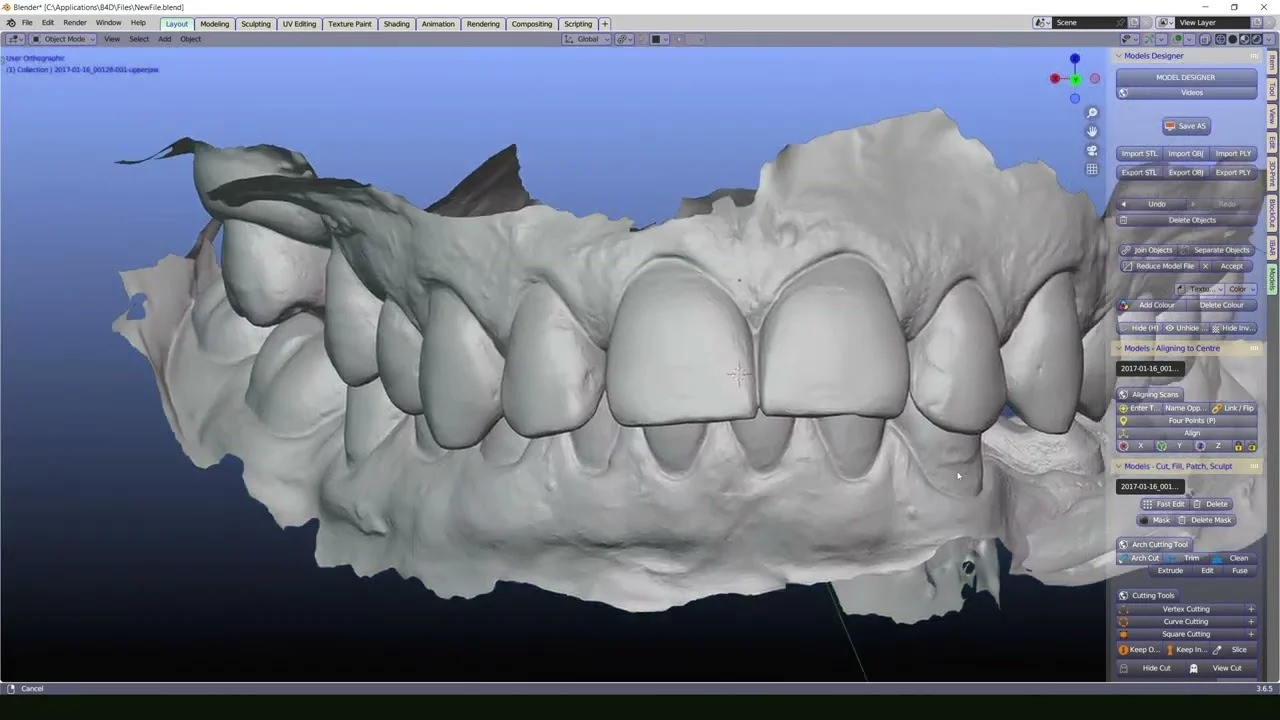
This tool bridges the gap between general 3D design and medical-specific needs. It allows users to import standard STL files from intraoral scanners (like 3Shape or Medit) and perform critical actions such as aligning arches, setting up occlusion, and generating bases for 3D printing. Because it runs inside Blender, users benefit from constant updates, a massive community support network, and zero recurring licensing fees.
Key Features of B4D V5.0
B4D V5.0 introduces a refined toolkit focused on efficiency. Below are the core modules that make this dental modeling software stand out.
1. Advanced Alignment and Articulation
-
Auto-Align Arches: Automatically aligns the maxilla and mandible scans based on bite registration.
-
Virtual Articulator: Simulates mandibular movement to check for interferences.
2. Model Preparation for 3D Printing
-
Die Creation: Quickly segment individual teeth from the master model.
-
Base Generator: Creates hollow, solid, or lattice bases optimized for additive manufacturing.
-
Pin and Hole Systems: Automatically adds indexing pins to printed models for lab work.
3. Orthodontic Tools
-
Virtual Bracketing: Place and adjust orthodontic brackets digitally.
-
Splint Designer: Generate night guards, whitening trays, or retention splints with adjustable thickness parameters.
4. Mesh Repair and Editing
-
Hole Filling: Smart algorithms to close holes in scanned data.
-
Smoothing and Reduction: Clean up noisy STL meshes without losing anatomical detail.
What’s New in Blender 4 Dental V5.0
Version 5.0 is a major leap forward. The developer has moved away from legacy code to a Geometry Nodes workflow, significantly improving speed.
-
Blender 4.0+ Compatibility: Full support for Blender’s new UI and rendering engines (Cycles X and EEVEE Next).
-
One-Click Printing Base: A revamped algorithm now creates printer-ready bases with optimized drainage holes in under five seconds.
-
Implant Library: A new built-in library containing digital analogs for popular implant systems (Straumann, Nobel Biocare, Zimmer).
-
Measurement Tool: A native ruler tool now provides millimeter-accurate distance checks between teeth and appliances.
System Requirements
Because B4D relies on Blender, the system requirements are modest but benefit from strong single-core performance.
-
Operating System: Windows 10/11, macOS 11.0+, or Linux (Ubuntu 20.04+).
-
Processor (CPU): Intel Core i5 (8th gen) or AMD Ryzen 5. Recommended: Core i7 or Ryzen 7 for complex occlusion setups.
-
Graphics Card (GPU): GPU with 2GB VRAM supporting OpenGL 4.3. Recommended: 4GB+ for rendering 3D printed models.
-
RAM: 8GB minimum; 16GB+ recommended when working with high-resolution intraoral scans.
-
Disk Space: 1GB for the addon (plus Blender installation).
Installation Guide for B4D V5.0
Installing this Blender addon for dentists is straightforward. You do not need admin rights if Blender is installed locally.
-
Download Blender 4.0+: Visit the official Blender foundation website and install the latest stable version.
-
Purchase/Download B4D: Obtain the
Blender4Dental_V5_0.zipfile from the official B4D store (Do not unzip the folder). -
Open Blender Preferences: Go to
Edit > Preferences > Add-ons. -
Install via Disk: Click
Install..., navigate to your.zipfile, and selectInstall Add-on. -
Activate: Search for “Blender 4 Dental” in the preferences search bar and check the box to enable it.
-
Access the Workspace: Change your workspace from “Layout” to “B4D” to view the dental toolbar.
How to Use the Software: A Basic Workflow
For a new user, the transition from generic 3D software to dental CAD can be intimidating. Here is a standard workflow to prepare a model for 3D printing.
Step 1: Import the Scan
Use File > Import > STL to load your upper, lower, and bite scan.
Step 2: Align Models
Select all three objects. Navigate to the B4D tab > Alignment. Click Auto Align Arches. The AI will match the bite to the upper and lower scans.
Step 3: Trim the Model
Use the Cut Plane tool to remove excess tissue or baseplate wax from the scan, leaving only the teeth and immediate gingiva.
Step 4: Generate the Base
Go to Print Prep > Generate Base. Set your:
-
Base Height: 3mm (Standard)
-
Base Thickness: 1.5mm
-
Drainage Holes: 2mm diameter
ClickApply. The software automatically attaches a hollow base.
Step 5: Export for Printing
Select the final model and base. Export as Binary STL and send it to your slicer software (Chitubox, Lychee, or PrusaSlicer).
Best Use Cases for Blender 4 Dental
While B4D is versatile, it excels in specific niches of the dental industry.
-
Solo Dental Laboratories: Small labs that want to avoid monthly subscriptions for dental design software.
-
Orthodontic Research: Universities teaching 3D modeling without licensing barriers.
-
3D Printing Hobbyists: Users with resin printers who want to print their own models, retainers, or study casts at home.
-
Rapid Prototyping: Clinicians needing to quickly modify a surgical guide or diagnostic wax-up without waiting for a milling center.
Advantages and Limitations
Understanding the balance of power versus complexity is key to using B4D effectively.
Advantages (Pros)
-
Cost Effective: The addon costs a one-time fee. Blender itself is free.
-
No Vendor Lock-in: You own your files fully. No proprietary formats.
-
Unlimited Editing: You are not limited to “wizards.” You can manually edit every vertex if needed.
-
Cross-Platform: Works identically on Windows, Mac, and Linux.
Limitations (Cons)
-
Steep Learning Curve: Users must understand basic Blender navigation (selecting, rotating, zooming) before learning dental tools.
-
No Integrated Scanner: B4D is pure software; it does not include scanning hardware.
-
Manual Updates: You must manage Blender and Addon updates separately (no auto-updater).
-
Community Support Only: Unlike 3Shape, there is no official phone support line.
Alternatives to Blender 4 Dental
If B4D does not fit your workflow, consider these alternatives. They range from free to enterprise-level.
| Software | Price Model | Best For | Compatibility |
|---|---|---|---|
| Meshmixer | Free | General mesh repair & hollowing | Windows/Mac |
| Meshlab | Free (Open Source) | Processing huge raw scans | Windows/Mac/Linux |
| Exocad | Paid (Per module) | Professional Crown & Bridge design | Windows |
| 3Shape Dental System | Paid (Subscription) | Full lab integration & milling | Windows |
| Blender (Stock) | Free | Manual modeling without B4D automation | Windows/Mac/Linux |
Note on Stock Blender: You can perform dental modeling in pure Blender, but it requires 10–20x more manual steps compared to using the B4D addon.
Frequently Asked Questions (FAQ)
Q1: Is Blender 4 Dental compatible with files from my intraoral scanner?
Yes. B4D natively reads STL and OBJ file formats. If your scanner (iTero, TRIOS, Emerald) exports these standard formats, they will work.
Q2: Can I design crowns or bridges using B4D V5.0?
B4D focuses on model preparation, splitting, and splint design. For biological tooth design (anatomical crowns), you may need a dedicated restoration module or manual sculpting in Blender. It is not a replacement for Exocad for full prosthetic design.
Q3: Do I need a high-end workstation to run B4D?
No. A standard laptop with an Intel i5 and integrated graphics will run basic alignment and base generation. However, for smoothing high-poly scans (2M+ polygons), a dedicated GPU is recommended.
Q4: Is there a free trial available for the software?
The developer typically offers a limited-feature demo version or a 30-day money-back guarantee. Check the official B4D Gumroad or website for current trial policies.
Q5: Can I use B4D to create surgical guides for implants?
Yes, to an extent. You can design a guide base and position sleeves manually. However, for FDA-approved clinical implant guide workflows, dedicated medical software (like BlueSky Plan or coDiagnostiX) is usually required.
Q6: How does B4D handle 3D printing supports?
B4D prepares the model (hollowing, holes, tags). You will still need to use a slicer (like Lychee or Chitubox) to generate the actual physical support structures for resin printing.
Q7: Is Blender 4 Dental legal to use for commercial labs?
Absolutely. It is a licensed software addon. There is no legal restriction on using open-source tools for commercial medical device design, provided the final output meets local medical device regulations.
Final Thoughts
Blender 4 Dental V5.0 represents a paradigm shift in digital dentistry. It democratizes access to high-quality 3D dental modeling by removing the barrier of high-cost subscriptions.
While it requires patience to learn the Blender interface, the return on investment is unmatched. For the budget-conscious lab technician, the orthodontic resident, or the 3D printing enthusiast, B4D offers professional-grade model preparation tools that rival legacy systems. If you are willing to watch a few tutorials and experiment, this tool will pay for itself on your first print.
Our Paid Service
“We do not sell or provide any software. We only offer professional support services. If any software on your system is not working properly, or you are facing installation errors, crashes, or any other technical issue — just contact us. We will help you fix the problem quickly and remotely via AnyDesk. No software will be provided from our side — only expert troubleshooting and support.”