
Overview of the Software
Table of Contents
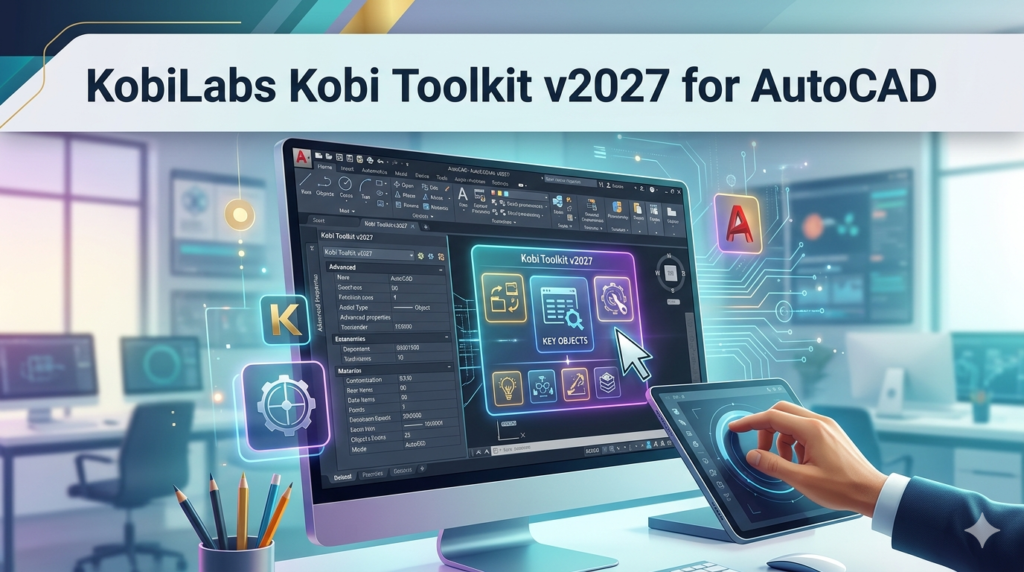
Kobi Toolkit is a specialized add-on suite developed for AutoCAD and BricsCAD. Unlike standalone BIM (Building Information Modeling) software like Revit or Archicad, the Toolkit operates within your existing CAD environment to automate tedious drafting tasks . It is engineered specifically to help architects, interior designers, and engineers eliminate hours of manual cleanup work.
The v2027 version focuses heavily on intelligent automation, shifting from simple macro recording to context-aware object manipulation. Whether you are working on floor plans, sections, or elevations, the Toolkit serves as a productivity co-pilot, allowing professionals to focus on design intent rather than mechanical repetition.
Key Features of Kobi Toolkit v2027
The Toolkit is packed with utilities, but the core strength lies in its ability to standardize and accelerate drawing management. Here are the standout capabilities:
-
Smart Object Selection & Counting: Automatically count and select blocks (e.g., doors, windows, fixtures) based on attribute properties. The v2027 update includes “Fuzzy Logic Matching” for blocks that have similar geometry but different names.
-
Automated Property Management: Batch-edit property set definitions and dynamic block parameters without exploding the objects.
-
Layer Management Tools: Instantly isolate, change, or purge layers based on drawing standards. Includes a “Layer State Saver” that integrates with sheet sets.
-
Advanced Text & Attribute Editing: Find and replace multi-line text (MTEXT) attributes across multiple layouts simultaneously.
-
PDF to DWG Cleanup Suite: Tools specifically designed to clean up imported geometry from PDF files, converting broken polylines into continuous, usable AutoCAD objects.
What’s New in Kobi Toolkit v2027
The v2027 release marks a significant leap from previous versions. While legacy versions focused on individual commands, v2027 introduces contextual workflow ribbons that change based on whether you are in model space or a paper space layout.
Key Updates:
-
AI-Assisted Block Replacement: Suggests replacement blocks based on visual similarity to update old drawing symbols to new standards instantly.
-
Cloud Integration Support: Enhanced compatibility with cloud storage synchronization, preventing file corruption during automatic saves.
-
Dark Mode UI Optimization: The toolkit interface has been fully optimized for AutoCAD’s dark theme, reducing eye strain during long drafting sessions.
-
Performance Boost: KobiLabs reports a 40% faster execution time for batch operations compared to the v2026 iteration.
System Requirements
To ensure stable performance of Kobi Toolkit v2027, your workstation must meet the following criteria. Note that the Toolkit relies heavily on the base CAD engine; faster processors yield better results during batch processing.
Supported Platforms:
-
AutoCAD 2021 through 2027
-
BricsCAD V22 through V24
-
Operating System: Windows 10 (64-bit) or Windows 11
Hardware Minimums:
-
CPU: 2.5 GHz (3.0 GHz or higher recommended)
-
RAM: 8 GB (16 GB recommended for large project batches)
-
Disk Space: 500 MB for installation files (plus temporary space for batch logs)
Installation Guide
Installing Kobi Toolkit is straightforward, but specific steps ensure it loads correctly into your CAD environment.
-
Download the Installer: Obtain the official
KobiToolkit_v2027.msifrom the KobiLabs portal. -
Close AutoCAD: Ensure all instances of AutoCAD and BricsCAD are closed to prevent file locking issues.
-
Run as Administrator: Right-click the installer and select “Run as Administrator.” This is crucial for writing permissions to the CAD registry.
-
Follow the Wizard: Accept the license agreement and choose the “Typical” installation unless custom folder paths are required.
-
Launch AutoCAD: Open your CAD software. The “Kobi Toolkit” ribbon tab should appear at the top. If not, type
NETLOADand manually load the.dllfile from the installation directory.
How to Use the Software for Maximum Efficiency
To get the most out of v2027, users must move beyond single-use commands. Here is how to integrate the Toolkit into a professional workflow:
The “Clean & Prep” Workflow
When receiving external drawings (e.g., from consultants), use the Drawing Purge & Audit tool. It removes anonymous blocks and resolves nested object errors in bulk—a process that usually takes hours manually .
The “Tag & Count” Workflow
-
Step 1: Use
Kobi Countto generate a table of all blocks in the drawing. -
Step 2: Use
Kobi Renameto standardize block naming conventions. -
Step 3: Use the Attribute Exporter to push this data directly into an Excel spreadsheet for door or window schedules.
Best Use Cases
The Kobi Toolkit is not a one-size-fits-all solution; it excels in specific scenarios where repetition is high.
-
Interior Fit-Outs: Quickly counting light fixtures, furniture blocks, and power outlets across 20+ floor plans.
-
Facility Management (FM): Using the property manager to assign asset tags to thousands of identical blocks.
-
Drawing Audits: Architects reviewing structural or MEP (Mechanical, Electrical, Plumbing) background drawings can strip out unwanted linetypes and fonts without touching the base geometry .
-
Legacy Drawing Conversion: Upgrading old CAD files (from versions like 2010) to modern dynamic blocks.
Advantages and Limitations
While the Toolkit is a powerhouse, it is important to weigh its pros and cons compared to full-scale BIM software.
Advantages (Pros)
-
Massive Time Savings: Reduces hours of manual counting and layer toggling to seconds.
-
Low Learning Curve: If you know AutoCAD, you know the Toolkit. It uses native CAD commands.
-
Affordable Pricing: At approximately $195.00/year, it is significantly cheaper than switching to a whole new platform like Archicad or upgrading to a high-tier Revit license .
-
BricsCAD Compatibility: Offers a robust solution for teams moving away from Autodesk subscription models .
Limitations (Cons)
-
Not a BIM Solution: The Toolkit does not add BIM intelligence (like Revit). It organizes geometry, not building data.
-
Windows Only: Currently, there is no native support for AutoCAD for Mac.
-
No Free Version: Unlike some competitors like DesignSpark Mechanical, the Toolkit requires a paid license after the trial period .
Alternatives to Kobi Toolkit
Depending on your budget and needs, several alternatives exist. However, most serve different purposes.
| Software | Best For | Pricing (Annual) | Key Difference from Kobi |
|---|---|---|---|
| AutoCAD Native (LT) | Basic Drafting | $235+ | No automation tools; manual processes only. |
| AutoCAD Architecture | Architectural Design | $235+ | Includes wall/doors objects but lacks bulk editing tools. |
| Revit | BIM & Collaboration | $335+ | Full 3D parametric modeling, not a 2D drafting helper. |
| BricsCAD (with BIM) | CAD & BIM Hybrid | $590+ | Kobi can be added to BricsCAD for extra utility. |
| CorelCAD | 2D/3D Modeling | $707 (One-time) | A standalone alternative, not an enhancement plugin. |
If you require parametric 3D modeling or structural analysis, Revit or Archicad are necessary . However, if you love the feel of native .dwg files but hate the slow manual processes, Kobi Toolkit remains the market leader in the plugin space.
Frequently Asked Questions (FAQ)
Q1: Is Kobi Toolkit compatible with the latest Windows 11 update?
A: Yes. v2027 has been fully regression-tested on Windows 11 (22H2 and 23H2) and Windows 10 64-bit.
Q2: Can I use this Toolkit on a network license?
A: Yes, KobiLabs supports network floating licenses for enterprises, allowing multiple users to access the toolkit from a shared server, though the standard license is machine-locked.
Q3: Does it work with AutoCAD LT?
A: No. Kobi Toolkit requires full AutoCAD or BricsCAD Pro. AutoCAD LT does not support the .NET framework or ARX applications required for the Toolkit to run.
Q4: Is there a free trial available?
A: Yes, KobiLabs typically offers a 30-day fully functional trial. This allows users to test the batch processing speeds on their actual project files before purchasing a subscription .
Q5: I have a drawing from 2008. Will this handle legacy entities?
A: Yes. One of the primary strengths of the Toolkit is its ability to read legacy proxy objects and explode or convert them into standard AutoCAD 2027 geometry.
Q6: What is the difference between the Toolkit and AutoCAD’s native “Quick Select”?
A: Quick Select is limited to simple filters (e.g., color or layer). The Toolkit uses block attribute logic—for example, selecting all “Doors” that are “Fire-Rated” and have a width greater than “900mm” in one click.
Final Thoughts
Kobi Toolkit for AutoCAD v2027 does not try to reinvent the wheel; it simply sharpens it. In an industry where margins are tight and deadlines are shorter, spending $195/year to save hundreds of hours of manual drafting is a no-brainer for small to medium-sized architectural firms.
While it cannot replace BIM software for clash detection, it is arguably the most essential plugin for anyone who lives inside .dwg files daily. The new v2027 updates make it faster, more stable, and easier on the eyes.
Ready to streamline your drafting process? Download the v2027 trial from the official KobiLabs website and test the batch attribute editor on your most complex file today.
Our Paid Service
“We do not sell or provide any software. We only offer professional support services. If any software on your system is not working properly, or you are facing installation errors, crashes, or any other technical issue — just contact us. We will help you fix the problem quickly and remotely via AnyDesk. No software will be provided from our side — only expert troubleshooting and support.”