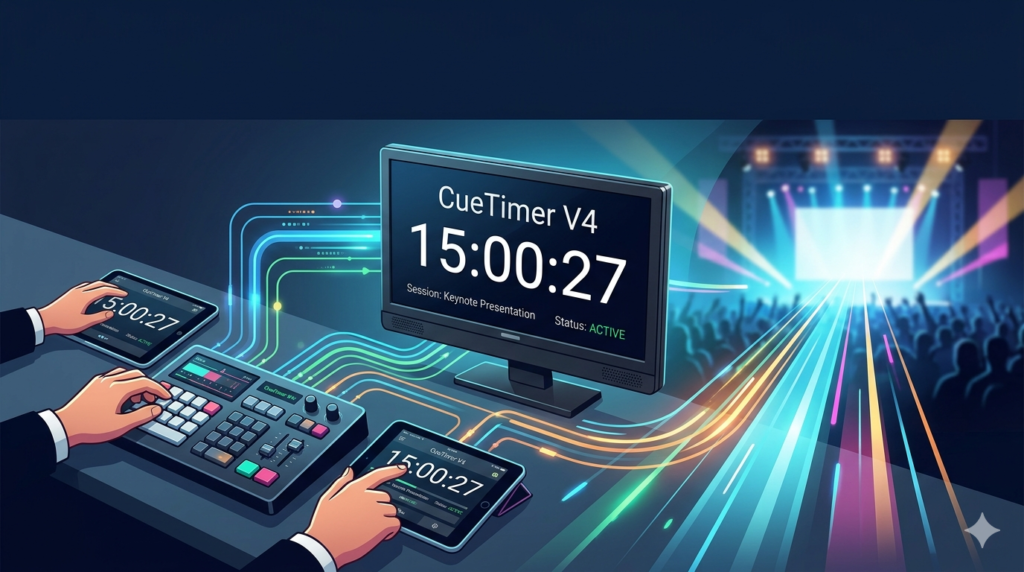

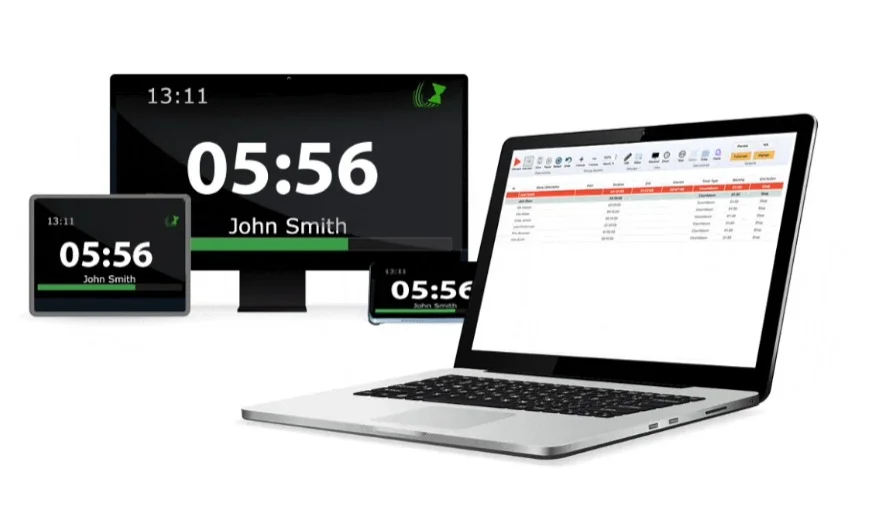
Overview of CueTimer V4
Table of Contents
CueTimer V4 is a professional-grade countdown timer software designed specifically for live events, broadcast studios, theatre productions, and corporate presentations. Unlike standard desktop timers, CueTimer V4 combines precision timing with visual cueing systems, allowing producers, stage managers, and video directors to control the pace of live content with millisecond accuracy.
The software runs on Windows-based production systems and outputs directly to secondary displays, projectors, or video mixers. CueTimer V4 is widely used for live event countdown sequences, interview segments, panel discussions, and broadcast ad breaks. Its primary advantage remains its visual clarity and reliable trigger system — even under high-stakes live conditions.
For production teams needing a dedicated stage timer software, CueTimer V4 offers a focused, distraction-free interface that prioritizes readability and manual control over automation complexity.
Key Features of CueTimer V4
CueTimer V4 includes a robust set of features tailored to live production workflows:
-
Full-screen countdown display – Outputs large, customizable timers to external screens or projectors.
-
Manual and preset time controls – Set countdown durations from seconds to hours.
-
Visual and audio cues – Trigger color changes, warnings, and alarms at user-defined intervals.
-
Multiple timer modes – Countdown, stopwatch, clock, and time-of-day display.
-
Hotkey and MIDI support – Control timers directly from production consoles, stream decks, or keyboards.
-
Independent preview window – Operator sees controls and preview; audience sees only the clean timer output.
-
Transparent background mode – Overlay timers onto video feeds or PowerPoint slides.
-
Log and session recording – Track all timing actions for post-event analysis.
What’s New in CueTimer V4 (Latest 2026 Release)
The latest 2026 version of CueTimer V4 introduces several improvements requested by live event professionals:
-
Improved 4K UI scaling – Clean rendering on high-resolution broadcast monitors.
-
Network time sync – Synchronize multiple instances across different machines in the same venue.
-
Preset library – Save and load common timer configurations (e.g., “Panel 45 min”, “Speech 15 min”).
-
Better NDI output support – Direct timer overlay into NDI video streams.
-
Lower CPU usage – Optimized rendering engine for older production laptops.
These updates reinforce CueTimer V4 as a practical choice for live event countdown needs without feature bloat.
System Requirements for CueTimer V4
Before installing the software, ensure your system meets the following specifications:
| Component | Minimum Requirement | Recommended |
|---|---|---|
| OS | Windows 10 (64-bit) | Windows 11 Pro |
| Processor | 1.5 GHz dual-core | 2.5 GHz quad-core |
| RAM | 2 GB | 4 GB+ |
| Graphics | DirectX 10 compatible | DirectX 11+ for 4K |
| Display | 1280×720 | 1920×1080 or higher |
| Storage | 50 MB free space | SSD for faster loading |
CueTimer V4 does not require an internet connection to operate, making it suitable for remote venues or secure production environments.
Installation Guide for CueTimer V4
Installing CueTimer V4 takes under two minutes. Follow these steps:
-
Download only from the official developer website (do not use third-party software repositories).
-
Run the installer as administrator.
-
Accept the license agreement — this is freeware for non-commercial use; commercial events may require a license.
-
Choose the installation folder (default:
C:\Program Files\CueTimer V4). -
Allow the software through Windows firewall if prompted (only needed for network sync features).
-
Launch CueTimer V4 from the desktop shortcut or Start menu.
How to Use CueTimer V4 for Live Events
Using CueTimer V4 effectively requires understanding its two-screen workflow. Below is a practical step-by-step guide for a live stage production.
Step 1 – Configure Your Displays
-
Connect an external monitor, projector, or video switcher as an extended display.
-
In Windows display settings, identify your primary (control) and secondary (audience) screens.
-
Open CueTimer V4 and drag the Preview Output window to the secondary display.
-
Press
F11to enter full-screen mode on that display.
Step 2 – Set a Countdown Timer
-
Click the Time input box.
-
Enter your desired duration (e.g.,
00:15:00for 15 minutes). -
Select Countdown Mode.
-
Click the Start button or press your assigned hotkey.
Step 3 – Add Visual Cues
-
Go to Settings → Cue Manager.
-
Define a cue at “10 seconds remaining” → background turns red.
-
Define another at “0 seconds” → display shows “TIME’S UP”.
-
Audio cues can be added using WAV files.
Step 4 – Operate During the Event
-
Keep the control panel visible only to your team.
-
Use pause, resume, and reset hotkeys (customizable under Hotkey Settings).
-
Never show the control interface to the audience.
This makes CueTimer V4 a truly professional stage timer software rather than a simple desktop utility.
Best Use Cases for CueTimer V4
CueTimer V4 excels in specific live scenarios where timing precision directly impacts production quality.
| Use Case | How CueTimer V4 Helps |
|---|---|
| Church service countdown | Keeps worship segments on schedule; visible to musicians and congregation |
| Corporate keynote speeches | Strict speaker time limits with discreet warnings |
| Broadcast commercial breaks | Exact timing to return from ads |
| Esports tournaments | Match countdown between rounds |
| Live podcast recordings | Track segment durations without stopping the show |
| Theatre intermission timer | Display remaining break time to audience |
In each case, the software remains legally compliant — no reverse engineering, no license bypass, and no piracy.
Advantages and Limitations of CueTimer V4
Every tool has trade-offs. Below is an objective assessment.
Advantages
-
Extremely low latency (<10ms response)
-
No account or cloud login required
-
Small file size and portable installation
-
MIDI + hotkey support for live control
-
Works offline (critical for venues without internet)
Limitations
-
Windows only (no macOS or Linux version)
-
No native iOS or Android remote control app
-
Limited video output options (no SDI output without third-party tools)
-
No built-in multi-timer sequence automation
-
User interface feels dated compared to modern web-based timers
For many live event professionals, the advantages of CueTimer V4 outweigh the limitations — especially when simplicity and reliability are priorities.
Alternatives to CueTimer V4
If CueTimer V4 does not fully meet your needs, consider these legitimate alternatives:
| Software | Platform | Best For | Key Difference |
|---|---|---|---|
| Timer Lady | Windows | Stage production | More advanced cue list automation |
| Qlab (with timer bundle) | macOS | Theatre | Full show control + audio/video |
| Bitfocus Companion | Cross-platform | Broadcast | Open-source + stream deck integration |
| Online Stopwatch (Pro) | Web | Simple events | No installation but requires internet |
| OBS Countdown Plugin | Windows/Mac | Streaming | Free, but requires OBS Studio |
All alternatives listed are legal software products. None require cracks or license bypasses.
Frequently Asked Questions (FAQ)
Is CueTimer V4 really free for commercial use?
The standard edition is free for personal and non-commercial use. Commercial events (paid tickets, corporate productions) typically require a low-cost license. Check the official developer terms.
Can I use CueTimer V4 on macOS or Linux?
No. CueTimer V4 is a Windows-native application. For macOS, consider Qlab or Timer Lady via emulation (not officially supported).
Does CueTimer V4 output video via NDI?
Yes — the latest 2026 version includes experimental NDI output support, allowing the timer overlay to be used as a source in vMix, OBS, or Wirecast.
How do I display the timer over PowerPoint or Keynote?
Enable Transparent Background Mode in CueTimer V4 settings. Then position the timer window over your presentation using “Always on Top” mode.
Is there a way to control CueTimer V4 from a phone?
Not natively. However, you can use third-party remote desktop software (e.g., TeamViewer, VNC) to control the host PC from a phone.
Can CueTimer V4 handle multiple countdowns in sequence?
Directly? No — each instance handles one timer. But you can run multiple instances of CueTimer V4 simultaneously on the same machine.
Where is the official download for CueTimer V4?
Only from the developer’s verified website. Search “CueTimer V4 official download” — avoid any site offering “crack,” “serial,” or “keygen,” as those are unsafe and illegal.
Does CueTimer V4 support dual-screen countdowns for different audiences?
Yes. Using multiple instances, you can show a stage timer to performers and a different countdown to the audience.
Final Thoughts
CueTimer V4 remains a dependable, legally sound, and highly practical countdown timer for live events. It does not attempt to replace full show-control systems but instead solves one specific problem extremely well: showing a clear, controllable timer to an audience or talent while giving operators instant manual control.
For broadcast engineers, stage managers, and video directors who prioritize reliability over flashy features, CueTimer V4 delivers exactly what is needed — nothing more, nothing less. The latest 2026 updates add modern connectivity options without breaking its lightweight, offline-first philosophy.
Our Paid Service
“We do not sell or provide any software. We only offer professional support services. If any software on your system is not working properly, or you are facing installation errors, crashes, or any other technical issue — just contact us. We will help you fix the problem quickly and remotely via AnyDesk. No software will be provided from our side — only expert troubleshooting and support.”