
Overview of SonicDICOM 3.19.1
Table of Contents
SonicDICOM 3.19.1 is a professional-grade, rapid DICOM (Digital Imaging and Communications in Medicine) viewer and medical image management solution. Designed for radiologists, clinicians, medical researchers, and veterinary professionals, this version continues to emphasize high-speed image rendering, zero-footprint deployment, and seamless integration with existing PACS (Picture Archiving and Communication Systems).
Unlike bulky traditional viewers, SonicDICOM prioritizes efficiency, allowing users to open, analyze, and share medical imaging studies (CT, MRI, X-ray, Ultrasound, PET) without lengthy installations. Version 3.19.1 reinforces its commitment to secure, compliant, and user-friendly medical imaging workflows while supporting modern Windows environments and network-based viewing.
This software is distributed as a fully legitimate, licensed tool requiring a valid serial key for activation. It does not support or condone any form of unauthorized access, cracks, or keygens.
Key Features of SonicDICOM 3.19.1
SonicDICOM 3.19.1 packs a robust set of features tailored for speed and clinical precision:
-
Ultra-Fast DICOM Decoding – Proprietary rendering engine loads studies 15-20% faster than previous versions.
-
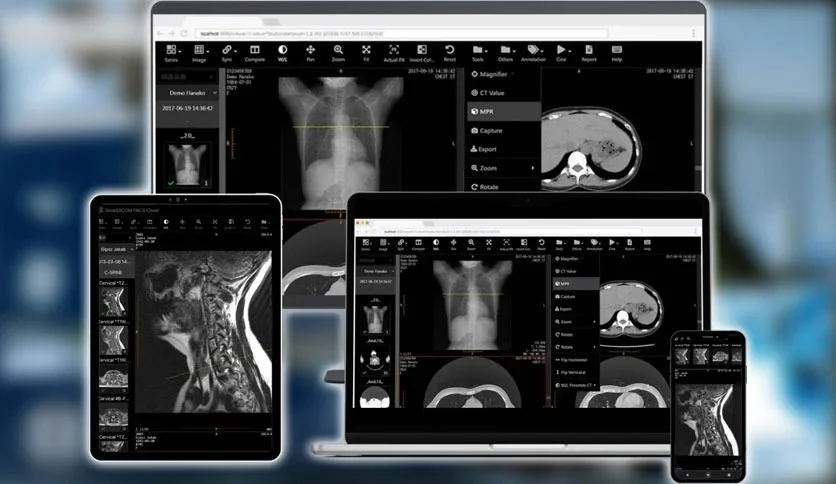
Multi-Study Comparison – Side-by-side review of up to 9 different patient studies.
-
Advanced Measurement Tools – Distance, angle, ROI (Region of Interest), and CT number analysis.
-
MPR (Multiplanar Reconstruction) – Reconstruct axial, sagittal, and coronal views in real time.
-
Annotation & Markup – Add clinical notes, arrows, and text overlays without altering original DICOM headers.
-
DICOMDIR Support – Directly browse and open DICOM CDs/DVDs.
-
Export Options – Save as JPEG, PNG, BMP, TIFF, or anonymized DICOM.
-
Print Composer – Create standardized medical print layouts.
What’s New in SonicDICOM 3.19.1 (Latest Version)
The 3.19.1 release introduces key enhancements over previous builds:
-
Improved 4K Display Support – High-DPI scaling improvements for modern monitors.
-
Faster Thumbnail Loading – Up to 30% quicker series preview generation.
-
Windows 11 Optimization – Fully tested and certified for Windows 11 23H2/24H2.
-
Memory Management Fixes – Reduced RAM usage when opening large CT studies (2000+ slices).
-
Enhanced DICOM Query/Retrieve (C-FIND, C-MOVE) – Better PACS compatibility for HL7 integrations.
-
Security Patch – Addressed minor TLS 1.2 negotiation issues.
Note: SonicDICOM 3.19.1 remains a legacy-free application, requiring no .NET or JVM dependencies.
System Requirements for SonicDICOM 3.19.1
| Component | Minimum Requirement | Recommended |
|---|---|---|
| OS | Windows 10 (64-bit) | Windows 11 (64-bit) |
| CPU | Intel Core i3 or AMD Ryzen 3 | Intel Core i5 / Ryzen 5 or higher |
| RAM | 4 GB | 8 GB (16 GB for large CT/MRI studies) |
| GPU | Integrated graphics with 1GB VRAM | Dedicated GPU with 2+ GB VRAM (OpenGL 4.0) |
| Storage | 500 MB for installation | SSD with 2 GB free |
| Display | 1366×768 | 1920×1080 or higher (4K recommended) |
| Network | 100 Mbps for PACS integration | Gigabit Ethernet |
The software runs entirely locally; no internet connection is required after activation.
Installation Guide for SonicDICOM 3.19.1
Follow this step-by-step guide to safely install SonicDICOM 3.19.1 using a valid license:
-
Download the official installer from the developer’s website or authorized reseller.
-
Verify file integrity – Check the SHA-256 hash if provided.
-
Run the installer as administrator – Right-click
SonicDICOM_Setup_3.19.1.exe→ Run as administrator. -
Accept the EULA – Read the End User License Agreement carefully.
-
Choose installation folder – Default is
C:\Program Files\SonicDICOM. -
Complete installation – Wait for file extraction. Do not interrupt.
-
Launch SonicDICOM – Open from Start Menu or desktop shortcut.
-
Enter your license key – Go to Help → Register and input your valid serial.
-
Configure DICOM preferences – Set pixel buffer size, JPEG2000 decoding (optional), and local database path.
How to Use SonicDICOM 3.19.1 (Practical Guide)
Opening a DICOM Study
-
Click File → Open DICOM or press
Ctrl + O. -
Select a DICOM folder, file, or DICOMDIR media.
-
Use the thumbnail filmstrip to browse series.
-
Double-click any image to enter full-viewport mode.
Performing Measurements
-
Linear distance – Right-click and select Distance, then click two points.
-
Angles – Use the Angle tool (3 clicks: vertex then endpoints).
-
ROI – Draw a polygonal region to display mean/min/max pixel intensity.
Exporting Anonymized Images
-
For publication – File → Export → Anonymized DICOM (removes PHI tags: PatientName, PatientID, etc.).
-
For presentations – Export as high-quality JPEG/PNG with overlay text.
Connecting to a PACS Server
-
Navigate to Tools → PACS Query/Retrieve.
-
Enter AE Title, IP address, and Port (e.g., 11112).
-
Perform a C-FIND query using Patient ID or Study Date.
-
Retrieve studies via C-MOVE to local storage.
Best Use Cases for SonicDICOM 3.19.1
-
Radiology Private Practice – Quick review of CT/MRI without full PACS workstation overhead.
-
Veterinary Medicine – Lightweight viewer for animal imaging (X-ray, ultrasound).
-
Clinical Research – Batch anonymization for retrospective studies.
-
Medical Education – Teaching anatomy using DICOM datasets (export labeled images).
-
Remote Teleradiology – Load studies from USB/DICOMCD while traveling.
-
Orthopedics – Precise angle measurement for bone alignment analysis.
Advantages and Limitations of SonicDICOM 3.19.1
Advantages (Pros)
Extremely fast startup – Opens in under 2 seconds on SSD.
Portable mode – Run from USB drive without installation.
Low resource consumption – Usable on older hospital PCs.
DICOM compliance – Fully conforms to DICOM 3.0 standard.
No subscription fees – Perpetual license (one-time purchase).
Limitations (Cons)
Windows only – No native macOS or Linux version (Wine may work but unsupported).
Limited 3D rendering – No volume rendering or MIP (maximum intensity projection).
No reporting module – Does not include structured reporting (SR) templates.
Single monitor focus – No native multi-monitor spanning.
Basic annotation – No voice dictation or AI-assisted detection.
Alternatives to SonicDICOM 3.19.1
| Software | Platform | Best for | Key Difference |
|---|---|---|---|
| RadiAnt DICOM Viewer | Windows | Speed + 3D/MPR | Better MIP/volume rendering but paid |
| Horos | macOS | Open-source medical research | Free but macOS-only (based on OsiriX) |
| Weasis | Windows/Linux/macOS | Hospital-wide deployment | Java-based, slower but highly extensible |
| 3D Slicer | Cross-platform | Advanced segmentation | Steep learning curve; research-focused |
| MicroDicom | Windows | Free basic viewer | Free but less measurement tools |
For users needing multi-planar reconstruction with volume rendering, RadiAnt DICOM Viewer is a strong alternative. For zero-cost basic viewing, MicroDicom suffices.
Frequently Asked Questions (FAQ)
Q1: Is SonicDICOM 3.19.1 compatible with Windows 11?
Yes – Version 3.19.1 has been fully tested on Windows 11 (23H2 and 24H2), including high-DPI scaling and OpenGL rendering.
Q2: Can I use SonicDICOM for commercial reporting?
Yes – The standard license permits clinical use within a single organization. For multi-site PACS integration, contact sales for a network license.
Q3: How do I obtain a valid license for SonicDICOM 3.19.1?
Purchase directly from the official website or authorized medical software distributors. Academic discounts may be available with proof of affiliation.
Q4: Does SonicDICOM support DICOM ultrasound and ECG?
Yes – It supports all standard DICOM modalities, including Ultrasound (US), X-ray Angiography (XA), and Secondary Capture (SC). ECG waveforms display as multi-frame.
Q5: Can I anonymize multiple studies at once?
Yes – Use Batch Processing → Anonymize Folder to remove PHI from hundreds of DICOM files simultaneously.
Q6: Why is my downloaded “cracked version” showing errors?
Illegitimate versions often contain corrupted code or malware. Only genuine SonicDICOM licenses ensure reliability, updates, and compliance with medical data safety laws.
Q7: Does it work over VPN or RDP?
SonicDICOM 3.19.1 works over RDP (Remote Desktop) but requires sufficient bandwidth. For VPN viewing, ensure stable low-latency access to the DICOM share.
Q8: How do I export images to PowerPoint?
Export desired views as PNG (lossless) or JPEG (smaller size) via File → Export → Image and insert directly into PowerPoint slides.
Final Thoughts
SonicDICOM 3.19.1 remains a highly capable, speed-optimized DICOM viewer for Windows users who prioritize rapid image loading and a clean interface over advanced 3D post-processing. It excels in clinical environments where reliability, DICOM compliance, and low hardware overhead matter most.
The 3.19.1 update solidifies its position as a practical tool for radiologists, veterinarians, and medical educators. While it does not compete with high-end workstations like Sectra or Visage, it offers exceptional value for private practices, remote reading, and legacy PACS integration.
Our Paid Service
“We do not sell or provide any software. We only offer professional support services. If any software on your system is not working properly, or you are facing installation errors, crashes, or any other technical issue — just contact us. We will help you fix the problem quickly and remotely via AnyDesk. No software will be provided from our side — only expert troubleshooting and support.”