
Overview of the Software
Table of Contents
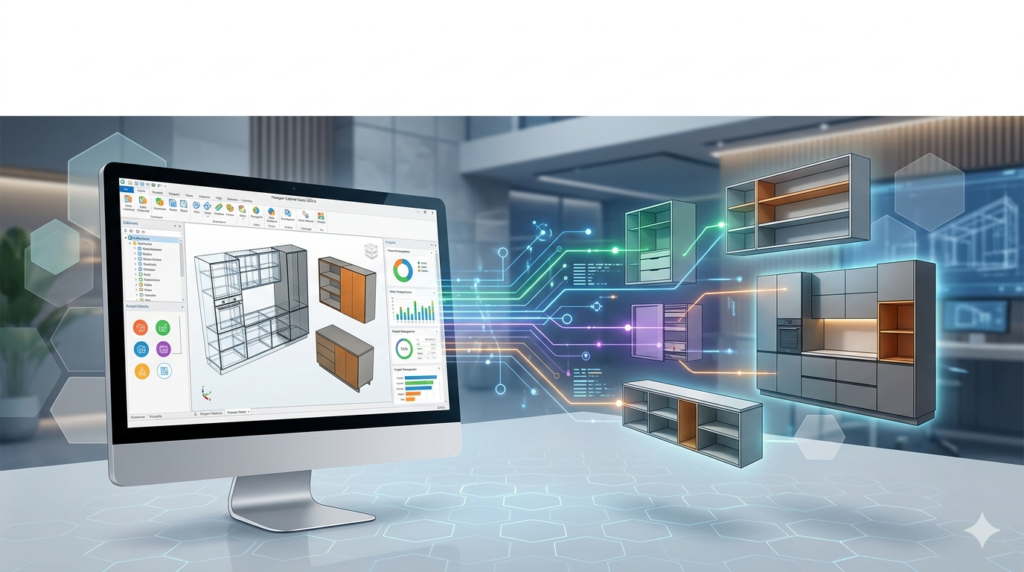
Hexagon Cabinet Vision 2025.4 is the latest iteration of the industry-leading CAD/CAM software specifically engineered for custom cabinet and woodworking manufacturing. Unlike basic design tools, this platform bridges the gap between creative design and CNC production, offering a seamless transition from a 3D model to machine-ready code.
Positioned at the intersection of architectural millwork and industrial automation, version 2025.4 focuses on optimizing the entire workflow—from initial client consultation and photorealistic rendering to material yield optimization and direct CNC machining. This release reinforces Hexagon’s commitment to smart manufacturing and Industry 4.0 standards.
Key Features
Hexagon Cabinet Vision 2025.4 is built on a foundation of powerful modules designed to eliminate manual errors and accelerate production.
-
Full Parametric Cabinet Design
Every dimension, joint, and connection is mathematically controlled. Modify a single value, and the entire assembly updates instantly, ensuring consistency across kitchens, closets, and office environments. -
Biesse, SCM, Homag, and Shopsabre CNC Integration
Post-processors are pre-configured for major CNC brands, generating G-code and machine-specific operations without manual editing. -
Nesting & Material Optimization
The advanced nesting engine calculates the most efficient layout for parts across sheet stock, reducing waste by up to 15% compared to manual methods. -
Edgebanding & Door Library
Comprehensive libraries include thermofoil, veneer, slab, and 5-piece doors with parametric stile and rail controls. -
Cloud Collaboration Tools
Teams can synchronize design changes, material lists, and job statuses across multiple locations via Hexagon’s cloud infrastructure.
What’s New in Hexagon Cabinet Vision 2025.4
This version delivers targeted improvements for speed and reliability:
-
Enhanced DXF/DWG Import Filters
Supports AutoCAD 2025 file formats with improved layer recognition and curve smoothing, reducing cleanup time for imported architectural plans. -
Updated Hardware Library
Native integration of 2025 Blum, Hettich, Grass, and Salice hinges, slides, and lift systems with automatic interference checking. -
Real-Time Rendering Engine v3
Ray tracing is now GPU-accelerated, providing photorealistic walkthroughs 40% faster than version 2024. -
Batch Report Generation
Export cut lists, labels, and assembly instructions for an entire job (multiple cabinets) with a single command. -
Toolpath Preview Improvements
Better visualization of tool entry and exit points, reducing collision risks on nested parts.
System Requirements
Before installing Hexagon Cabinet Vision 2025.4, verify your workstation meets these specifications.
| Component | Minimum | Recommended |
|---|---|---|
| OS | Windows 10 Pro (64-bit) | Windows 11 Pro (64-bit) |
| CPU | Intel Core i5 (11th gen) | Intel Core i7 / Xeon (13th gen) |
| RAM | 16 GB (DDR4) | 32 GB (DDR5) |
| GPU | 4 GB VRAM (DirectX 12) | 8 GB VRAM (NVIDIA RTX A-series) |
| Storage | 50 GB SSD | 512 GB NVMe SSD |
| Display | 1920×1080 | 3840×2160 Dual Monitors |
| Network | 100 Mbps (for licensing) | 1 Gbps (for cloud sync) |
Note: Virtual machines are not supported. A physical USB hardware lock (HASP) or cloud-based floating license is required.
Installation Guide
Installing Cabinet Vision 2025.4 requires administrative privileges and a stable internet connection for license validation.
Step-by-step procedure:
-
Backup Custom Libraries
Export your existing door styles, materials, and hardware configurations from the Library Manager. -
Uninstall Previous Versions
Use Windows “Add or Remove Programs” to remove v2024 or older. Do not manually delete folders. -
Disable Antivirus Temporarily
Some heuristics may block the installation driver. Re-enable after completion. -
Run Installer as Administrator
LaunchCVision_2025.4_Setup.exe. Accept the license agreement. -
Select Components
Choose: Full Program + Post Processor Library + Sample Projects. -
Activate License
Connect your USB hardware key or enter your cloud license credentials. -
Restart & Update Libraries
Launch the software and allow it to sync the latest material and hardware databases.
How to Use the Software
Cabinet Vision organizes the workflow into logical modules. A typical professional uses these steps:
Initial Project Setup
-
Create a new job by entering room dimensions (length, width, height).
-
Set wall conditions (drywall, concrete) and floor level.
Cabinet Placement
-
Drag cabinets from the standard library into the 3D room space.
-
Use the alignment tools (flush, inset, equal spacing) to distribute gables.
Customization
-
Change materials: Select plywood core, MDO, or HDF.
-
Modify edgebanding thickness (0.5 mm, 1 mm, 3 mm).
-
Edit drawer boxes (dovetail, doweled, or lock-miter).
Rendering
-
Apply texture maps to visualize wood grain.
-
Generate a walkthrough video for client presentations.
Manufacturing Output
-
Click “Nest” → Choose sheet size (e.g., 4’x8’).
-
Review the nest layout and toolpath.
-
Click “Write CNC” → Select your machine (e.g., Biesse Rover K).
-
Output G-code and labels.
Best Use Cases
Cabinet Vision 2025.4 excels in specific production environments:
-
Custom Kitchen & Bath Studios
Perfect for designers needing client-facing renderings while sharing data with a remote CNC shop. -
Small to Medium Batch Production
Optimizes nesting for 10–50 identical cabinet boxes, drastically reducing handling time. -
Commercial Millwork
Handles large-scale reception desks, library shelving, and retail displays with complex joinery. -
CNC Job Shops
Use the software to accept design files from external architects (via STEP or DXF) and produce ready-to-assemble parts.
Advantages and Limitations
Advantages
-
Unmatched CNC precision: Every cut, dado, and drill hole is machine-perfect.
-
Material savings: The nesting engine consistently outperforms manual layouts.
-
Professional documentation: Generates shop drawings, assembly instructions, and cut lists in local languages and units (imperial/metric).
-
Hardware avoidance: Prevents specifying a hinge that conflicts with a drawer slide.
Limitations
-
Steep learning curve: New users typically require 30–60 hours of dedicated training.
-
Hardware-locked licensing: The USB dongle can be lost or damaged (cloud option available at premium cost).
-
No native Mac support: Requires a Windows machine or Parallels (unsupported performance).
-
Overkill for one-off projects: For a single vanity or basic bookshelf, simpler tools like SketchUp may be faster.
Alternatives to the Software
Depending on your budget and production scale, consider these legitimate alternatives.
| Software | Best For | Key Difference |
|---|---|---|
| Microvellum | Large commercial millwork | More powerful but harder to configure |
| Mozaik | Small CNC shops | Lower entry cost ($99/month), cloud-first |
| 2020 Design | Kitchen & bath showrooms | Superior marketing renderings, weaker CNC |
| SketchUp Pro + CNC plugin | Hobbyists & prototyping | Manual nesting, no automatic joinery |
| Fusion 360 with Woodworking Add-ons | Mixed material manufacturing | Better for metal/wood combo products |
Frequently Asked Questions
1. Is Hexagon Cabinet Vision 2025.4 compatible with AutoCAD 2025?
Yes. The improved DXF/DWG import filter natively supports AutoCAD 2025 drawing format, including dynamic blocks and paper space layouts.
2. Can I run Cabinet Vision on a cloud virtual desktop (like AWS or Azure)?
No. The software’s hardware lock detection and kernel-level licensing drivers do not function reliably on virtualized GPUs. Only physical workstations are supported.
3. How do I update my hardware library to the latest Blum catalogue?
Navigate to Library > Hardware > Import Standard. Select the Blum MOVENTO 2025 CSV file from the Hexagon support portal. Run interference check after import.
4. What file formats can I export for a CNC router?
Directly: BPP (Biesse), CIX (Homag), .TAP (ShopSabre), G-code (standard FANUC). Indirectly via DXF for third-party nesting.
5. Does this version include the ability to design curved cabinets?
Yes. The lofting tool allows radius face frames and curved doors, but you must use 5-axis CNC post-processors for curved machining.
6. What is the typical ROI for a custom shop purchasing Cabinet Vision?
Shops with 2+ CNC operators often recover the license cost within 4–6 months through material savings (8–12% less waste) and reduced assembly errors.
7. Can I try Hexagon Cabinet Vision before purchasing?
Hexagon offers a 14-day trial with a cloud demo license (non-exportable code). Contact an authorized reseller – trials cannot be downloaded publicly.
8. Does the software generate cut lists in metric units for European manufacturing?
Yes. You can set project units to millimeters, centimeters, or meters. Cutting lists will display in your chosen unit system.
Final Thoughts
Hexagon Cabinet Vision 2025.4 represents a mature, production-ready CAD/CAM solution for serious cabinet manufacturers. While the initial investment and learning curve are substantial, the software’s ability to eliminate manual data entry, optimize sheet yield, and produce flawless CNC code makes it a standard in the industry.
For small hobbyist shops, the complexity may be unwarranted. However, any business processing more than 10 sheets of material per week will likely see a return through faster job turnaround and reduced waste. Always acquire Cabinet Vision through an authorized Hexagon distributor to receive proper training, support, and legal compliance.
Our Paid Service
“We do not sell or provide any software. We only offer professional support services. If any software on your system is not working properly, or you are facing installation errors, crashes, or any other technical issue — just contact us. We will help you fix the problem quickly and remotely via AnyDesk. No software will be provided from our side — only expert troubleshooting and support.”