
Overview of CDRobot V5.3.0
Table of Contents
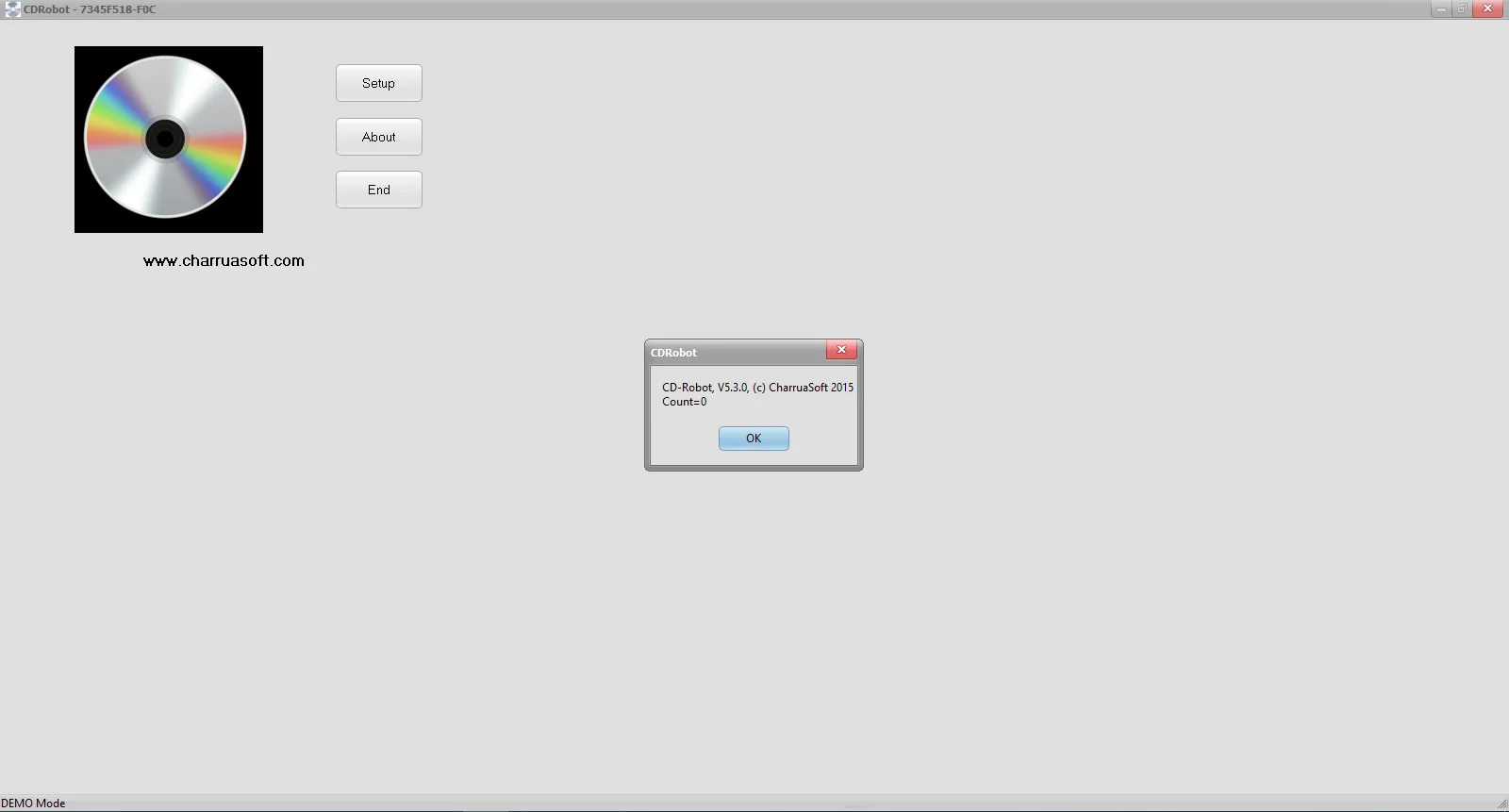
CDRobot V5.3.0 is a specialized automation and data management solution designed for medical imaging departments, radiology centers, and diagnostic clinics. Unlike generic disc burning tools, CDRobot integrates directly with PACS (Picture Archiving and Communication Systems) to automatically receive DICOM images, burn them to CD or DVD, and print professional disc labels—all without manual intervention.
The software is built around the Epson PP-100 series robotic disc publishers. It operates as a DICOM Storage SCP (Service Class Provider) server, waiting for incoming imaging studies. Once a transfer is complete, CDRobot automatically burns the study to a disc, embeds a full, portable DICOM viewer, and prints a cover containing the institution logo and patient identification data. This ensures that referring physicians can view diagnostic images on any computer, without requiring specialized medical software.
Key Features
CDRobot V5.3.0 provides a robust set of automation and data management capabilities tailored for regulated medical environments.
1. DICOM Storage SCP Server Integration
-
Acts as a passive DICOM listener on your network.
-
Receives images directly from any DICOM-compliant modality (CT, MRI, X-ray, Ultrasound) or PACS.
-
Detects study completion using a configurable timeout, eliminating manual file selection.
2. Fully Automated Robotic Burning
-
Controls Epson PP-100 series robots for hands-free disc publishing.
-
Supports CD, DVD, and BD media types.
-
Automatically ejects and queues multiple discs for high-volume environments.
3. Portable DICOM Viewer Inclusion
-
Embeds a complete, self-running DICOM viewer on every disc.
-
The viewer requires no installation and runs on any Windows-based PC.
-
Enables referring physicians to pan, zoom, window-level, and measure images.
4. Professional Disc Printing
-
Prints directly onto disc surfaces (thermal or inkjet, depending on hardware).
-
Customizable templates for institution logos, patient names, medical record numbers, and study dates.
-
Supports DICOM header fields for automatic text population.
5. Audit Logging and Compliance
-
Maintains detailed logs of every burn: user, timestamp, study UID, and disc serial.
-
Helps meet HIPAA, GDPR, and local medical record retention requirements.
What’s New in CDRobot V5.3.0
The latest version introduces several improvements over earlier releases:
-
Faster DICOM transfer detection: Reduced timeout latency for smaller studies.
-
Improved Unicode support: Handles non-Latin characters in patient names and institution logos.
-
Enhanced error recovery: Automatically retries failed burns and alerts administrators via system logs.
-
Broader hardware compatibility: Expanded support for newer Epson PP-100 models and USB-connected drives.
-
Updated portable viewer: The embedded DICOM viewer now supports JPEG 2000 and multi-frame images.
System Requirements
Before installing CDRobot V5.3.0, ensure your hardware and software meet these specifications.
Minimum Requirements
-
Operating System: Windows 10 Pro (64-bit) or Windows Server 2019
-
Processor: Intel Core i3 or equivalent
-
RAM: 4 GB
-
Storage: 10 GB free (plus temporary space for image caching)
-
Optical Drive: Compatible with Epson PP-100 series robot
-
Network: 100 Mbps Ethernet (DICOM traffic)
Recommended Requirements
-
Operating System: Windows 11 Pro or Windows Server 2022
-
Processor: Intel Core i5 or higher
-
RAM: 8 GB or more
-
Storage: SSD with 50+ GB free
-
Network: 1 Gbps Ethernet for large studies (e.g., CT angiography)
Installation Guide
Follow these steps to deploy CDRobot V5.3.0 in a clinical or diagnostic environment.
-
Connect the robotic publisher: Attach the Epson PP-100 to your computer via USB 3.0 and power on.
-
Install hardware drivers: Use the drivers provided by Epson (not included in CDRobot).
-
Run the CDRobot installer: Execute
CDRobot_V5.3.0_Setup.exeas an administrator. -
Accept the license agreement: Read and confirm the terms (no activation bypass or unauthorized use clauses).
-
Select components: Choose “Full Installation” to include the DICOM SCP service and print templates.
-
Configure the DICOM AE Title: Set your own Application Entity Title (e.g.,
CDROBOT_DEPT). -
Set port and timeout: Default port
104(or11112for non-privileged) and a timeout of 30–60 seconds. -
Test the robot: Load blank printable discs and run the hardware test.
-
Complete setup: Restart the CDRobot service and monitor the log window.
How to Use the Software
Once installed, daily operation of CDRobot is fully automated, but you can customize settings for your workflow.
Configuring a DICOM Send from PACS or Modality
-
On your PACS or modality, add a new DICOM SCP destination.
-
Enter the IP address and port of the CDRobot server.
-
Use the AE Title you set during installation (e.g.,
CDROBOT_DEPT). -
Send a test study to verify connectivity.
Customizing Disc Labels
-
Open the CDRobot management console.
-
Navigate to Print Templates > Label Editor.
-
Insert dynamic fields from DICOM headers:
PatientName,PatientID,StudyDate. -
Upload your institution logo (PNG or BMP, 300 DPI recommended).
-
Save the template and set it as default.
Monitoring Burn Status
-
The Jobs tab shows incoming studies, burn progress, and completion status.
-
The Logs tab records any failed burns, media errors, or DICOM communication issues.
Best Use Cases
CDRobot V5.3.0 is purpose-built for specific medical workflows.
| Use Case | Benefit |
|---|---|
| Radiology clinics | Automatically provide patients with a diagnostic CD before they leave. |
| Hospital PACS backup | Create physical disaster recovery discs for critical studies. |
| Referring physician requests | Eliminate manual disc creation for external doctors. |
| Clinical trial data distribution | Burn standardized study sets with consistent labeling. |
| Legacy modality export | Extract images from older modalities without network export features. |
Advantages and Limitations
Advantages
-
Zero-touch automation: No staff time spent manually burning or labeling.
-
Portable viewer included: Recipients never need proprietary software.
-
Audit-ready logs: Every disc action is recorded for compliance.
-
Customizable branding: Professional presentation with hospital logos.
Limitations
-
Hardware dependency: Requires Epson PP-100 series robot (not a software-only solution).
-
Windows only: No native macOS or Linux support.
-
Learning curve for DICOM configuration: Requires basic understanding of AE titles and ports.
-
Media costs: Printable discs and ink/ribbon are recurring expenses.
Alternatives to CDRobot
If CDRobot does not fit your environment, consider these alternatives.
| Software | Platform | Key Difference |
|---|---|---|
| Radiant DICOM CD Burner | Windows | Manual drag-and-drop, no robotics. |
| MediBurn DICAM | Windows | Supports multiple robot brands, higher cost. |
| Knoppix DICOM (Linux) | Linux | Free but requires technical expertise. |
| PACSGear DiscBurner | Windows | Lightweight, but no embedded viewer. |
For high-volume robotic publishing with Epson hardware, CDRobot remains the most tightly integrated option.
Frequently Asked Questions
1. Can CDRobot burn Blu-ray discs?
Yes, CDRobot V5.3.0 supports BD-R and BD-RE media if your Epson PP-100 model includes Blu-ray capability.
2. Does the portable DICOM viewer work on Mac computers?
The embedded viewer is Windows-native. Mac users can run it via Wine or virtual machines, but native macOS support is not provided.
3. How does CDRobot handle patient privacy?
All burned discs include only the data sent from your PACS. The software does not store images after burning unless configured to do so. Audit logs do not retain pixel data.
4. Can I use CDRobot without an Epson robot?
No. The software is specifically designed to control Epson PP-100 series robotic publishers. For manual burning, consider alternative tools.
5. Is CDRobot compliant with DICOM Part 10 standards?
Yes. All burned discs conform to DICOM Part 10 file format and directory structure, ensuring interoperability with any DICOM-compliant viewer.
6. What happens if a burn fails mid-process?
CDRobot automatically marks the disc as failed, logs the error (e.g., media error, power loss), and moves to the next disc. You can retry the failed job manually.
7. Can I schedule automatic disc creation at specific times?
Yes. Use the Scheduled Jobs feature to burn all studies received before 5 PM daily, for example.
8. Does CDRobot require an internet connection?
No. All DICOM communication occurs over your internal network or direct connection to a modality. No cloud or internet access is needed.
Final Thoughts
CDRobot V5.3.0 is a highly specialized, legally compliant automation tool that solves a real problem in medical imaging: the manual, error-prone process of burning and labeling patient discs. By integrating DICOM reception, robotic burning, label printing, and a portable viewer into one workflow, it saves radiology staff hours each week and reduces the risk of mismatched or unreadable discs.
While the dependency on Epson PP-100 hardware and Windows limits its flexibility, for clinics already using or willing to invest in robotic publishers, CDRobot is the most reliable and feature-complete option available. It upholds medical compliance standards, supports audit readiness, and improves the patient and referring physician experience.
For organizations seeking to reduce manual disc handling and improve turnaround times for external study sharing, CDRobot V5.3.0 delivers measurable operational value.
Our Paid Service
“We do not sell or provide any software. We only offer professional support services. If any software on your system is not working properly, or you are facing installation errors, crashes, or any other technical issue — just contact us. We will help you fix the problem quickly and remotely via AnyDesk. No software will be provided from our side — only expert troubleshooting and support.”