
Download the MV Transcoder 75 Channel v2.0 (High-Volume Video Transcoding Software) from this link…

Overview of MV Transcoder 75 Channel v2.0
Table of Contents
The MV Transcoder 75 Channel v2.0 is a professional-grade, high-volume video transcoding solution designed for broadcasters, multi-system operators (MSOs), and media enterprises. Unlike basic conversion tools, this software specializes in real-time protocol conversion and streaming optimization for network delivery. It efficiently handles video formats such as H.264, MPEG2, and H.265, ensuring seamless playback across set-top boxes, mobile devices, and web platforms.
For organizations holding content distribution rights, MV Transcoder simplifies the delivery of streaming media and MPEG2 transport streams. By supporting UDP, RTMP, and HLS protocols, it bridges the gap between legacy broadcast infrastructure and modern adaptive bitrate streaming. This overview focuses on the software’s legitimate capabilities for transcoding, channel conversion, and reliable video streaming without any unauthorized modifications.
Screenshots
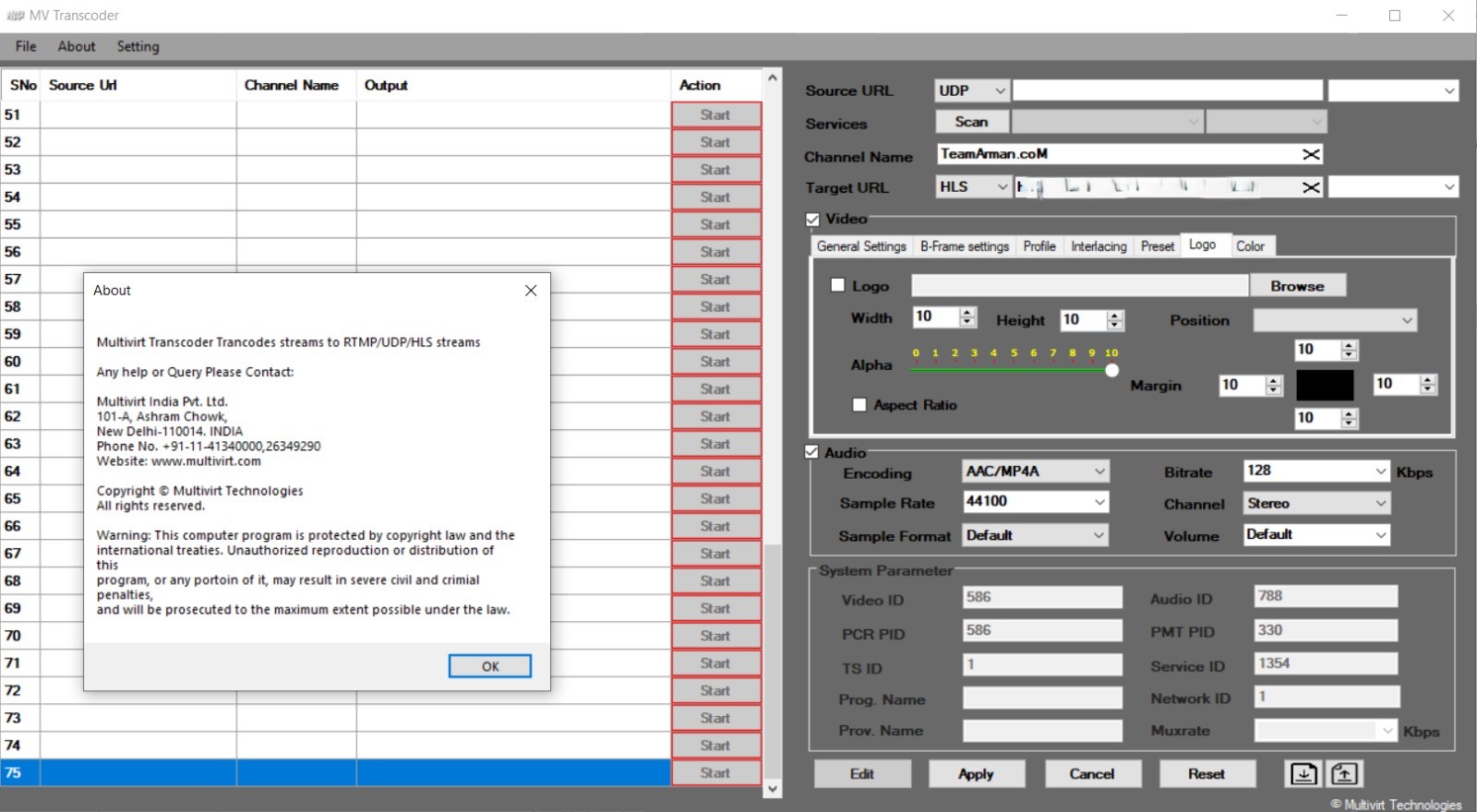
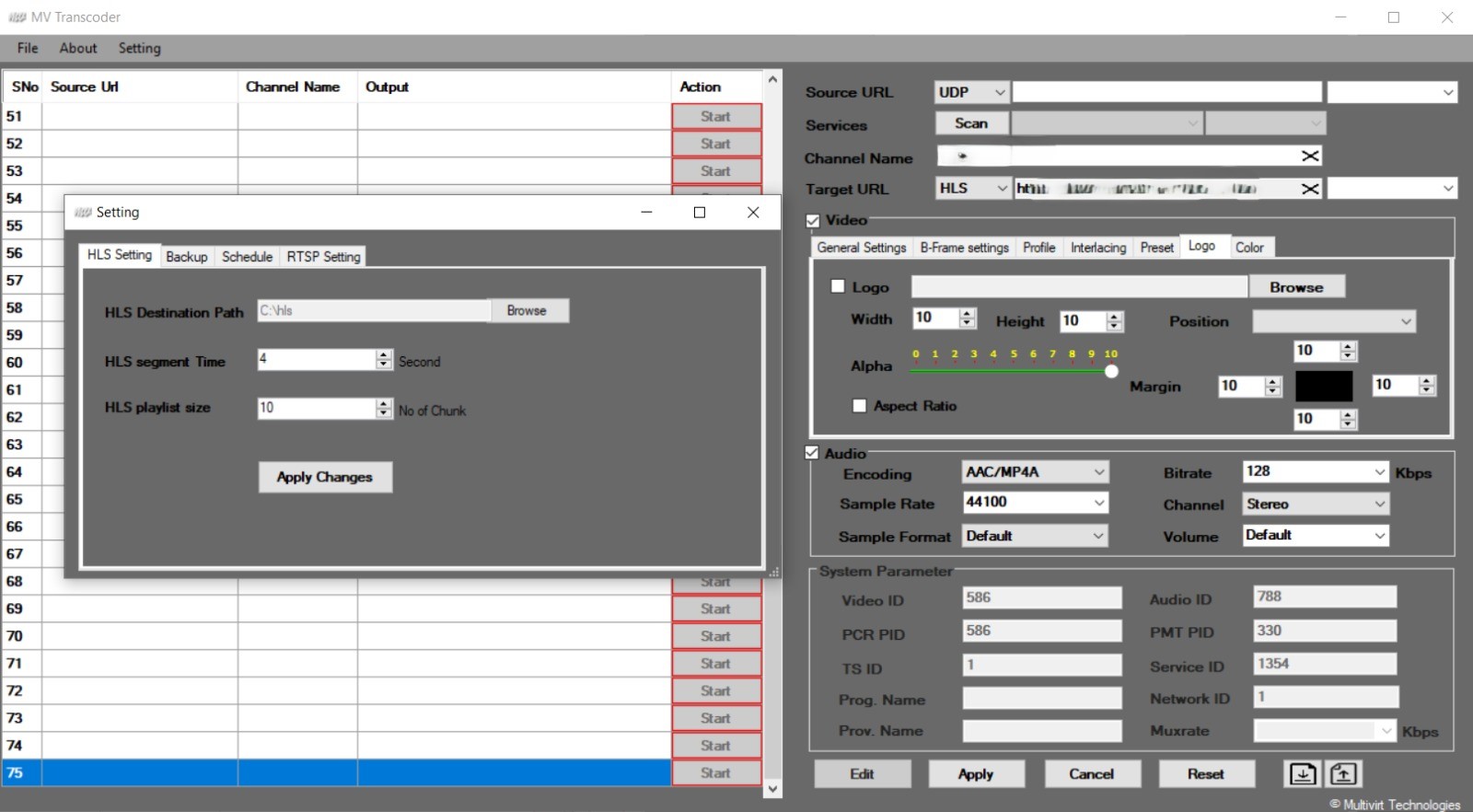
Key Features
The MV Transcoder 75 Channel v2.0 includes a comprehensive set of features for professional video processing:
-
24×7 Operation with Auto-Start: The system ensures continuous service availability. An auto-start feature handles unexpected reboots or software glitches, eliminating the need for manual intervention.
-
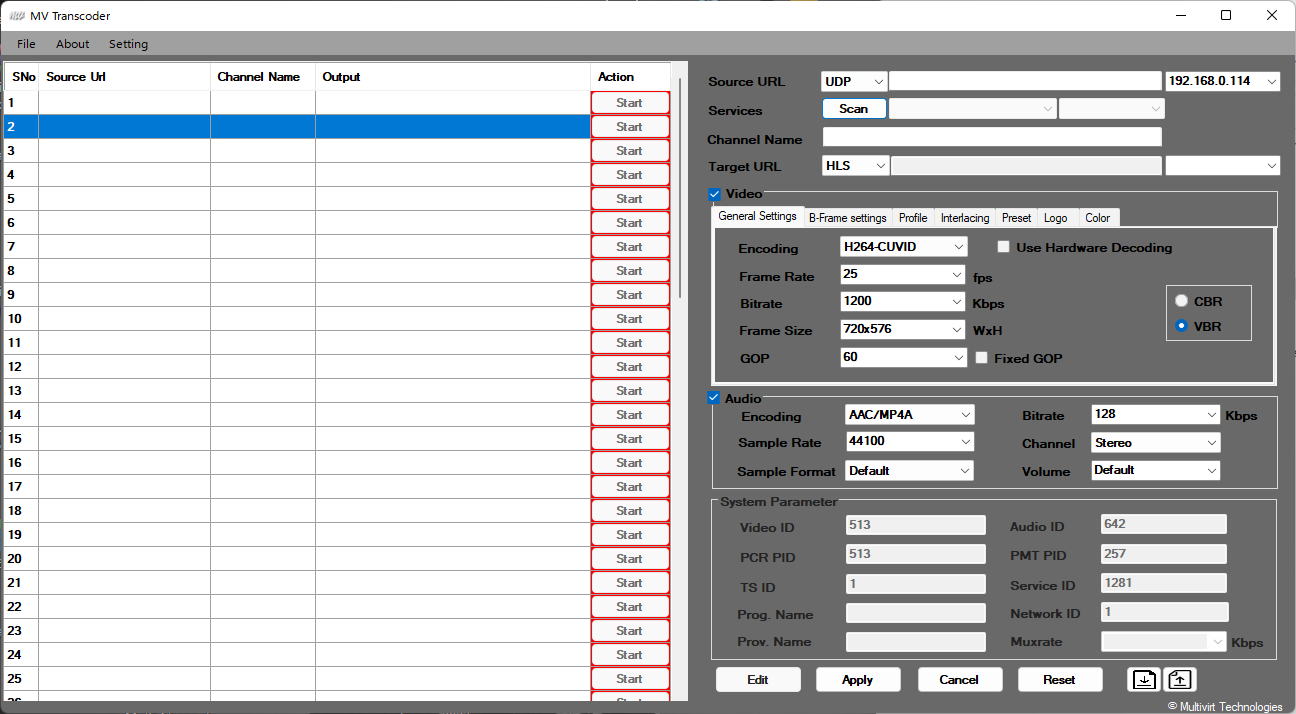
Multiple Input Protocols: Supports input protocols including UDP, RTMP, and HLS, enabling seamless ingestion from various streaming sources, encoders, and IP cameras.
-
Flexible Output Protocols: Provides output options such as HLS, UDP, and RTMP, ensuring compatibility with content delivery networks (CDNs) and streaming platforms.
-
Audio-Only Mode: Disable video transcoding entirely to focus on audio tracks. This is ideal for podcast distribution, radio streaming, or audio archiving.
-
Video-Only Mode: Disable audio transcoding for tasks requiring video-only stream processing, such as silent surveillance feeds or visual-only content delivery.
-
Logo Insertion: Enhance brand recognition by overlaying a transparent logo onto transcoded streams, adding a professional touch to live broadcasts.
-
GPU Decoding Acceleration: Utilizes NVIDIA and Intel Quick Sync for efficient GPU decoding. On a Core i7 processor, it handles nearly 20 SD channels simultaneously, reducing hardware costs for multichannel transcoding.
-
Advanced Video Parameters: Control resolution scaling (upscale/downscale), manage codecs including MPEG2, MPEG4, and H.264, and customize encoding settings like CBR (Constant Bit Rate), VBR (Variable Bit Rate), and reference frames.
-
Precise Audio Parameters: Supports audio codecs including AAC and MPEG2, allowing adjustments to bitrate, sample rate, and channel configuration for high-quality audio output.
-
UDP Metadata Insertion: Insert metadata such as channel name, service name, and UDP IP address directly into streams for organized, trackable UDP delivery.
-
HLS Chunk Size Configuration: Adjust chunk size and playlist size to balance encoding efficiency with bandwidth adaptation, achieving low-latency streaming.
-
Auto-Restart on Connection Loss: Automatically restarts transcoding if the input stream experiences a connection breakdown, ensuring uninterrupted streaming.
-
Backup and Restore Functionality: Easily create configuration backups and restore settings, simplifying disaster recovery and ensuring configuration security.
What’s New in Version 2.0
Version 2.0 of the MV Transcoder introduces several improvements over previous releases:
-
Enhanced GPU Utilization: Improved load balancing across multiple NVIDIA RTX GPUs, allowing for more than 70 SD channels or 30 HD channels on dual A4000/A5000 setups.
-
Reduced Latency Mode: A new low-latency preset for HLS streaming, reducing segment duration to under 2 seconds for near-real-time delivery.
-
Improved H.265 (HEVC) Support: Expanded codec profiles and better error resilience when transcoding from H.264 to H.265.
-
Updated System Health Dashboard: Real-time monitoring of CPU, GPU, memory usage, and active stream status.
System Requirements
To operate the MV Transcoder 75 Channel v2.0 legally and effectively, ensure your hardware meets the following specifications:
| Configuration | Processor | Memory | Graphics |
|---|---|---|---|
| Up to 22 SD or 10 HD profiles | Intel Core i7-10700 | 24 GB RAM | Integrated or basic GPU |
| Up to 70 SD or 30 HD profiles | Intel Core i7-10700K | 32 GB RAM | NVIDIA Quadro RTX 4000 |
| More than 70 SD or 30 HD profiles | Intel Core i9 or Xeon | 64 GB RAM | 2x NVIDIA RTX A4000 or 2x RTX A5000 |
Operating System: Windows 10 Pro or Windows 11 Pro (64-bit).
Network: Gigabit Ethernet recommended for UDP multicast streaming.
Installation Guide
Follow these steps to install MV Transcoder 75 Channel v2.0 on a licensed Windows system:
-
Download the Installer: Obtain the official setup file from the authorized vendor or developer portal.
-
Verify System Compatibility: Ensure your hardware meets the requirements above, especially RAM and GPU specifications for multichannel use.
-
Run as Administrator: Right-click the installer and select “Run as administrator” to allow necessary system modifications.
-
Accept License Agreement: Read and accept the end-user license agreement (EULA).
-
Select Installation Directory: Choose a drive with sufficient free space (minimum 20 GB recommended for logs and temporary files).
-
Install GPU Drivers: If using NVIDIA GPU decoding, ensure the latest Studio or Enterprise drivers are installed.
-
Complete Installation: Click “Install” and wait for the process to finish. Reboot if prompted.
-
Activate License: Enter the valid license key provided upon purchase to unlock the 75-channel capability.
How to Use the Software
Once installed and activated, follow this workflow to begin transcoding:
-
Launch the Application: Open MV Transcoder from the Start menu or desktop shortcut.
-
Create a New Transcoding Job: Click “New Job” and select input protocol (UDP, RTMP, or HLS).
-
Configure Input Source:
-
For UDP: Enter multicast IP address and port.
-
For RTMP/HLS: Provide the stream URL.
-
-
Set Output Parameters:
-
Choose output protocol (UDP, HLS, or RTMP).
-
Select video codec (H.264, MPEG2, or H.265).
-
Define resolution, bitrate, and frame rate.
-
-
Adjust Audio Settings: Select codec (AAC or MPEG2), bitrate, and channel count.
-
Apply Optional Enhancements:
-
Overlay logo by uploading a PNG file with transparency.
-
Insert UDP metadata (channel name, service ID).
-
-
Start Transcoding: Click “Start” to begin real-time processing. Monitor the dashboard for CPU/GPU usage and stream health.
-
Save Configuration: Export the job as a profile for future one-click deployment.
Best Use Cases
The MV Transcoder 75 Channel v2.0 is best suited for the following professional scenarios:
-
Live Event Streaming: Convert a single RTMP input from a camera to multiple HLS outputs for web and mobile distribution.
-
Broadcast Rerouting: Transcode MPEG2 UDP streams from satellite receivers to H.264 UDP for set-top box compatibility.
-
Multi-Platform Delivery: Ingest one HLS stream and output simultaneous RTMP feeds to YouTube, Facebook, and Twitch.
-
Audio-Only Radio Streaming: Use audio-only mode to convert video streams to AAC audio for internet radio platforms.
-
Legacy System Integration: Bridge older MPEG2 equipment with modern H.264/H.265 networks without replacing hardware.
Advantages and Limitations
Advantages
-
High Channel Density: Supports up to 75 SD channels or 30 HD channels on appropriate hardware.
-
Hardware Acceleration: Reduces CPU load significantly via NVIDIA and Intel Quick Sync.
-
Protocol Flexibility: Works with UDP, RTMP, and HLS for both input and output.
-
Operational Reliability: Auto-start, auto-restart, and backup features ensure minimal downtime.
-
Legal Compliance: Fully licensed software with no need for unauthorized modifications.
Limitations
-
Windows-Only: Does not support Linux or macOS environments.
-
No Web Interface: Configuration requires a local GUI or RDP session.
-
Licensing Cost: Professional features require a paid license; no free tier available.
-
GPU Dependency: High-channel counts mandate dedicated NVIDIA GPUs.
Alternatives to MV Transcoder
Depending on your budget and technical requirements, consider these legitimate alternatives:
| Software | Key Strength | Platform | Licensing |
|---|---|---|---|
| FFmpeg (command line) | Free, highly flexible, scriptable | Windows, Linux, macOS | GPL / LGPL |
| Unreal Media Server | Low-latency live streaming | Windows | Freemium / Paid |
| Wowza Streaming Engine | Enterprise-grade CDN integration | Cross-platform | Subscription |
| Nimble Streamer | Lightweight, high-performance | Windows, Linux | Freemium / Paid |
| OBS Studio | Free, GUI-based, good for single-channel | Cross-platform | GPL |
Note: FFmpeg and OBS Studio are free and open-source. However, for 75-channel professional transcoding, MV Transcoder’s hardware acceleration and channel density are superior.
Frequently Asked Questions
1. Is MV Transcoder 75 Channel v2.0 compatible with H.265 (HEVC) video?
Yes, version 2.0 supports H.265 (HEVC) for both decoding and encoding, provided your GPU supports HEVC hardware acceleration.
2. Can I use this software for live sports streaming?
Absolutely. With low-latency HLS configuration and GPU decoding, it is suitable for live sports, news, and event broadcasting.
3. Does MV Transcoder require an internet connection to operate?
No. After activation, the software can function entirely offline for UDP-to-UDP or local HLS workflows. Only RTMP outputs require network connectivity.
4. What is the difference between the free trial and the full 75-channel license?
The free trial typically limits channel count to 5 or 10 and may include a watermark. The full license unlocks 75 channels, logo insertion, and commercial use rights.
5. Can I run MV Transcoder on a virtual machine (VM)?
Yes, but GPU passthrough is required for hardware decoding. Without GPU access, performance will be severely limited to only a few SD channels.
6. How do I obtain a legitimate license for MV Transcoder 75 Channel v2.0?
Purchase directly from the official developer or authorized resellers. Avoid any website offering “free activation” or cracks—these are illegal and often contain malware.
Final Thoughts
The MV Transcoder 75 Channel v2.0 stands as a powerful, legally compliant solution for high-volume video transcoding and streaming. Its support for UDP, RTMP, and HLS protocols, combined with GPU-accelerated decoding and robust 24×7 operation features, makes it an indispensable tool for broadcasters, MSOs, and media companies. While the software requires a paid license and dedicated Windows hardware with NVIDIA GPUs, the return on investment comes through reliable multichannel delivery, reduced CPU overhead, and professional-grade output quality. For organizations needing to bridge legacy MPEG2 systems with modern H.264 or H.265 networks—or to scale live streaming across 75 channels—this transcoder delivers enterprise-ready performance without compromising legal or operational standards.
Our Paid Service
Looking for full-version software without limitations? You’re in the right place. Instead of wasting time on unreliable or outdated sources, unlock a powerful bundle of 10k+ premium tools covering marketing, SEO, broadcasting, automation, and business productivity — all in one place at an affordable price. This collection is specially curated for freelancers, agencies, and business owners who want fast, real results with professional tools.
Direct contact: Telegram ID :
Join Us For Update Telegram Group :
Join Us For Updated WhatsApp group:
You Can test through AnyDesk before Buying,
And When You Are Satisfied, Then Buy It.
Unlimited PCs/Users.
Join today and upgrade your workflow with premium tools.