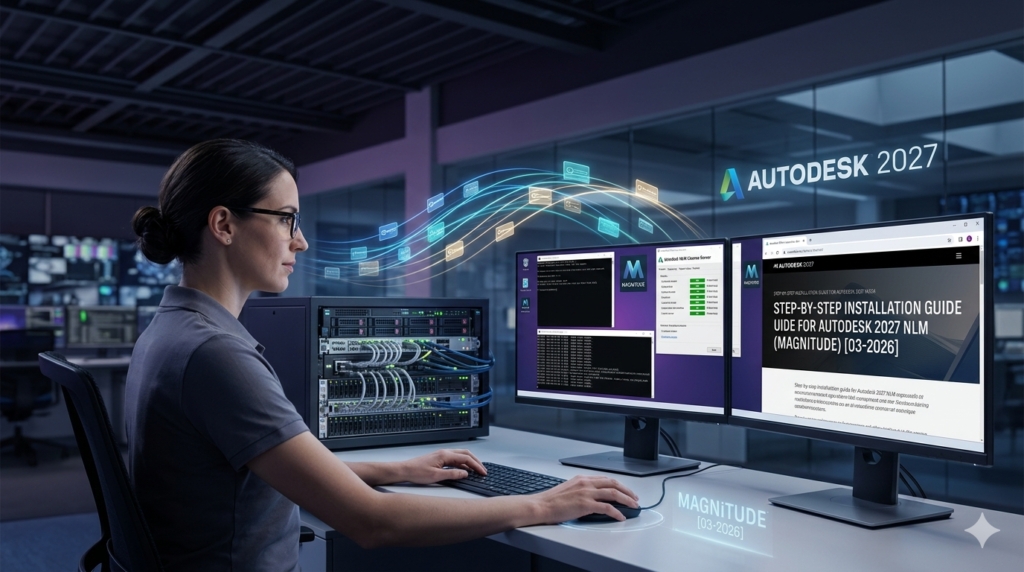

Download the Autodesk 2027 Network License Manager (A Complete Guide to NLM Server Setup) from this link…

Overview of Autodesk Network License Manager (NLM)
Table of Contents
The Autodesk Network License Manager (NLM) is a software tool that allows organizations to host and manage Autodesk product licenses on a central server. Instead of installing individual licenses on each workstation, users on the same network can “check out” a license from the server when they need to use the software.
This setup is essential for businesses and educational institutions that require:
-
Centralized Control: Easy management of license distribution and usage monitoring.
-
Cost Efficiency: Efficient utilization of a shared pool of licenses.
-
Offline Functionality: Once a license is checked out, users can work offline for a specified period without reconnecting to the server.
Key Features of Autodesk NLM 2027
The 2027 version of the Network License Manager includes several features designed to streamline license administration and improve network stability.
-
Centralized License Management: Administrators can monitor usage, reclaim inactive licenses, and distribute licenses across multiple products from a single interface.
-
Support for Latest Products: Full compatibility with Autodesk 2027 product line, including AutoCAD, Revit, 3ds Max, Maya, and Inventor.
-
Flexible Licensing Models: Supports single-server, distributed-server, and redundant-server configurations to match your organization’s network architecture and uptime requirements.
-
Comprehensive Logging: Generates detailed logs for auditing, troubleshooting, and capacity planning.
-
Backward Compatibility: The NLM 2027 version is designed to manage licenses for both the latest 2027 products and previous versions, such as 2026, ensuring a smooth transition during upgrades.
What’s New in the Latest Version (2027)
The Autodesk 2027 NLM focuses on enhancing security and reliability. Key updates in this iteration include:
-
Improved License Borrowing: Enhanced mechanisms for users to borrow licenses for remote or offline work, with better server-side validation.
-
Security Enhancements: Updated security protocols to ensure that license communication between the server and client workstations is secure.
-
Performance Optimizations: Reduced network overhead and faster license check-out/check-in times, especially beneficial for large-scale deployments.
-
User Interface Refinements: The LMTOOLS utility has been updated with clearer logging and diagnostic tools to help administrators resolve issues more quickly.
System Requirements
Before installing the Autodesk NLM, ensure your server meets the following minimum specifications.
Server Requirements
-
Operating System: Windows Server 2019, 2022, or Windows 10/11 Pro/Enterprise (for testing or smaller networks).
-
Processor: 64-bit (x64) processor.
-
RAM: 8 GB minimum (16 GB recommended for larger deployments).
-
Network: Static IP address is highly recommended for consistent client-server communication.
-
Software: Microsoft Visual C++ Redistributable (required for installation).
Client Workstation Requirements
-
Any workstation running Autodesk 2027 or 2026 products must have network connectivity to the server.
-
The ADSKFLEX_LICENSE_FILE environment variable or a licpath.lic file must be configured to point to the server’s IP or hostname.
Installation Guide
Setting up the Autodesk Network License Manager involves several key steps. This guide walks you through a standard single-server deployment.
Step 1: Download the NLM Installer
Download the official Autodesk Network License Manager installer from the Autodesk website or your account portal. Ensure you are using the legitimate, unmodified installer from Autodesk.
Step 2: Install the NLM Software
-
Run the NLM.msi installer on your designated server.
-
Accept the license agreement and choose an installation directory (e.g.,
C:\Autodesk\NLM). -
Complete the installation.
Step 3: Obtain and Prepare Your License File
-
Log in to your Autodesk Account and navigate to Management > License Management.
-
Generate a new license file for your products. You will need to input the server’s hostname and its MAC address (Ethernet ID) .
-
Download the generated .lic license file. Save it to the installation directory.
Step 4: Configure the Server with LMTOOLS
-
Launch LMTOOLS (as Administrator) from the Start Menu.
-
Go to the Service/License File tab and select “Configuration using Services” .
-
Click the Config Services tab.
-
Service Name: Enter a name (e.g., “Autodesk NLM 2027”).
-
Path to lmgrd.exe: Browse to the installation folder and select Imgrd.exe.
-
Path to license file: Browse to and select the .lic file you saved.
-
Path to debug log file: Create and select a log file (e.g.,
C:\Autodesk\NLM\debug.log).
-
-
Check the boxes for “Use Services” and “Start Server at Power Up” .
-
Click Save Service.
Step 5: Start the License Server
-
Navigate to the Start/Stop/Reread tab.
-
Click Start Server. The status bar should indicate “Server Start Successful.”
-
Click Server Status and then Perform Status Enquiry to verify that the server is running and the license features are available.
How to Use the Software with NLM
Once the server is configured, client workstations must be set up to communicate with it.
-
Install Autodesk 2027 Product: Install the desired Autodesk product (e.g., AutoCAD 2027) on the client workstation.
-
Configure Licensing:
-
Option A (Recommended): Set the ADSKFLEX_LICENSE_FILE environment variable.
-
Go to System Properties > Advanced > Environment Variables.
-
Add a new System Variable with the name
ADSKFLEX_LICENSE_FILEand the value@<YourServerHostname>(e.g.,@SERVER01).
-
-
Option B: During the product launch, select “Use a Network License” and specify the server name.
-
-
Activate: When the user launches the application, the software will automatically communicate with the NLM server to check out a license. No internet connection is required after the initial configuration.
Best Use Cases
The Autodesk Network License Manager is ideal for several specific scenarios:
-
Architectural and Engineering Firms: Centralized licensing ensures that large teams working on AutoCAD, Revit, and Civil 3D can share a pool of licenses efficiently without per-workstation management.
-
Media and Entertainment Studios: For studios running 3ds Max, Maya, and MotionBuilder, the NLM allows for flexible management of floating licenses across rendering farms and artist workstations.
-
Educational Institutions: Universities and training centers can provide students access to Autodesk software in labs using a single set of network licenses.
-
Multi-Site Organizations: Using distributed-server configurations, companies with multiple offices can manage licenses locally while reporting usage to a central IT department.
Advantages and Limitations
Advantages
-
Scalability: Easily add or remove licenses without reinstalling software on individual workstations.
-
Offline Flexibility: Users can borrow licenses for a set period, allowing for work on laptops or in locations without network connectivity.
-
Centralized Monitoring: Administrators have full visibility into which products are being used and by whom, aiding in budget planning.
Limitations
-
Network Dependency: Clients require a stable network connection to check out licenses initially (or to borrow them).
-
Administrative Overhead: Requires dedicated IT resources for server setup, maintenance, and troubleshooting.
-
Single Point of Failure: In a single-server setup, if the server goes down, users cannot access their software until the service is restored (mitigated by redundant server setups).
Alternatives to the Software
If a network license server is not the right fit for your organization, consider these alternatives:
-
Autodesk Named User (Subscription): This is the standard for most new subscriptions. Each user signs in with their Autodesk account, and the license is tied to them. It requires an internet connection for verification.
-
Autodesk Token Flex: A pay-per-use model that allows users to access a wide range of Autodesk products from a pool of tokens. It’s a flexible alternative for organizations with fluctuating project needs.
-
Single-User Standalone License: A traditional license installed on a single machine. This is simple but lacks the central management and flexibility of a network license.
Frequently Asked Questions
Q1: What is the difference between a network license and a single-user subscription?
A: A network license (or multi-user subscription) is managed on a central server and can be shared among users on a first-come, first-served basis. A single-user subscription is tied directly to one named user, who can install and use the software on up to three devices.
Q2: Can I use the NLM to manage licenses for Autodesk products from different years (e.g., 2026 and 2027)?
A: Yes. The Autodesk NLM is designed to be backward compatible. You can combine license files for different product versions into one server configuration, as long as you are using a recent version of the NLM software (like the 2027 version).
Q3: How do I borrow a license for offline use?
A: From the Autodesk product (e.g., AutoCAD), navigate to Help > About > Product License Information. In the Network License Manager section, you will find an option to “Borrow License.” You can specify the return date. The license will remain on your laptop until that date or until you manually return it.
Q4: Why is my client workstation unable to find the license server?
A: This is often due to a firewall blocking the required ports (default is 2080 and 27000-27009). Ensure these ports are open on both the server and client firewalls. Also, verify that the ADSKFLEX_LICENSE_FILE environment variable is set correctly with the server’s hostname.
Q5: Is it necessary to have a static IP for the license server?
A: While not strictly required, a static IP is highly recommended. Using a dynamic IP can cause clients to lose connection to the server if the IP changes, requiring a reconfiguration of client settings.
Final Thoughts
The Autodesk Network License Manager remains a robust and essential tool for organizations looking to maximize the value of their Autodesk investment. By centralizing license management, businesses can reduce administrative costs, ensure compliance, and provide their teams with the flexibility they need. Whether you are deploying AutoCAD for a 50-person engineering firm or managing a 3ds Max render farm, a properly configured NLM server offers the reliability and control required for professional workflows.
For the most up-to-date information on licensing policies and technical support, always refer to the official Autodesk Network License Manager documentation on the Autodesk website.
Premium Software Support Service
If you need professional help with software installation, setup, or technical configuration, our team is available to assist you.
Contact & Support
For quick assistance and latest updates, connect with us using the links below:
🔹 Direct Telegram Support
https://t.me/PlayoutKing
🔹 Official Telegram Updates Group
https://t.me/yourgroup
Service Policy
- Remote testing available through AnyDeskbefore confirmation.
• Verify the setup and performance before completing the order.
• Support available for single or multiple systems.
• Step-by-step guidance to ensure smooth installation and working environment.
Our goal is to provide reliable technical assistance so your software runs smoothly without interruptions.