


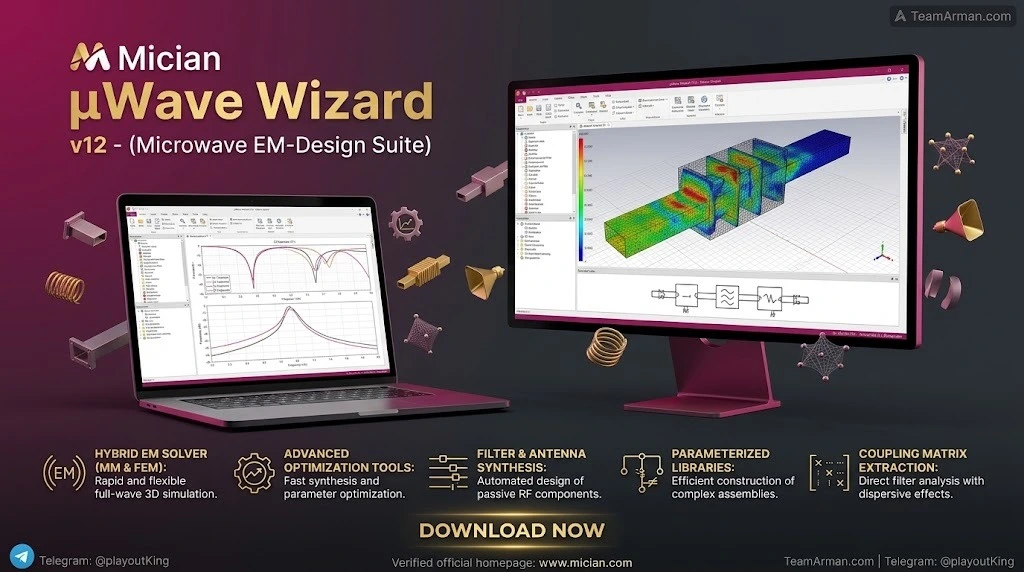
Overview of Mician µWave Wizard v12
Table of Contents
µWave Wizard is not a general “wireless measurement data management” platform; it is a full-wave RF design and simulation environment used primarily for passive microwave systems. Its core innovation is the hybrid solver concept, which subdivides a complex structure into smaller subcircuits and solves each part with the most suitable solver—Mode Matching, 3D FEM, 2D BOR-FEM, or Spherical Wave Expansion—before cascading the results at the circuit level. This approach significantly reduces CPU and memory overhead while maintaining high accuracy for waveguide, coaxial, planar, and antenna feed structures.
The software is widely adopted in satellite communications, aerospace, defense, radar, and telecommunications for designing filters, couplers, multiplexers, polarizers, horn antennas, and reflector systems. Version 12 is the latest generation of a product line that dates back to 2001, and it continues to be developed by Mician GmbH in Bremen, Germany.
Key Features of µWave Wizard v12
Hybrid Solver Technology
The platform integrates multiple solvers under a single interface. Engineers do not need to manually assign a solver to each component in most cases; the system selects the appropriate solver automatically. This is especially valuable for mixed enclosed and radiating structures, such as antenna feed networks.
Synthesis and Optimization Tools
µWave Wizard includes three optimizers (Extrem, Evopt/Powell, and Evolution) for meeting user-defined performance goals. Built-in synthesis tools support bandpass, lowpass, interdigital filters, tapers, horn antennas, and reflectors. The Interactive Tuner allows real-time manual adjustment of selected dimensions, mimicking test-bench tuning.
Filter Workbench and Coupling Matrix Extraction
The Filter Workbench streamlines filter development by guiding the user through topology selection, synthesis setup, and initial dimension generation. Version 12 adds Coupling Matrix Extraction with dispersive effects, enabling the complete filter design cycle—from schematic to S-parameter plotting to optimization against physical dimensions—inside one environment.
3D Modeler and Parametric Library
An integrated 3D modeler supports the creation and modification of geometrical models. A large library of parameterized elements (irises, cavities, junctions, OMTs, polarizers, horns) enables rapid composition and modification of designs. Components are described by their modal scattering matrices, and cascading predicts the frequency response of the full structure.
Multiphysics and Material Modeling
Version 12 extends multiphysics material modeling with region- and mesh-based CSV import/export, supporting inhomogeneous substrates and dielectric-loaded structures.
Automation and Interoperability
µWave Wizard supports COM and VBA interfaces, allowing remote control from C++, C#, Delphi, MATLAB, or even Excel. It can run in Batch Mode for overnight simulations and exports mechanical formats such as DXF, STP, STL, and IGES.
What’s New in µWave Wizard v12
Version 12 introduces several enhancements focused on enterprise-scale usability and filter design consolidation.
Coupling Matrix Extraction with Dispersive Effects
The most significant addition is the ability to extract coupling matrices directly from filter schematics, including frequency-dependent (dispersive) coupling elements. This is critical for medium- and wide-band filters, triplet and quadruplet topologies, and transmission-zero structures. The entire workflow—schematic, matrix extraction, S-parameter plotting, optimization, and fine-tuning—remains in a single UI, eliminating the need to switch between separate synthesis and EM tools.
Major Performance Improvements
Version 12 delivers faster project loading, improved handling of hundreds of design variables, better responsiveness with large schematics and many subcircuits, and more responsive plotting operations.
NTL3D Integration for Reflector Synthesis
Direct integration with NTL3D improves reflector synthesis workflows, and multiphysics material modeling now supports CSV import/export for region- and mesh-based data.
Enhanced Visualization and Port Excitation
Post-processing in the NTL3D viewer now supports multiple simultaneous port excitations, simplifying power distribution visualization for multi-fed antennas. New field plot options include power loss density, energy density, gap voltage, and power flows.
System Requirements
Mician does not publish an exhaustive hardware matrix for every minor release, but the following requirements reflect the 64-bit computational kernel and multi-core parallelism of µWave Wizard v12.
| Component | Minimum | Recommended |
|---|---|---|
| Operating System | 64-bit Windows (Windows 10/11 or later) | 64-bit Windows 11 |
| CPU | Multi-core processor (Intel/AMD) | High-core-count CPU for parallel simulations |
| RAM | 4 GB | 16 GB or more for large projects |
| Graphics | OpenGL-compatible GPU | Dedicated GPU with ≥1 GB VRAM |
| Disk Space | Several GB for installation and libraries | Additional space for project data and batch runs |
| License Server | HyperWorks license server accessible | Redundant license server for production teams |
Note: RAM requirements can rise quickly when using 3D FEM verification on large cascaded assemblies. The 64-bit kernel allows the software to address all physical RAM without artificial limits. For current official specifications, consult the Mician or Altair documentation for the exact v12 build.
Installation Guide
The installation procedure for µWave Wizard follows a standard Windows setup wizard and requires a valid license server configuration.
Step-by-Step Installation
-
Download the setup file (typically named
MWWizard_a_*.exe) from the official Mician or authorized partner distribution channel. -
Double-click the setup executable. The installer will launch.
-
Click Next through the welcome and destination screens.
-
Accept the license agreement and proceed.
-
Confirm installation settings and click Install.
-
Wait for the installer to copy files. Click Finish when complete. A command-line window may appear briefly for registration.
First Start and License Configuration
-
Launch µWave Wizard from the desktop shortcut.
-
On first start, the software prompts for a license server. Click Select License Server.
-
Enter the IP address or hostname of the HyperWorks license server and the port number.
-
If required, enable the option for hosted HWUs.
-
Click Use this license, then OK once the server is validated.
-
The Start Manager appears. Here you can set the number of CPU cores the software should use by default. This can be changed later under File → Settings.
Post-Installation Tips
-
Keep the license server details on hand for team deployments.
-
For batch processing, ensure the Windows user account has read/write access to project directories.
-
Verify that the graphics driver supports OpenGL for the 3D modeler and post-processor.
How to Use Mician µWave Wizard v12
The typical workflow moves from schematic composition to optimization and verification. Beginners can pick up basic skills within days, according to Mician, partly because the 3D modeler resembles other industry CAD tools and the software ships with a large example library.
1. Start a Project and Set Global Parameters
From the Start Manager, create a new project. In the Project Settings dialog, define the maximum modal cutoff frequency (the highest-order mode considered at ports) and any symmetry conditions (H-plane, E-plane). These settings affect solver accuracy and speed.
2. Build the Schematic with Library Elements
Instead of drafting the entire structure in 3D, drag parameterized library elements (irises, cavities, junctions, etc.) into the schematic and cascade them. Each element carries its modal scattering matrix. User-defined elements can also be created in the 3D modeler and inserted into the schematic.
3. Use Synthesis Tools for Initial Design
For filters, launch the Filter Workbench or the built-in bandpass synthesis tool. Select a topology (e.g., Chebyshev or Butterworth), enter electrical specifications, and let the tool generate an initial parameterized schematic with approximate dimensions.
4. Simulate and Optimize
Run the hybrid solver to compute S-parameters. Use the Interactive Tuner to manually adjust dimensions in real time, or select one of the three optimizers to meet target specifications automatically.
5. Verify with 3D FEM (When Needed)
For final verification, a simple mouse click can compute the cascaded assembly as a single 3D FEM object without rebuilding the model. This is useful for catching coupling effects that circuit-level cascading may not capture.
6. Export and Prepare for Fabrication
Export mechanical data in DXF, STP, STL, or IGES for CAD/CAE downstream use. Image export (Bitmap/JPG) is also supported.
Best Use Cases for µWave Wizard v12
RF and Microwave Filter Design
Version 12 is particularly strong for bandpass, lowpass, combine, and interdigital filters, including triplet and quadruplet topologies with transmission zeros. The integrated coupling matrix extraction removes the need for separate synthesis software.
Waveguide and Coaxial Component Design
The hybrid solver excels at waveguide circuits: bends, twists, irises, cavities, OMTs, polarizers, and multiplexers. Mode Matching provides fast and accurate results for enclosed structures, while FEM handles complex geometries.
Antenna and Feed Network Development
µWave Wizard supports horn antennas, reflector systems, helix antennas, and feed networks. Spherical Wave Expansion is used for radiating structures, and the NTL3D integration in v12 improves reflector synthesis.
Satellite and Aerospace RF Systems
The software is used by leading satellite manufacturers and government agencies for Butler matrices, multi-beam feed networks, and high-power waveguide assemblies in Ku/Ka bands.
Education and Research
University licenses allow students and researchers to learn full-wave EM design with an industry-standard tool. The example library and intuitive schematic approach make it accessible for teaching RF and microwave engineering.
Advantages and Limitations
Advantages
-
Speed and efficiency: Hybrid solvers avoid meshing the entire structure as a single 3D object, reducing simulation time and memory use.
-
Complete filter workflow in v12: Coupling matrix extraction and dispersive effects keep filter design inside one environment.
-
Strong automation: COM/VBA interfaces, batch mode, and multi-core parallelism support enterprise-scale workflows.
-
Parametric library: Hundreds of pre-built elements accelerate initial design and optimization.
-
Mechanical export: Direct export to DXF, STP, STL, and IGES bridges EM design and fabrication.
Limitations
-
Windows-centric: The primary environment is 64-bit Windows; Linux availability is limited to command-line/batch use in some versions.
-
Learning curve for advanced optimization: While basic use is accessible, mastering the full optimizer suite and multiphysics modeling takes time.
-
License dependency: Requires a license server (HyperWorks) for operation, which adds deployment complexity for small teams.
-
Not a general-purpose 3D CAD or multiphysics platform: It is specialized for RF/microwave passive components; structural, thermal, and CFD analysis are outside its core scope.
Alternatives to Mician µWave Wizard v12
When evaluating µWave Wizard against other EM simulation platforms, the choice often depends on the balance between speed for repetitive waveguide/filter design and general 3D flexibility.
CST Studio Suite
CST is a broad 3D EM platform with multiple solvers (Time Domain, Frequency Domain, Integral Equation). It is more general-purpose than µWave Wizard but can be slower for large parametric waveguide assemblies. µWave Wizard’s hybrid approach is often preferred for filter and feed-network optimization.
ANSYS HFSS
HFSS is a FEM-based gold standard for 3D EM, widely used for antennas and complex geometries. It generally requires more RAM and CPU time than µWave Wizard for cascaded waveguide structures. HFSS offers broader multiphysics integration (thermal, structural) but less specialized filter synthesis out of the box.
Sonnet Suites
Sonnet specializes in planar and microstrip EM analysis. It is an alternative for PCB-based RF filters and antennas, but it does not target the same waveguide and cavity-filter workflows as µWave Wizard.
AWR Microwave Office (Cadence)
AWR is a circuit-design-centric environment with integrated EM simulators. It is strong for active and mixed-signal RF design, while µWave Wizard is more focused on passive component synthesis and full-wave verification.
Wasp-Net
Wasp-Net is another hybrid MM/FEM tool for waveguide components and antennas. It is a direct competitor in the waveguide filter niche, though µWave Wizard’s v12 coupling matrix workflow and Mician/Siemens ecosystem integration are differentiators.
Frequently Asked Questions
Is Mician µWave Wizard v12 the same as “U-Wave Wizard”?
Yes. The product is officially written µWave Wizard (mu-wave). “U-Wave Wizard” is a common ASCII approximation used in search queries and informal references. Version 12 is the current major release for 2026.
Is µWave Wizard a measurement data management tool?
No. µWave Wizard is a 3D full-wave EM design and simulation suite for passive RF/microwave components. It is used for simulation, synthesis, and optimization—not for collecting or managing measurement data from instruments. If you need measurement data management, you should look for instrument-control or data-logging software.
What solvers does µWave Wizard v12 use?
It combines Mode Matching (MM), 3D FEM, 2D BOR-FEM, and Spherical Wave Expansion in a hybrid solver architecture. The software automatically assigns the most suitable solver to each subcircuit.
Can I complete filter design entirely in µWave Wizard v12?
Yes. Version 12 adds Coupling Matrix Extraction with dispersive effects, allowing you to go from schematic to S-parameters, optimization, and fine-tuning without leaving the interface.
What are the RAM requirements for µWave Wizard v12?
A practical minimum is 4 GB, but 16 GB or more is recommended for large projects with many variables and 3D FEM verification.
Does µWave Wizard run on Linux?
The primary GUI and modeling environment are Windows-based. Command-line/batch versions have historically been available for Linux, but the full interactive workflow is designed for 64-bit Windows.
What file formats can µWave Wizard export?
Mechanical export formats include DXF, STP, STL, and IGES. Image export supports Bitmap and JPG.
Can I automate µWave Wizard with scripts?
Yes. The software provides COM and VBA interfaces for remote control from C++, C#, Delphi, MATLAB, Excel, and other tools. Batch mode is also supported for sequential project execution.
What industries use µWave Wizard?
Satellite communications, aerospace, defense, radar, telecommunications, and scientific RF research are the main application areas.
Final Thoughts
Mician µWave Wizard v12 is a mature, highly specialized EM design platform that trades general-purpose 3D modeling breadth for exceptional speed and workflow consolidation in passive RF/microwave design. Its hybrid solver architecture remains a genuine differentiator for waveguide and filter engineers, and version 12’s coupling matrix extraction finally closes the loop between synthesis and full-wave verification in a single environment.
For teams designing filters, multiplexers, feed networks, and waveguide components at scale, µWave Wizard v12 offers a compelling combination of speed, parametric automation, and mechanical export. For engineers whose work spans active circuits, planar PCBs, or multiphysics beyond EM, a broader platform such as CST or HFSS may be more appropriate—or may serve as a complementary tool alongside µWave Wizard.
As with any specialized engineering software, the best next step is to request a trial or demonstration through Mician, Siemens, or Altair, confirm license availability, and benchmark the hybrid solver against your own design cases. For 2026 deployments, v12 is the version to evaluate.
Our Paid Service