
Overview of XSplit Broadcaster
Table of Contents
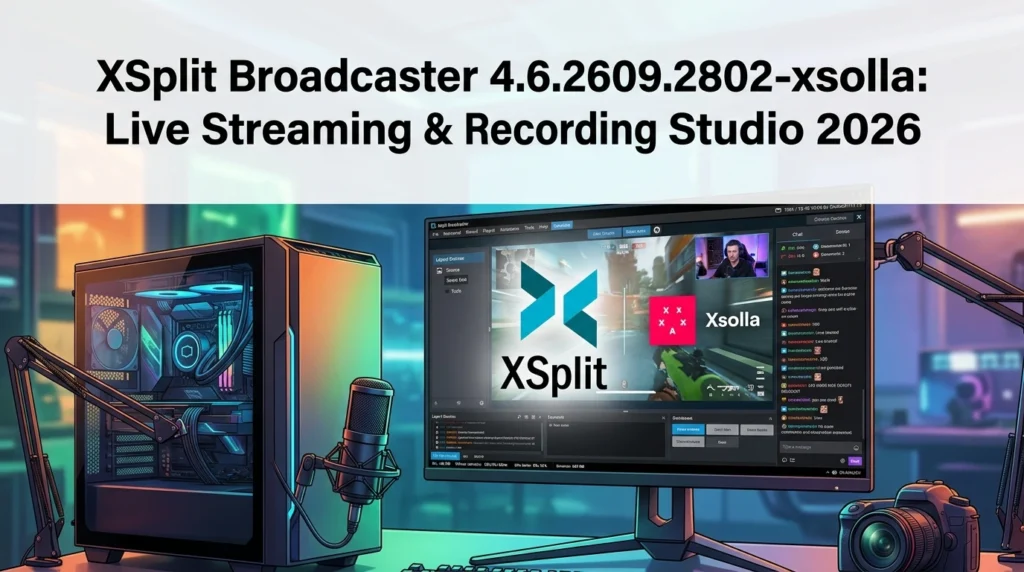
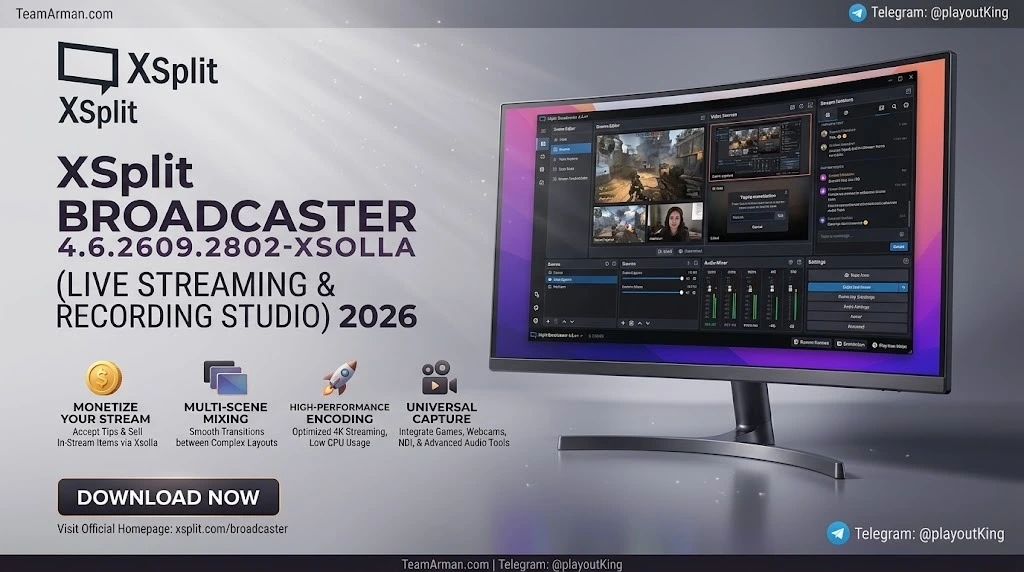
XSplit Broadcaster is a commercial live streaming and screen recording application developed by SplitmediaLabs Limited. It runs exclusively on 64-bit Windows 10 and Windows 11 and follows a freemium model: the Free tier supports up to 720p streaming without a watermark, while Premium unlocks unlimited resolution, unlimited scenes, multi-streaming, and commercial use. The software is widely adopted across gaming, esports, education, churches, corporate webinars, and virtual events, largely because its Layout Wizard and guided output setup reduce the technical barrier to going live.
XSplit Broadcaster competes directly with OBS Studio and Streamlabs Desktop, but it differentiates itself through a polished, guided UI, official platform integrations (Twitch, YouTube, Facebook Gaming, Kick), and a curated plugin store rather than an open-source scripting ecosystem.
Key Features
XSplit Broadcaster 4.6 bundles a deep production toolkit. Below are the capabilities that matter most in day-to-day broadcasting.
Scene Composition and Layout
-
Layout Wizard: Build a functional scene in a few clicks by selecting a layout and assigning sources.
-
Drag-and-drop sources: Add games, webcams, images, videos, GIFs, web pages, IP cameras, and more.
-
Scene presets and custom transitions: Apply animations and broadcast effects; support for Stinger and Luma transitions.
-
Source masking: Change the shape of any camera or media source directly in the scene.
Audio and Video Production
-
Multitrack audio recording: Enabled by default for new Local Recording setups in 4.6.2609.2802, allowing separate microphone and game audio tracks for post-production.
-
AI Voice Clarity: Cleans up voice audio and suppresses background noise.
-
AI Live Captions: Real-time captions for Twitch and YouTube streams (Premium).
-
Per-scene audio control: Adjust audio levels independently for each scene.
-
Chroma key threshold: Fine-grained green-screen sensitivity for webcams and capture sources.
Streaming and Output Flexibility
-
Multistreaming: Broadcast simultaneously to multiple platforms such as Facebook and YouTube.
-
Multi Output Mode (Beta): Stream horizontal and vertical layouts simultaneously from a single scene—ideal for TikTok, YouTube Shorts, and Twitch Dual Format Streaming.
-
NVIDIA NVENC and Intel Quick Sync: Hardware encoding including AV1 support on NVIDIA GPUs and H.264/H.265 via Intel Arc.
-
Custom RTMP: Stream to any platform that accepts an RTMP ingest URL.
Recording and Post-Production Support
-
Recording profiles: Record different scenes at the same time—e.g., clean gameplay alongside a produced stream.
-
Cue points: Mark moments during recording for easier editing later.
-
Media Playlist: Loop images and videos for BRB screens or sponsor segments.
Extensibility and Control
-
Plugin and Extension Store: Add a Gamepad Visualizer, Whiteboard, Audio Mixer and DSP Effects, Replay Source, and more.
-
XSplit JS Framework (XJS): Build custom plugins and macros with JavaScript.
-
Stream Deck integration: Control Multi Output Mode, microphone/speaker volume, and recording actions from an Elgato Stream Deck.
What’s New in XSplit Broadcaster 4.6.2609.2802 (October 2026)
The 4.6.2609.2802 release is a focused productivity update. Here are the headline changes.
Presentation Switcher
The new Presentation Switcher lets you save and load complete production setups—including scenes, sources, output channels, video settings, stream title, and description—directly from the main window. You can keep separate presentations for each game or podcast, reducing the need to reconfigure your workflow between shows.
Intel Arc Support for Twitch Enhanced Broadcasting
Twitch Enhanced Broadcasting now supports Intel Arc Alchemist and Battlemage discrete GPUs via Intel Quick Sync. This allows H.264/H.265 encoding and automatic multi-quality stream configuration based on hardware and bandwidth. Eligible channels also gain Dual Format Streaming (horizontal + vertical) on these GPUs.
Multitrack Audio Enabled by Default
New Local Recording setups now enable multitrack audio recording by default. This means microphone, game audio, and other sources are captured on separate tracks out of the box, simplifying post-production audio balancing.
Kick Chat Viewer and YouTube Gifts
-
Kick Chat Viewer: View and customize your Kick channel chat directly inside Broadcaster.
-
YouTube Gifts: Gift activity now appears in the Stream Dashboard and YouTube Live Alerts for eligible channels.
Stream Deck Multi Output Controls
The updated XSplit Controller plugin adds granular controls for Multi Output Mode: start/stop each output separately or control both together, plus microphone and speaker volume adjustments.
Media and Stability Fixes
The update improves decoding and playback for video, audio, RTMP, and RTSP streams, and fixes issues such as video files playing audio without a picture, MP3 playback failures, and RTSP source crashes.
System Requirements
XSplit Broadcaster is Windows-only; there is no native macOS or Linux build. The table below reflects the official requirements for version 4.6.
| Component | Minimum | Recommended |
|---|---|---|
| Operating System | Windows 10 or Windows 11 (64-bit) with latest Intel, AMD, or NVIDIA drivers | Windows 10/11 (64-bit) |
| Processor (CPU) | 2nd Generation Intel Core i5 or equivalent | 4th Gen Core i5 for 720p; 4th Gen Core i7 for 1080p |
| Memory (RAM) | 8 GB | 8 GB |
| Graphics (GPU) | GeForce or Radeon class with DirectX 10.1+ support | GeForce or Radeon class with DirectX 10.1+ |
| Storage | 250 MB available space | 250 MB |
| Network (Upload) | 500 kbps minimum for lowest settings | 5 Mbps for HD streaming |
Sources: Official XSplit requirements.
Note: Windows 7 and 8.1 are no longer supported in the 4.6 branch. Ensure your graphics drivers are current before installing.
Installation Guide
Installing XSplit Broadcaster follows a straightforward Windows workflow.
-
Download the installer from the official XSplit website (
xsplit.com/broadcaster). Avoid third-party download portals that may bundle unwanted software. -
Run the installer and follow the on-screen prompts. The download size is approximately 410 MB.
-
Launch the application and sign in with an XSplit account. If you do not have one, create it during the sign-in flow.
-
Verify your hardware meets the requirements above. Outdated GPU drivers are a common cause of capture and encoding issues.
-
Choose your plan: The Free tier is sufficient for testing and 720p streaming without a watermark. Upgrade to Premium when you need unlimited scenes, resolutions above 720p, multi-streaming, or commercial usage rights.
How to Use XSplit Broadcaster
The core workflow is intentionally simple: create a scene → set up an output → stream or record. Here is how each step works.
Step 1: Create Your First Scene
-
Fast path: On the welcome screen, click “Get started with a layout” to launch the Layout Wizard. Choose a layout and assign sources from the drop-down menus.
-
Manual path: Click “Add Source” and choose the source type (Game Capture, Webcam, Screen Capture, Media File, Text, Browser, etc.). Resize and arrange sources on the canvas.
-
Scenes are collections of sources. Use the Scene buttons to switch between layouts. Right-click a scene tab to rename it.
Step 2: Set Up Streaming
-
Click the Stream button. The Plugin Store dialog opens.
-
Choose your platform (Twitch, YouTube, Facebook, Kick, etc.) and follow the setup wizard to authenticate your account. For unlisted platforms, use Custom RTMP.
-
In version 4.6.2609.2802, the former Broadcast menu has been consolidated into the Output menu. Use it to add platforms, manage settings, and choose output channels.
Step 3: Configure Recording (Optional)
-
Confirm which canvas the Record button will capture.
-
Click Record to start local recording. Multitrack audio is enabled by default for new setups.
-
Use Recording Profiles to capture different scenes simultaneously if needed.
Step 4: Go Live or Record
-
For streaming, select your output channel from the Outputs drop-down and click Stream. A pre-stream dialog may appear for certain platforms to confirm title and description.
-
For recording, click Record on the active scene.
-
Use the Presentation Switcher (new in 4.6.2609.2802) to load a saved production setup before going live.
Best Use Cases
XSplit Broadcaster is not limited to gaming. Its guided setup and production features make it viable across several professional scenarios.
Gaming and Esports Streaming
Game Capture supports DirectX 12 titles with improved reliability in the 2026 releases. Features like NVIDIA NVENC AV1 encoding, Gamepad Visualizer, and Instant Replay plugins cater directly to competitive and entertainment gaming streams.
Education and Training
Educators use XSplit for webinars, training sessions, and virtual classrooms. The Whiteboard plugin, screen sharing, and AI Live Captions improve accessibility and engagement.
Corporate Events and Webinars
XSplit supports product launches, town halls, earnings calls, and conferences with broadcast-quality scene composition, multistreaming, and source masking for branded layouts.
Church and Worship Streaming
Volunteers can operate the software thanks to the Layout Wizard and pre-built scenes. Lyric overlays, multi-camera support, and one-click streaming to Facebook, YouTube, and church websites are common workflows.
Podcasts and Talk Shows
The Media Playlist, per-scene audio, multitrack recording, and source masking make XSplit suitable for multi-guest podcasts and interview-style shows.
VTubing and Creative Streams
The January 2026 update added Spout2 support, making it easier to bring in content from VTuber applications. Combined with chroma key and AI background removal, XSplit supports virtual avatar production.
Advantages and Limitations
No streaming tool is perfect for every user. Here is an honest breakdown.
Advantages
-
Guided setup: Faster time-to-first-stream than OBS for beginners, thanks to the Layout Wizard and platform authentication wizards.
-
Polished, commercial UI: A cleaner, more refined interface compared to OBS, popular with business presenters and educators.
-
Strong platform integrations: Native support for Twitch, YouTube, Facebook Gaming, Kick, and Custom RTMP.
-
Multi Output Mode: Stream horizontal and vertical layouts simultaneously from one scene—valuable for TikTok and Shorts repurposing.
-
Dedicated support: Live chat support and comprehensive documentation are frequently cited as strengths.
Limitations
-
Windows-only: No native macOS or Linux version.
-
Higher CPU usage: At equivalent encoding settings, XSplit generally consumes more CPU than OBS Studio, which can impact performance on older hardware.
-
Paid for full features: The Free tier is capped at 4 scenes and applies watermarks above 720p/30fps. Multi-streaming, unlimited scenes, and commercial use require Premium.
-
Cost: At roughly $15/month or $60/year, it is significantly more expensive than the free OBS Studio. Users consistently note the cost as a drawback.
-
Frame drops on weak networks: Some users report high frame drops when network speed fluctuates.
-
Advanced features require onboarding: Certain production tools are not as intuitive as the basic setup, requiring time to learn.
Alternatives to XSplit Broadcaster
If XSplit does not fit your budget, operating system, or workflow, these are the most relevant alternatives in 2026.
OBS Studio (Free, Open Source)
Platforms: Windows, macOS, Linux.
Best for: Users who want maximum control, zero cost, and a massive plugin ecosystem.
OBS Studio is the industry standard. It is 100% free, has no watermark, no scene limits, and supports Lua and Python scripting. It consumes less CPU than XSplit at equivalent settings. The trade-off is a steeper learning curve and a less polished out-of-the-box experience.
Streamlabs Desktop (Freemium)
Platforms: Windows, macOS.
Best for: Beginners who want pre-built themes, integrated donations, and a friendlier UI on top of the OBS engine.
Streamlabs Desktop is a commercial fork of OBS with built-in overlays, alerts, and donation tools. It is easier to onboard than OBS but uses more CPU and includes upsells for its Prime subscription.
Twitch Studio (Free, Twitch-Native)
Platforms: Windows, macOS.
Best for: Twitch-exclusive streamers who want the fastest possible setup.
Twitch Studio is free and deeply integrated with Twitch, but it cannot stream to YouTube or Kick and offers limited customization. It plateaus quickly for users who need advanced production.
vMix (One-Time Purchase)
Platforms: Windows only.
Best for: Professional multi-camera productions requiring NDI, ISO recording, and instant replay.
vMix is more expensive ($60–$1,200 one-time) and overkill for solo streamers, but it is a strong choice for live event production and corporate broadcasts.
Ecamm Live (macOS)
Best for: Mac-based creators who want a polished, XSplit-like experience. Ecamm Live is a macOS-native live production tool with strong community support.
Frequently Asked Questions
Is XSplit Broadcaster free?
XSplit Broadcaster has a Free tier that supports streaming up to 720p without a watermark and includes 4 scenes. Premium features—unlimited scenes, resolutions above 720p, multi-streaming, and commercial use—require a paid plan starting around $15/month or $60/year.
What are the system requirements for XSplit Broadcaster 4.6?
You need Windows 10 or 11 (64-bit), a 2nd Gen Intel Core i5 or equivalent, 8 GB RAM, a DirectX 10.1-compatible GPU, and 250 MB of storage. For HD streaming, a 5 Mbps upload speed is recommended.
What’s new in XSplit Broadcaster 4.6.2609.2802?
The October 2026 update adds a Presentation Switcher, Intel Arc support for Twitch Enhanced Broadcasting, multitrack audio enabled by default for new recordings, a Kick Chat Viewer, YouTube Gifts integration, and Stream Deck Multi Output controls for separate output management.
Can XSplit Broadcaster stream to multiple platforms at once?
Yes, multistreaming is a Premium feature that lets you broadcast simultaneously to platforms such as Facebook and YouTube. Multi Output Mode also allows simultaneous horizontal and vertical streams from a single scene.
Does XSplit Broadcaster work on Mac?
No. XSplit Broadcaster is Windows-only. There is no native macOS or Linux version. Mac users should consider Ecamm Live or OBS Studio as alternatives.
Is XSplit better than OBS Studio?
It depends on your priorities. XSplit wins on guided setup, polished UI, and pre-integrated production tools. OBS wins on price (free), platform support, CPU efficiency, and customization. Beginners who value speed and polish may prefer XSplit; users who want maximum control at zero cost generally choose OBS.
Can I use XSplit Broadcaster for commercial purposes?
Commercial use requires a Premium plan. The Free tier is limited to personal use only.
Does XSplit Broadcaster support AI features?
Yes. The 2026 releases include AI Voice Clarity (noise suppression and voice cleanup) and AI Live Captions for real-time subtitles on Twitch and YouTube (Premium).
Final Thoughts
XSplit Broadcaster 4.6.2609.2802 is a mature, polished live streaming and recording studio that prioritizes workflow efficiency and production consistency over open-ended customization. The Presentation Switcher directly addresses a common pain point for creators who run multiple shows, while Intel Arc support and multitrack audio defaults bring the software in line with modern hardware and post-production expectations.
The core trade-off remains unchanged: XSplit is faster to learn and more polished than OBS, but it is Windows-only, paid beyond the basic tier, and heavier on CPU. For educators, corporate presenters, churches, and creators who value guided setup and reliable platform integrations, XSplit justifies its cost. For budget-conscious streamers, macOS/Linux users, or tinkerers who want deep scripting control, OBS Studio remains the stronger default.
If you are already in the XSplit ecosystem, 4.6.2609.2802 is a worthwhile update—particularly for the Presentation Switcher and Intel Arc Enhanced Broadcasting support. If you are evaluating the software for the first time, start with the Free tier, test your workflow against the four-scene limit and 720p cap, and upgrade only when the Premium features become a genuine production bottleneck.
Our Paid Service