
Overview of the Software
Table of Contents
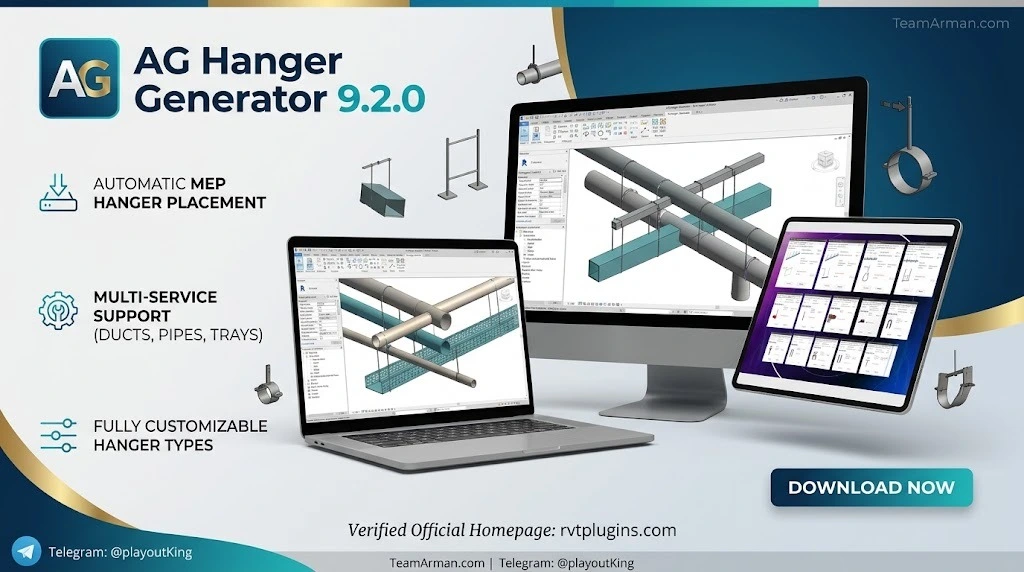
AG Hanger Generator 9.2.0 is a productivity add-in for Autodesk Revit developed by AG (Abdelrahman Elgendi). It automates the placement of hangers and supports for MEP (Mechanical, Electrical, and Plumbing) linear elements within Revit models. Instead of manually positioning each hanger, users select MEP elements—such as pipes, ducts, cable trays, and conduits—and the plugin generates hangers along runs according to user-defined spacing, offset, and structural attachment rules.
The plugin is distributed through the Autodesk App Store and supports both host and linked Revit models, making it suitable for multi-disciplinary BIM coordination workflows. It is intended for Revit users working in HVAC, plumbing, electrical, and general MEP coordination roles, helping them reduce time spent on hanger layout while improving consistency across a project.
Key Features
AG Hanger Generator 9.2.0 includes a comprehensive set of features designed to streamline hanger placement in Revit.
Extensive Hanger Library
The add-in includes a comprehensive library of hanger types organized by application. The library covers duct hangers, round duct hangers, pipe hangers, cable tray hangers, conduit hangers, and mixed MEP hangers.
-
Duct Hangers: Rectangular Rail, Rectangular, Seismic Trapeze, L Hanger, Trapeze Hanger, Side Wall Hanger (Types 01 & 02), Hanger Base I & II, Trapeze for Group Duct.
-
Round Duct Hangers: Circular Round Duct, Side Wall Hanger (Types 01 & 02), Hanger Base Round Duct, Trapeze for Group Round Duct.
-
Pipe Hangers: Circular Clamp (Types 01 & 02), Clevis, Bend, C Hanger, L Hanger (Types 01 & 02), Slide Support, Trapeze for Group Pipes, Double Clamp, Side Wall Hanger (Types 01 & 02), Hanger Base I–IV, Trapeze U Hanger, Braced Trapeze U Hanger, A-Frame Support Base, T-Support Base, Braced T-Support Base, I Hanger, U Hanger, Vertical Hanger, Riser Bracket (Types 01 & 02), Riser Hanger.
-
Cable Tray Hangers: Rectangular Rail, Rectangular, Seismic Trapeze, L Hanger, Side Wall Hanger (Types 01 & 02), Hanger Base I & II, Trapeze for Group Cable Tray.
-
Conduit Hangers: Circular Clamp, Trapeze for Group Conduits.
-
Mixed MEP Hangers: Trapeze for Group MEP, which combines ducts, pipes, cable trays, and conduits on a single trapeze.
Smart Structural Detection
Hangers automatically detect and attach to structural elements. Users can choose to hang from structural floors, structural framing, walls, or a combination—including both host elements and linked models. The plugin finds the closest structural element according to user settings.
Automated Placement
Hangers are placed automatically along ducts, pipes, cable trays, and conduits without manual positioning. Users can select whole runs, and the application places hangers only on linear MEP elements.
Custom Spacing by Element Size
Users can define custom hanger spacing for each individual element size. For pipes, ducts, cable trays, and conduits, different spacing values can be assigned based on the element size, providing greater flexibility and compliance with project-specific requirements.
Dynamic Sizing and Offset Adjustment
Hanger sizes adjust automatically when the host element’s size changes. Hanger offsets update automatically to match changes in element offset.
Sloped Element Support
The add-in fully supports sloped MEP elements, ensuring hangers are placed correctly even on angled runs.
Additional Features
-
First Hanger Placement Control: Set the location of the first hanger and define its offset from the element’s start point.
-
Multi-Element, Multi-Level Workflow: Generate hangers across multiple elements on different levels in a single operation.
-
Insulation-Aware: The add-in automatically detects insulation and accounts for it during placement.
-
Automatic Clash Detection and Avoidance: The add-in detects potential clashes and adjusts hanger placement to avoid them.
-
Linked MEP Element Support: Automatically place and distribute hangers on elements located in both host and linked Revit models.
-
Re-adjust Hangers: After moving, resizing, or rotating MEP elements, one click snaps the hangers back onto them. This updates position, rotation, size (including insulation), and rod length.
What’s New in the Latest Version
AG Hanger Generator 9.2.0 builds upon the previous 9.1.0 release with continued improvements to hanger placement accuracy and workflow efficiency. According to version history information, the 9.1.0 update added Trapeze Group using Clamps For Pipes and Double Trapeze Group using Clamps For Pipes. The 9.0.0 release introduced Custom Spacing by Element Size, allowing users to define different spacing values for each individual element size.
The 9.2.0 version represents the latest iteration of this Revit add-in, maintaining compatibility with the most recent Revit releases and incorporating refinements to the core hanger generation engine.
System Requirements
To run AG Hanger Generator 9.2.0 effectively, your system should meet the following requirements:
-
Operating System: Windows 10 or Windows 11 (64-bit).
-
Autodesk Revit: The add-in is compatible with Autodesk Revit 2020, 2021, 2022, 2023, 2024, 2025, 2026, and 2027.
-
Processor: Multi-core processor (Intel Core i5 or equivalent or higher).
-
RAM: 16 GB or more.
-
Graphics: Dedicated graphics card with adequate VRAM.
-
Internet Connection: Required. You must be logged on to Autodesk 360 to use this app (upper right corner of your Revit interface). It is free to create a user account.
-
Language: English.
For optimal performance, a system capable of running Revit efficiently is recommended.
Installation Guide
Installing AG Hanger Generator 9.2.0 is a straightforward process:
-
Download the Installer: Obtain the add-in from the Autodesk App Store. The installer runs automatically when you download it, or you can double-click the downloaded installer to begin installation.
-
Run the Installer: Follow the on-screen instructions until the installation is complete.
-
Launch Revit: Open Autodesk Revit and log in to your Autodesk 360 account. The add-in will appear in the Revit ribbon.
-
Access the Tool: Navigate to the Hanger Generator command in the ribbon toolbar to open the main dialog window.
Uninstallation
To uninstall the plugin, exit Autodesk Revit if it is currently running. Rerun the installer and select the “Uninstall” button. Alternatively, use Control Panel > Programs > Programs and Features (Windows 10/11) and uninstall as you would any other application.
How to Use the Software
Using AG Hanger Generator 9.2.0 involves a few simple steps:
-
Select MEP Elements: Select at least one element from the linear MEP element categories. You can select whole runs, and the application will only place hangers on linear MEP elements such as pipes, ducts, cable trays, and conduits.
-
Configure Layout Values: Set the layout values, which are common for all hanger models. These include:
-
Distance to edges (A)
-
Distance between hangers (B)
-
Hangs on: Choose structural floors, structural framing, Revit links, and roofs
-
Thickness of insulation
-
Bar type (thickness of bar).
-
-
Generate Hangers: The hanger will find the closest structural element according to your settings. When there is nothing to hang from, the hanger will have an overall height of 2000 mm.
-
Review and Adjust: The add-in automatically checks for real-time collisions with selected categories and improves coordination accuracy while reducing manual corrections.
-
Multi-Level Workflow: You can create elements on different floors at the same time. Do not turn off the “A.G_ReferenceView” (it does not necessarily need to be the active view).
Note: The value “B” defines the number of spaces generated between the hangers, not the number of hangers. For more speed, turn off links without supporting elements.
Best Use Cases
AG Hanger Generator 9.2.0 is designed for professionals working in the following areas:
-
HVAC Design: Automate hanger placement for rectangular and round ductwork, including seismic trapeze and trapeze hangers.
-
Plumbing Systems: Generate pipe hangers including clevis, circular clamp, riser hangers, and trapeze configurations.
-
Electrical Systems: Place hangers for cable trays and conduits efficiently.
-
MEP Coordination: Use mixed MEP hangers to combine ducts, pipes, cable trays, and conduits on a single trapeze, streamlining coordination in complex BIM projects.
-
Large-Scale Commercial Projects: The multi-element, multi-level workflow allows generating hangers across multiple elements on different levels in a single operation, making it ideal for large commercial buildings.
-
LOD 400 Modeling: The plugin supports detailed modeling workflows where hangers and supports need to be accurately represented.
Advantages and Limitations
Advantages
-
Significant Time Savings: Users report saving hundreds of hours by automating hanger creation. Customer reviews describe the tool as a “game-changer for MEP models” that saves “tons of time”.
-
Comprehensive Hanger Library: With over 50 hanger models covering duct, pipe, cable tray, conduit, and mixed MEP applications, users can find the appropriate hanger for most project requirements.
-
Intelligent Automation: Smart structural detection, automatic clash avoidance, and dynamic sizing reduce manual effort and errors.
-
Multi-Disciplinary Support: Works with host and linked Revit models, making it suitable for collaborative BIM environments.
-
User-Friendly Interface: The tool is designed to be accessible for both beginners and experienced Revit users.
Limitations
-
Revit-Only: The add-in only works within Autodesk Revit and cannot be used as a standalone application.
-
Hanger Family Dependency: The tool will only work with the hanger families attached to the application.
-
Internet Requirement: You must be logged on to Autodesk 360 and have an active internet connection to use the application.
-
Windows-Only: The plugin is compatible with Windows 64-bit operating systems only.
Alternatives to the Software
Several other Revit add-ins offer hanger placement functionality. Here is a comparison:
| Feature | AG Hanger Generator | Smart Hanger | MEP Hangers | UnoTool MEP AutoHangerSuite |
|---|---|---|---|---|
| Developer | AG (Abdelrahman Elgendi) | Autodesk App Store Publisher | ARKANCE | UnoTool |
| Hanger Library | 50+ models | Not specified | Comprehensive | Built-in libraries |
| Structural Detection | Yes | Yes | Yes | Yes |
| Sloped Element Support | Yes | Not specified | Not specified | Not specified |
| Linked Model Support | Yes | Not specified | Yes | Not specified |
| Pricing | $19.99/month | $16.99/month | Contact vendor | Contact vendor |
| Revit Compatibility | 2020–2027 | 2023–2024 | 2023–2026 | Not specified |
Smart Hanger is an Autodesk Revit tool that helps users manage hangers and supports for all MEP curve elements. It offers auto-placement settings and is priced at $16.99/month. MEP Hangers (formerly Smart Hangers) is a plugin for LOD 400 modeling that allows instant large-scale insertion of hangers and supports for ducts, pipes, cable trays, and conduits. UnoTool MEP AutoHangerSuite is a Revit plugin designed to provide base supports and hanger supports using built-in libraries included with the tool.
Frequently Asked Questions
Q1: What is AG Hanger Generator 9.2.0?
AG Hanger Generator 9.2.0 is an Autodesk Revit add-in that automatically places hangers and supports on MEP linear elements, including pipes, ducts, cable trays, and conduits. It is developed by AG (Abdelrahman Elgendi) and distributed through the Autodesk App Store.
Q2: Which versions of Revit are compatible with AG Hanger Generator 9.2.0?
The add-in runs on Autodesk Revit 2020, 2021, 2022, 2023, 2024, 2025, 2026, and 2027.
Q3: How much does AG Hanger Generator cost?
AG Hanger Generator is available for $19.99 per month through the Autodesk App Store.
Q4: Can I use AG Hanger Generator on linked Revit models?
Yes. The add-in supports both host and linked Revit models, allowing you to place and distribute hangers on elements located in both host and linked models.
Q5: Does AG Hanger Generator handle insulation on MEP elements?
Yes. The add-in automatically detects insulation and accounts for it during hanger placement.
Q6: What happens if I move or resize MEP elements after placing hangers?
The Re-adjust Hangers feature allows you to snap hangers back onto elements after moving, resizing, or rotating them with one click. It updates position, rotation, size (including insulation), and rod length.
Q7: Is AG Hanger Generator suitable for beginners?
Yes. The tool is designed with a user-friendly interface that makes it accessible for both beginners and experienced Revit users. Customer reviews indicate that even users new to add-ins find it impressive and effective.
Q8: Can I create hangers on multiple levels at once?
Yes. The multi-element, multi-level workflow allows you to generate hangers across multiple elements on different levels in a single operation.
Final Thoughts
AG Hanger Generator 9.2.0 is a powerful and efficient solution for MEP professionals who need to automate hanger placement in Autodesk Revit. With its extensive hanger library, smart structural detection, dynamic sizing, and multi-level workflow capabilities, it addresses the time-consuming and error-prone task of manually placing hangers on pipes, ducts, cable trays, and conduits.
The plugin is particularly valuable for HVAC, plumbing, electrical, and general MEP coordination roles where accuracy and efficiency are critical. Its compatibility with a wide range of Revit versions and support for linked models make it a versatile tool for collaborative BIM projects.
While the subscription cost and Revit-only limitation may be considerations for some users, the time savings and consistency improvements reported by existing users suggest that AG Hanger Generator 9.2.0 is a worthwhile investment for MEP design teams looking to streamline their hanger placement workflows.
Our Paid Service