
Overview of the Software
Table of Contents
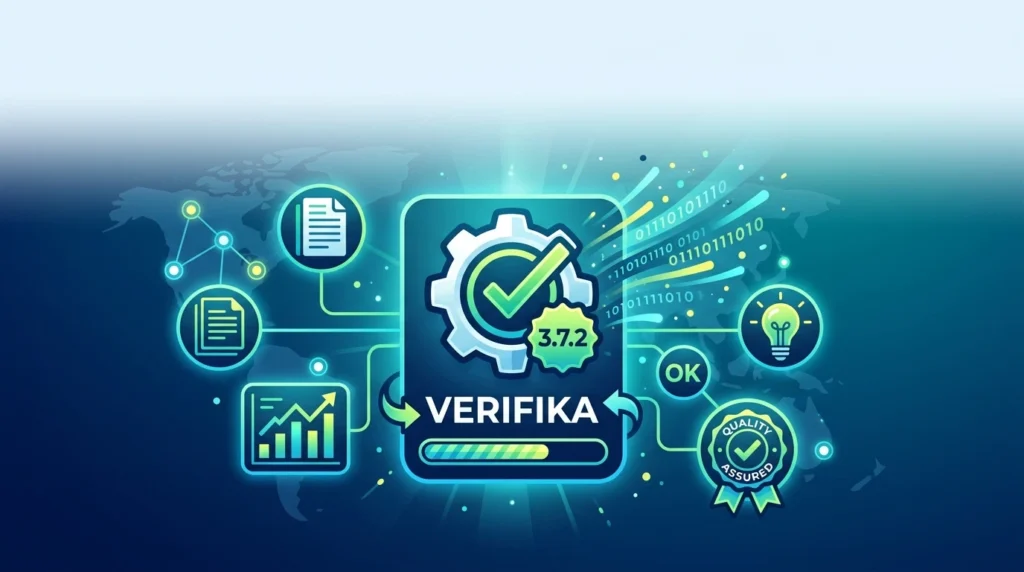
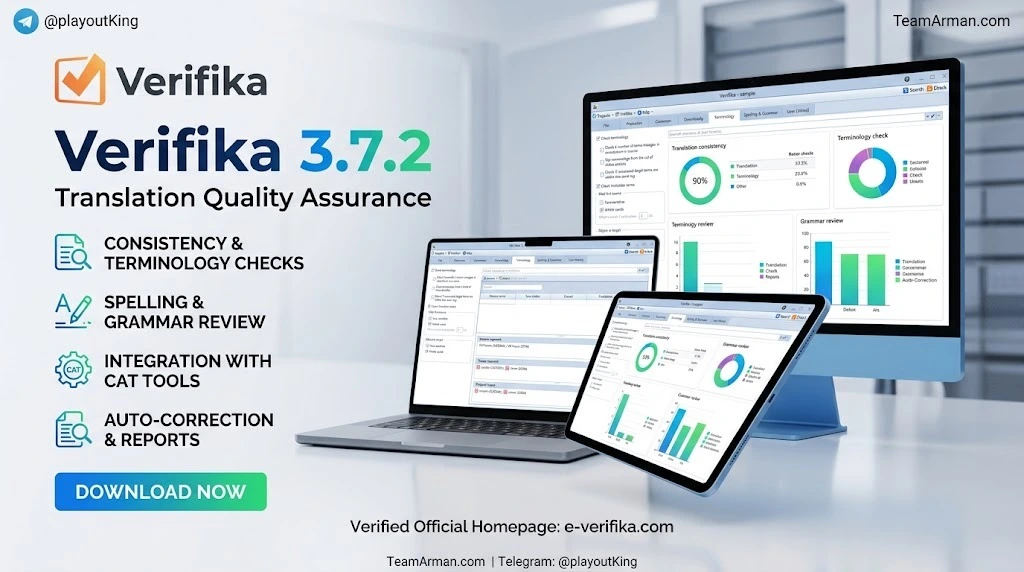
Verifika 3.7.2 is a specialized translation quality assurance (QA) tool designed to help localization professionals locate and resolve formal errors in bilingual translation files and translation memories. As a desktop and web-based application developed by Palex Group Inc., Verifika has established itself as a standard QA solution for over 487 language service providers (LSPs) and more than 21,000 individual professionals worldwide. The software detects formatting, consistency, terminology, grammar, and spelling errors in the target language, providing a comprehensive report that allows users to correct issues directly within the application without needing to switch back to their original CAT tool.
The primary function of Verifika is to automate the tedious aspects of translation quality control. It scans bilingual files and translation memories for mechanical and formal errors, presenting them in an interactive report where linguists, proofreaders, and project managers can review, discuss, and resolve each issue efficiently. With 55 out-of-the-box QA checks covering terminology, consistency, numbers, measurement units, and more, Verifika enables teams to deliver high-accuracy translations within tight deadlines.
The software is available in two deployment models: Verifika Desktop (a Windows-based application) and Verifika Web (a browser-based platform that supports real-time collaboration). This flexibility allows freelance translators, small teams, and enterprise localization departments to choose the workflow that best fits their operational needs.
Key Features
Verifika 3.7.2 offers a robust set of features designed to streamline the translation QA process:
-
Extensive Error Detection: The software identifies 55 types of errors across more than 70 languages, covering accuracy, fluency, terminology, and stylistic issues when a client’s style guide is available.
-
Integrated Correction Environment: Users can detect and correct errors directly within Verifika, eliminating the need to switch between different software tools. This integrated approach significantly enhances productivity and reduces the risk of introducing new errors during manual corrections.
-
Multi-Format Support: Verifika supports a wide range of bilingual file formats, including XLIFF, TMX, WordFast TXML, memoQ files, SDL XLIFF, TRADOStag Documents (.ttx), Excel files, and more, ensuring compatibility with virtually all major CAT tools.
-
Customizable QA Checks: The tool offers 49 pre-set quality checks with language-specific standards and allows users to develop custom profiles tailored to the requirements of different projects and language pairs.
-
Cloud CAT Tool Integration: Verifika seamlessly integrates with popular cloud-based CAT tools such as Crowdin, Memsource, Smartcat, Transifex, and Trados Studio, facilitating smooth workflow integration across platforms.
-
Omission Checks: Designed to identify untranslated or partially translated text, Verifika detects empty segments to ensure completeness in translations—a critical feature for large projects where missing translations can easily go unnoticed.
-
User-Defined Checks: Beyond built-in checks, Verifika allows users to create custom verification rules. This feature enables teams to address unique client requirements that go beyond the scope of standard QA checks by specifying particular elements that should be verified in source or target text.
-
Auto-Correction Functionality: For many common error types, Verifika offers an auto-correction feature that can automatically fix issues such as inconsistent terminology, formatting problems, and punctuation errors, saving substantial review time.
-
Comprehensive Reporting: All detected errors are compiled into detailed QA reports that can be exported as Excel files or shared digitally with team members for collaborative resolution.
-
Language and Encoding Support: Verifika supports all encodings, including Unicode, and correctly handles all languages, including Asian and right-to-left (RTL) languages.
What’s New in the Latest Version
Verifika 3.7.2 represents a refinement of the software’s core capabilities while introducing several improvements to enhance user experience and workflow efficiency. While detailed release notes are available through the official Verifika support portal, this version continues the tradition of the 3.7.x series by focusing on stability, performance optimization, and expanded compatibility with modern CAT tool formats.
Key improvements in the recent Verifika releases include:
-
Enhanced QA Report Management: The report interface has been streamlined to provide clearer error categorization and faster navigation between detected issues.
-
Improved Profile Management: Users can now more easily load, save, and share QA profiles across projects. Profiles created in Verifika Desktop 3.2.x remain compatible with Verifika Web, ensuring continuity for existing users.
-
Refined Auto-Correction Algorithms: The auto-correction engine has been updated to handle a broader range of error types with greater accuracy, reducing the need for manual intervention.
-
Performance Optimizations: Processing speed for large file sets has been improved, allowing QA teams to handle substantial projects more efficiently.
-
Interface Language Support: Verifika 3.7.2 offers interface localization options, allowing users to work in their preferred language for improved accessibility.
System Requirements
Verifika Desktop 3.7.2 is designed to run on Windows operating systems. The software’s system requirements are modest, ensuring compatibility with a wide range of professional workstations:
-
Operating System: Windows 7, Windows 8, Windows 10, or Windows 11
-
Processor: Single-core Intel or AMD processor, 1 GHz or faster
-
RAM: Minimum 1 GB (2 GB or more recommended for larger projects)
-
Hard Disk Space: Sufficient space for the application and project files
-
Additional Requirements: Access Database Engine (for 64-bit versions) if using SDL Studio Term Base (.sdltb) files
Verifika Web operates entirely in a modern web browser and does not require local installation. It is compatible with Windows, macOS, and Linux systems through browser support. This makes Verifika Web an ideal choice for teams working across mixed operating system environments.
For optimal performance with large translation projects, a multi-core processor and 4 GB or more of RAM are recommended.
Installation Guide
Verifika Desktop Installation
-
Download the Installer: Obtain the official Verifika Desktop installer from the Verifika website or your authorized software provider. The software is available as a licensed product.
-
Run the Installer: Locate the downloaded executable file and double-click to begin the installation process. Follow the on-screen prompts provided by the installation wizard.
-
Accept the License Agreement: Review and accept the end-user license agreement to proceed with the installation.
-
Choose Installation Directory: Select the folder where Verifika will be installed. The default location is typically under the Program Files directory.
-
Complete the Installation: Click the Install button and wait for the installation process to complete. Once finished, click Finish to exit the wizard.
-
Launch Verifika: Open the application from the Start menu or desktop shortcut. The first launch may prompt you to configure initial settings, such as interface language and file association preferences.
Verifika Web Access
-
Navigate to the Verifika Web Portal: Open a modern web browser and go to the official Verifika Web application URL.
-
Create an Account: Verifika automatically creates an anonymous account for immediate use, but this account and all associated data are deleted after one month. To retain your data and access collaboration features, register by clicking the Log in button, providing your email, setting a password, and verifying your email. Registration grants you 20 trial projects.
-
Create or Join an Organization: Set up your organization or workspace to begin managing projects. You can invite unlimited collaborators at no additional cost.
-
Upload Content Files: Once your organization is configured, upload your bilingual files or translation memories. The Check button activates after files are loaded.
-
Run QA Checks: Click Check to begin the quality assurance process. Verifika will analyze your files against default quality requirements for your language pair, or you can load custom profiles from Verifika Desktop 3.2.x.
How to Use the Software
Basic Workflow
The typical Verifika QA workflow consists of the following steps:
-
Create a Project: Open Verifika and create a new project using Ctrl+N or the Project menu. Save the project to a location where you want to preserve your work progress. Note that changing file locations after work has begun will reset all error statuses and pending changes.
-
Load Files: Import your bilingual translation files into the project. Verifika supports drag-and-drop functionality as well as manual file selection.
-
Select or Configure a QA Profile: Load a saved profile, use the default profile, or create a custom profile with specific checks enabled for your project. You can set a profile as default so it opens automatically every time you start Verifika.
-
Run the Check: Click the Check button to initiate the QA analysis. Verifika processes the files and generates a comprehensive report of all detected errors.
-
Review the Report: The Report window displays all detected issues categorized by error type. You can filter errors, mark them as resolved or false positives, and navigate between segments.
-
Correct Errors: Using the integrated editor, make corrections directly within Verifika. For many error types, you can use the auto-correction feature to apply fixes automatically.
-
Export or Synchronize: Once all errors are reviewed and resolved, export the corrected bilingual files or synchronize changes directly with your cloud CAT/TMS system. Verifika also allows you to export an Excel report for sharing with clients or team members.
Configuration Options
Verifika offers extensive configuration options through its Options window (accessible via the gear icon in the top-right corner):
-
Application Settings: Change the interface language and restart Verifika to apply the change.
-
Project Settings: Enable Auto Save at specified intervals (requires saving the project at least once to activate).
-
Report Settings: Configure the user name displayed after editing TMX files and enable backup files before saving changes, with options to retain up to 10 backup copies.
-
Protection Settings: Enable ITD file support (requires SDLX application to be installed on your computer).
Best Use Cases
Verifika 3.7.2 is particularly well-suited for the following scenarios:
-
Large-Scale Localization Projects: When managing translations across hundreds or thousands of files, Verifika’s batch processing capabilities and comprehensive reporting enable QA teams to maintain quality at scale.
-
Life Sciences and Medical Translation: Verifika powers translation quality assurance for organizations in the life science sector, where accuracy and regulatory compliance are paramount.
-
Engineering and Technical Documentation: The software’s ability to check numbers, measurement units, and terminology consistency makes it valuable for technical translation projects where precision is critical.
-
Freelance Translator Workflows: Individual translators can use Verifika to perform thorough QA on their deliverables before submission, reducing the risk of client rejections and improving professional reputation.
-
LSP Vendor Management: Language service providers can use Verifika to evaluate vendor performance, identify recurring error patterns, and implement targeted corrective action plans.
-
Cloud-Based CAT Tool Integration: Teams using Crowdin, Memsource, Smartcat, Transifex, or Trados Studio can integrate Verifika into their existing workflows for a unified quality assurance process.
-
Game Localization: Verifika’s support for short strings and various file formats makes it suitable for game localization projects where consistency across UI elements, dialogue, and documentation is essential.
Advantages and Limitations
Advantages
-
Time Savings: Verifika can save up to 10% of translation project time through fast processing of large file sets and the ability to make corrections directly within the application.
-
Comprehensive Error Coverage: With 55 error types and support for over 70 languages, Verifika provides one of the most thorough QA solutions available.
-
User-Friendly Interface: Users consistently praise Verifika for its intuitive design and ease of use compared to alternatives.
-
Integrated Correction Workflow: The built-in translation unit editor saves time by eliminating the need to switch between multiple applications during the QA process.
-
Flexible Deployment: Choose between desktop and web-based versions to match your team’s collaboration needs.
-
No Charge for Collaborators: Verifika Web does not charge for additional team members, making it cost-effective for growing teams.
Limitations
-
Desktop Version Windows-Only: The Verifika Desktop application is only available for Windows, which may be a constraint for Mac and Linux users. The web version addresses this limitation for browser-based workflows.
-
External QA Tool: Unlike QA features built into CAT tools like Trados Studio, Verifika operates as a separate application, requiring an additional step in the translation workflow.
-
Learning Curve for Custom Profiles: While the default checks are straightforward, creating sophisticated custom QA profiles may require some initial learning and configuration.
-
No Grammar Checking for All Languages: Some users have noted that grammar checking is not available for every language pair, though the tool covers a wide range of languages.
Alternatives to the Software
Several translation QA tools compete with Verifika in the localization market:
ApSIC Xbench
ApSIC Xbench is a widely used QA tool that offers terminology management, customizable QA profiles, and multi-file support. It is available in both free and paid versions. Xbench is known for its powerful search function for bilingual files but has a steeper learning curve than Verifika. Unlike Verifika, Xbench cannot distinguish tracked from untracked text in Trados files, which can result in false warnings.
Trados Studio QA Checker
Trados Studio includes a built-in QA Checker (QA Checker 3.0) that allows for customizable verification settings directly within the CAT tool. Its primary advantage is seamless integration into the Trados workflow, but it may lack some of the advanced checks and external tool compatibility that Verifika offers.
QA Distiller
QA Distiller is another external QA tool that supports multiple file formats and offers extensive checks. It is often compared to Verifika for its comprehensive error detection capabilities.
ErrorSpy
ErrorSpy is a lightweight QA tool for bilingual files. While it offers basic error detection, it does not match Verifika’s depth of features or language support.
Memsource (Phrase)
Memsource (now part of Phrase) is a cloud-based CAT tool with built-in QA functionality. While it is primarily a translation management system rather than a standalone QA tool, its integrated QA features compete with Verifika’s capabilities.
Frequently Asked Questions
Q: What is Verifika 3.7.2 used for?
Verifika 3.7.2 is a translation quality assurance tool used to detect and correct formal errors in bilingual translation files. It checks for terminology inconsistencies, formatting issues, numbers, measurement units, omissions, and other common translation errors across more than 70 languages.
Q: Is Verifika compatible with Trados Studio?
Yes, Verifika supports RWS/SDL Trados XLIFF (.sdlxliff) and TRADOStag Documents (.ttx) formats. It also integrates with Trados Studio, allowing you to synchronize corrections directly back to your Trados projects.
Q: Can I use Verifika on Mac or Linux?
Verifika Desktop is a Windows-only application. However, Verifika Web runs in a modern web browser and is compatible with macOS and Linux systems, providing cross-platform accessibility for browser-based workflows.
Q: How many languages does Verifika support?
Verifika supports more than 70 languages, including all major European languages, Asian languages, and right-to-left (RTL) languages such as Arabic and Hebrew.
Q: Does Verifika offer a free trial?
Verifika Web provides 20 trial projects upon registration, allowing users to evaluate the platform’s features before committing to a paid license. The desktop version is available through authorized software providers.
Q: What file formats does Verifika support?
Verifika supports a wide range of bilingual file formats including XLIFF, TMX, SDL XLIFF, memoQ files (.xlf, .mqxliff, .mqxlz), TRADOStag (.ttx), WordFast TXML, Excel files (.xls, .xlsx), and various terminology file formats.
Q: Can multiple team members collaborate on Verifika projects?
Yes, Verifika Web allows unlimited collaborators at no additional charge. Team members can be assigned to projects, receive email and in-app notifications, and collaborate on QA issue resolution in real time.
Q: How does Verifika compare to Xbench?
Verifika and Xbench are both external QA tools, but Verifika is generally considered more user-friendly and offers an integrated correction environment that Xbench lacks. Verifika also handles tracked changes more reliably than Xbench, which can generate false warnings for revised segments.
Final Thoughts
Verifika 3.7.2 represents a mature, well-established solution in the translation quality assurance market. With over two decades of development history and a user base exceeding 21,000 professionals, the software has proven its value in helping localization teams deliver accurate translations efficiently. Its combination of comprehensive error detection, integrated correction capabilities, and flexible deployment options makes it a compelling choice for LSPs, freelance translators, and enterprise localization departments alike.
For teams seeking to elevate their translation quality processes, Verifika 3.7.2 offers a reliable, feature-rich platform that balances power with usability. Whether you are managing large-scale localization projects or performing final QA on a single deliverable, Verifika provides the tools needed to catch errors, streamline workflows, and maintain the highest standards of translation quality.
Our Paid Service
“We do not sell or provide any software. We only offer professional support services. If any software on your system is not working properly, or you are facing installation errors, crashes, or any other technical issue — just contact us. We will help you fix the problem quickly and remotely via AnyDesk. No software will be provided from our side — only expert troubleshooting and support.”