


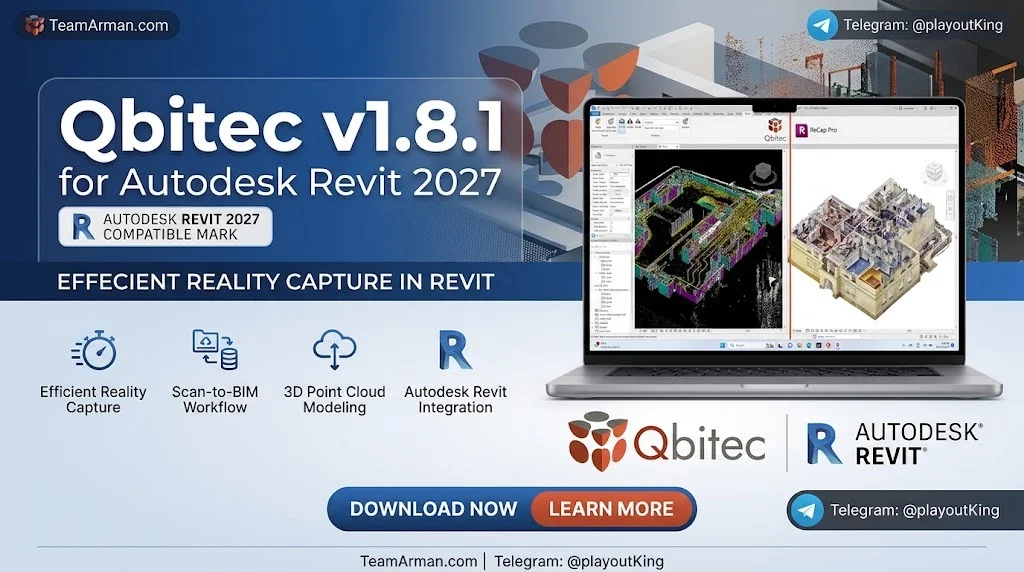
Overview of Qbitec for Revit
Table of Contents
Qbitec is a point cloud streaming and visualization plugin developed to address the inherent limitations of Revit’s native point cloud handling. Autodesk Revit provides only basic support for point cloud data, which often forces users to split, reduce, or pre-process large datasets before they can be inserted into a model. This process destroys detail, consumes time, and creates redundant local copies.
Qbitec takes a different approach. It streams point clouds directly from local drives, network storage, or cloud platforms like NavVis IVION without requiring manual export or format conversion. The plugin converts source data into a proprietary lossless format optimized for fast rendering, allowing even multi-billion-point clouds to display smoothly on standard consumer hardware.
The plugin is officially certified and distributed through the Autodesk App Store, with version 1.8.1 representing the latest stable release as of August 2026.
Key Features of Qbitec v1.8.1
Qbitec v1.8.1 provides a comprehensive feature set designed for professionals who rely on scan-to-BIM workflows.
Point Cloud Streaming and Data Management
-
Unlimited point cloud sizes: Import datasets ranging from a few thousand to billions of points without splitting or reducing detail.
-
Local and network sources: Work directly from local hard drives, external USB drives, or corporate network paths.
-
Cloud integration: Stream point clouds from publicly accessible URLs and NavVis IVION instances.
-
Format support: Compatible with E57, Autodesk ReCap, Riegl, Z+F, LAS/LAZ, Potree 1.7 and 2.0, and Entwine formats.
Visualization Tools
-
X-Ray view: Instantly see walls and structural features without manually defining cropping planes.
-
Adjustable point sizes: Surfaces appear closed and three-dimensional objects become easier to recognize intuitively.
-
Intensity coloring: Improved color blending provides better orientation and scan data interpretation.
Quality Assurance and Quality Control (QA/QC)
-
Deviation analysis: Compare point cloud data against Revit geometry with color-mapped distance visualization.
-
Multiple check types: Supports flatness, deviation, tolerance, clash, and completeness checks.
-
Real-time updates: QA/QC results refresh as you modify the model.
Panorama Integration
-
Direct display: View panoramic images inside the Revit 3D view, correctly overlaid on the model.
-
NavVis IVION streaming: Panoramas stream directly from the IVION platform without export.
What’s New in Qbitec v1.8.1
The 1.8.1 update focuses on performance, memory efficiency, and expanded compatibility.
New Cropping Features
Users can now crop point clouds using fences, circles, and windows. Cropping regions and combinations can be saved with the Revit project, preserving view configurations across sessions. The implementation uses a streamlined interface that minimizes clicks.
Significant Rendering Improvements
Rendering speed has doubled in many scenarios, according to the developer. This performance gain is most noticeable when navigating large datasets or displaying multiple point clouds simultaneously in the same view.
Reduced Memory Consumption
Internal memory management has been reworked to make better use of available system memory, particularly when working with multiple point clouds in a single project. This reduces the risk of crashes or slowdowns on standard workstations.
Extended Public URL Support
The plugin now streams public point clouds in Potree 1.7 and Entwine formats, in addition to the previously supported Potree 2. An auto-discovery feature is under development that will automatically identify the correct point cloud format behind a given URL.
Autodesk Revit 2027 Compatibility
Qbitec v1.8.1 officially supports Revit 2027, alongside Revit 2022 through 2026. This ensures users upgrading to the latest Revit release can continue their scan-to-BIM workflows without interruption.
UI and Progress Feedback
Conversion progress dialogs now display more reliable time estimates and clearly show individual processing steps, making it easier to monitor long-running point cloud conversions.
System Requirements
Qbitec v1.8.1 operates as a plugin within Autodesk Revit, so the host application requirements apply.
| Component | Requirement |
|---|---|
| Operating System | Windows 10 or Windows 11 (64-bit) |
| Autodesk Revit | Versions 2022, 2023, 2024, 2025, 2026, or 2027 |
| Disk Space | Sufficient space for converted point cloud storage (source files remain untouched) |
| Network | Required for NavVis IVION streaming and license activation |
| Memory | 16 GB RAM recommended; 32 GB or higher for large multi-cloud projects |
The plugin uses a custom installer rather than the standard Autodesk App Store installer, which means installation occurs outside the Revit add-in manager.
Installation Guide for Qbitec v1.8.1
Installing Qbitec follows a straightforward process. The official knowledge base provides detailed instructions, summarized below.
Step 1: Download the Installer
Obtain the latest version from the official Qbitec download page. The installer file follows the naming convention QbitecSetup-x.x.x.exe.
Step 2: Close Revit
Ensure all instances of Autodesk Revit are completely closed before launching the installer. The plugin cannot install while Revit is running.
Step 3: Run the Installer
Launch the installer and choose the installation scope:
-
All users: Recommended for shared workstations; requires administrative privileges.
-
Current user only: Suitable for individual evaluation or testing.
Accept the license agreement, select the installation directory (the default path is typically appropriate), and click Install.
Step 4: Activate the Plugin
After installation, open Revit and locate the Qbitec tab in the ribbon. Click Config/License, enter your license credentials (email and password), and click Activate. A free 14-day trial is available for users without a license.
Step 5: Configure a Data Source
Before inserting a point cloud, you must configure a data source. Open Qbitec Settings → Sources and click Add a new data source. Choose between:
-
Local or Network: Select a folder for converted point cloud storage.
-
NavVis IVION: Enter the instance URL (including
https://).
The data source path stores converted point clouds, not original source files. Choose a permanent location because projects reference this path.
How to Use Qbitec v1.8.1 in Revit
Converting Point Clouds
Qbitec converts source files into its optimized lossless format for streaming performance. To convert:
-
Click Insert Point Cloud in the Qbitec ribbon.
-
Click Add your first point cloud or the + button.
-
Add source files (E57, RCP, LAS, etc.).
-
Set a temporary conversion path with sufficient free disk space.
-
Click Start Conversion.
Conversion runs as a background process. You can continue working in Revit while it completes. A tray notification appears when finished.
Inserting Point Clouds into the Model
Once conversion is complete, the point cloud appears as a tile in the Insert Point Cloud dialog. Click Insert to place it in the project. Placement options include:
-
Center to Center: Places the point cloud center at the project center.
-
Origin to Internal Origin: Aligns the point cloud origin with the Revit internal coordinate system.
-
By Shared Coordinates: Uses geo-referenced coordinates for accurate placement.
Using QA/QC Tools
The Quality Analysis feature compares point cloud data against selected Revit geometry. To run a check:
-
Select geometry in the model.
-
Open the QA/QC panel from the Qbitec ribbon.
-
Choose a check type (deviation, flatness, clash, tolerance, or completeness).
-
Review color-mapped results in the view.
Working with Panoramas
When connected to a NavVis IVION source, panoramic images stream directly into Revit. The plugin overlays panoramas correctly on the model, enabling one-to-one comparison between as-built conditions and design intent.
Best Use Cases for Qbitec v1.8.1
Scan-to-BIM Workflows
Architects and engineers use Qbitec to bring laser scan data directly into Revit for as-built documentation and renovation modeling. The plugin’s streaming architecture means project teams can reference the full-resolution point cloud without sacrificing performance.
Construction Quality Validation
QA/QC professionals leverage the deviation and flatness checks to verify that constructed elements match design specifications. Color-mapped results highlight discrepancies quickly, allowing issues to be addressed before they compound.
Large-Scale Infrastructure Projects
For industrial facilities, bridges, and other infrastructure with extensive scan coverage, Qbitec handles datasets that would overwhelm native Revit point cloud tools. The reduced memory footprint means standard workstations can handle multi-cloud projects.
Heritage Documentation
The plugin’s X-Ray view and panorama integration support detailed documentation of existing structures. Surveyors and conservation professionals can overlay historical scan data with proposed interventions in a single environment.
Advantages and Limitations of Qbitec v1.8.1
Advantages
| Benefit | Description |
|---|---|
| Performance | Streams billion-point clouds smoothly on standard hardware |
| No data preprocessing | Eliminates splitting, reduction, and local copy creation |
| Cloud-native | Direct NavVis IVION and public URL streaming |
| QA/QC built in | Automated deviation, flatness, and clash checks |
| Panorama overlay | Unique integration of 360° imagery in the 3D model |
Limitations
| Constraint | Description |
|---|---|
| Revit-only | The plugin functions exclusively inside Autodesk Revit; no standalone application |
| Custom installer | Bypasses Autodesk App Store installation, which may complicate enterprise deployment |
| License required | Full functionality requires a paid license after the 14-day trial |
Alternatives to Qbitec for Revit Point Clouds
Several tools address point cloud workflows in Revit, though with different approaches.
-
Autodesk ReCap: Autodesk’s native point cloud processing tool. It integrates with Revit but struggles with very large datasets and lacks advanced QA/QC features. Best suited for smaller projects or organizations already invested in the Autodesk ecosystem.
-
Leica Cyclone: A comprehensive point cloud processing platform with Revit integration options. It offers powerful registration and analysis tools but typically requires more specialized training and carries a higher cost.
-
Faro Scene: Similar to Cyclone, Scene provides point cloud processing and can export to formats Revit understands. It does not offer the streaming architecture or in-Revit QA/QC that Qbitec provides.
-
NavVis IVION: While not a Revit plugin itself, NavVis offers cloud-based point cloud visualization. Qbitec bridges NavVis IVION data directly into Revit, making the two tools complementary rather than competitive.
Frequently Asked Questions
Does Qbitec v1.8.1 work with Autodesk Revit 2027?
Yes. Qbitec v1.8.1 officially supports Revit 2027, in addition to versions 2022 through 2026.
Can I try Qbitec before purchasing?
Yes. A free 14-day trial is available. The trial requires email registration upon first use of the Insert Point Cloud command.
What point cloud file formats does Qbitec support?
Qbitec supports E57, Autodesk ReCap (RCP/RCS), Riegl, Z+F, LAS/LAZ, Potree 1.7 and 2.0, and Entwine formats. Source files in these formats are converted to Qbitec’s optimized format for streaming.
How does Qbitec improve rendering speed?
The 1.8.1 update reworked internal memory management and rendering pipelines, resulting in performance gains that double speed in many scenarios. The improvements are most noticeable when displaying multiple point clouds simultaneously.
Can Qbitec stream point clouds from the cloud?
Yes. Qbitec supports streaming from publicly accessible URLs (Potree 1.7/2.0 and Entwine formats) and NavVis IVION instances. Panoramic images also stream from NavVis IVION.
What QA/QC checks does Qbitec perform?
The Quality Analysis feature supports flatness, deviation, tolerance, clash, and completeness checks. Results are visualized with color maps and update in real time.
Is Qbitec a standalone application?
No. Qbitec is a plugin for Autodesk Revit. It does not function independently and requires a Revit installation to operate.
Where can I download Qbitec v1.8.1?
The official download page is located at qbitec.com/Download. The Autodesk App Store listing also provides access to the installer, though it uses a custom installer rather than the standard App Store installation mechanism.
Final Thoughts
Qbitec v1.8.1 for Autodesk Revit 2027 represents a mature, performance-focused solution for one of the most persistent pain points in scan-to-BIM workflows: handling point clouds at scale. The doubling of rendering speed, reduced memory consumption, and expanded cropping tools directly address the friction that slows down reality capture projects in Revit.
For professionals working with large-scale laser scans—whether in construction validation, heritage documentation, or infrastructure modeling—Qbitec offers a compelling alternative to Revit’s native capabilities. The plugin’s streaming architecture eliminates the data preprocessing that typically consumes hours of project time, while the built-in QA/QC tools transform point clouds from passive references into active validation instruments.
The addition of Revit 2027 compatibility ensures the plugin remains viable for teams upgrading to the latest Autodesk release. While the custom installer and Revit-only architecture are constraints worth noting, the performance benefits and specialized feature set make Qbitec a strong candidate for any organization serious about efficient point cloud workflows in BIM.
Our Paid Service
“We do not sell or provide any software. We only offer professional support services. If any software on your system is not working properly, or you are facing installation errors, crashes, or any other technical issue — just contact us. We will help you fix the problem quickly and remotely via AnyDesk. No software will be provided from our side — only expert troubleshooting and support.”


