
Overview of Harmony Assistant
Table of Contents
Harmony Assistant (v1.0.1) is a comprehensive music composition and score editing software designed for musicians, composers, and educators. This powerful music notation software provides a rich set of tools for creating, editing, and arranging musical scores with exceptional precision. Whether you are a professional composer working on a complex orchestral piece or a music teacher preparing educational materials, Harmony Assistant offers the flexibility and functionality you need.
The software stands out in the competitive landscape of digital audio workstations (DAWs) and notation editors by combining an intuitive interface with deep, professional-grade features. As a sheet music creator, it supports a wide range of musical notations, dynamic markings, and articulation symbols. This makes it an indispensable tool for anyone involved in music production, from film scoring to choral arrangement.
What is Harmony Assistant?
At its core, Harmony Assistant is a music composition software that allows users to input notes via a virtual piano, MIDI keyboard, or the computer’s mouse and keyboard. It then translates this input into a clean, printable sheet music format. It is a robust score editor that supports multiple tracks, making it ideal for multi-instrument arrangements. The software’s strength lies in its ability to handle the intricacies of music theory, automatically transposing keys, managing complex rhythms, and even suggesting harmonies based on a given melody, a feature that makes it a true composer tool.
For those looking to learn or teach music, Harmony Assistant also functions as an excellent music education software. Its playback feature allows users to hear their compositions, which is crucial for ear training and understanding how a written score translates to sound. The software’s commitment to accuracy and detail makes it a reliable audio production tool for composers who demand professional results.
Key Features of Harmony Assistant
Harmony Assistant is packed with features that cater to both beginners and seasoned professionals. Here are some of its most notable capabilities:
-
Comprehensive Notation Tools: Input and edit notes, rests, clefs, key signatures, and time signatures with ease. The software supports a vast array of symbols, including articulations, dynamics, slurs, and tempo markings, making it a top-tier music notation software.
-
Virtual Instrument Playback: Hear your compositions come to life with integrated MIDI sound synthesis. This feature is crucial for music arranger work, allowing you to preview your arrangement instantly.
-
Powerful Arrangement and Orchestration: Utilize a multi-track environment to compose for various instruments. You can easily copy, paste, transpose, and modify entire sections of your composition, streamlining the composition and arranging workflow.
-
Advanced Harmony Engine: One of the standout features of Harmony Assistant is its intelligent harmony generation. The software can suggest chords, harmonize melodies, and even create countermelodies, acting as an automated music theory tool.
-
Print and Export Options: Export your final scores as high-quality PDFs for printing. You can also export audio files (like WAV or MP3) or MIDI files to use in other audio editing software or DAWs.
-
Customizable Interface: Tailor the workspace to your preferences. You can adjust layouts, toolbars, and color schemes to create an efficient and comfortable working environment.
These features combine to make Harmony Assistant not just a scorewriter but a complete music production suite for notation and arrangement.
What’s New in the Latest Version (v1.0.1)
The latest version, Harmony Assistant v1.0.1, brings several crucial updates and improvements that enhance performance and user experience.
-
Improved Playback Stability: We have fixed several bugs related to MIDI playback, ensuring smoother and more reliable audio output, especially in complex, multi-part scores.
-
Enhanced GUI and Usability: The user interface has been refined for better clarity and navigation. New icons and layout adjustments make it easier to find tools and manage your projects, solidifying its reputation as user-friendly composing software.
-
Expanded File Format Compatibility: The software now offers improved support for importing and exporting MusicXML files. This ensures better interoperability with other music notation programs like Finale and Sibelius, making collaboration more seamless.
-
New Music Education Feature: A new interactive exercise module has been added, aimed at helping students learn music theory concepts directly within the software, reinforcing its utility as an educational music software.
System Requirements for Harmony Assistant
Before installing, ensure your system meets the minimum requirements for optimal performance.
| Component | Minimum Requirement |
|---|---|
| Operating System | Windows 10/11 or macOS 10.15 (Catalina) & above |
| Processor | Intel Core i3 or equivalent AMD processor |
| RAM | 4 GB (8 GB recommended) |
| Storage | 1 GB of free disk space |
| Additional Needs | Sound card with MIDI support or a MIDI interface |
Installation Guide
Installing Harmony Assistant is a straightforward process.
-
Download the Installer: Visit the official Harmony Assistant website and navigate to the download section. Download the version compatible with your operating system (Windows or macOS).
-
Run the Installer:
-
On Windows, double-click the downloaded
.exefile and follow the on-screen prompts in the setup wizard. -
On macOS, open the downloaded
.dmgfile and drag the Harmony Assistant icon into yourApplicationsfolder.
-
-
Activate Your License (If Applicable): After installation, launch the software. If you have a license key, you will be prompted to enter it to unlock all features. For a trial version, you can typically use the software for a limited time without activation.
-
Configure Audio/MIDI Settings: Upon first launch, it’s recommended to go to the Preferences/Settings menu to configure your audio output and MIDI input devices. This ensures that playback functions correctly and you can use a MIDI keyboard for note input.
How to Use Harmony Assistant
Getting Started with Your First Score
Starting a new project in Harmony Assistant is simple. After launching the software, select “New” from the File menu. You will then be prompted to define the basic parameters for your piece, such as the title, composer, and key signature.
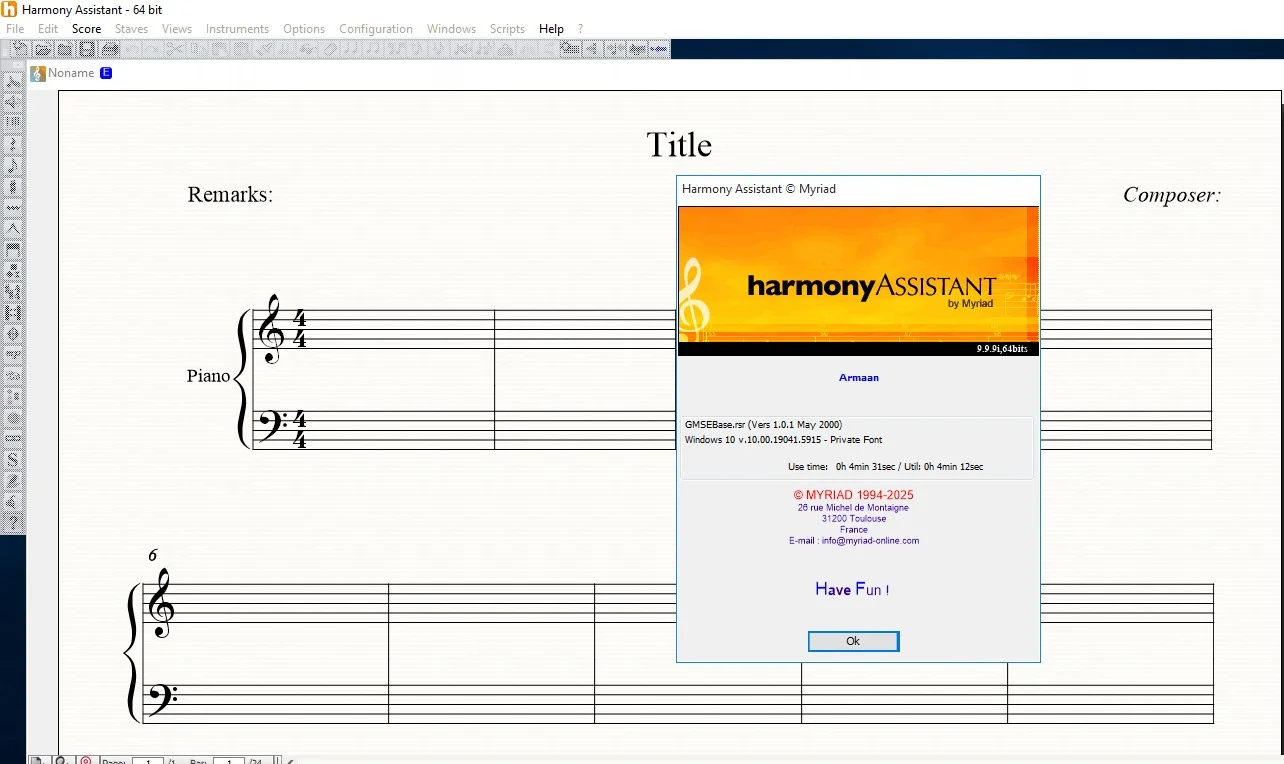
A Quick Guide to the Interface
-
The Main Menu: Located at the top, this provides access to all primary functions like File, Edit, View, and Score.
-
The Toolbar: Contains icons for common actions like adding notes, choosing note durations, and selecting tools for editing.
-
The Score Window: This is the main workspace where you will create and edit your music. It displays your sheet music in a clear, professional format.
-
The Palettes: These windows (often found on the side) provide quick access to musical symbols, such as dynamics, articulations, and ornaments. You can drag and drop these symbols directly onto the score.
Basic Note Input Methods
-
Mouse & Keyboard: Click on the staff to place notes. Use the toolbar to select the note length (e.g., quarter note, half note) and then click on the desired pitch location on the staff.
-
MIDI Keyboard: If you have a MIDI keyboard connected, you can use it to input notes in real-time or in step-time mode. Step-time mode is particularly useful for accurate transcription, where you set the note duration and then play the desired pitch on the keyboard.
-
Computer Keyboard: You can also use your computer’s keyboard as an input method, with specific keys mapped to different pitches and durations.
Best Use Cases for Harmony Assistant
Harmony Assistant is a versatile tool suitable for various musical applications:
-
Music Composition and Songwriting: Music composers and songwriters can use it to develop their ideas from a simple melody to a full orchestral score. The software’s ability to provide harmony suggestions is invaluable for songwriters exploring different chord progressions.
-
Music Education: As an educational tool, it is perfect for music teachers and students. Teachers can use it to create engaging lesson materials and exercises, while students can use it to complete homework, study music theory, and develop their aural skills through playback.
-
Arranging and Orchestrating: Music arrangers and orchestrators will appreciate the software’s ability to handle multiple instruments and complex transpositions. It’s an ideal tool for adapting existing pieces for different ensembles.
-
Choral and Vocal Composition: The multi-voice capabilities of Harmony Assistant make it suitable for composing for choir. It allows composers to write and manage multiple vocal parts (e.g., Soprano, Alto, Tenor, Bass) on a single staff or on individual staves, making it a great vocal composition software.
Advantages and Limitations
Advantages
-
Intuitive User Interface: The software is praised for its ease of use, making it accessible to beginners while still being powerful enough for advanced users. Many reviews highlight it as user-friendly music notation software.
-
Professional-Grade Features: It includes a wide array of advanced notation symbols and engraving options, ensuring that your scores look as professional as they sound.
-
Valuable Educational Features: The embedded music theory exercises and harmony generation tools are a significant advantage for music education and learning.
-
Great Value: Compared to other professional score editors, Harmony Assistant offers a compelling set of features at a competitive price point.
Limitations
-
Limited Audio Processing: While it excels at notation, it is not a full-fledged audio recording software. It lacks advanced audio effects, mixing consoles, and the ability to record live audio tracks. It is best used alongside dedicated digital audio software for production.
-
Playback Sound Quality: The quality of the built-in software synthesizer is decent but may not match the high-quality virtual instruments found in professional music production software.
Alternatives to Harmony Assistant
While Harmony Assistant is an excellent choice, several other music notation programs on the market cater to different needs and preferences.
-
Finale: A long-standing industry standard known for its extremely powerful and customizable features. It is often considered the go-to for professional engravers and publishers. However, it has a steeper learning curve and is more expensive than Harmony Assistant.
-
Sibelius: Another leading professional scorewriting software. Like Finale, it offers a comprehensive set of tools. It is favored by many composers and educators in academic settings. The learning curve and price are also similar to Finale’s.
-
MuseScore: A completely free and open-source music composition software. It has a large community, a vast library of user-shared scores, and is constantly being updated. It’s an excellent alternative for beginners or those on a tight budget.
-
Dorico: Developed by the team behind Cubase, Dorico represents a newer, more modern approach to scorewriting. It focuses on a context-sensitive workflow that many users find intuitive. It offers a premium experience, with a pricing model to match.
Frequently Asked Questions
1. Who is Harmony Assistant best suited for?
Harmony Assistant is ideal for a wide range of users, from music students and teachers to independent composers and church music arrangers. Its balance of power and user-friendliness makes it a great fit for hobbyists and semi-professionals.
2. Can I use Harmony Assistant to create tabs for guitar or bass?
Yes, Harmony Assistant supports Tablature notation, making it a useful tool for guitarists and bassists. You can easily create and edit guitar tabs alongside traditional staff notation.
3. Does Harmony Assistant support third-party virtual instruments (VST)?
Harmony Assistant does not support VST instruments. It relies on its internal MIDI sound engine. However, you can export your score as a MIDI file and import it into a DAW that supports VST plugins for advanced sound design and mixing.
4. Can I import or export MusicXML and MIDI files?
Absolutely. Harmony Assistant offers robust support for both MusicXML and MIDI files, allowing you to exchange your work with other music software, like a digital audio workstation or other score editors.
5. What is the difference between the Standard and Professional versions?
The Professional version typically unlocks advanced features like unlimited staffs, enhanced export options, and additional symbols, making it better suited for professional publishers and composers working on large, complex scores.
6. Is there a free trial version of Harmony Assistant available?
Yes, a fully functional trial version is usually available for download from the official website, allowing you to test the software’s features before making a purchase.
7. What are the main differences between Harmony Assistant and MuseScore?
MuseScore is a free, open-source option, while Harmony Assistant is a paid commercial product. Harmony Assistant is often highlighted for its more user-friendly interface and its built-in harmony engine, whereas MuseScore boasts a massive user community and a vast library of user-generated content.
Final Thoughts
Harmony Assistant v1.0.1 stands as a powerful and versatile music score editor that successfully bridges the gap between professional-grade features and user-friendly design. Whether you are a composer bringing a symphony to life, an educator preparing for the next class, or a student learning the fundamentals of music theory, this software provides the tools you need.
Its new enhancements in version 1.0.1, including improved playback and better file compatibility, make it an even more compelling option. As a music creation software, it offers exceptional value. While it may not replace a full digital audio workstation for audio production, it excels in its core purpose of notation, arrangement, and composition. It is a reliable and effective piece of music technology that we highly recommend for anyone serious about writing and sharing their music.
Our Paid Service