

Download the Rocket Broadcaster 1.4.10 (The Lightweight Audio Encoder for Professional Internet Radio) from this link…

Overview of Rocket Broadcaster
Table of Contents
Rocket Broadcaster is a dedicated audio streaming encoder for Microsoft Windows (versions 7 through 11) designed to capture audio from a variety of sources—microphones, line-in devices, and even other software applications—and transmit it to a streaming server . Its primary function is to convert raw audio into a digital stream using specific codecs (like MP3 or AAC) and send it to platforms such as Icecast, SHOUTcast, and RadioKing .
The software distinguishes itself through its dual focus on efficiency and functionality. Unlike more complex suites that bundle automation and music management, Rocket Broadcaster focuses on doing one thing exceptionally well: streaming. This results in a clean, intuitive interface that is accessible to beginners while still offering the depth required by broadcast engineers . It is available in both a free version, perfect for testing and basic needs, and a Pro version that unlocks advanced audio processing for a polished, professional sound .
Key Features
Rocket Broadcaster packs a robust set of features designed to ensure a stable, high-quality, and professional broadcast. Here is a breakdown of what makes this software a powerful tool in any broadcaster’s arsenal.
-
Broad Format Support and High-Quality Audio Encoding: The software supports a wide range of modern audio codecs to ensure compatibility and sound quality. It can stream in MP3, AAC, Ogg Vorbis, and Ogg Opus. For audiophiles and professionals demanding the utmost fidelity, it even supports lossless Ogg FLAC . The Free version streams reliably at 128kbps, while the Pro version offers higher bitrates and advanced encoding options .
-
Versatile Audio Source Capture: One of its most powerful features is the ability to capture audio not just from physical inputs, but from any application running on your computer. This means you can seamlessly broadcast live interviews from Skype, mix in music from Spotify, or incorporate sound effects from a web browser . This “system audio capture” eliminates the need for complex virtual audio cables, simplifying the mixing process .
-
Comprehensive Metadata Management: Keeping listeners informed is crucial for engagement and licensing compliance. Rocket Broadcaster offers multiple methods to ensure your stream displays the correct “Now Playing” information :
-
Window Title Capture: It can read metadata directly from the title bar of media players like VLC or Winamp.
-
TCP Server Method: For advanced setups, it can receive metadata over a network from automation systems like SAM Broadcaster or RadioBOSS.
-
Text File Ingestion: It can monitor a text or XML file that your automation software updates in real-time.
-
-
High-Availability and Reliability: Stability is non-negotiable for live broadcasting. Rocket Broadcaster is built for “studio use” and can run for months without interruption . If the connection to the server drops, the auto-reconnect feature immediately works to restore the stream, minimizing downtime and maintaining a professional presence .
-
Broadcast Audio Processor (Pro Version): The Pro version elevates audio quality with a built-in DSP (Digital Signal Processing) suite. This includes a multiband compressor, Automatic Gain Control (AGC), a limiter, and ITU BS.1770 loudness metering . These tools ensure your broadcast maintains a consistent, competitive volume level across all types of content, from quiet interviews to loud music.
What’s New in the Latest Version (1.4.10)
As of the latest update, Rocket Broadcaster version 1.4.10 continues to refine the user experience with a focus on stability and compatibility. While the core functionality remains robust, this iteration ensures full support for the latest Windows 11 updates and maintains seamless integration with third-party automation software via its TCP metadata server . Users can expect a polished, bug-free experience that aligns with the latest standards for streaming protocols, making it a reliable choice for broadcasters who depend on consistency.
System Requirements
Before downloading Rocket Broadcaster, ensure your system meets these modest requirements, which reflect its lightweight design:
| Component | Requirement |
|---|---|
| Operating System | Windows 7, 8, 10, or 11 (both 32-bit and 64-bit versions) |
| Processor | 1 GHz or faster (Modern multi-core processors recommended for Pro features) |
| RAM | 512 MB minimum (1 GB or more recommended) |
| Hard Disk Space | Approximately 65 MB for installation |
| Sound Card | Any Windows-compatible sound card or audio interface |
| Internet Connection | Broadband connection required for streaming (e.g., Cable, DSL, Fiber) |
Installation Guide
Getting started with Rocket Broadcaster is a straightforward process. Follow this step-by-step guide to install the software on your Windows PC.
-
Download the Installer: Visit the official Rocket Broadcaster website or a trusted software repository like Softpedia. Download the latest version.
-
Run the Installer: Locate the downloaded file and double-click it to run. If prompted by User Account Control (UAC), click “Yes” to allow the installer to make changes to your device.
-
Follow the Setup Wizard: The installation wizard will guide you through the process. It is a typical, “surprise-free” installation. Accept the license agreement and choose your preferred installation directory (the default is usually fine) .
-
Complete Installation: Click “Install” and wait for the process to complete. Once finished, you can choose to launch Rocket Broadcaster immediately. The entire process should only take a couple of minutes .
How to Use the Software: A Beginner’s Guide
Once installed, configuring Rocket Broadcaster correctly is key to a successful broadcast. Here’s how to set it up and go live.
1. Initial Configuration (Audio Setup)
First, you need to tell Rocket Broadcaster where your sound is coming from.
-
Open the software and go to Options > Preferences .
-
Audio Tab:
-
Set the Sample Rate to 44100 Hz. This is the standard for CD-quality audio and ensures compatibility with most streaming servers .
-
Select your Input Device. Choose your microphone or audio interface from the dropdown menu.
-
-
System Audio Capture Tab: If you plan to play music from apps like Spotify or web browsers, check the box to enable System Audio Capture and select “System Default.” This will route all computer audio through the encoder .
2. Setting Up Your Stream
Now, you need to connect the software to your streaming server (e.g., RadioKing, Live365, or your own Icecast server).
-
Go to Broadcast > Streams in the top menu .
-
Click “New” or edit the default stream. You will need to enter the connection details provided by your streaming host:
-
Server Type: Usually Icecast 2 or SHOUTcast .
-
Hostname / IP: The address of your streaming server.
-
Port: Commonly 80 or 8000
-
Mount Point: A unique identifier for your stream.
-
Username & Password: Your login credentials for the server .
-
-
Click “Test” to verify the connection, then “OK” to save.
3. Going Live
With everything configured, you are ready to broadcast.
-
In the main window, click the large “Start Broadcast” button .
-
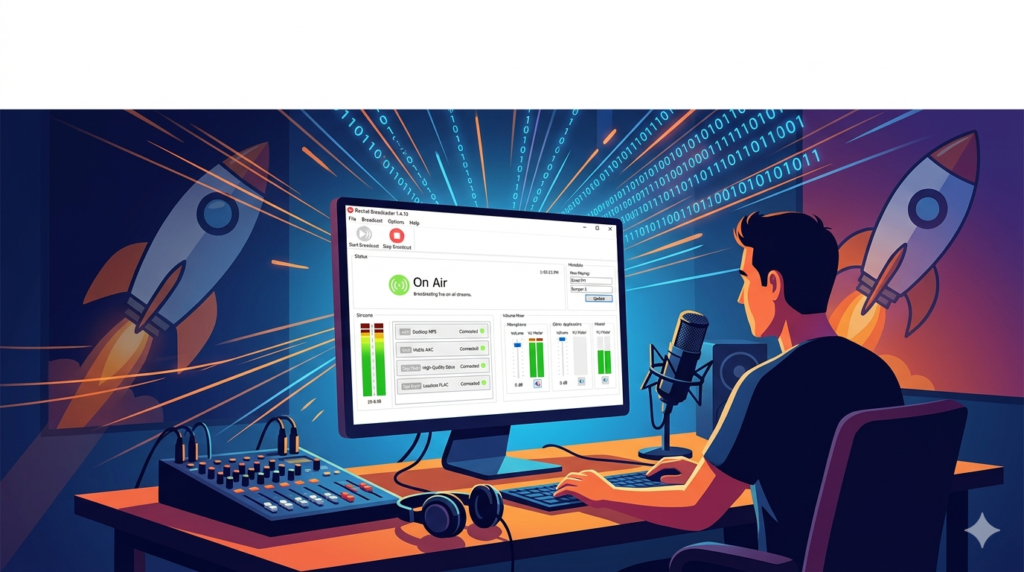
If the connection is successful, the status will change to “On Air,” and you will see the audio levels moving in the mixer .
-
To end your broadcast, simply click the “Stop Broadcast” button. It is crucial to do this so your AutoDJ or scheduled programming can resume .
Best Use Cases
Rocket Broadcaster’s versatility makes it suitable for a wide range of broadcasting scenarios.
-
Live Internet Radio Shows: Perfect for DJs and talk show hosts who need a reliable tool to broadcast live interviews and music. Its low resource usage means it can run alongside other DJ software like Mixxx or Virtual DJ without issue .
-
24/7 Automated Radio Stations: While Rocket Broadcaster itself is an encoder, it pairs perfectly with automation software like RadioBOSS. The automation software manages the playlist, and Rocket Broadcaster encodes and streams the audio, using its robust metadata ingestion to keep the now-playing info accurate .
-
Remote Broadcasting and Interviews: By utilizing the “System Audio Capture” feature, broadcasters can easily include remote guests via Skype or Zoom. The software captures the guest’s audio directly, mixing it with the host’s microphone for a seamless show .
-
Live Event Streaming: For broadcasting live events, concerts, or church services, Rocket Broadcaster can take the feed from a mixing board (via a USB audio interface) and stream it reliably to an online audience, with the auto-reconnect feature providing peace of mind.
Advantages and Limitations
Understanding the pros and cons of Rocket Broadcaster will help you decide if it is the right tool for your workflow.
Advantages
-
Lightweight and Efficient: Uses minimal system resources, allowing it to run smoothly on older hardware or alongside other intensive applications .
-
User-Friendly Interface: Its simple, uncluttered design makes it accessible for beginners while still housing powerful features .
-
Professional-Grade Features: The Pro version offers advanced audio processing (AGC, limiter, compressor) that is usually found in much more expensive software .
-
Exceptional Stability: Designed for 24/7 operation with auto-reconnect capabilities, ensuring your stream stays on the air .
-
Flexible Metadata Handling: Multiple methods for ingesting metadata make it compatible with nearly any automation system .
Limitations
-
Windows-Only: The software is exclusively for Windows. Mac users will need to look for alternatives like LadioCast or Audio Hijack .
-
No Built-in Music Player/Automation: Unlike all-in-one suites like SAM Broadcaster or RadioBOSS, Rocket Broadcaster is solely an encoder. You must use separate software to play and manage your music library .
-
Advanced Features Require Pro Version: Features like the broadcast audio processor and support for the AAC codec are locked behind a paywall .
Alternatives to Rocket Broadcaster
The best encoder for you depends on your platform and needs. Here’s how Rocket Broadcaster stacks up against the competition :
| Software | Best For | Platform | Key Differentiator |
|---|---|---|---|
| Rocket Broadcaster | Lightweight & Efficient Streaming | Windows | Low resource usage, excellent stability, optional pro audio processing. |
| BUTT (Broadcast Using This Tool) | Free, Simple Broadcasting | Win, Mac, Linux | Completely free, open-source, and cross-platform, but with a minimal interface. |
| SAM Broadcaster | Professional All-in-One Station | Windows | Comprehensive suite with built-in automation, scheduling, and music library management. |
| RadioBOSS | Powerful Automation | Windows | Focuses heavily on playlist scheduling and automation, can be paired with Rocket. |
| Mixxx | Live DJ Mixing | Win, Mac, Linux | Free, open-source DJ software with built-in streaming capabilities. |
| Audio Hijack | Advanced Audio Routing (Mac) | macOS | The go-to for Mac users needing to capture and route audio from any application. |
Frequently Asked Questions
Here are answers to some common questions about Rocket Broadcaster.
Is Rocket Broadcaster really free?
Yes, there is a free version of Rocket Broadcaster. It allows you to stream one audio input at 128kbps, which is perfect for getting started and for many basic broadcasting needs .
How much does the Pro version cost?
The Pro version is available for a one-time payment of $49 (though some sources may list it at $99, it’s best to check the official site) . This unlocks advanced features like the broadcast audio processor, AAC encoding, and multiple sound inputs .
Can I use Rocket Broadcaster on a Mac?
No, Rocket Broadcaster is developed exclusively for the Windows operating system. Mac users can explore excellent alternatives such as LadioCast (free) or Audio Hijack (premium) .
What streaming servers is it compatible with?
Rocket Broadcaster is highly compatible and works with the most common streaming protocols. It supports Icecast (v2), SHOUTcast (v1 and v2), and its own Rocket Streaming Audio Server (RSAS) . This means it will work with most radio hosting services like Live365, Radio.co, and RadioKing .
How do I display “Now Playing” info?
Rocket Broadcaster can automatically capture song metadata. You can configure this by going to Broadcast > Metadata Capture. It can grab the song title from another application’s window (like VLC), read it from a text file, or receive it over a network connection (TCP) from your automation software .
What happens if my internet connection drops?
Rocket Broadcaster is built for resilience. It features an Auto-Reconnect function. If the connection to the server is lost, the software will automatically attempt to reconnect every few seconds to restore your broadcast .
Final Thoughts
Rocket Broadcaster successfully carves out its niche as a reliable, efficient, and surprisingly powerful streaming encoder. It strips away the complexity of all-in-one broadcasting suites and focuses on its core mission: getting your high-quality audio from your computer to your server without fail. For Windows-based broadcasters, from weekend hobbyists to dedicated radio professionals, its blend of a user-friendly interface, rock-solid stability, and professional-grade audio processing (in the Pro version) makes it an excellent choice. While it requires pairing with separate software for music playback, this specialization is its greatest strength, allowing it to be the dependable backbone of your live streaming setup. If you value efficiency and reliability in your broadcast chain, Rocket Broadcaster is absolutely worth considering.
Premium Software Support Service
If you need professional help with software installation, setup, or technical configuration, our team is available to assist you.
Contact & Support
For quick assistance and latest updates, connect with us using the links below:
🔹 Direct Telegram Support
https://t.me/PlayoutKing
🔹 Official Telegram Updates Group
https://t.me/yourgroup
🔹 WhatsApp Community Group
https://chat.whatsapp.com/yourlink
Service Policy
- Remote testing available through AnyDesk before confirmation.
• Verify the setup and performance before completing the order.
• Support available for single or multiple systems.
• Step-by-step guidance to ensure smooth installation and working environment.
Our goal is to provide reliable technical assistance so your software runs smoothly without interruptions.