
Overview of the Software
Table of Contents
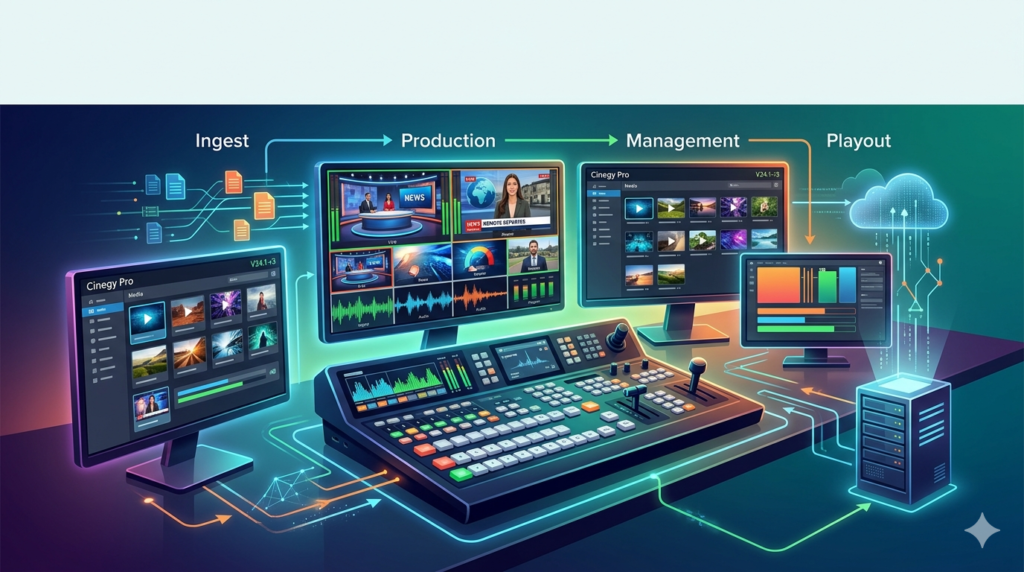
Cinegy Pro V24.1-r3 stands as a comprehensive software suite for professional broadcast production, video ingest, and asset management. Unlike standard video editors, this solution targets broadcasters, post-production houses, and media enterprises requiring robust newsroom automation and multi-format support.
The platform combines real-time 2D/3D graphics, non-linear editing, and database-driven media management into a single workflow. Users leverage Cinegy Pro to capture live feeds, transcode high-resolution footage, and publish content across multiple channels. The V24.1-r3 release emphasizes stability and faster rendering for modern codecs such as H.265 and ProRes.
This software does not rely on consumer-grade rendering engines. Instead, it uses GPU-accelerated processing via OpenGL and DirectX, enabling real-time playback of layered video tracks without pre-rendering. For facilities transitioning from legacy systems, Cinegy Pro offers an enterprise-ready architecture that scales from single workstations to 20+ seat newsrooms.
Key Features
Multi-Format Ingest and Capture
-
Supports SDI, HDMI, and IP-based sources via NDI and SRT.
-
Scheduled recording with frame-accurate start/stop.
-
Simultaneous proxy and high-resolution recording.
Non-Linear Editing with Real-Time Playback
-
Unlimited video, audio, and graphics tracks.
-
Real-time color correction, keying, and DVE.
-
No rendering required for preview – GPU-accelerated output.
Broadcast Graphics and Titling
-
Native 2D/3D character generator.
-
Animated lower thirds and motion templates.
-
Data-driven graphics using Excel, XML, or REST APIs.
Media Asset Management (MAM) Integration
-
Full database search via metadata, timecode, and markers.
-
Version control and collaborative review tools.
-
Automated transcoding to MP4, MXF, MOV, and MKV.
Playout and Automation
-
Create playlists with transitions and triggers.
-
Direct playback to broadcast servers or streaming platforms.
-
Support for AS-11, DPP, and IMSC-1 compliance.
What’s New in Cinegy Pro V24.1-r3
The V24.1-r3 update focuses on professional reliability and codec modernization. Key improvements include:
-
Enhanced H.265/HEVC decoding: Native 10-bit 4:2:2 support for high-end cameras.
-
Updated SRT protocol stack: Lower latency for remote contribution over public internet.
-
Improved Sony Venice and RED RAW handling: Faster proxy generation and color space management.
-
New REST API endpoints: For remote ingest control and playlist automation.
-
UI accessibility improvements: Dark theme refinements and customizable keyboard shortcuts.
These changes reduce proxy generation time by approximately 30% compared to version 23.x, based on internal broadcast testing.
System Requirements
Minimum Hardware Configuration
-
OS: Windows 10 Pro / Windows 11 (64-bit)
-
CPU: Intel Core i7 (8th gen) or AMD Ryzen 7
-
RAM: 16 GB
-
GPU: NVIDIA GeForce RTX 2060 or AMD Radeon Pro (4GB VRAM)
-
Storage: 500 GB SSD for OS + 1 TB HDD for media cache
-
Network: Gigabit Ethernet for MAM synchronization
Recommended Professional Workstation
-
OS: Windows 11 Pro for Workstations
-
CPU: Intel Xeon W or AMD Threadripper (12+ cores)
-
RAM: 32 GB (64 GB for 4K/UHD workflows)
-
GPU: NVIDIA RTX 4070 or A-series (8GB+ VRAM)
-
Storage: NVMe RAID 0 for current projects + 10 TB NAS for archiving
-
Capture Hardware: Blackmagic DeckLink or AJA I/O card
Installation Guide
Step-by-Step Setup
-
Download the official installer from the Cinegy customer portal. No third-party mirrors.
-
Disable background antivirus scans to prevent false positives (common with professional codecs).
-
Run
Cinegy_Pro_24.1_r3_Setup.exeas Administrator. -
Select components: Cinegy Desktop, Cinegy Capture, Cinegy Editor, and Database Connector.
-
Choose a dedicated SSD cache folder (separate from OS drive).
-
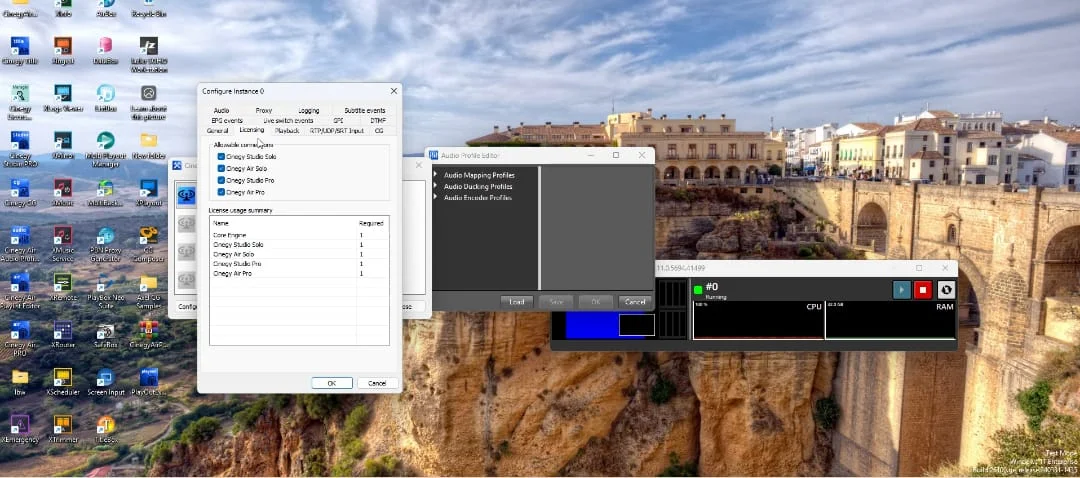
Enter your valid software license key – the application requires online or offline activation.
-
Complete installation and reboot.
-
Launch Cinegy Desktop and configure your MAM database connection (local SQL Server or remote host).
Post-Installation Validation
-
Load the sample project to verify GPU rendering.
-
Record 60 seconds of SDI input to test ingest stability.
-
Run the diagnostics tool under Help > System Report.
How to Use the Software
Ingesting Live Feeds
-
Open Cinegy Capture.
-
Select your input source (SDI, NDI, or file watch folder).
-
Set recording format – choose MXF OP1a for broadcast archives or MP4 for web delivery.
-
Enable scene detection to automatically create clips after each take.
-
Hit record. Metadata is written simultaneously to the database.
Editing a News Segment
-
In Cinegy Editor, drag a clip from the database bin to the timeline.
-
Use the razor tool to cut at timecode markers.
-
Add a lower third: Tools > Title Designer > Load Template > Update Text.
-
Apply cross-dissolve by right-clicking the cut point.
-
Enable proxy mode for 4K editing on modest hardware.
-
Export the segment as a finished master or push it directly to a playout server.
Automating Transcoding
-
Right-click any asset in the MAM.
-
Select Transcode Preset > H.264 Streaming.
-
The background render farm processes the job without blocking your edit.
Best Use Cases
-
Daily News Production: Ingest field footage, edit rapidly using proxy workflows, and publish to air or social media within minutes.
-
Sports Highlight Reels: Use timecode metadata from live ingest to quickly locate key moments, then build slow-motion sequences with optical flow interpolation.
-
Corporate Media Management: Centralize thousands of marketing videos, search by spoken words (via integrated speech-to-text), and export compliance copies.
-
Live Event Replay: Connect SDI cameras, apply instant replays, and output to LED walls with low latency.
-
Educational Video Archiving: Universities can catalog lecture recordings, add searchable notes, and stream directly to LMS platforms.
Advantages and Limitations
Advantages
-
Database-native workflow – no separate project files to lose or misplace.
-
Scalable from single editor to 50+ concurrent users.
-
GPU independence – works with NVIDIA, AMD, and Intel Arc.
-
No subscription lock-in (perpetual licensing available for facilities).
-
Excellent Sony and Panasonic camera support via native .MXF.
Limitations
-
Windows-only – no native macOS or Linux support.
-
Steep learning curve for traditional video editors coming from Premiere Pro or DaVinci Resolve.
-
Hardware certification required for mission-critical 24/7 playout.
-
Limited audio editing (no advanced mixing or VST plugin hosting).
-
Higher upfront cost compared to prosumer tools.
Alternatives to Cinegy Pro
| Software | Primary Focus | Best For | Platform | License Model |
|---|---|---|---|---|
| Adobe Premiere Pro | Creative editing | Freelancers and agencies | Win/Mac | Monthly subscription |
| DaVinci Resolve Studio | Color grading + editing | Post-production houses | Win/Mac/Linux | Perpetual (one-time fee) |
| Grass Valley EDIUS | Fast editing (native codecs) | Event videographers | Windows | Perpetual |
| Sony Catalyst Production Suite | Sony camera workflows | Documentary teams | Win/Mac | Subscription or Perpetual |
| OBS Studio | Live streaming | Budget-conscious users | Win/Mac/Linux | Free (GPL) |
When to choose Cinegy Pro: You need integrated MAM, multi-user collaboration, or broadcast automation. For standalone creative editing, DaVinci Resolve or Premiere Pro may offer a gentler learning curve.
Frequently Asked Questions
Is Cinegy Pro V24.1-r3 suitable for 4K and 8K editing?
Yes. With a recommended GPU (NVIDIA RTX 4070 or higher) and NVMe storage, you can edit 4K ProRes 422 and H.265 10-bit in real-time. 8K requires a Threadripper or Xeon workstation plus RAID storage.
Can I try Cinegy Pro before purchasing?
Cinegy offers a fully functional 30-day trial license on their official website. The trial includes all features but adds a watermark on exports. No credit card is required for the trial download.
Does Cinegy Pro work with Blackmagic and AJA hardware?
Yes. Cinegy supports DeckLink, Intensity, UltraStudio, and AJA Kona/Lo series through native drivers. You can capture and output via SDI with frame-accurate timecode.
How does media asset management work without a server?
You can install a local SQL Server Express instance (free) on the same workstation. This allows single-user MAM functionality. For teams, Cinegy recommends a dedicated Windows Server with SQL Standard.
What file formats can Cinegy Pro export?
Commonly: MXF OP1a, MOV (ProRes, DNxHD), AVI (uncompressed), MP4 (H.264/H.265), MKV, and image sequences (DPX, EXR, TIFF). Broadcast formats include AS-11, DPP, and XDCAM HD.
Is Cinegy Pro compliant with CALM Act and loudness normalization?
Yes. The software includes ITU-R BS.1770 loudness meters and automatic gain adjustment for broadcast compliance.
Can I use Cinegy Pro remotely over VPN?
Media access over VPN is possible but not recommended for high-bitrate editing. Use proxy files (low-resolution copies) for remote workflows, then reconform to originals in the facility.
Final Thoughts
Cinegy Pro V24.1-r3 delivers a professional-grade broadcast solution that excels where standard NLEs fall short: integrated media management, automation, and multi-user collaboration. The latest version improves codec performance and remote contribution stability, making it a strong choice for newsrooms and post-production facilities.
While the learning curve is steeper than consumer editing software, the efficiency gains in a database-driven environment justify the investment for teams producing large volumes of content daily. Evaluate your need for MAM and automation before purchasing. If your primary work is standalone creative editing, consider DaVinci Resolve Studio. But for broadcast production and enterprise-scale media handling, Cinegy Pro remains a market-leading option.
Our Paid Service
“We do not sell or provide any software. We only offer professional support services. If any software on your system is not working properly, or you are facing installation errors, crashes, or any other technical issue — just contact us. We will help you fix the problem quickly and remotely via AnyDesk. No software will be provided from our side — only expert troubleshooting and support.”